

Sign in
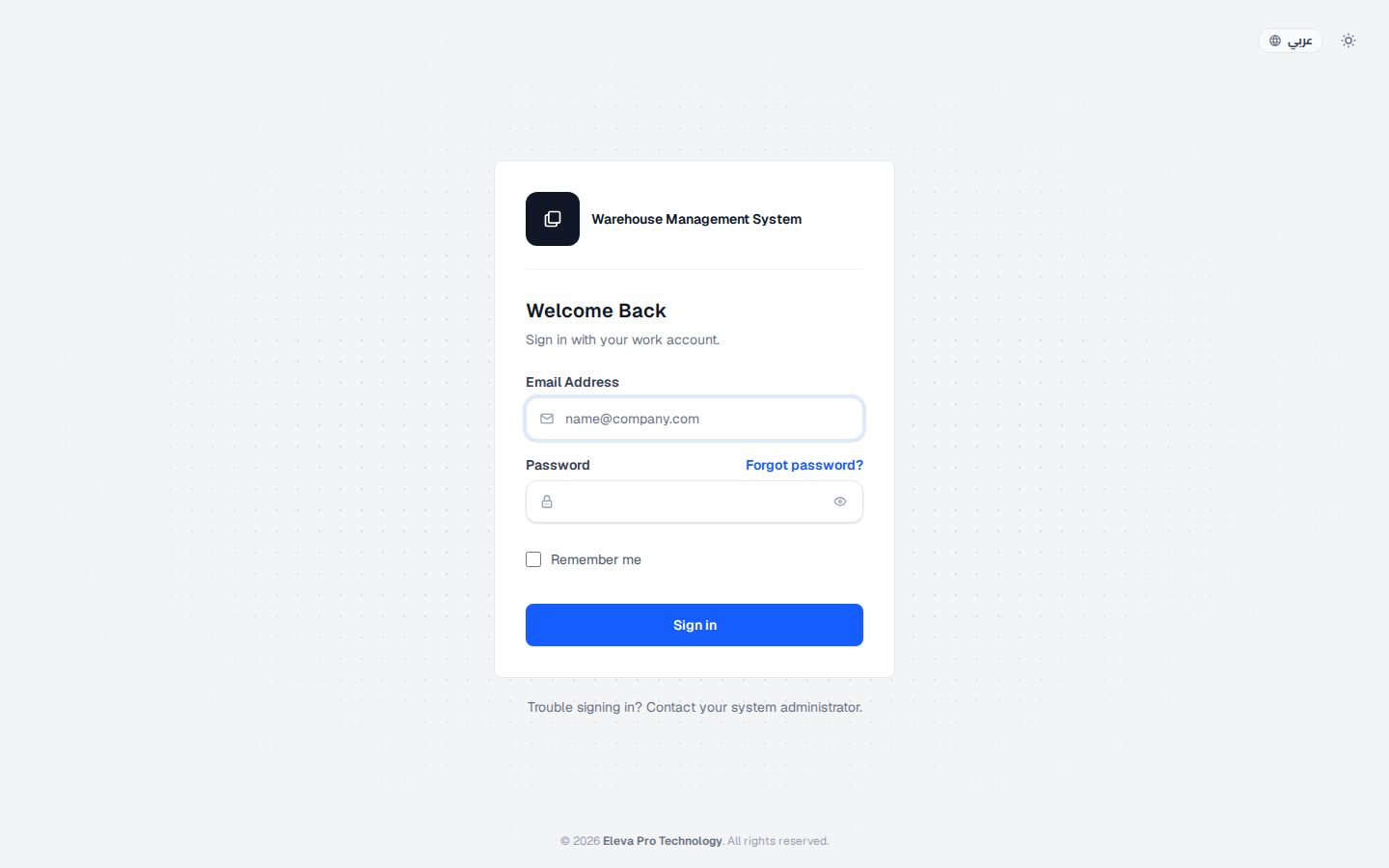
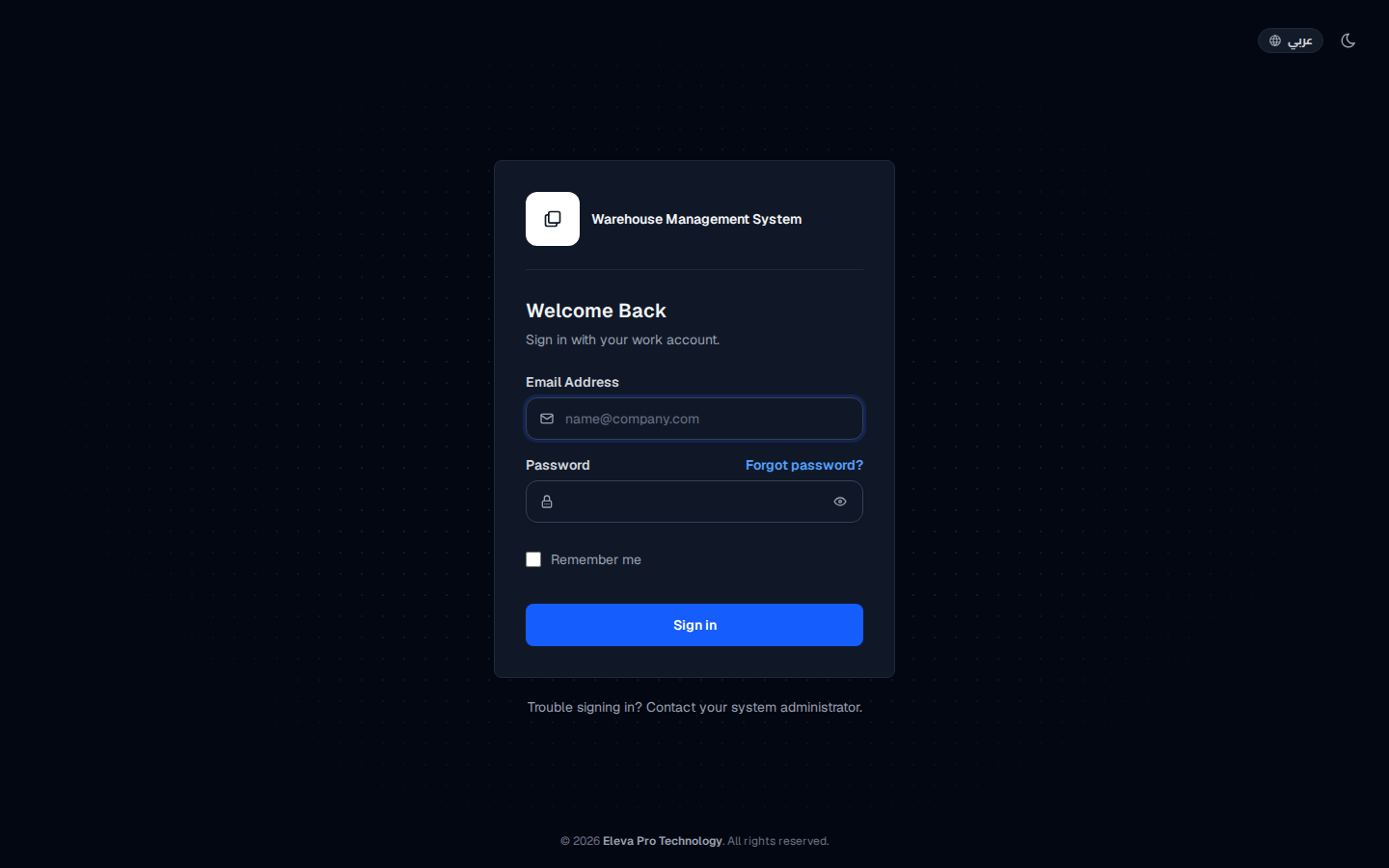
The sign-in screen is the entry point to the Warehouse Management System. You need it every time you start working, or whenever your session has ended.
What’s on this screen
Section titled “What’s on this screen”- Email Address: the work email registered on your account.
- Password: your password, with an eye icon to show or hide what you typed.
- Remember me: keeps you signed in on this device.
- Sign in: submits your details.
- Forgot password?: starts the password reset process.
How to sign in
Section titled “How to sign in”- In Email Address, type your work email.
- In Password, type your password. Click the eye icon if you want to check what you typed.
- On a personal device, tick Remember me to stay signed in.
- Click Sign in.
- If this is your first sign-in and your account requires it, follow the on-screen steps to enable two-factor authentication (2FA) before you reach the dashboard.
If sign-in fails
Section titled “If sign-in fails”If you see “These credentials do not match our records”, check that:
- The email has no extra spaces at the start or end.
- Your keyboard is set to the right language (English or Arabic).
- Caps Lock is off.
If you forgot your password, click Forgot password?.