

Two-factor authentication
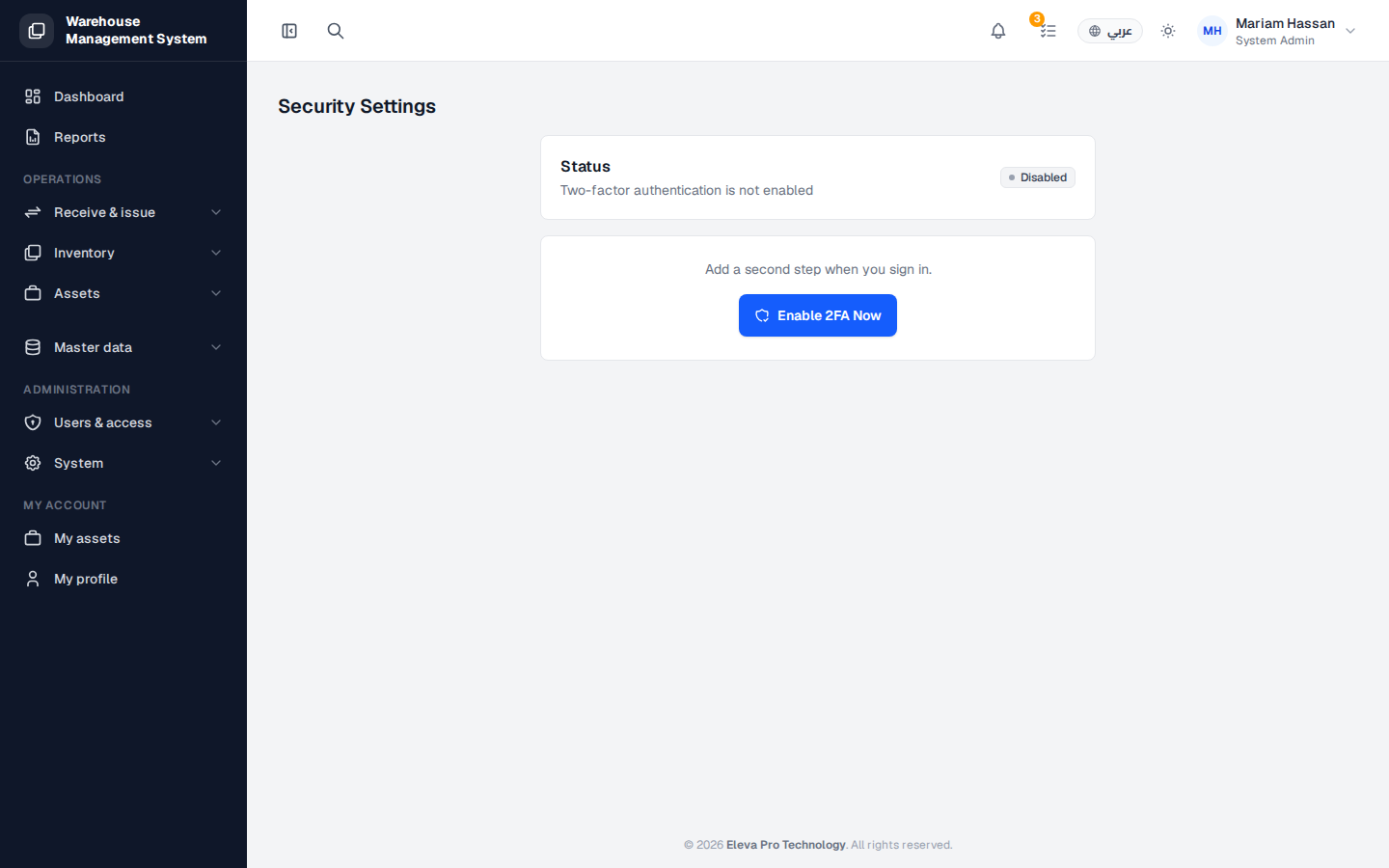
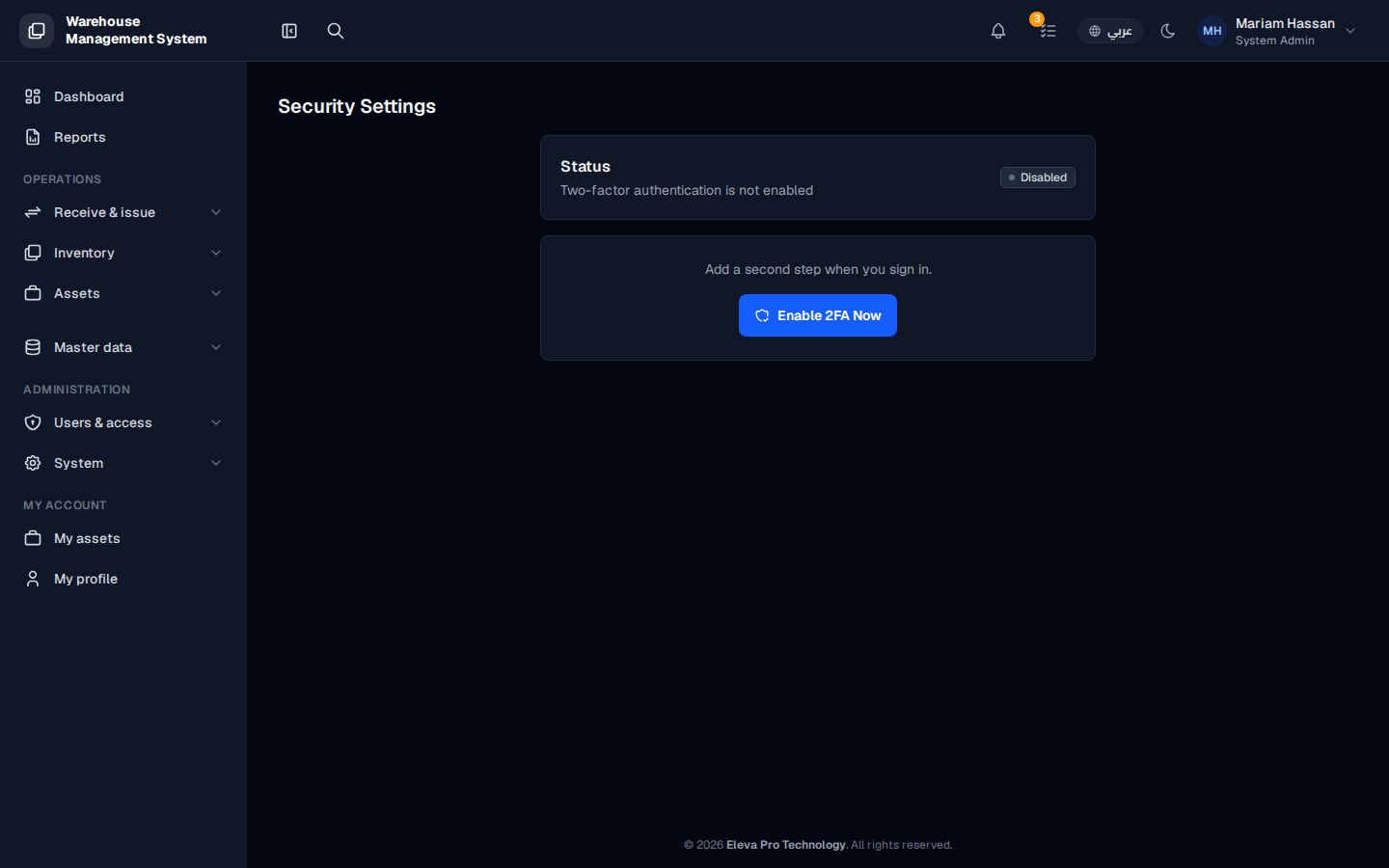
Two-factor authentication (2FA) adds a second step when you sign in: after your password, you enter a code from an authenticator app on your phone. This protects your account even if someone learns your password. Administrator and warehouse manager accounts are required to use it.
What’s on this screen
Section titled “What’s on this screen”- Status: shows whether 2FA is Disabled or enabled for your account.
- Enable 2FA Now: starts the setup when 2FA is not enabled.
How to open Security Settings
Section titled “How to open Security Settings”Click your name at the top of the screen and choose Security Settings.
How to enable 2FA
Section titled “How to enable 2FA”- On Security Settings, click Enable 2FA Now.
- Scan the QR code with an authenticator app on your phone, such as Google Authenticator, Authy or 1Password.
- Enter the 6-digit code shown in the app and click Enable.
- Save the Recovery Codes that appear in a safe place, such as a password manager.
- Click Done.
From now on, every sign-in asks for a code from the app after your password.