

System settings
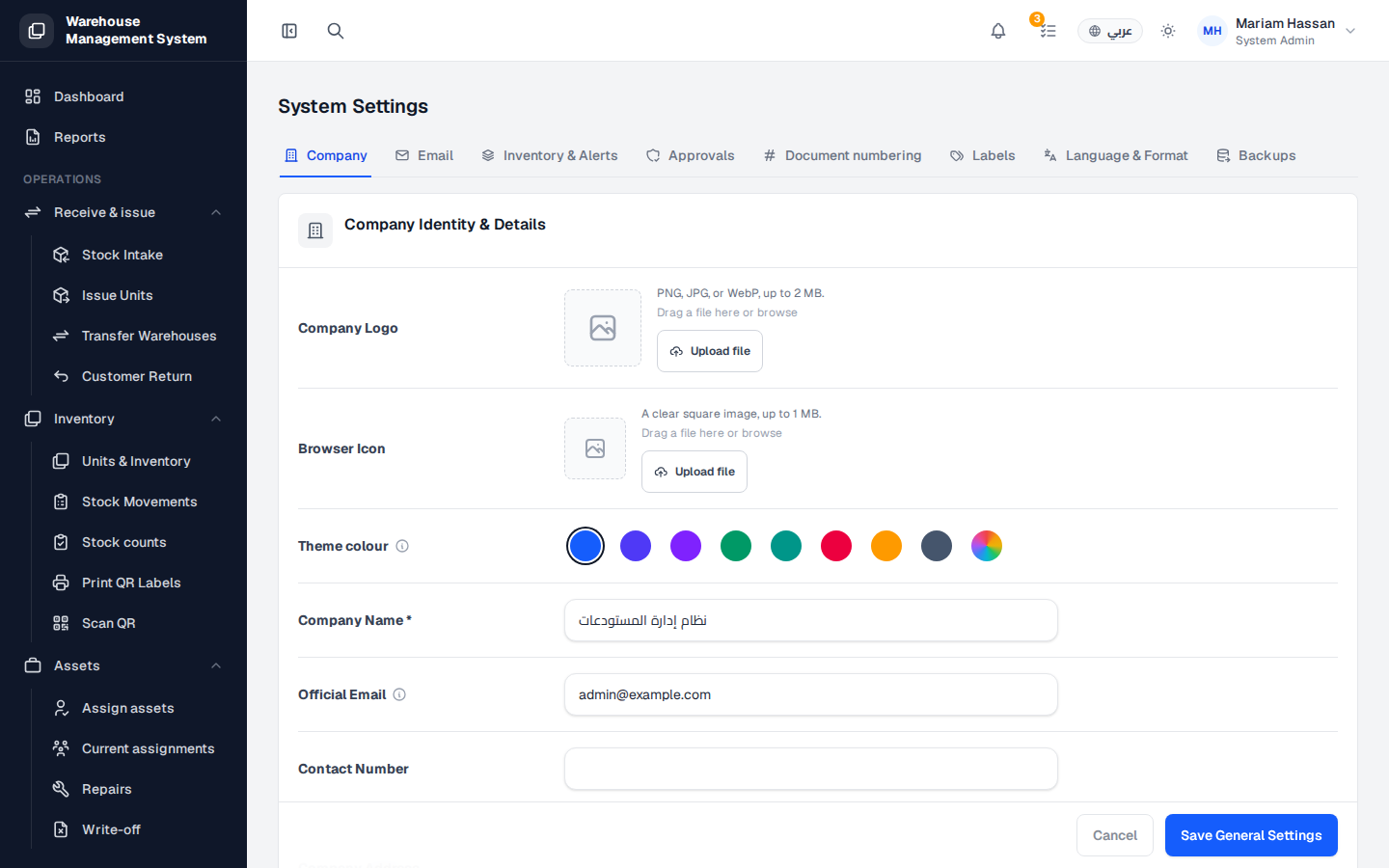
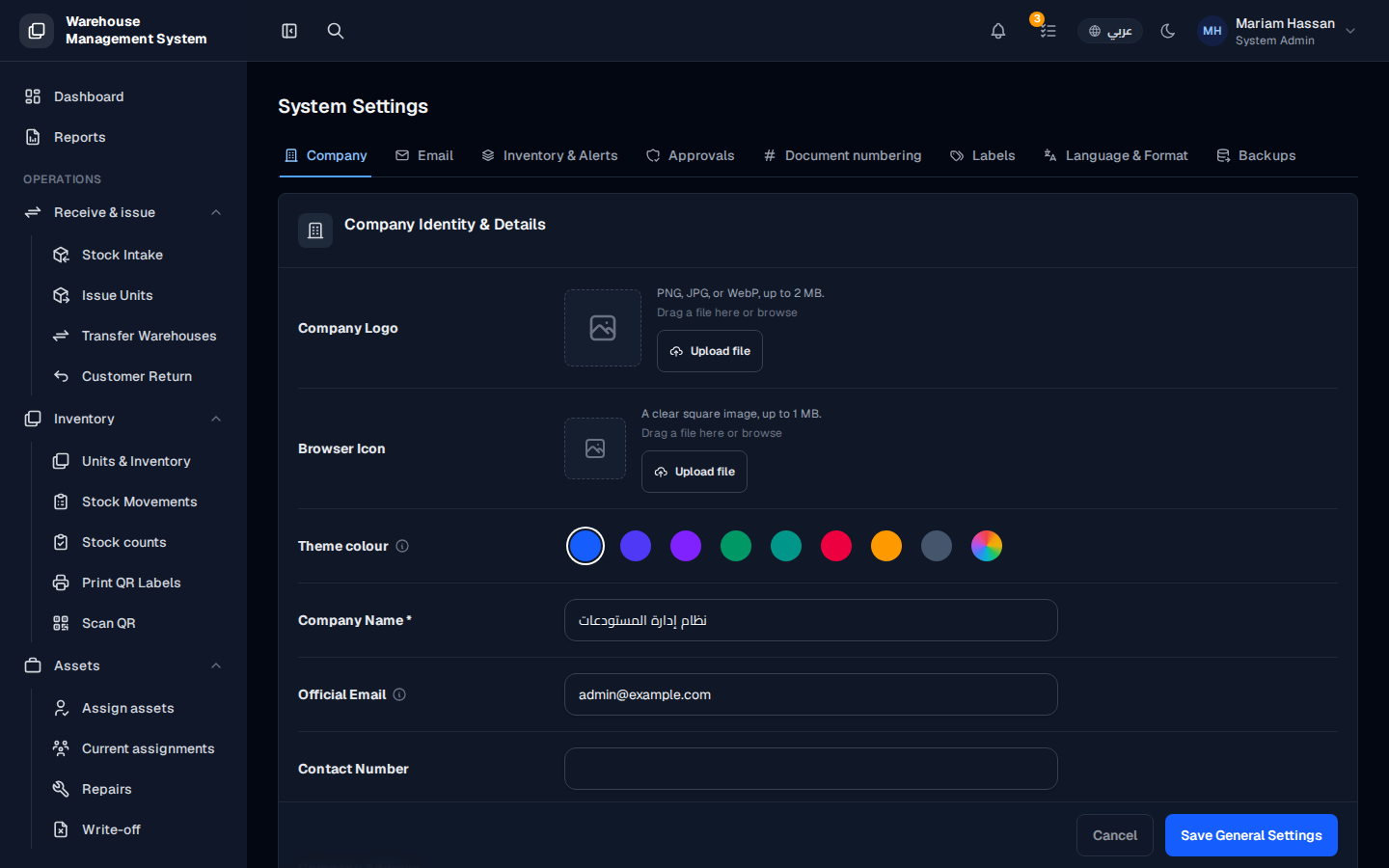
System settings control how the whole system behaves for everyone: your company’s identity, email delivery, labels, approvals, document numbering, language and backups. Administrators use this screen when first setting up the system and whenever company details or policies change.
To open it, from the side menu choose System › Settings.
What’s on this screen
Section titled “What’s on this screen”Settings are grouped into tabs:
- Company: Company Logo, Browser Icon, Theme colour, Company Name, Official Email, Contact Number, address, timezone and currency.
- Email: mail server settings, with the option to send a test email.
- Inventory & Alerts: stock and alert related settings.
- Approvals: who approves issues and write-offs for each warehouse.
- Document numbering: prefixes for movement numbers, such as ISS-, TRF- and RCV-.
- Labels: default label size, code type (QR or linear barcode) and sheet dimensions.
- Language & Format: default language, date format, thousand and decimal separators.
- Backups: automatic backup schedule (daily or weekly) and restoring from a backup.
How to update company details
Section titled “How to update company details”- Open the Company tab.
- To change the logo or browser icon, click Upload file or drag an image onto the box.
- Pick a Theme colour.
- Edit Company Name, Official Email, Contact Number and the other fields as needed.
- Click Save General Settings, or Cancel to discard your changes.
How to change other settings
Section titled “How to change other settings”- Open the tab you need.
- Make your changes.
- Save them before leaving the tab.
Some changes apply to your session only after you sign out and sign in again.