

Stock count details
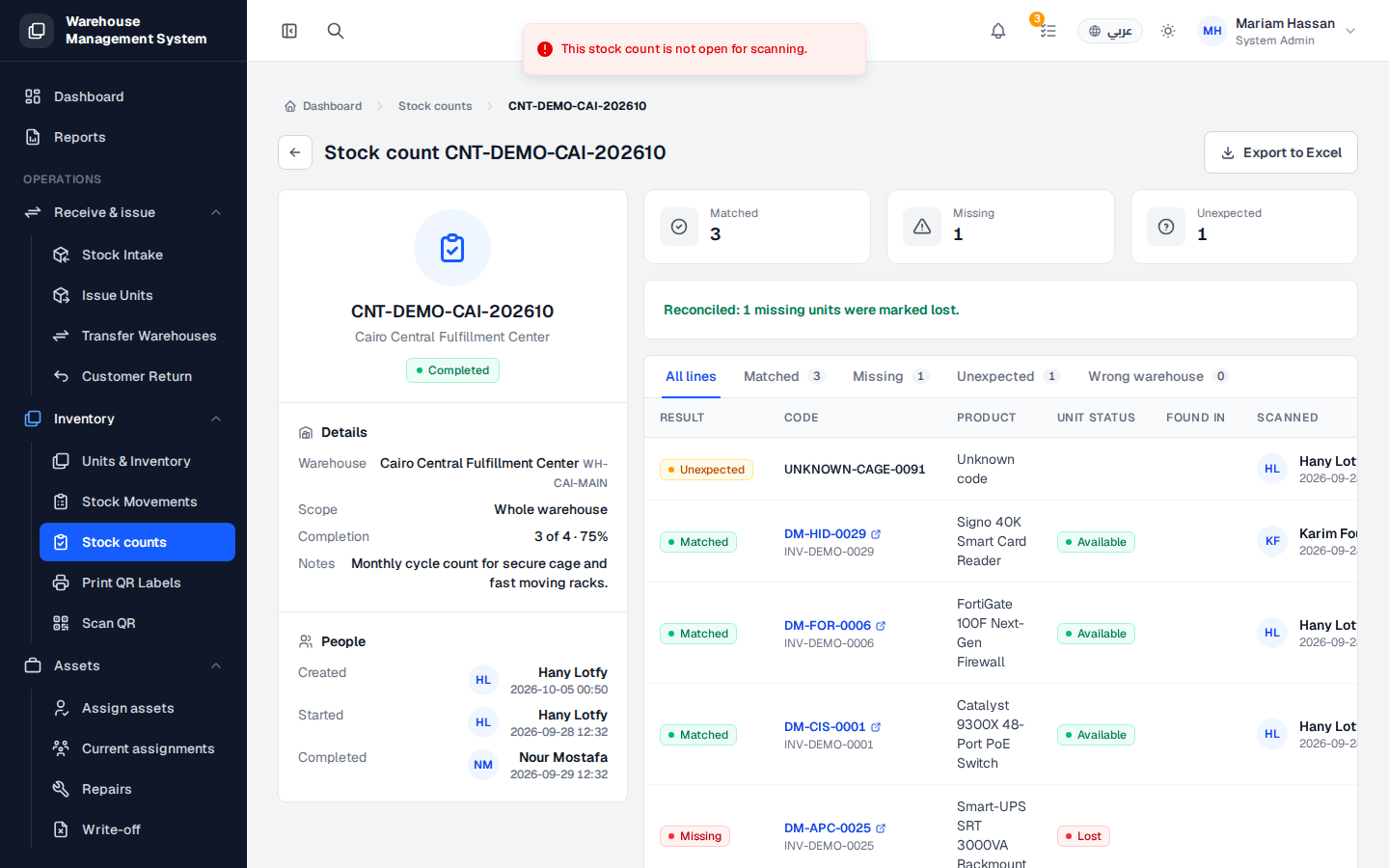
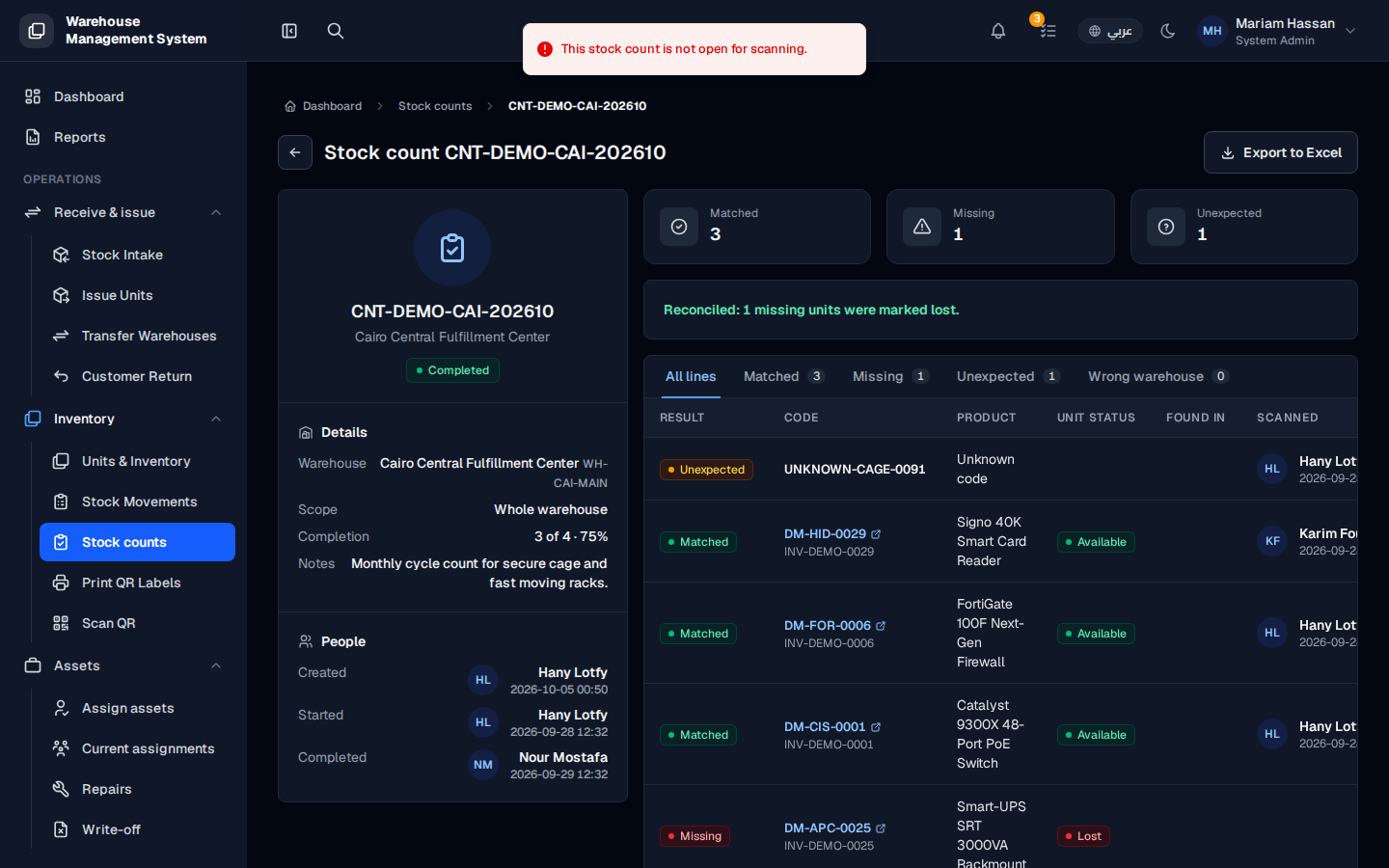
This screen is where a stock count is carried out and reviewed. While the count is in progress you scan units to record what is on the shelves; the system compares each reading with the expected list and shows the discrepancies. After the count is completed, the same screen keeps the results for review and export.
What’s on this screen
Section titled “What’s on this screen”- Count card — reference, warehouse and status of the count.
- Details — Warehouse, Scope, Completion (how many expected units were found) and Notes.
- People — who Created, Started and Completed the count, and when.
- Summary tiles — the number of Matched, Missing and Unexpected units.
- Reconciliation message — shown after completion, for example how many missing units were marked lost.
- Result tabs — All lines, Matched, Missing, Unexpected and Wrong warehouse.
- Lines table — Result, Code, Product, Unit status, Found in and Scanned (who scanned the unit and when).
- Export to Excel — download the count’s lines.
Result types
Section titled “Result types”- Matched — an expected unit was found.
- Missing — an expected unit was not scanned.
- Unexpected — a unit was found that was not on the expected list.
- Wrong warehouse — the unit is registered in a different warehouse.
How to run a count
Section titled “How to run a count”- From the side menu, under Inventory, open Stock counts.
- Find a count that is In progress and open its counting screen from Actions.
- Scan each unit’s QR code or barcode to record it.
- Watch the summary tiles and result tabs to follow the discrepancies.
- When the count is complete, review the Missing and Unexpected lines before reconciling.
How to review a completed count
Section titled “How to review a completed count”- Open the count from Stock counts.
- Use the result tabs to focus on a type of discrepancy.
- Click Export to Excel to keep or share the results.