

Dashboard
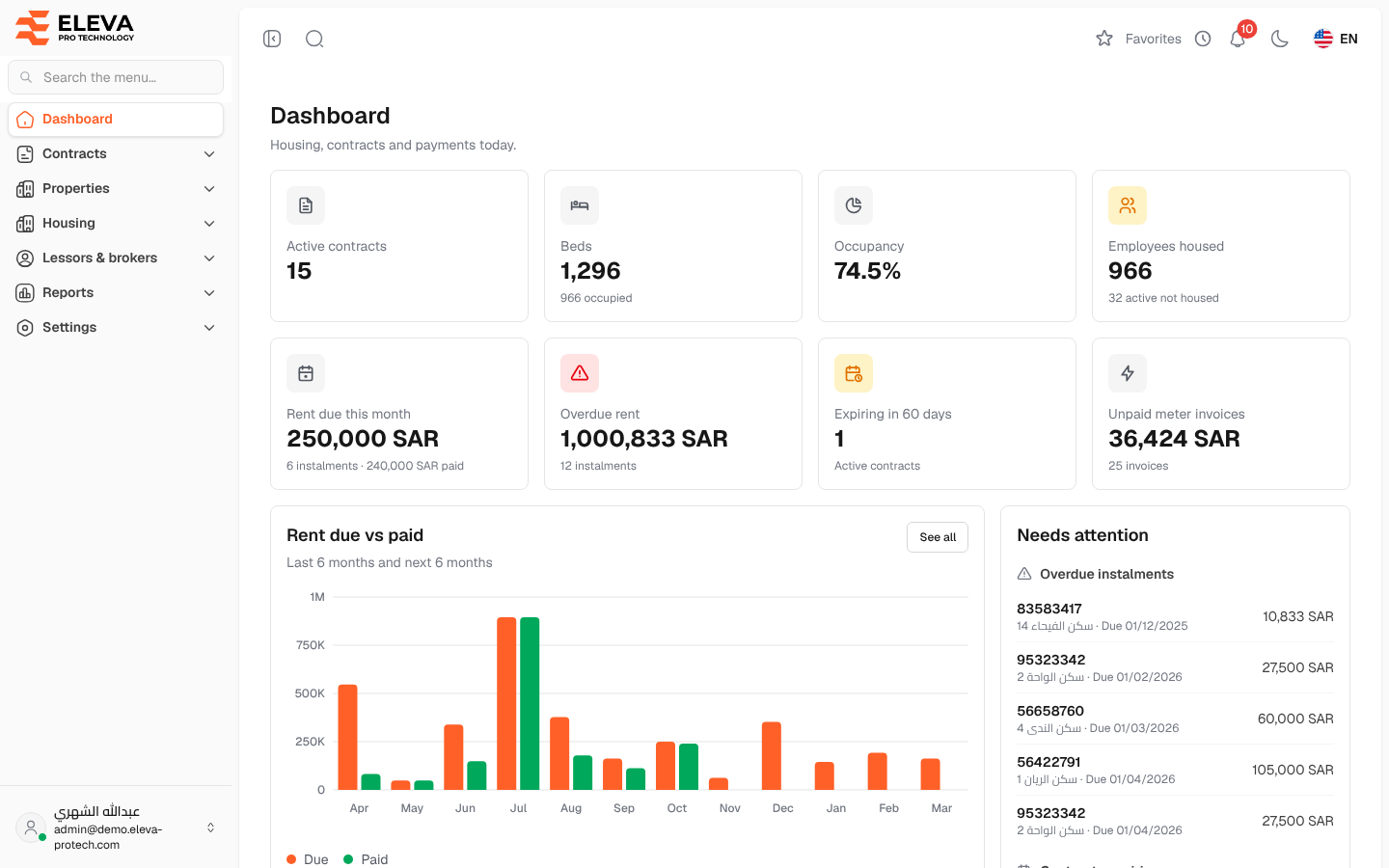
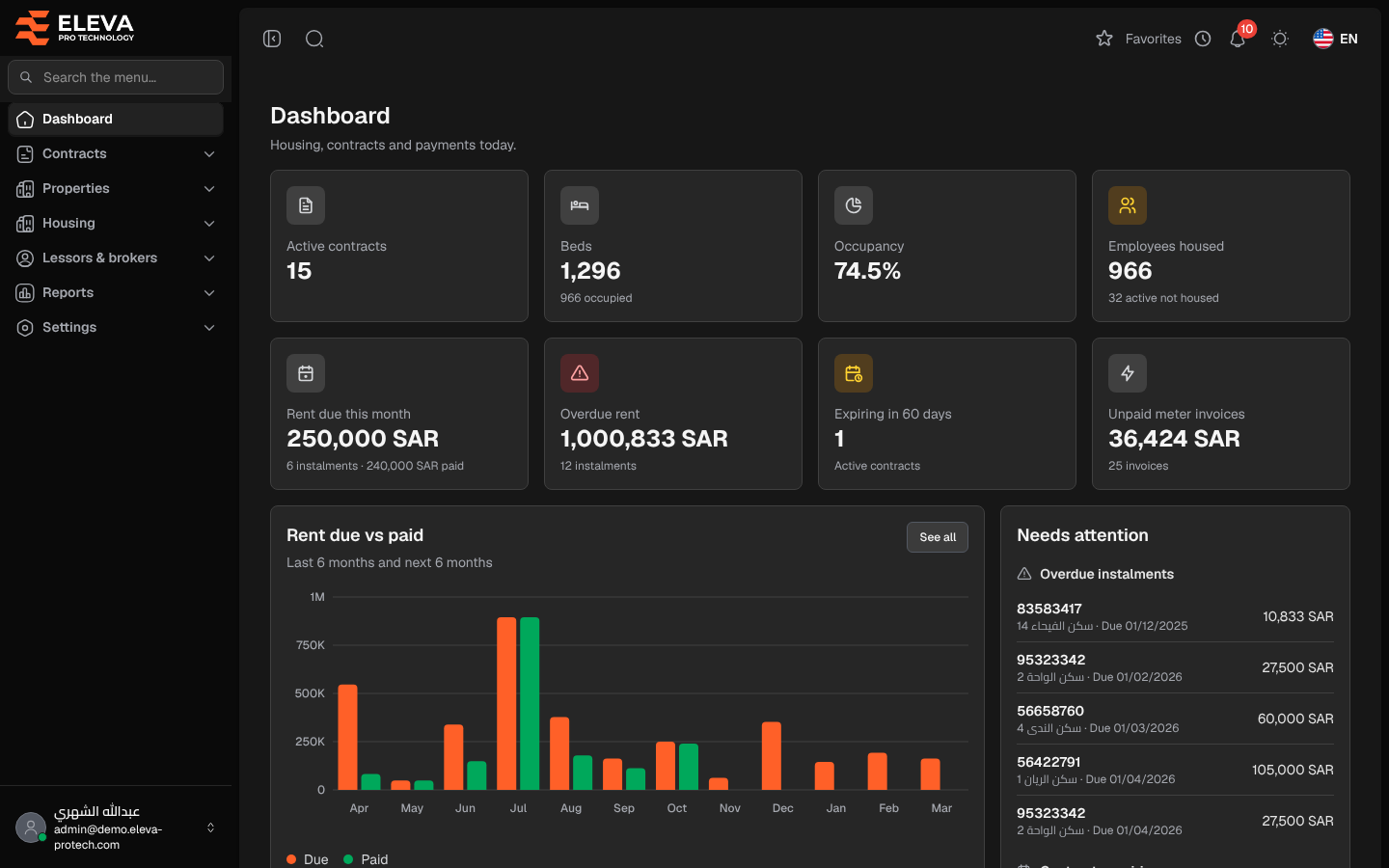
The dashboard is the home screen after you sign in. It shows the state of housing, contracts and payments today, and lists what needs follow-up: overdue rent instalments, contracts ending soon and rooms with more residents than beds. To return to it, click Dashboard at the top of the side menu.
The figures cover only the buildings, contracts and employees you are allowed to see (your regions and projects).
What’s on this screen
Section titled “What’s on this screen”The first two rows are key figures. Each card opens the related screen when clicked:
- Active contracts: the number of active lease contracts. Opens Contracts.
- Beds: all beds, with the number occupied underneath. Opens the Housing board.
- Occupancy: occupied beds as a percentage of all beds. Opens the Housing analysis report.
- Employees housed: employees living in a room today, with the number of active employees who are not housed underneath. Opens Employees.
- Rent due this month: the total of the instalments due this month, with their number and the amount already paid. Opens Rent payments.
- Overdue rent: the total and number of instalments whose payment deadline has passed without payment. Opens Rent payments.
- Expiring in 60 days: active contracts that end within the next 60 days. Opens Contracts.
- Unpaid meter invoices: the total and number of unpaid meter invoices. Opens Meter invoices.
Below them:
- Rent due vs paid: the rent due and the rent paid for each month, over the last 6 months and the next 6 months.
- Needs attention: up to five lines in each group: Overdue instalments, Contracts expiring soon and Rooms over capacity. Click a line to open the contract or the housing board. When there is nothing to follow up, the card shows Nothing needs attention right now.
- Occupancy by region and Beds by building (the 10 buildings with the most beds): used and available beds today.
- Contracts by payment cycle: active contracts by Monthly, Quarterly, Biannual and Annual payment.
- Employees by project: active employees in the 8 largest projects.
Point at a bar or slice to see its exact figure. Charts with a See all link open the matching report.
How to follow up from the dashboard
Section titled “How to follow up from the dashboard”- To chase late rent, click a line under Overdue instalments: the contract opens; its Payment schedule tab lists the instalments.
- To prepare a renewal, click a line under Contracts expiring soon.
- To fix a room with more residents than beds, click a line under Rooms over capacity to open the Housing board.
Required permission
Section titled “Required permission”Dashboard › View to see the figures. The page opens for every signed-in user; without this permission it only shows a welcome message.