

Contract details
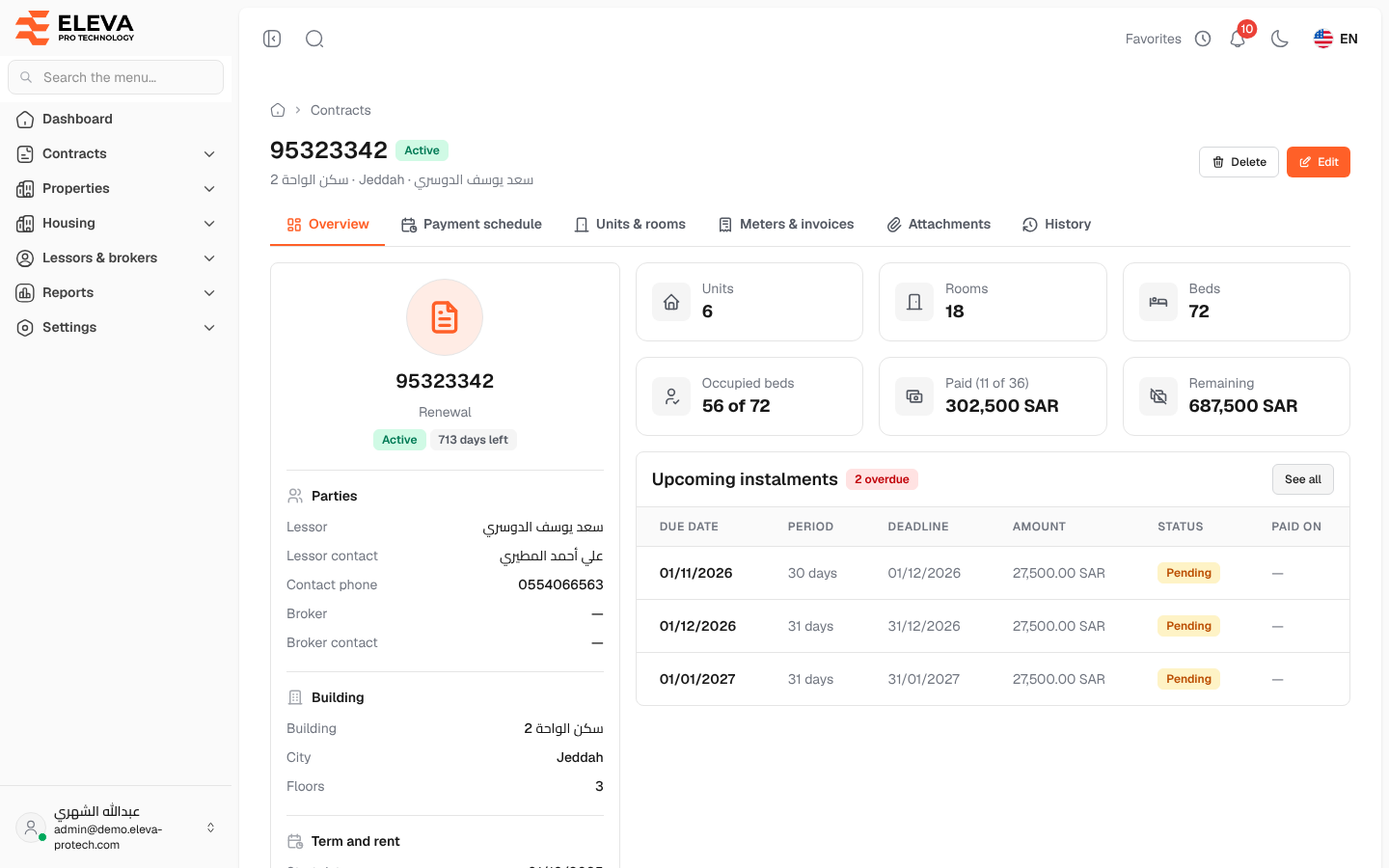
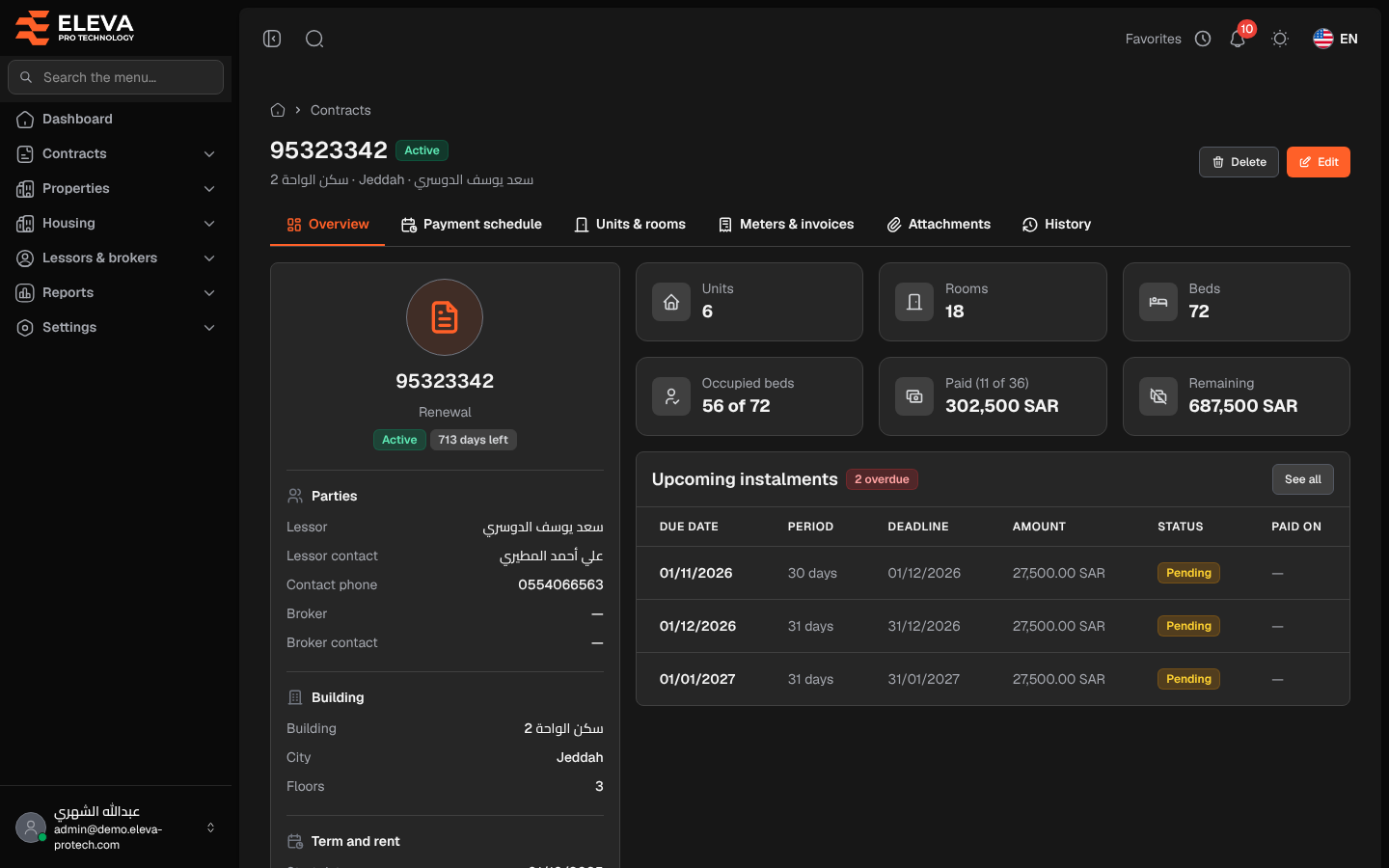
The contract page brings together everything about one lease: its parties, terms and amounts on the Overview tab, and its instalments, units, meters, files and history on the other tabs. Open it to check a contract, follow its payments, or edit or delete it.
From the side menu, open Contracts › Contracts and click the contract in the list.
What’s on this screen
Section titled “What’s on this screen”At the top: the contract number with its status, the building, city and lessor, and the buttons available to you: Delete and Edit.
The tabs: Overview, Payment schedule, Units & rooms, Meters & invoices, Attachments and History. The selected tab is part of the page address, so a reload or a shared link opens the same tab.
The Overview tab shows:
- A card with the contract number, the contract type and tags for the status, the days left (or Expired) and IAS16 when it applies.
- Parties: Lessor, Lessor contact, Contact phone, Broker and Broker contact.
- Building: Building, City and Floors.
- Term and rent: Start date, End date, Duration, Payment cycle and Instalments.
- Amounts: Annual rent, Instalment, Total value, Broker commission and Insurance, then the notes.
- Tiles: Units, Rooms and Beds covered; Occupied beds (for example 56 of 72); Paid (N of M) with the amount paid; and Remaining.
- Upcoming instalments: the next three pending instalments that are not overdue yet, read only, with See all to open the Payment schedule tab. When the contract has overdue instalments, a red tag next to the title counts them (2 overdue); follow them up, edit them or mark them paid on the Payment schedule tab.
How to delete a contract
Section titled “How to delete a contract”- Click Delete.
- Read the Delete contract message and confirm with Delete. Its pending instalments and files are deleted with it; the building’s units stay on the building.
Required permissions
Section titled “Required permissions”- Contracts › View to open the page.
- Contracts › Edit and Contracts › Delete for Edit and Delete.