

Payment schedule
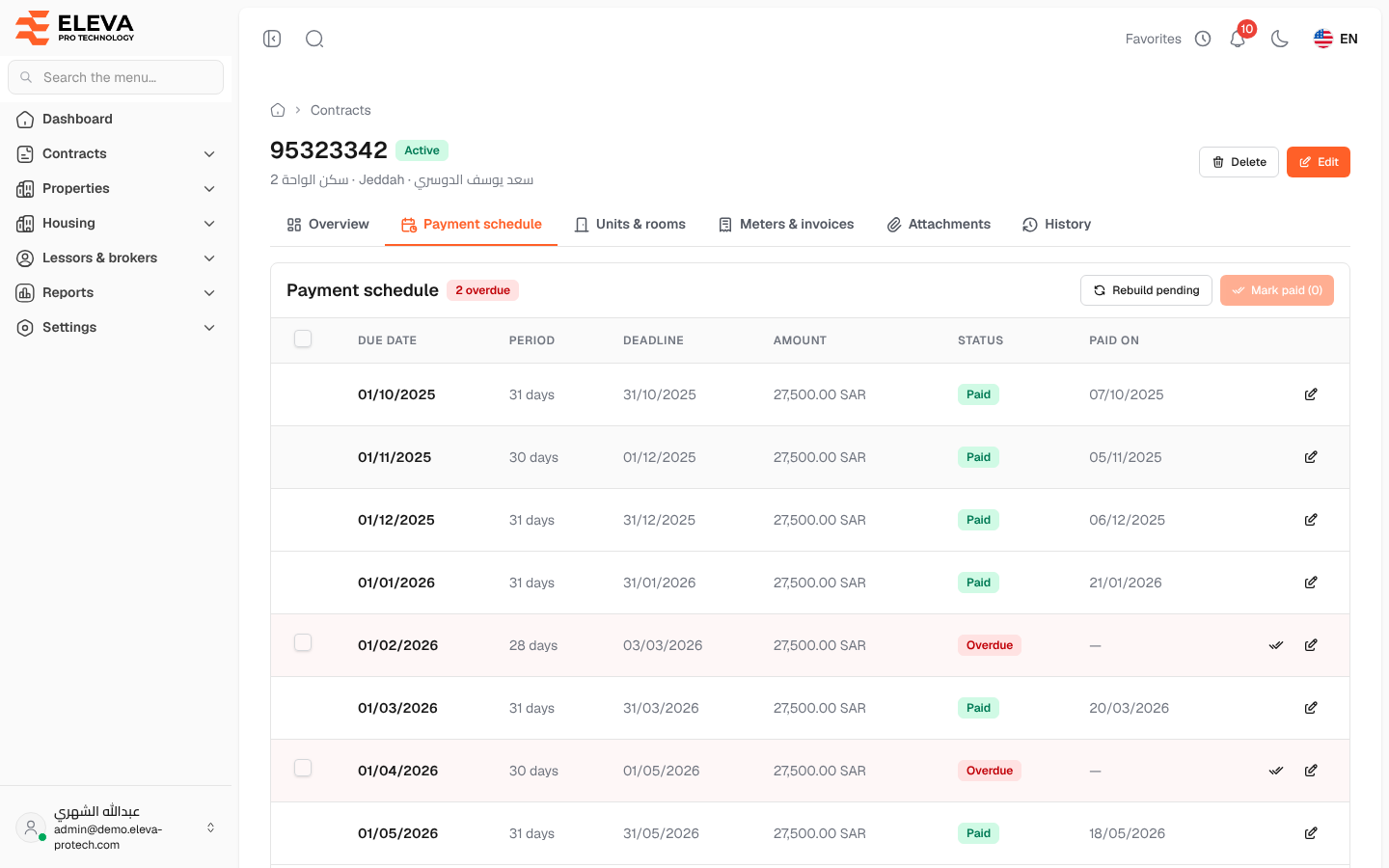
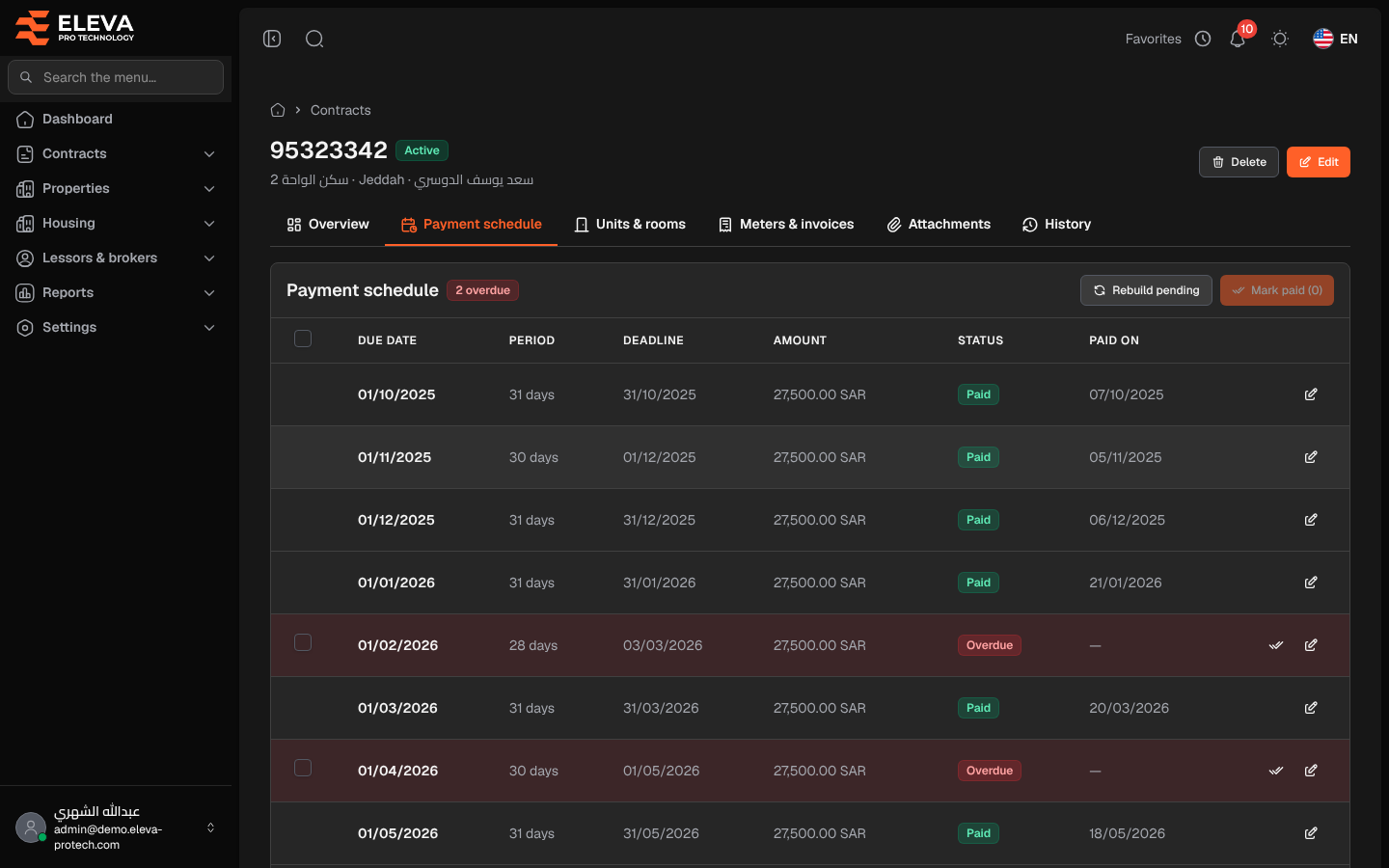
The Payment schedule tab lists all the rent instalments of the contract, generated from its start date, duration, payment cycle and annual rent. Use it to record payments for this contract, to correct an instalment or to rebuild the unpaid instalments after the terms change.
Open the contract and click the Payment schedule tab.
What’s on this screen
Section titled “What’s on this screen”- The title, with a red N overdue tag when some instalments are late.
- Rebuild pending: recreates the unpaid instalments from the contract’s terms.
- Mark paid (N): records the payment of the instalments ticked in the list.
- The list of instalments, with a Total row. Overdue rows are highlighted in red.
Columns
Section titled “Columns”- A tick box, on unpaid instalments only.
- Due date
- Period: the number of days the instalment covers.
- Deadline: the last day to pay on time, 30 days after the due date.
- Amount
- Status: Pending, Paid or Overdue (pending and past its deadline).
- Paid on: the payment date, with a paperclip when files are attached.
- Actions: Mark paid (on unpaid instalments) and Edit.
How to record payments
Section titled “How to record payments”- Tick the instalments that were paid, or click Mark paid on one row.
- Click Mark paid (N).
- In Mark instalments as paid, check the Payment date (today by default) and click Mark as paid.
To change an amount or a date, add notes or attach a receipt, click Edit on the row. See Edit an instalment.
How to rebuild the unpaid instalments
Section titled “How to rebuild the unpaid instalments”- Click Rebuild pending.
- Read Rebuild pending instalments and confirm with Rebuild pending.
The pending instalments are deleted and created again from the contract’s term and amounts. Paid instalments are kept, and the periods they cover are not scheduled again. The message The pending instalments were rebuilt. confirms it.
Required permissions
Section titled “Required permissions”- Rent payments › Edit to mark instalments as paid and to edit them.
- Contracts › Edit for Rebuild pending.