

Import employees from Excel
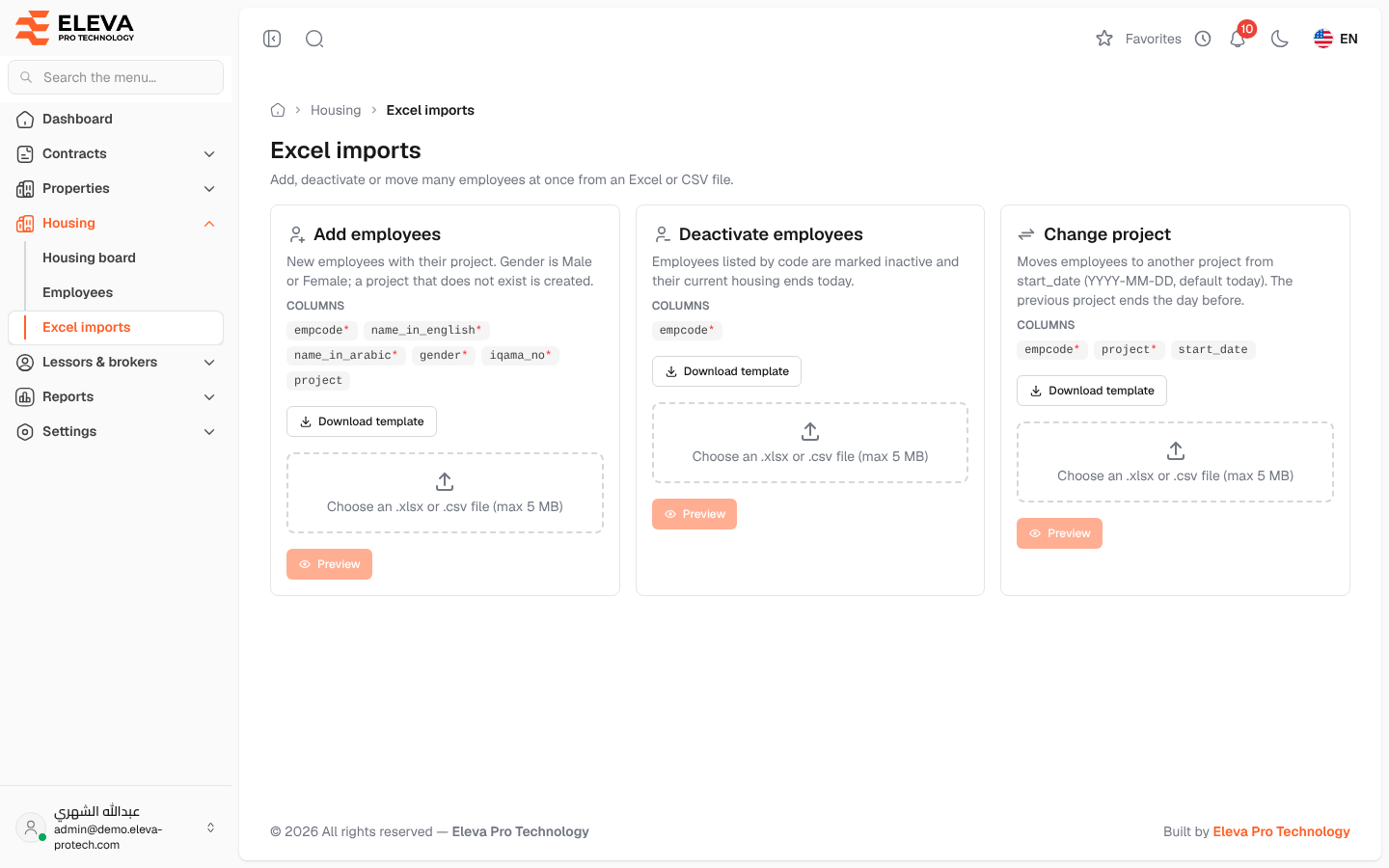
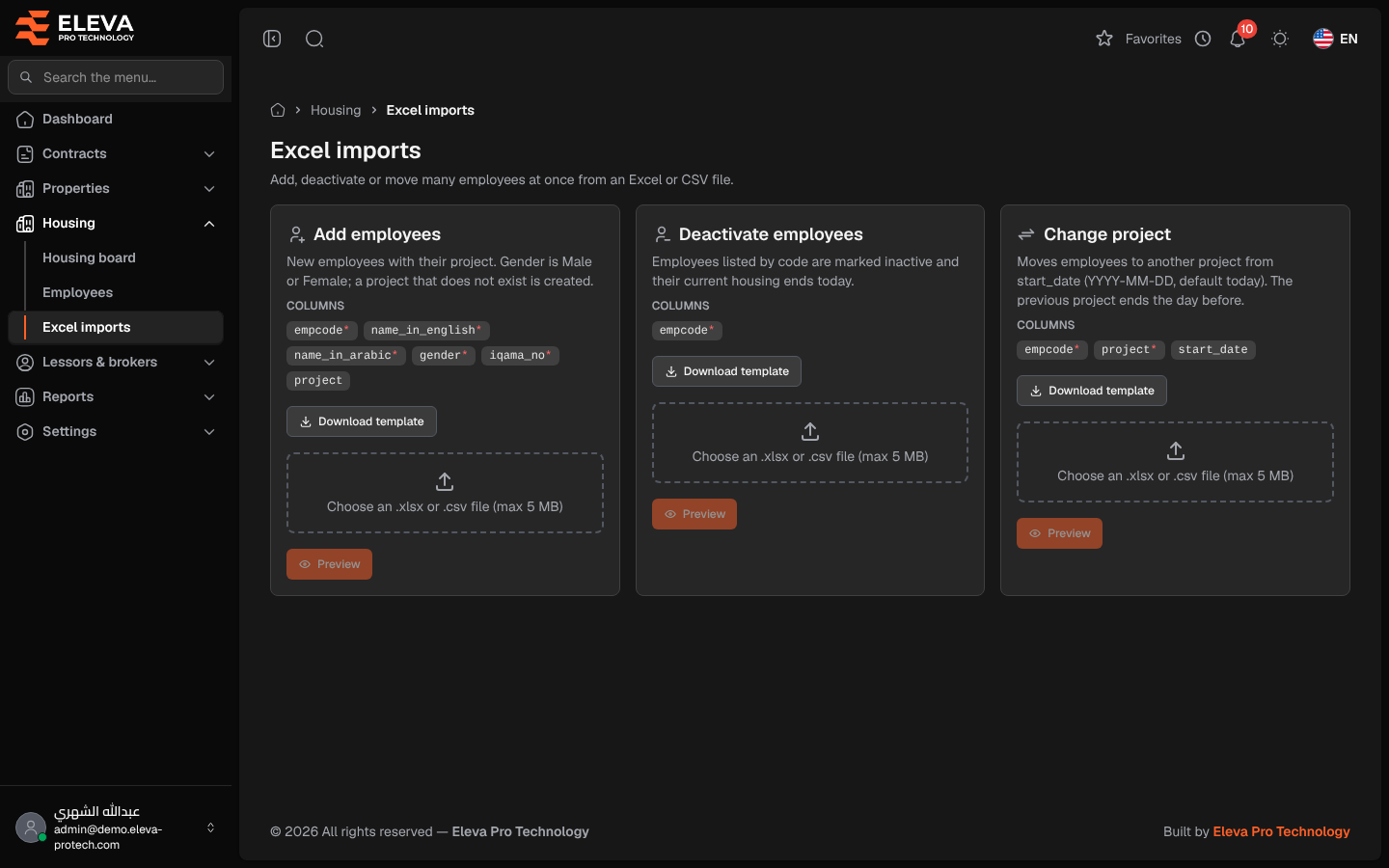
Excel imports add, deactivate or move many employees between projects at once from an Excel or CSV file. Every row is checked first and shown in a preview; nothing is written until you confirm.
From the side menu, open Housing › Excel imports, or click Excel imports on the Employees screen.
The three imports
Section titled “The three imports”Each import has its card, with its Columns (required ones are marked required), Download template, a file box and Preview.
- Add employees: new employees with their project. Columns: empcode, name_in_english, name_in_arabic, gender and iqama_no (required) and project. Gender is Male or Female; a project that does not exist is created.
- Deactivate employees: column empcode. The employees are marked inactive and their current housing ends today.
- Change project: columns empcode and project (required) and start_date (YYYY-MM-DD, today by default). The previous project ends the day before.
How to import a file
Section titled “How to import a file”- Click Download template on the import you need and fill in the file, one employee per row, keeping the heading row.
- Click the file box and choose your .xlsx or .csv file (up to 5 MB).
- Click Preview. The file is checked in the background (Checking every row of the file…); you can leave the page and come back to the same address.
- Read the Preview of …: Rows, Ready and With errors, and the table of Row, Status (Ready or Error) and Messages.
- If every row is valid (Every row is valid. Nothing is written until you confirm.), click Confirm import and confirm. Otherwise click Discard, correct the file and upload it again.
- When Import finished appears, the summary gives the rows applied and records changed. Click New import for another file.
Common errors
Section titled “Common errors”- Column “…” is missing from the heading row.: keep the template’s headings.
- An employee with this code already exists. or An employee with this iqama no. already exists.
- Gender must be Male or Female.
- No employee with this code. (deactivate and change project).
- Start date is not a valid date (use YYYY-MM-DD). or Start date is before the current project start (…).
- … repeats row N of the file.: the same code appears twice.
Notes such as Project “…” will be created., Already inactive. or Already in this project: no change. are information only.
Required permission
Section titled “Required permission”Employees › Import.