

Roles & permissions
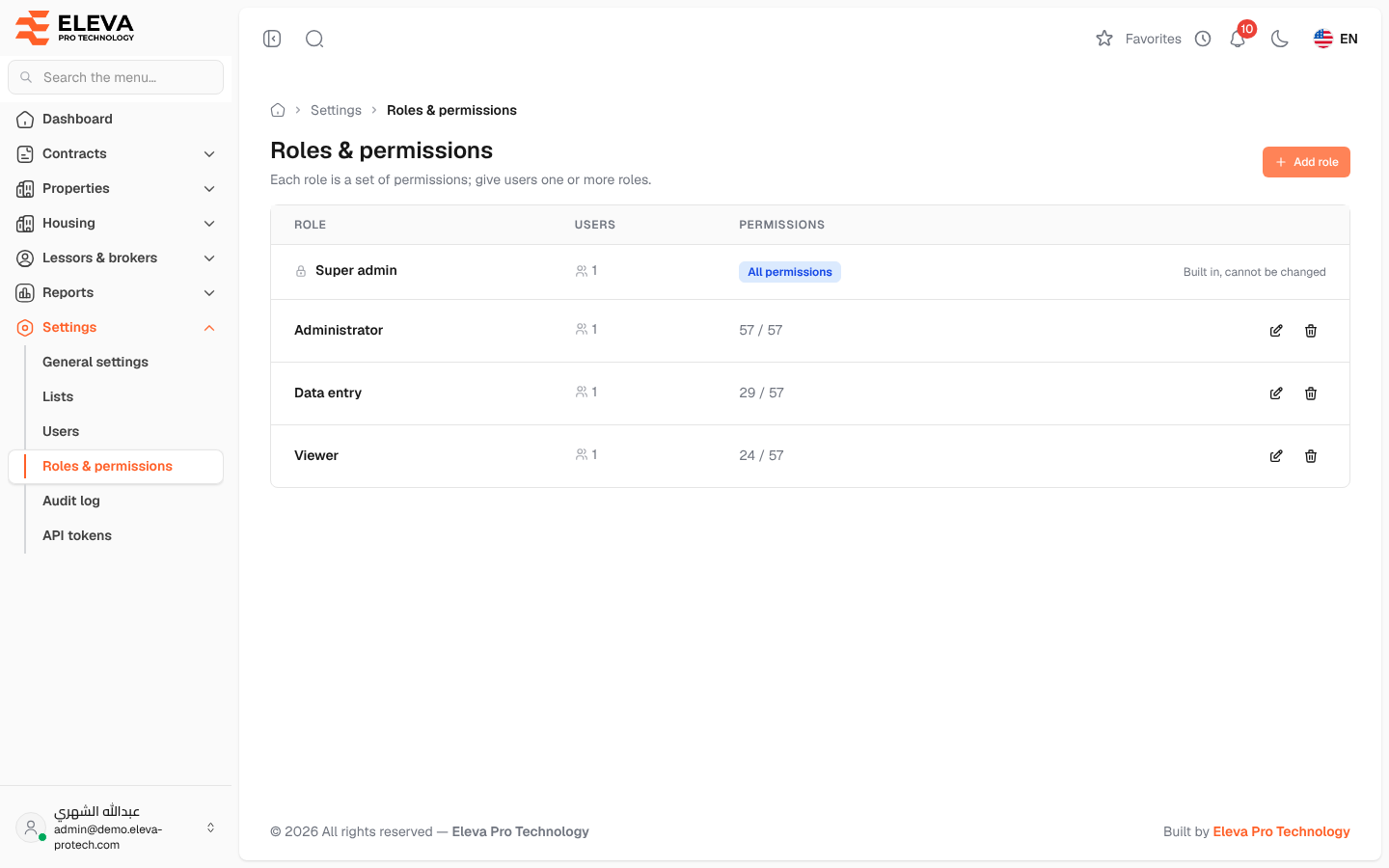
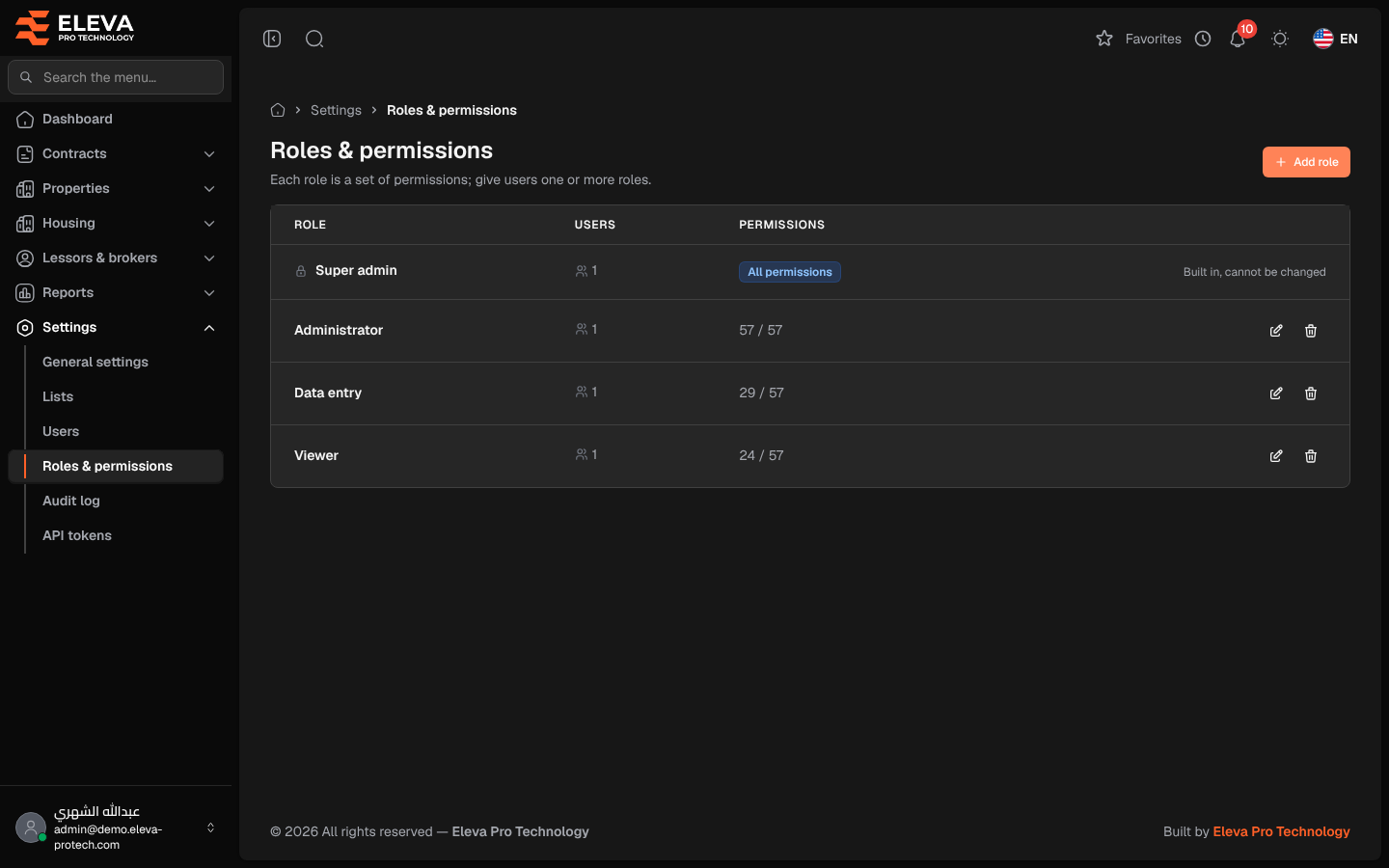
A role is a set of permissions: which screens a user can open and what they can do there. Users get one or more roles in Settings › Users. This screen lists the roles with their number of users and permissions.
From the side menu, open Settings › Roles & permissions.
Columns
Section titled “Columns”- Role: its name. The built-in Super admin role shows Built in, cannot be changed.
- Users: the number of users with the role.
- Permissions: the number of permissions given out of all permissions, or All permissions for the super admin.
- Actions: Edit and Delete.
Click a row to edit the role. See Edit a role.
The built-in roles
Section titled “The built-in roles”- Super admin: holds every permission and passes every check. It cannot be edited.
- Administrator: every permission.
- Data entry: the daily work: contracts (view, add, edit, renew), rent payments (view, edit), meters and invoices, buildings (view, add, edit), housing, employees (view, add, edit, import), lessors and brokers (view, add, edit), the dashboard and reports (view).
- Viewer: view and export everything, without changing anything.
How to add a role
Section titled “How to add a role”- Click Add role.
- Name the role and tick its permissions.
- Click Save role.
How to delete a role
Section titled “How to delete a role”- Click the bin icon on the role’s row and confirm with Delete.
Required permissions
Section titled “Required permissions”Roles › View to open the screen; Roles › Add, Edit and Delete for the buttons.