

Room details
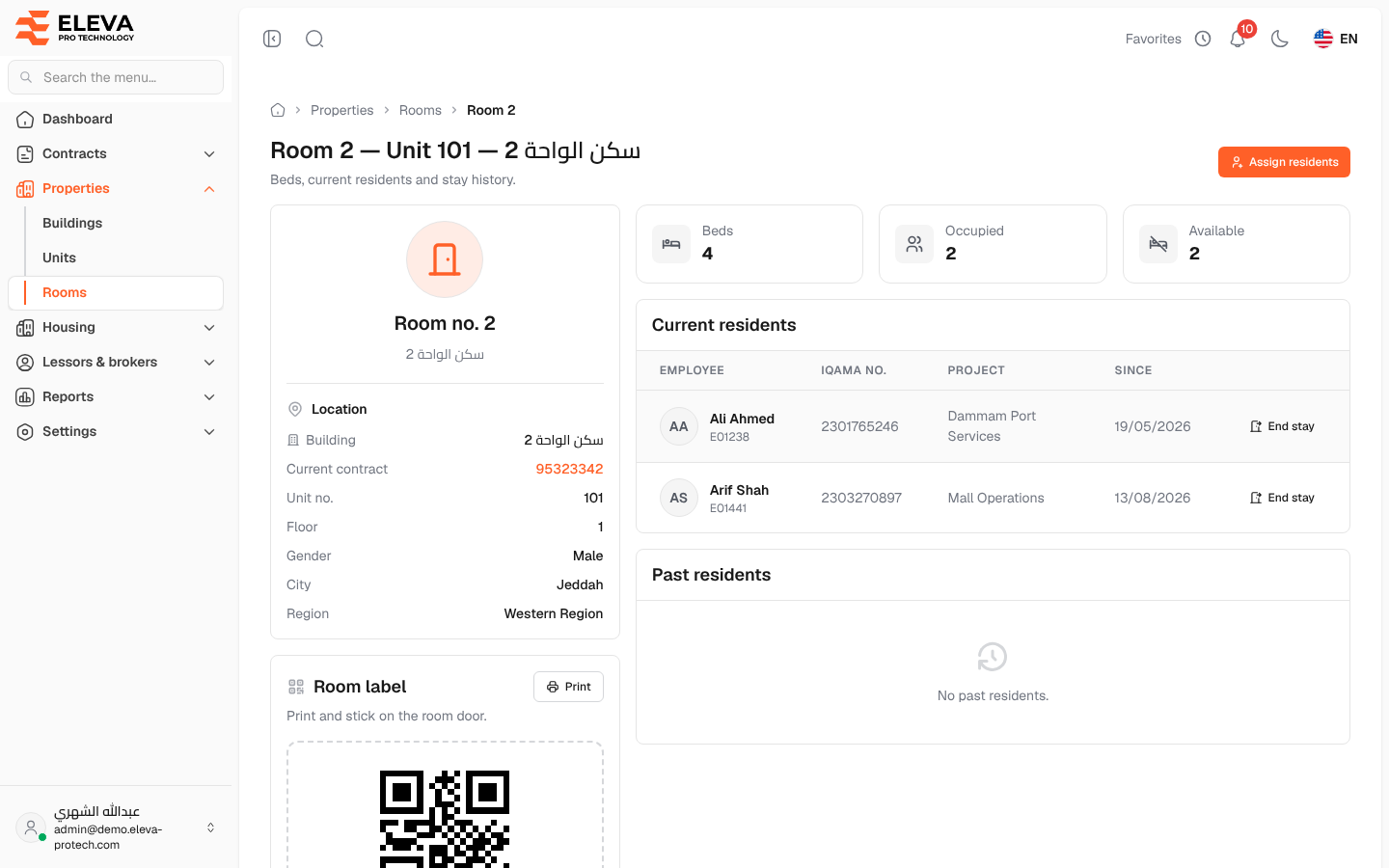
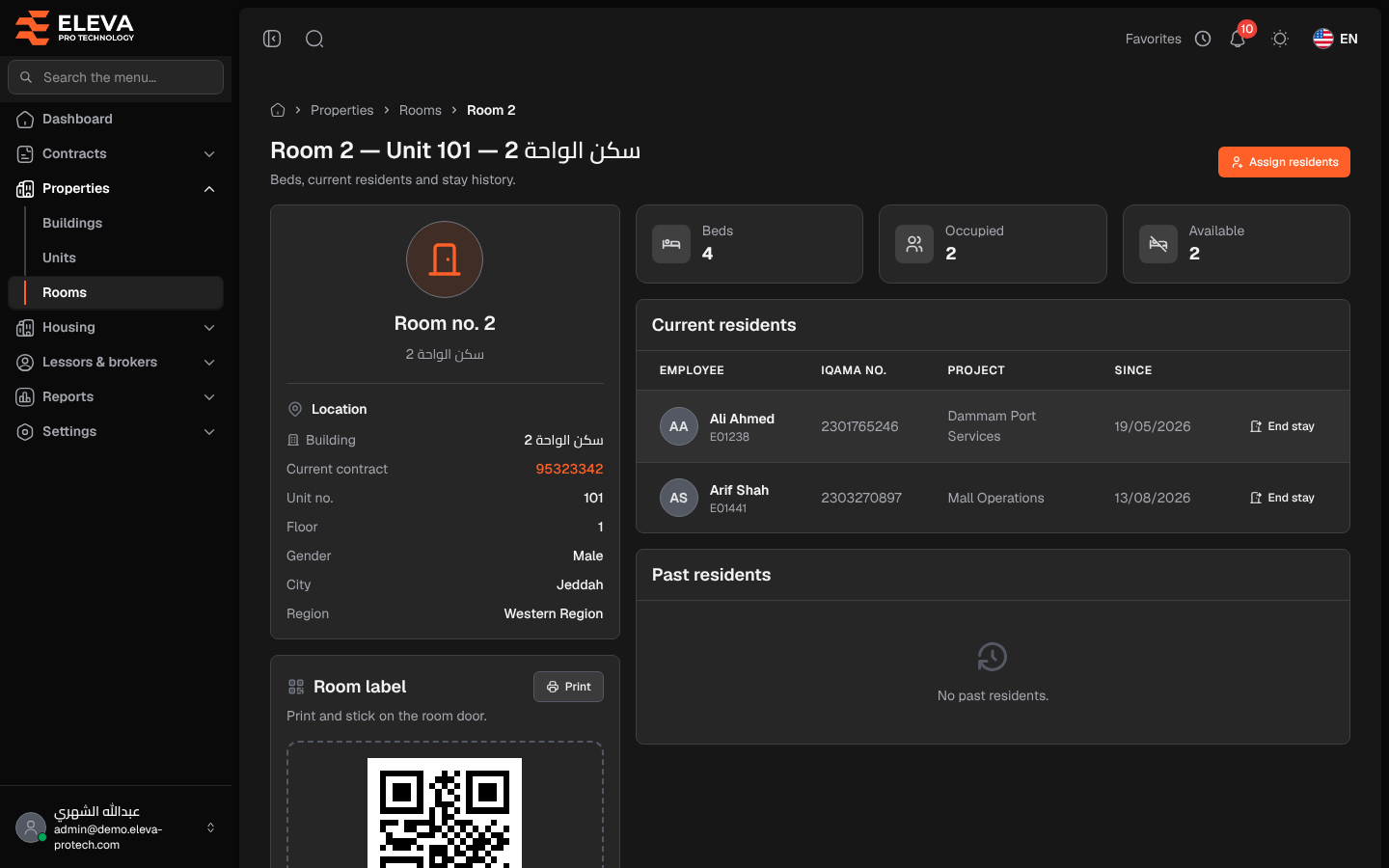
The room page shows one room: where it is, its beds, who lives in it now, who is booked to move in and who lived there before. It also has a printable label with a QR code to stick on the room door.
From the side menu, open Properties › Rooms and click the room. Rooms can also be opened from the building page.
What’s on this screen
Section titled “What’s on this screen”The title gives the room, unit and building, for example Room 2 — Unit 101 — …. The button Assign residents opens the room on the Housing board.
- A card with Location: Building, Current contract, Unit no., Floor, Gender, City and Region.
- Room label: the QR code, the Room code and the location. Print prints the label (Print and stick on the room door.).
- Tiles: Beds, Occupied and Available.
- Current residents: Employee (the name, with the code underneath), Iqama no., Project and Since, with End stay on each row.
- Upcoming stays: residents booked to move in later, with From and Until (shown only when there are some).
- Past residents: earlier stays, with From and Until.
How to end a resident’s stay
Section titled “How to end a resident’s stay”- In Current residents, click End stay on the resident’s row.
- In End the stay, set the Last day (today by default): the resident leaves the room on that date.
- Confirm with End stay.
The bed is free from the next day. The stay is kept in the room’s and the employee’s history.
Required permissions
Section titled “Required permissions”- Buildings, units & rooms › View to open the page.
- Housing › View for Assign residents, and Housing › Assign for End stay.