

New contract: units and rooms
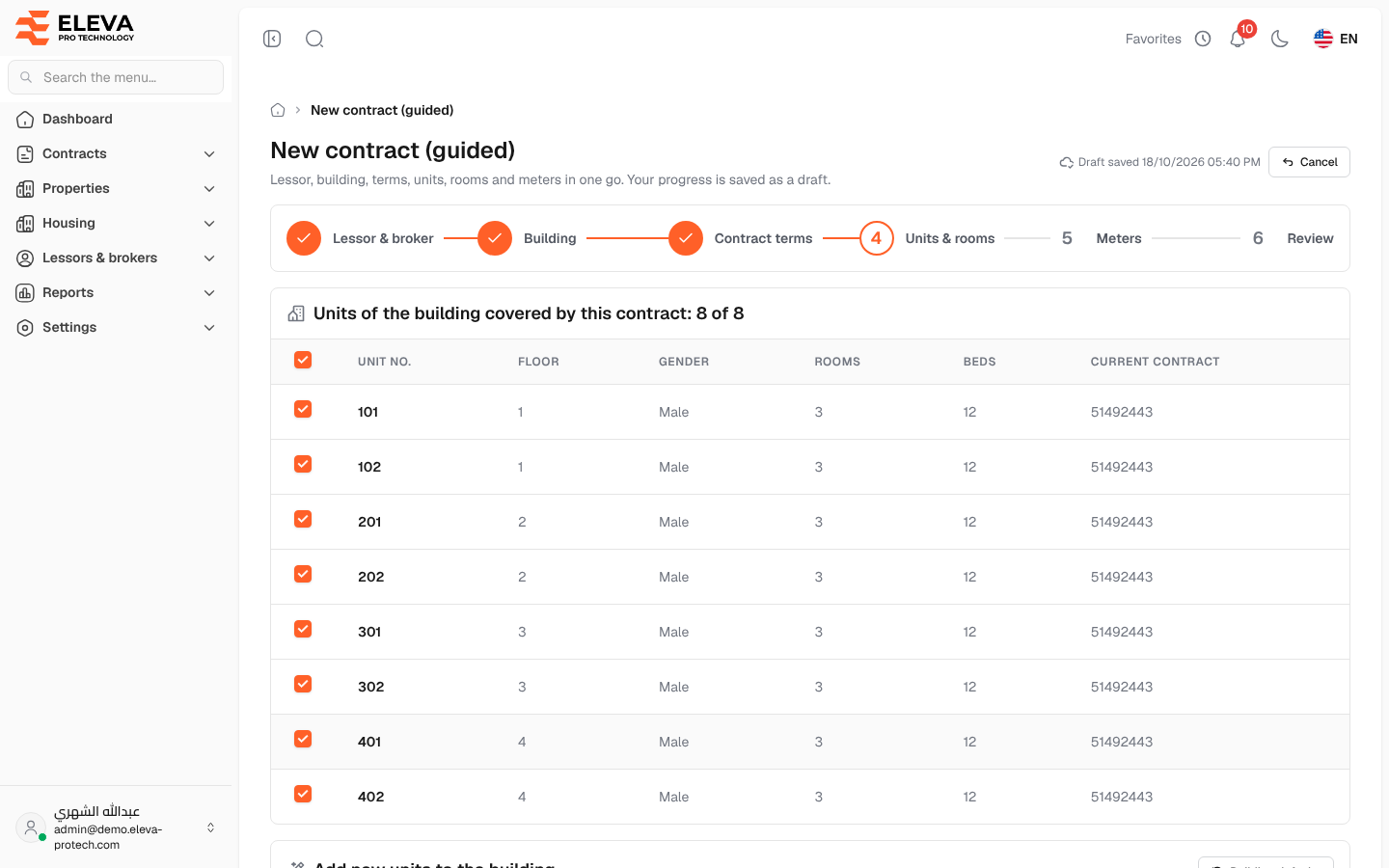
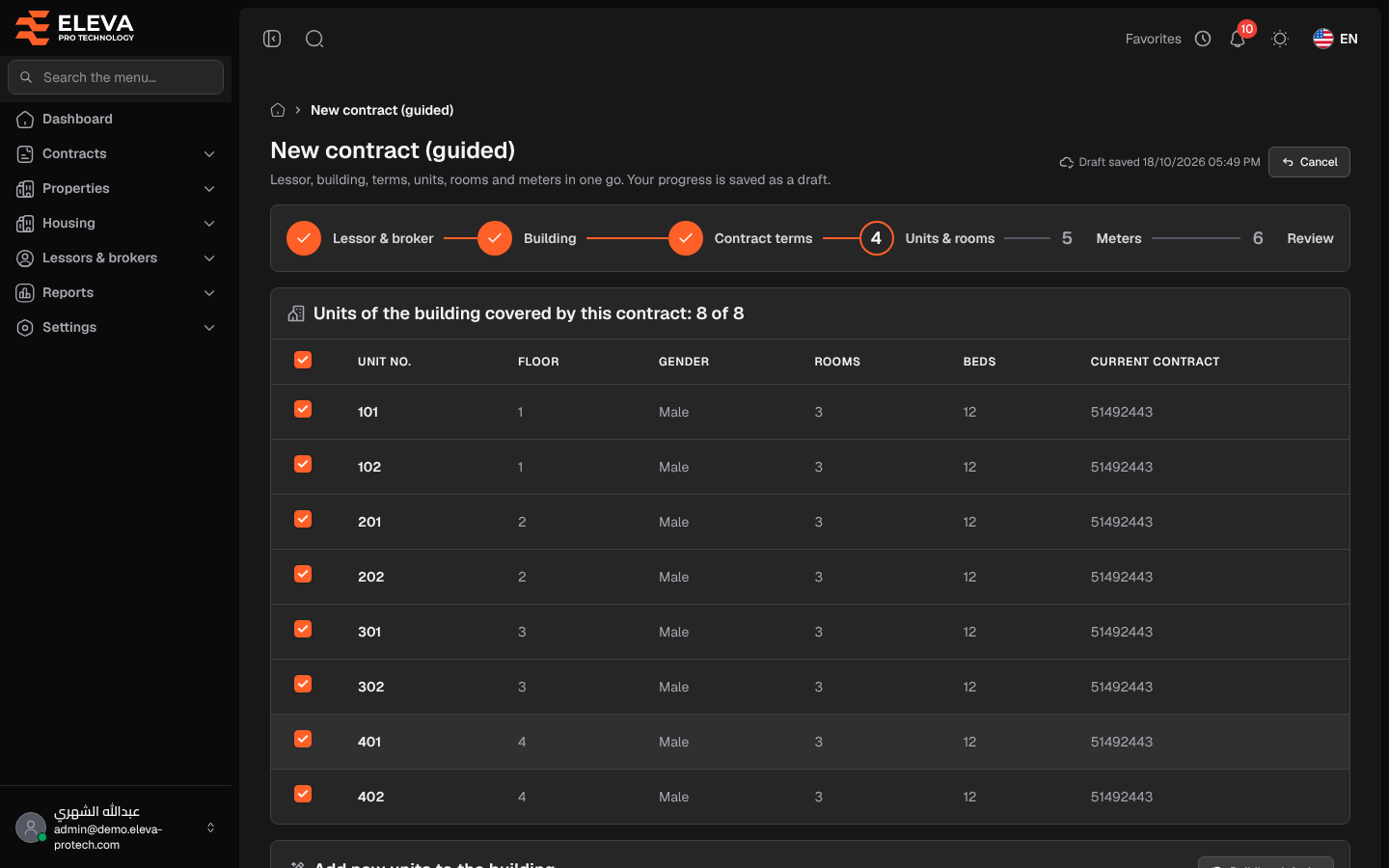
The fourth step says which units of the building the contract covers, and can create new units with their rooms and beds. Units belong to the building; the contract covers them. Only units covered by an active contract can receive residents. This step is optional: units can also be added later on the building page and covered from the contract page.
For an existing building
Section titled “For an existing building”Units of the building covered by this contract: N of M lists the building’s units. Every unit is ticked at first.
- Columns: Unit no., Floor, Gender, Rooms, Beds and Current contract (the contract that covers the unit today).
- Untick the units this contract does not cover. The box in the heading ticks or clears them all.
Below it, Add new units to the building (optional) creates units the building does not have yet; they are covered by this contract. Unit numbers that already exist in the building are refused.
For a new building
Section titled “For a new building”The Layout generator creates the list of units, then you adjust single rows.
The layout generator
Section titled “The layout generator”- From floor and To floor: the floors to fill (0 is the ground floor).
- Units per floor, Rooms per unit and Beds per room.
- Numbering: Floor × 100 (101, 102…) or Sequential (1, 2, 3…).
- Gender per floor: Male or Female residents for each floor.
- Building defaults: fills the generator from the building’s structure.
- Units to generate: N shows how many units will be listed. At most 1000 units are created at once.
- Generate: fills the list. If the list already has units, Replace the units asks for confirmation first.
The totals Units, Rooms and Beds are shown above the list.
The list of units
Section titled “The list of units”Each row has Unit no., Floor, Gender, Rooms, Beds per room and the resulting Beds, and can be edited directly. Add unit adds an empty row, the bin icon removes a row and Remove all empties the list.
- Unit no.: a whole number, unique in the building. A number used twice shows This unit number is used more than once.
- Floor: from 0 to the building’s number of floors.
- Rooms and Beds per room: from 1 to 50.
How to fill in this step
Section titled “How to fill in this step”- For an existing building, untick the units the contract does not cover.
- To add units, fill in the generator, click Generate and adjust the rows.
- Click Next, or skip the step with Next without adding units.
Required permission
Section titled “Required permission”Contracts › Add.