

Employees
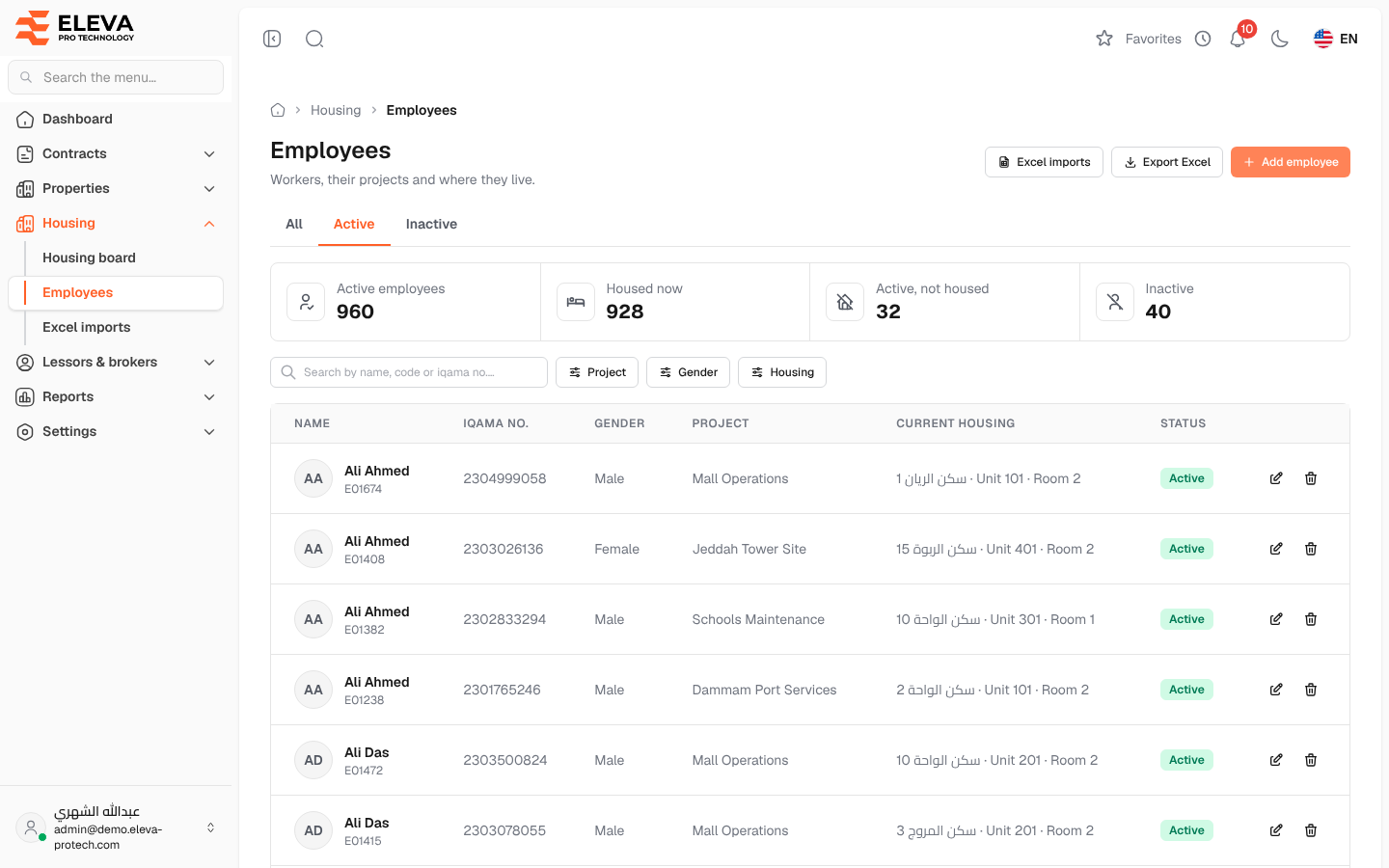
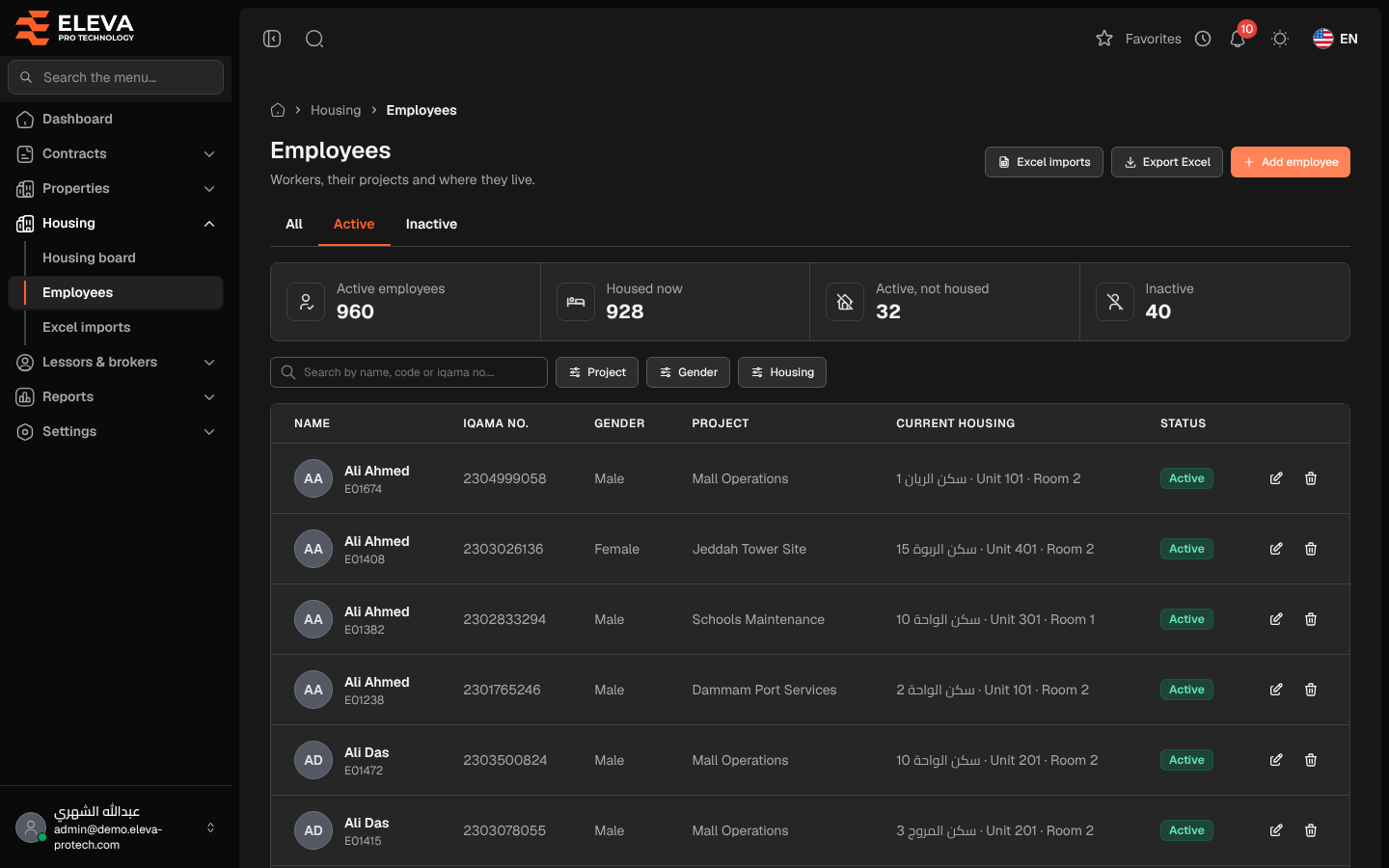
The Employees screen lists the workers who can be housed, with their project and where they live now. Use it to find an employee, see who is not housed yet, add or edit employees, export the list or open the Excel imports.
From the side menu, open Housing › Employees.
What’s on this screen
Section titled “What’s on this screen”- Active, Inactive and All: tabs that filter by status. The list opens on Active.
- Summary cards: Active employees, Housed now, Active, not housed and Inactive.
- Search by name, code or iqama no.…
- Filters: Project, Gender and Housing (Housed or Not housed).
- Excel imports: opens the import screen. See Import employees from Excel.
- Export Excel: downloads the list as shown.
- Add employee: opens the employee form. See Add or edit an employee.
Columns
Section titled “Columns”- Name: with the employee code underneath.
- Iqama no.
- Gender
- Project: the current project, or No project.
- Current housing: the building, unit and room where the employee lives today, or Not housed.
- Status: Active or Inactive.
- Actions: Edit and Delete.
Click a row to open the employee. See Employee details.
How to find employees who need housing
Section titled “How to find employees who need housing”- Stay on the Active tab.
- Set Housing to Not housed, and Gender if needed.
- House them from the Housing board, one room at a time or with Bulk assign.
How to delete an employee
Section titled “How to delete an employee”- Click the bin icon in the employee’s row and confirm with Delete.
Required permissions
Section titled “Required permissions”- Employees › View to open the screen.
- Employees › Add, Edit and Delete for Add employee, Edit and Delete.
- Employees › Import for Excel imports, and Employees › Export for Export Excel.