

Contracts
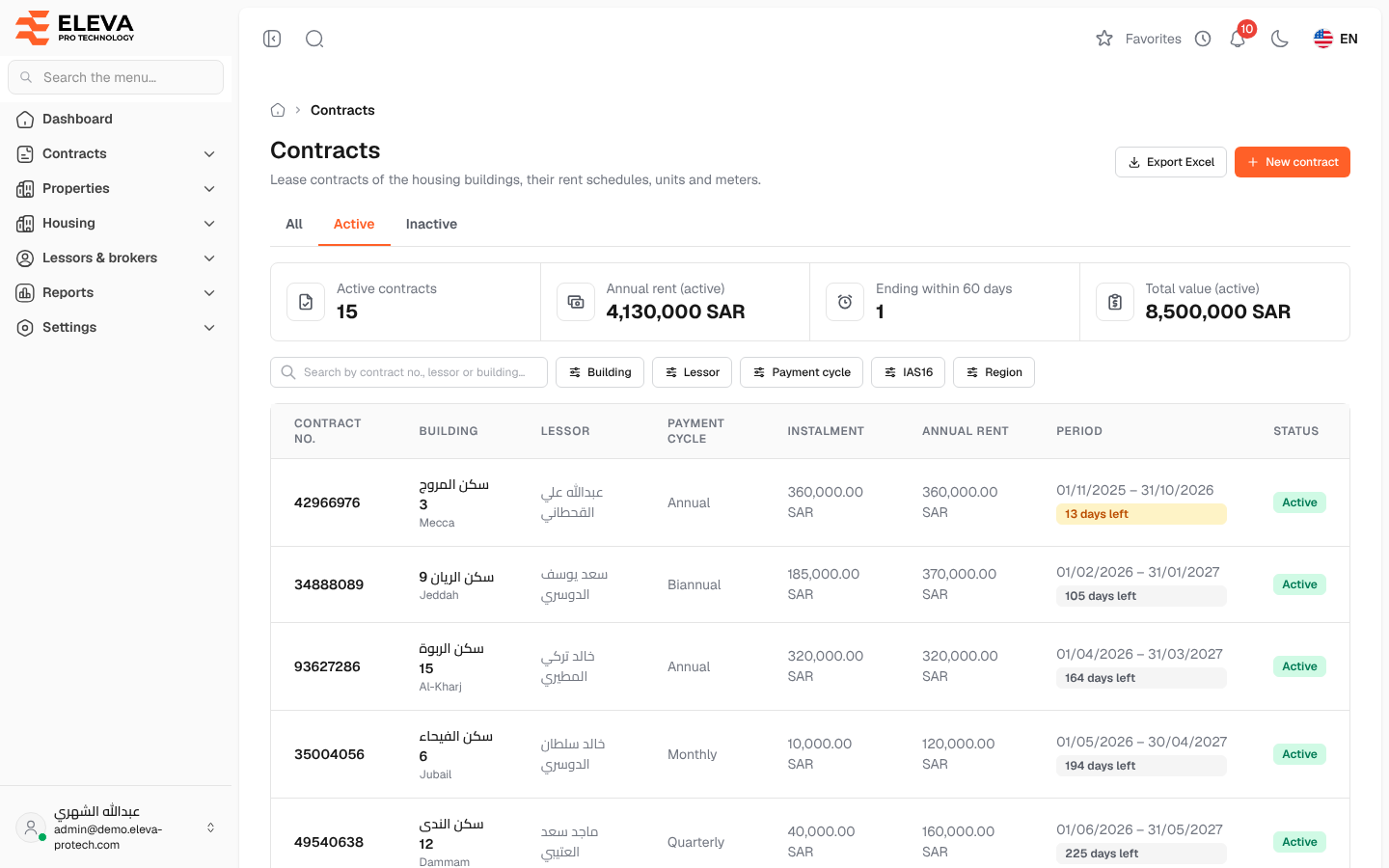
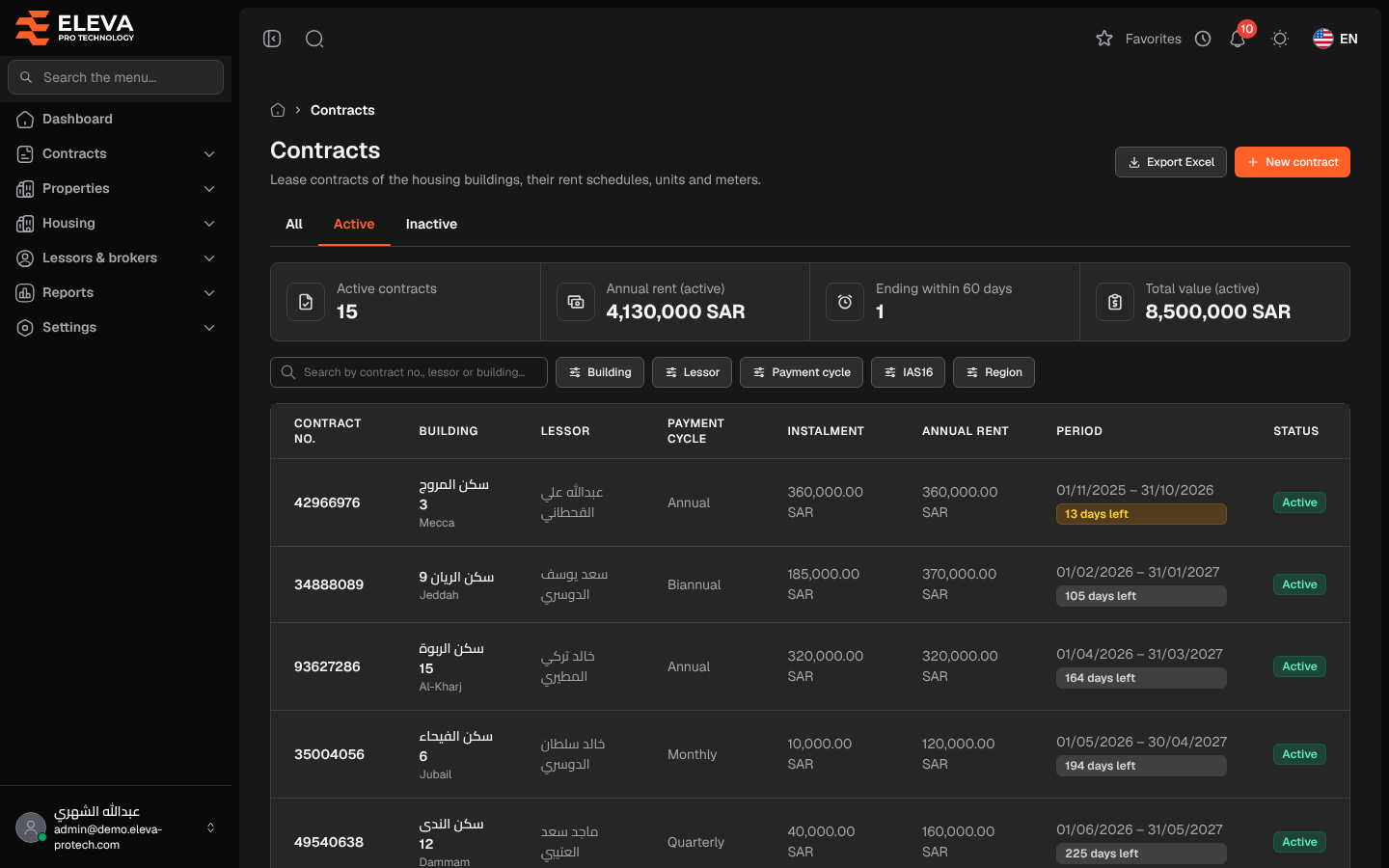
The Contracts screen lists the lease contracts of the housing buildings: who the lessor is, which building is leased, how often rent is paid and when the lease ends. Use it to find a contract and open it, to see which leases end soon, to start a new contract or to export the list.
From the side menu, open Contracts › Contracts.
What’s on this screen
Section titled “What’s on this screen”- All, Active and Inactive: tabs that filter by status. The list opens on Active.
- Summary cards: Active contracts, Annual rent (active), Ending within 60 days and Total value (active).
- Search by contract no., lessor or building…: finds a contract by its number, lessor name or building name.
- Filters: Building, Lessor, Payment cycle (Monthly, Quarterly, Biannual, Annual), IAS16 (Yes or No) and Region. In Building and Lessor, type a few letters to search.
- Export Excel: downloads the list as shown, with the same tab, filters, search and sort.
- New contract: opens the new contract wizard. See New contract: lessor and broker.
Columns
Section titled “Columns”- Contract no.
- Building: the leased building, with its city underneath.
- Lessor
- Payment cycle
- Instalment: the amount of each rent instalment.
- Annual rent
- Period: the start and end dates, with the days left underneath. The tag turns amber when the contract ends within 60 days and red, Expired, once the end date has passed.
- Status: Active or Inactive.
How to find a contract
Section titled “How to find a contract”- From the side menu, open Contracts › Contracts.
- Pick the Active, Inactive or All tab.
- Type in the search box, or choose one or more filters.
- Click the row to open the contract.
The tab, search and filters are kept in the page address, so you can bookmark or share a filtered list.
Required permissions
Section titled “Required permissions”- Contracts › View to open the screen.
- Contracts › Add for New contract.
- Contracts › Export for Export Excel.