

Building details
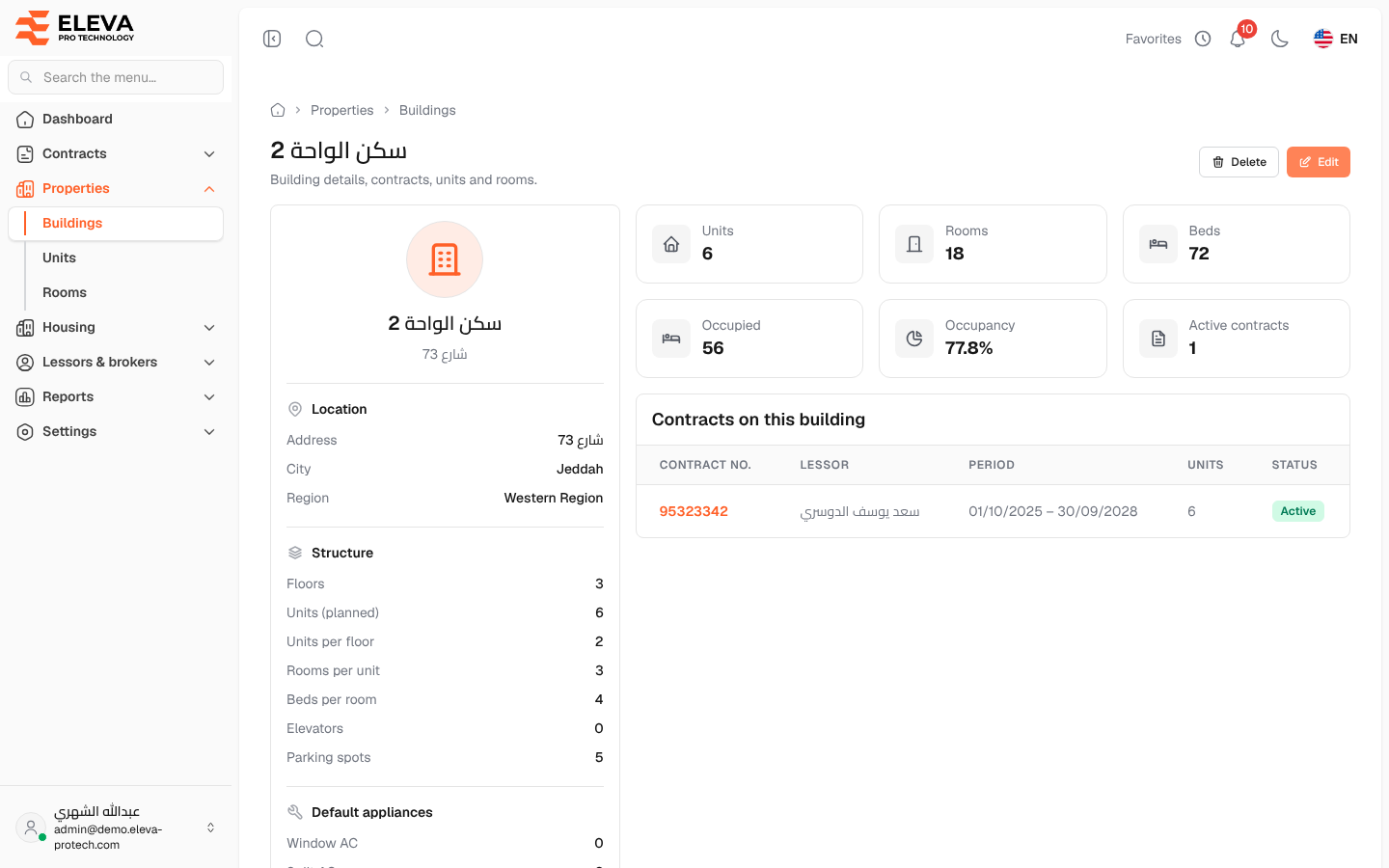
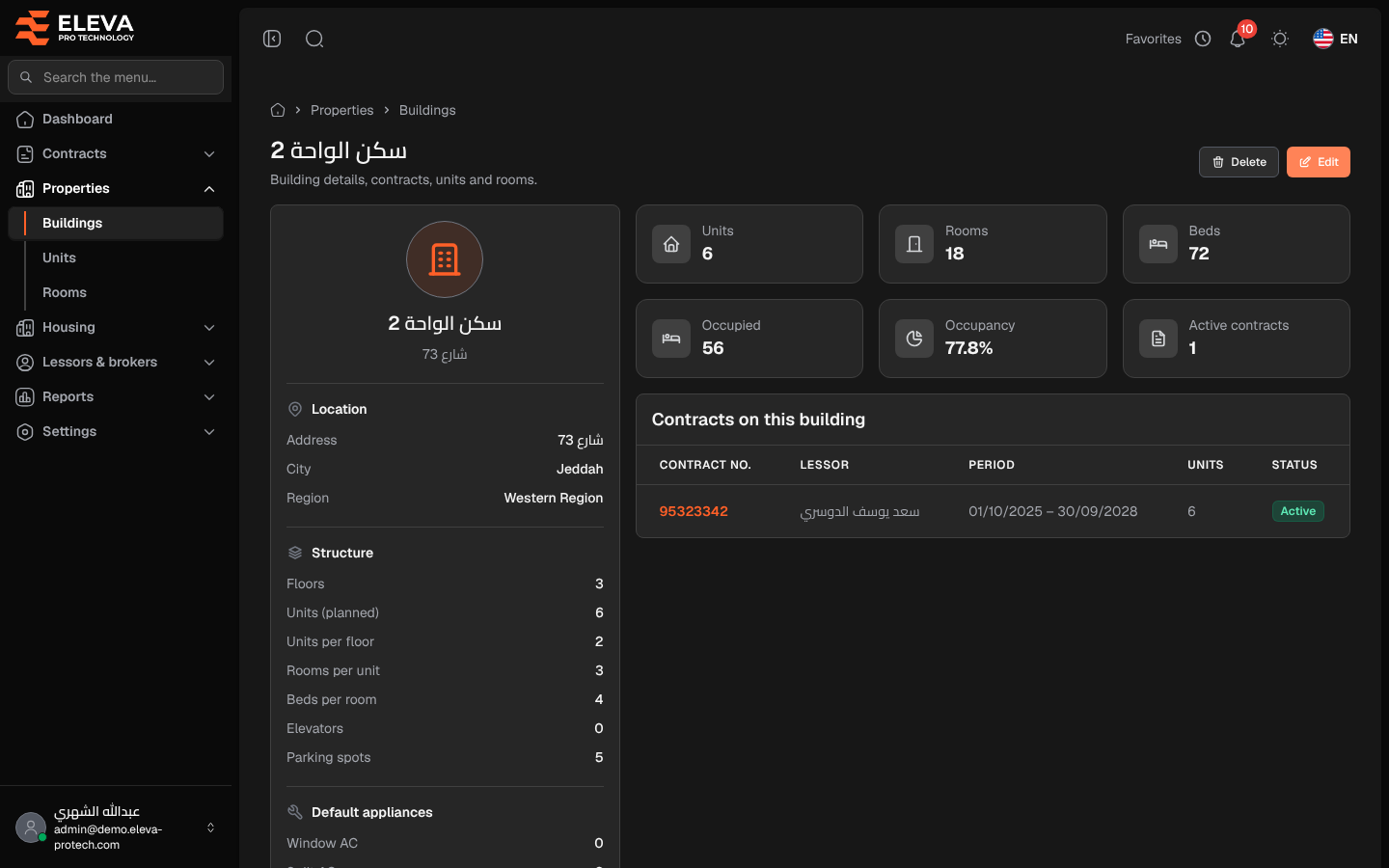
The building page shows everything about one building: its location and structure, how full it is, the contracts that lease it, and its units and rooms. Units and rooms are added and changed here.
From the side menu, open Properties › Buildings and click the building.
What’s on this screen
Section titled “What’s on this screen”At the top: the building name and the buttons Delete and Edit.
- A card with Location (Address, City, Region), Structure (Floors, Units (planned), Units per floor, Rooms per unit, Beds per room, Elevators, Parking spots) and Default appliances.
- Tiles: Units, Rooms and Beds; Occupied, Occupancy and Active contracts.
- Contracts on this building: Contract no., Lessor, Period, Units and Status. Click a contract to open it. Without contracts, the table shows This building has no contracts.
- Units & rooms: the building’s units and their rooms. See Units and rooms of a building.
How to edit or delete the building
Section titled “How to edit or delete the building”- Click Edit to change its details. See Add or edit a building.
- Click Delete and confirm. A building with contracts or units cannot be deleted.
Required permissions
Section titled “Required permissions”- Buildings, units & rooms › View to open the page.
- Buildings, units & rooms › Edit and Delete for Edit and Delete.
- Contracts › View to open a contract from the list.