

Add or edit a user
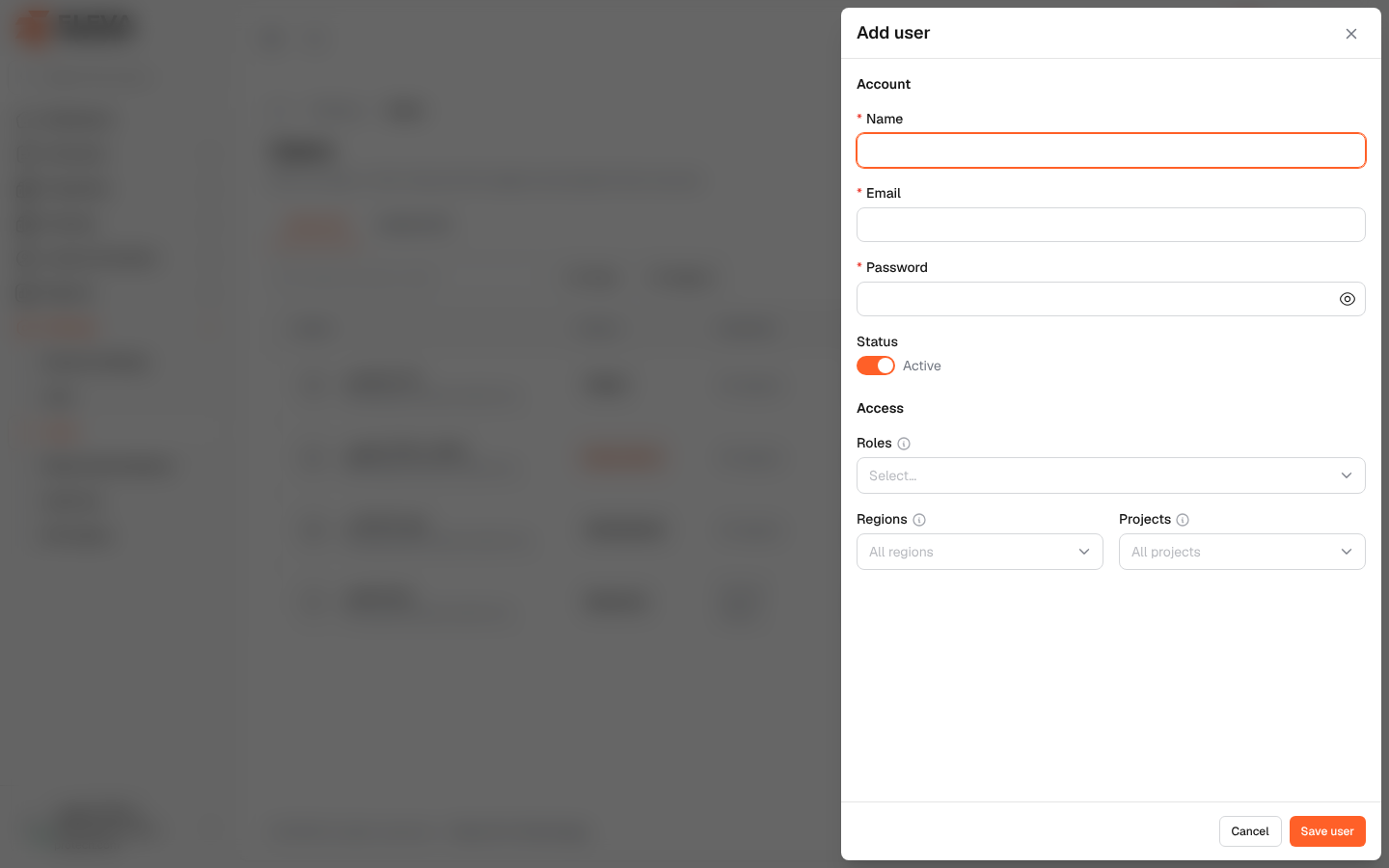
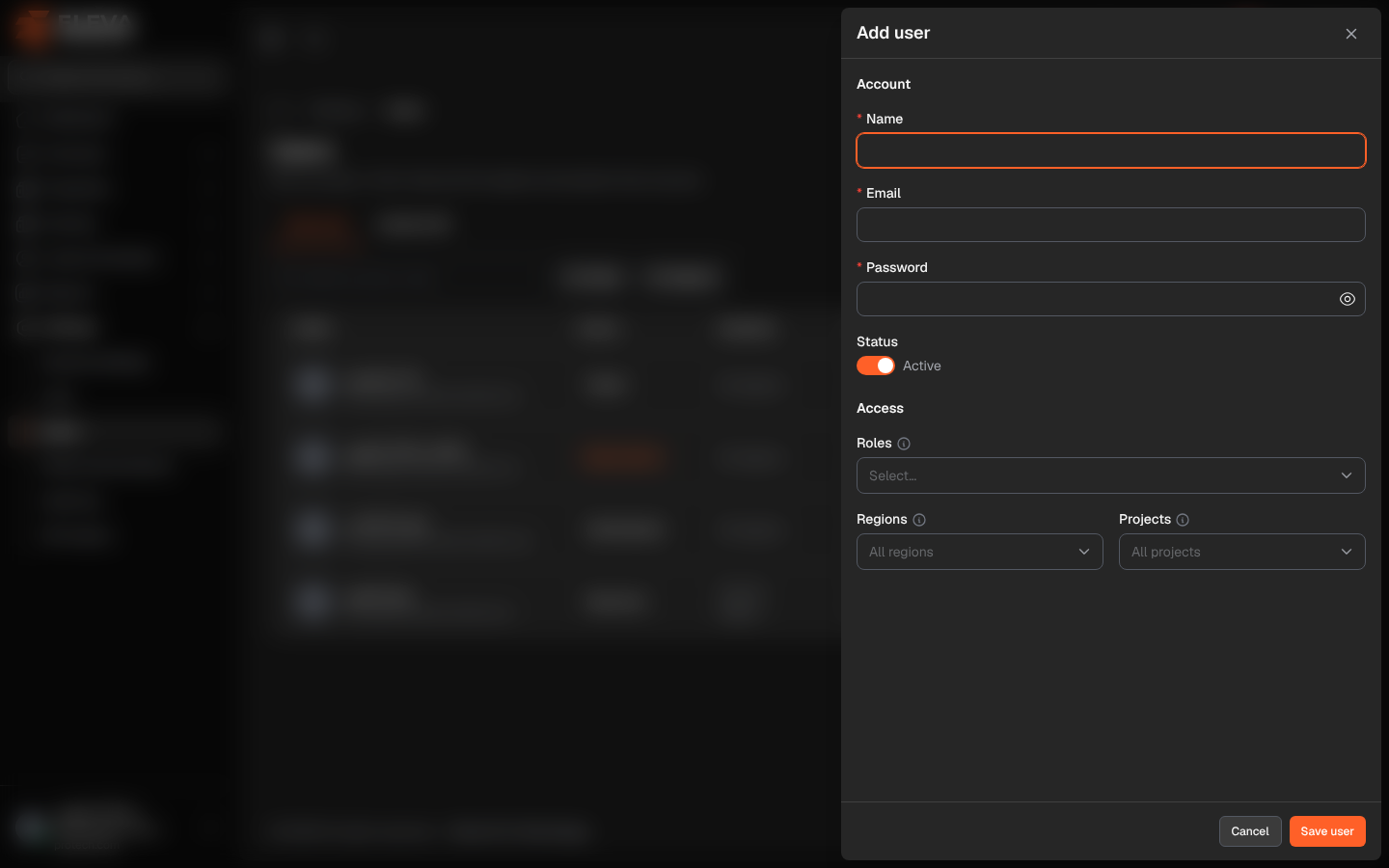
Add a user when a new staff member needs to sign in. The roles decide what the user can do on each screen, and the regions and projects decide which data they see.
From the side menu, open Settings › Users and click Add user. To edit a user, click the pencil icon on their row.
Fields
Section titled “Fields”Account
- Name (required).
- Email (required): the address the user signs in with; it must not belong to another user.
- Password: required for a new user, at least as long as the minimum in Settings › General settings › Security. When editing, Leave empty to keep the current password.
- Status: Active or Inactive.
Access
- Roles: one or more roles. A user gets every permission of each of their roles.
- Regions: limit the user to these regions’ buildings, contracts and residents. Empty means all regions.
- Projects: limit the user to these projects’ employees. Empty means all projects.
How to add a user
Section titled “How to add a user”- Click Add user.
- Fill in Name, Email and Password, and leave Status on Active.
- Choose the Roles, and the Regions and Projects if the user must be limited.
- Click Save user, or Cancel to close without saving.
- Share the sign-in details with the user securely.
- You can only give roles whose permissions you hold yourself (You cannot grant the role “…”: it has permissions you do not hold.).
- A user who is limited themselves can only give regions and projects from their own limits, and at least one.
- Only a super admin can grant or remove the super admin role.
- You cannot change your own roles, regions or projects.
Required permissions
Section titled “Required permissions”Users › Add to add; Users › Edit to edit.