

Add or edit an employee
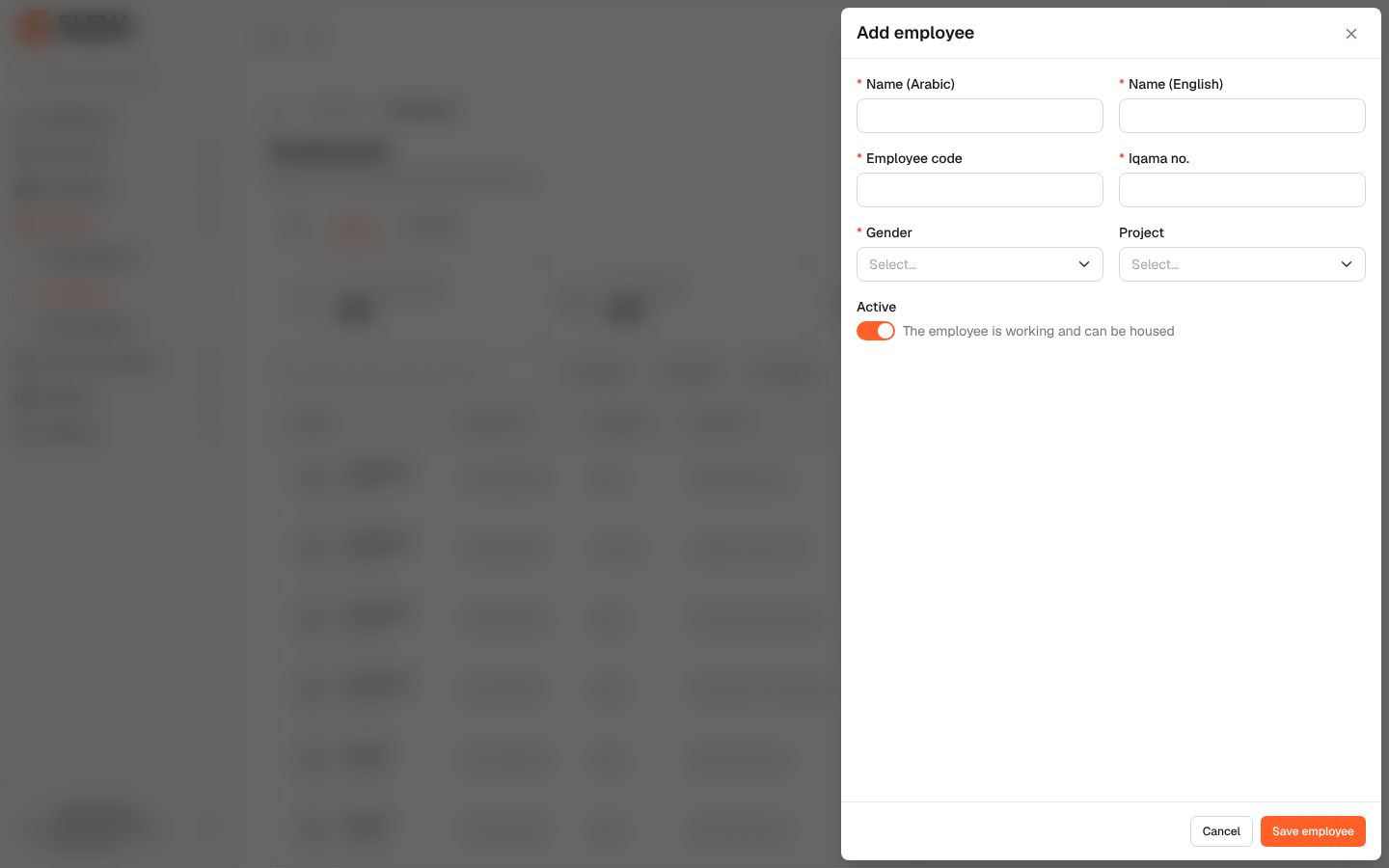
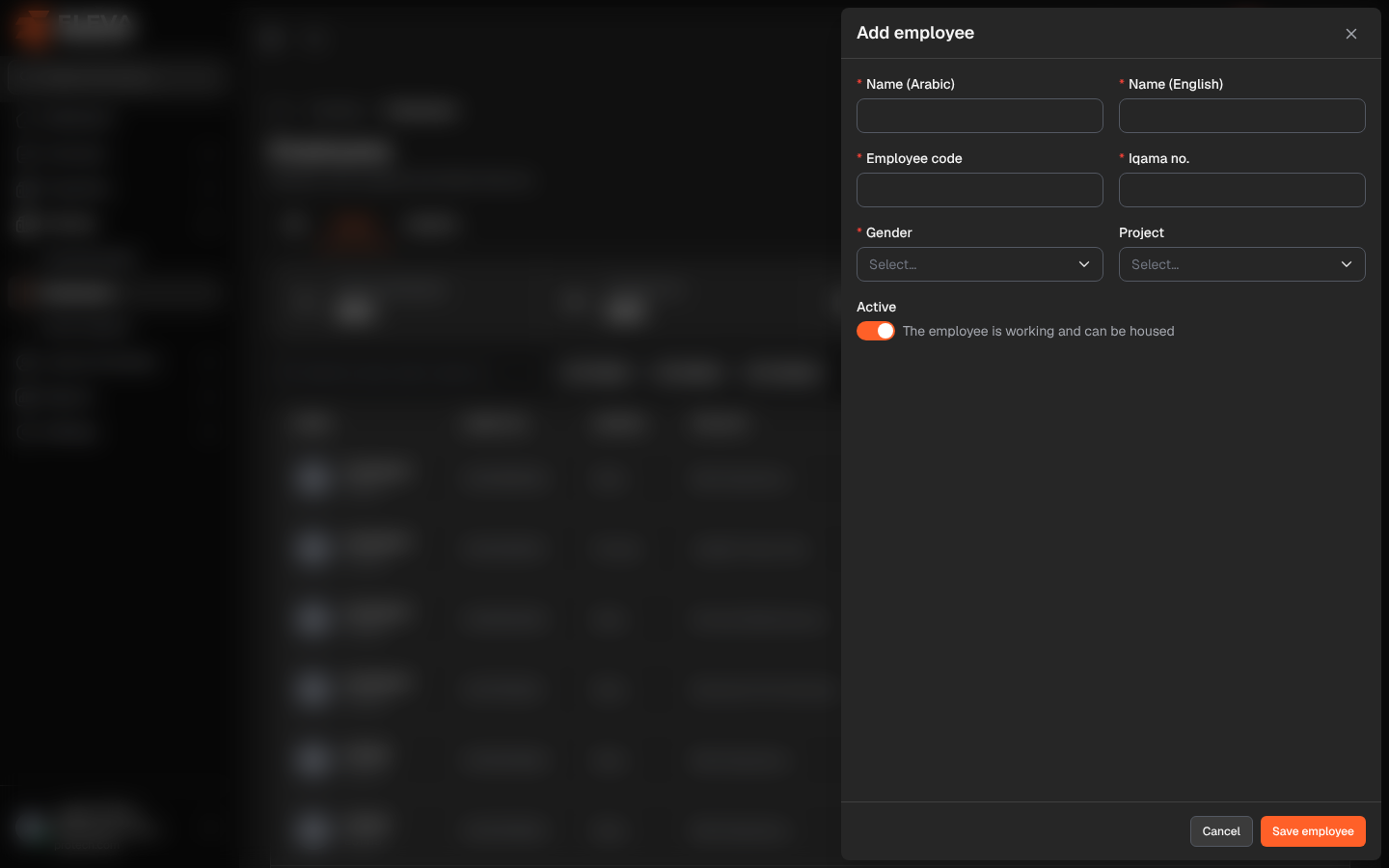
Add an employee before housing them. The form records the employee’s identity, gender (which decides the units they can live in) and project. Many employees can also be added at once from an Excel file.
From the side menu, open Housing › Employees and click Add employee. To edit an employee, click Edit on the employee page or the pencil icon in the list.
Fields
Section titled “Fields”- Name (Arabic) and Name (English) (required).
- Employee code (required): unique; up to 50 characters.
- Iqama no. (required): unique; up to 50 characters.
- Gender (required): Male or Female.
- Project: the project the employee works on. It is required for users limited to some projects, who can only choose their own projects.
- Project start date: when the employee starts on the project. When you change the project of an existing employee, The previous project ends the day before this date.
- Active: on when The employee is working and can be housed.
How to add an employee
Section titled “How to add an employee”- Click Add employee.
- Fill in the fields.
- Click Save employee, or Cancel to close without saving.
Changing the project or status
Section titled “Changing the project or status”- Changing the Project keeps the old project in the employee’s Project history, ending the day before the Project start date.
- Switching Active off shows Deactivating ends the employee’s current housing today. and asks for confirmation (Deactivate employee).
Required permissions
Section titled “Required permissions”Employees › Add to add; Employees › Edit to edit.