

New contract: lessor and broker
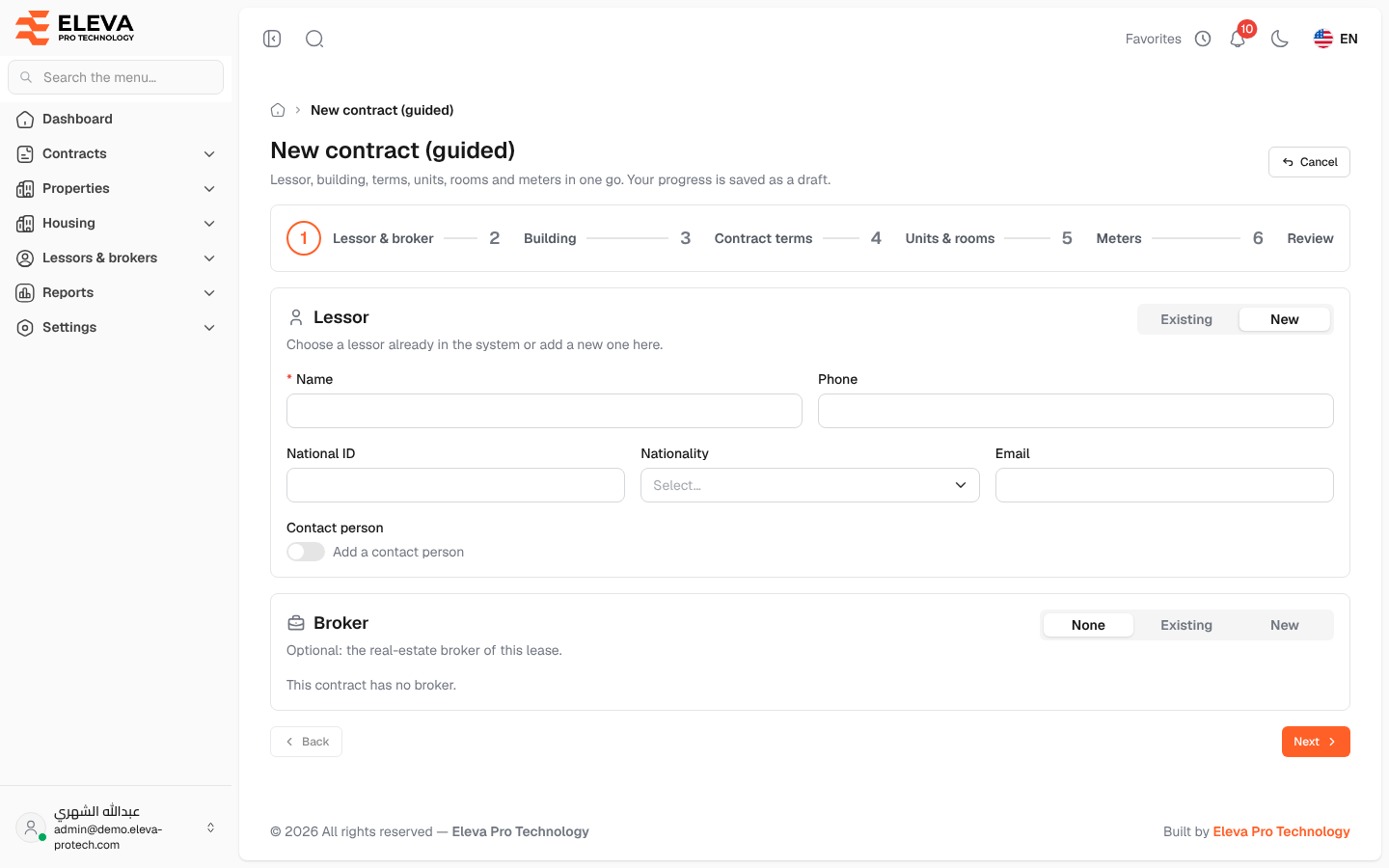
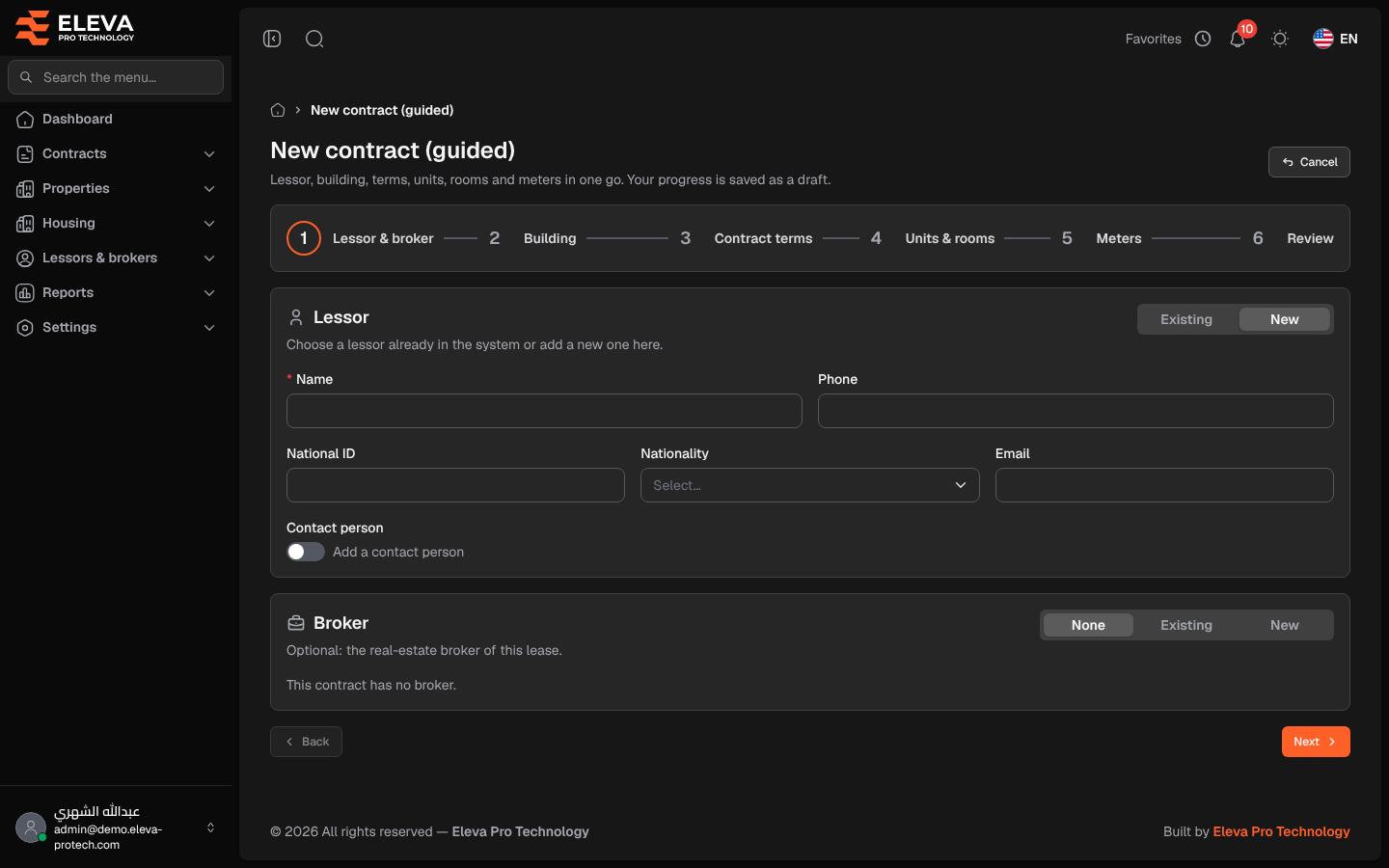
New contracts are created with a guided wizard, New contract (guided). In one go it records the lessor and the broker, the building, the contract terms, the units and rooms the contract covers and the meters, and it builds the rent payment schedule automatically. A lessor, broker or building that is not in the system yet can be added from the wizard itself.
From the side menu, open Contracts › Contracts and click New contract.
The wizard’s steps
Section titled “The wizard’s steps”The bar at the top shows the six steps: Lessor & broker, Building, Contract terms, Units & rooms, Meters and Review.
- Next checks the current step and moves on. A required field left empty shows This field is required.
- Back returns to the previous step, and you can click any step you have already reached.
- Units & rooms and Meters show This step is optional.: you can skip them and complete the contract later.
- Cancel leaves the wizard and returns to the contracts list.
Drafts
Section titled “Drafts”Your progress is saved automatically as a draft; the header shows Draft saved with the time. When you open the wizard again, it asks Continue your draft from …?:
- Continue reopens the draft at the step where you left it.
- Start over deletes the draft (after confirming in Discard the draft) and starts with an empty wizard.
Fields
Section titled “Fields”Lessor: choose Existing or New.
- Existing: Lessor (required). Type a few letters of the name to search.
- New: Name (required), Phone, National ID, Nationality and Email. The phone, national ID and e-mail must not belong to another lessor.
- Contact person: tick Add a contact person to add the lessor’s contact: Contact name (required), Phone and Email.
Broker (optional): choose None, Existing or New.
- None: the page shows This contract has no broker.
- Existing: Broker (required).
- New: Name (required), CR number and Phone, with an optional contact person as for the lessor. The CR number and phone must not belong to another broker.
How to fill in this step
Section titled “How to fill in this step”- Under Lessor, choose Existing and pick the lessor, or choose New and type the lessor’s details.
- Under Broker, leave None, or pick or add the broker.
- Click Next.
Required permission
Section titled “Required permission”Contracts › Add.