

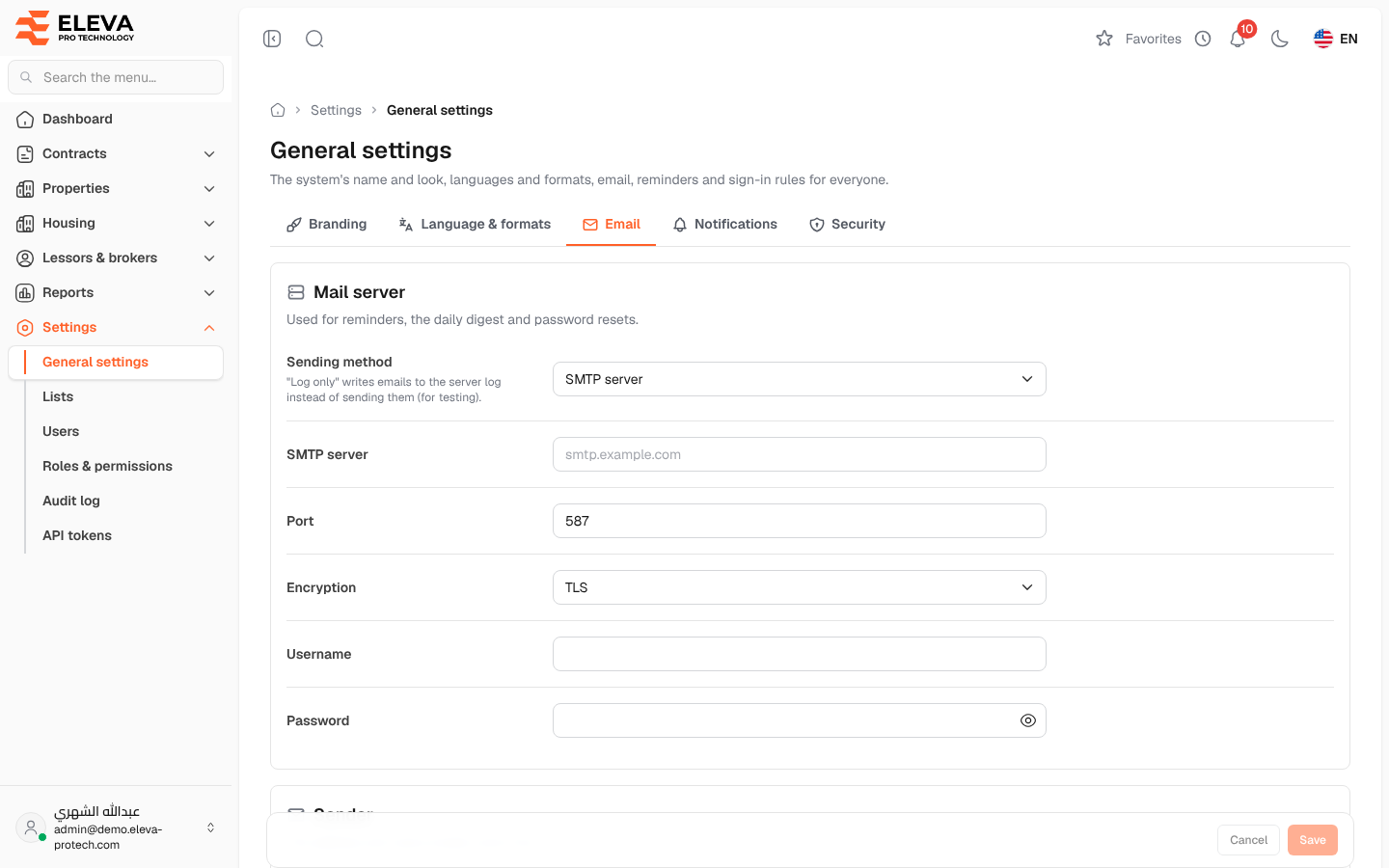
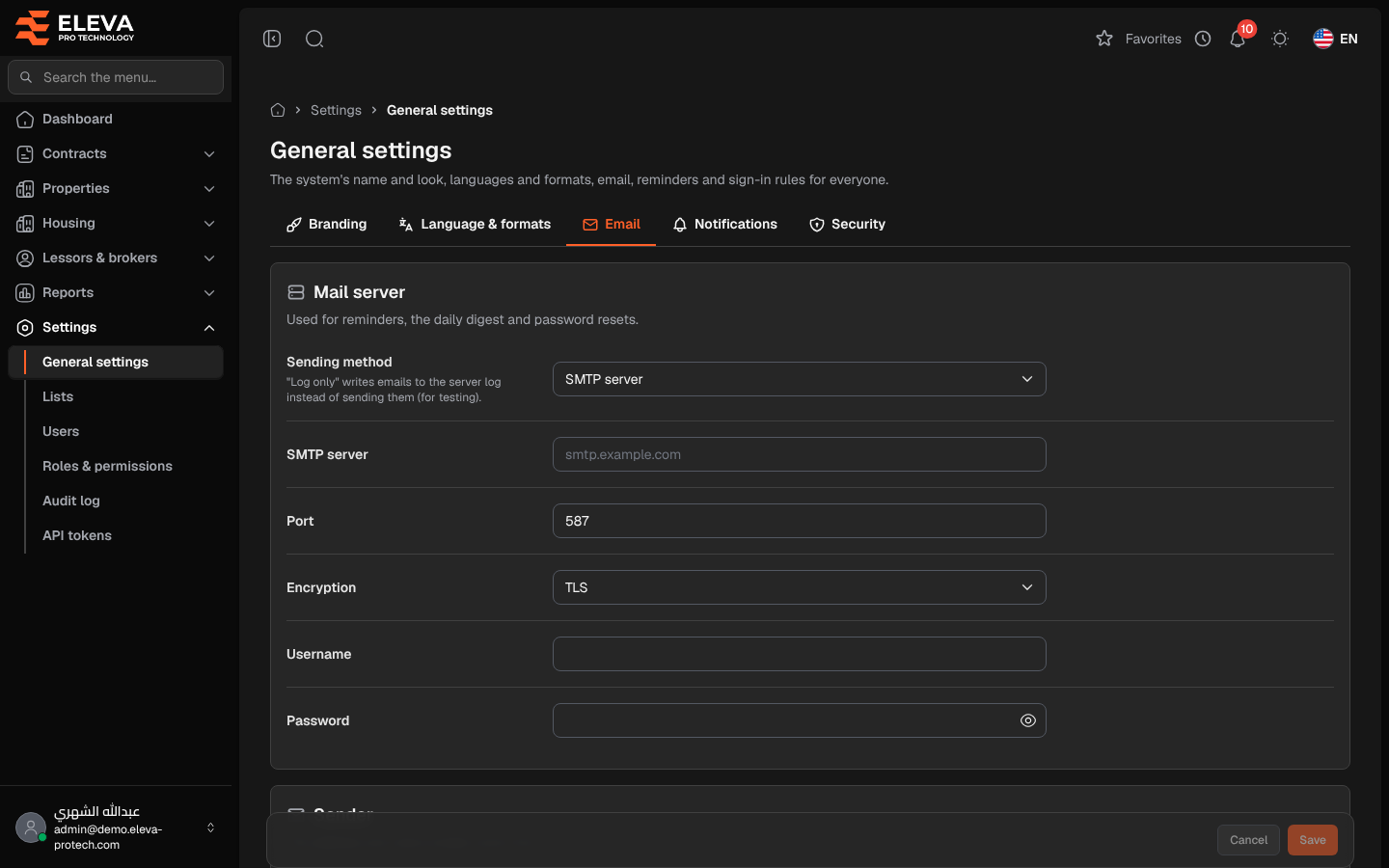
The Email tab connects the system to your mail server. E-mail is used for the reminders, the daily digest and password reset links.
From the side menu, open Settings › General settings and click Email.
Mail server
Section titled “Mail server”- Sending method: SMTP server, or Log only, which writes e-mails to the server log instead of sending them (for testing).
- SMTP server and Port (1 to 65535): required for SMTP server.
- Encryption: TLS, SSL or None.
- Username and Password: when a password is saved, the field stays empty; leave it empty to keep it, and type it again when you change the server, port or username.
Sender
Section titled “Sender”- Sender address: the address e-mails come from. Required for SMTP server.
- Sender name: when empty, the company name is used.
Send a test email
Section titled “Send a test email”- Send to: the address to send the test to.
- Send test email: sends a short e-mail with the saved settings and shows the error if it fails.
How to set up e-mail
Section titled “How to set up e-mail”- Choose SMTP server and fill in the server, port, encryption, username and password given by your e-mail provider.
- Fill in the Sender address and Sender name.
- Click Save.
- Under Send a test email, type your address in Send to and click Send test email. The message Test email sent to … confirms it, or The test email could not be sent: … gives the reason.
Required permissions
Section titled “Required permissions”General settings › View to open the screen; General settings › Edit to save and send a test.