

New contract: review and create
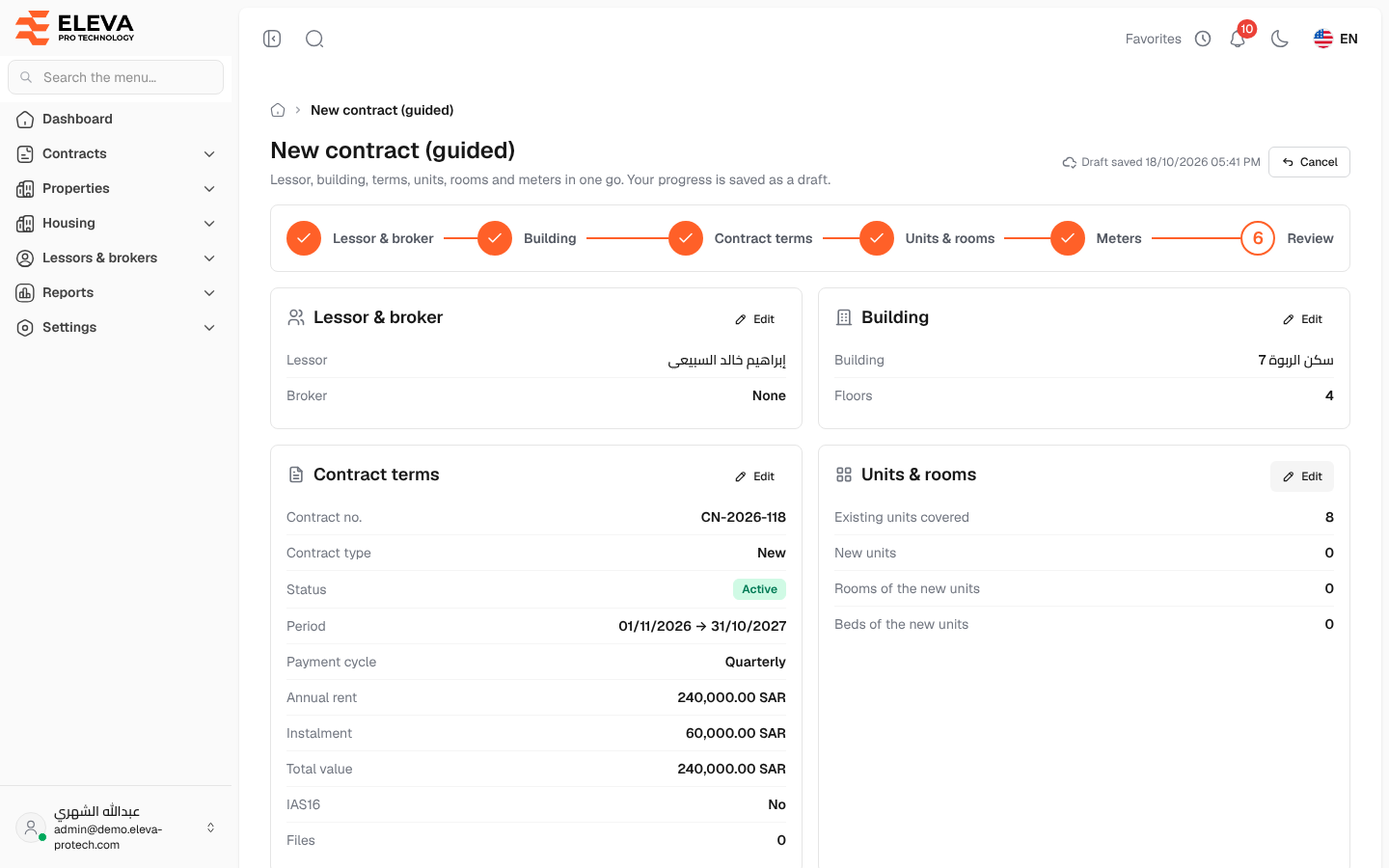
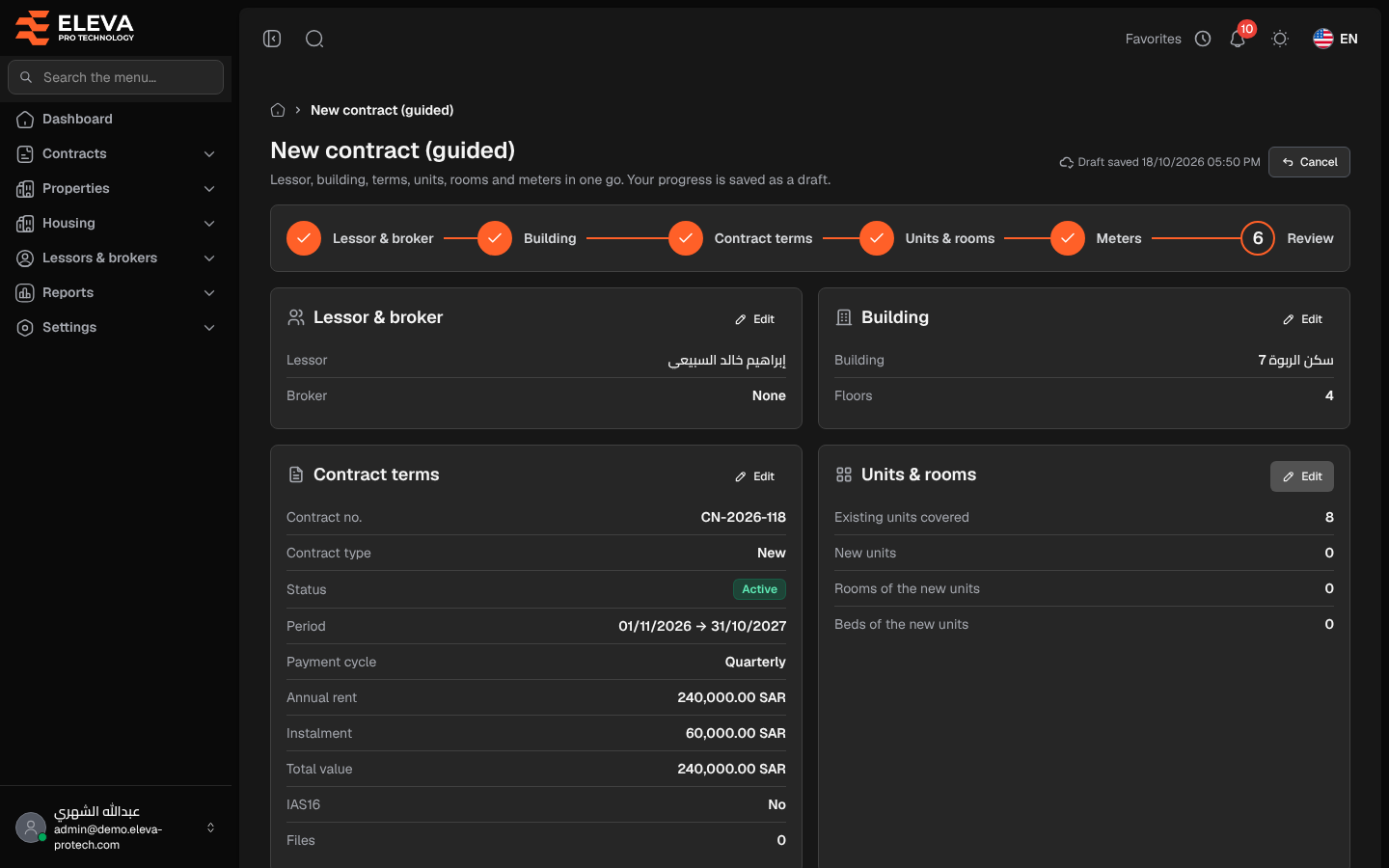
The last step shows everything you entered before the contract is created, together with the rent schedule the system will generate. Nothing is saved until you click Create contract.
What’s on this screen
Section titled “What’s on this screen”- Lessor & broker: the lessor, and the broker or None.
- Building: the chosen building and its Floors, or the new building’s name and structure.
- Contract terms: Contract no., Contract type, Status, Period, Payment cycle, Annual rent, Instalment, Total value, IAS16 and the number of Files.
- Units & rooms: Existing units covered, New units, Rooms of the new units, Beds of the new units and, when units are added, Floors of the new units. Without units it shows No units; they can be linked later from the contract page.
- Meters: the meters, or No meters.
- Rent schedule: each instalment with Due date, Period (days), Payment deadline and Amount.
Each card has Edit, which takes you back to that step. Items created by the wizard are marked New.
How the rent schedule is built
Section titled “How the rent schedule is built”- The first instalment is due on the start date; the next ones follow every 1, 3, 6 or 12 months, depending on the payment cycle.
- The Payment deadline is 30 days after the due date. An unpaid instalment becomes Overdue after its deadline.
- Every instalment is the regular amount, except the last one, which is adjusted so the schedule adds up to the contract’s total value.
How to create the contract
Section titled “How to create the contract”- Check each card; click Edit to correct a step.
- Click Create contract.
- The contract page opens with the message The contract was created with everything entered in the wizard. The draft is deleted.
If something is refused, the steps with errors are marked in red at the top and the page shows Some steps have errors; they are marked above. Open the marked step, correct the field and come back to Review.
Required permission
Section titled “Required permission”Contracts › Add.