

Rent payments
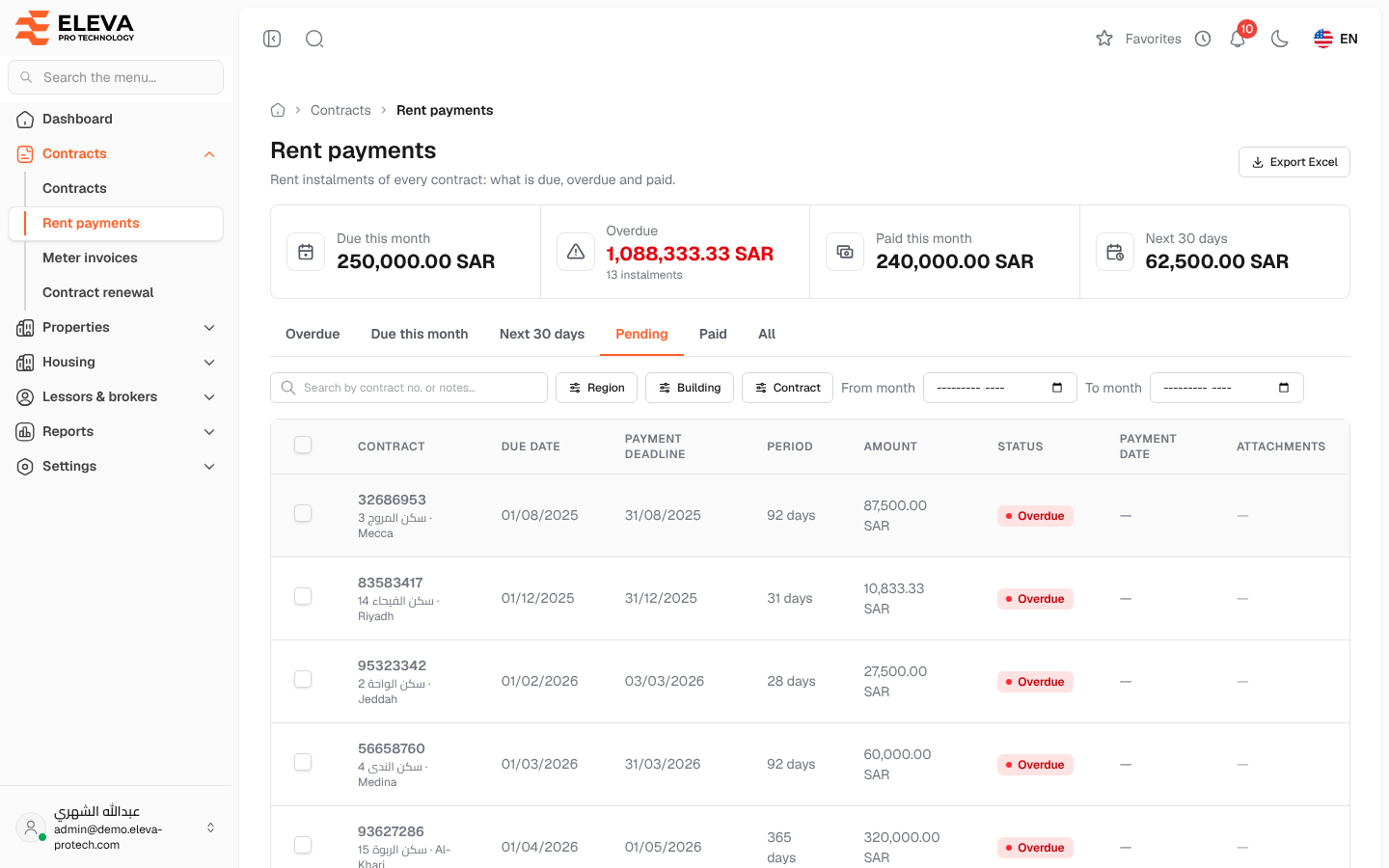
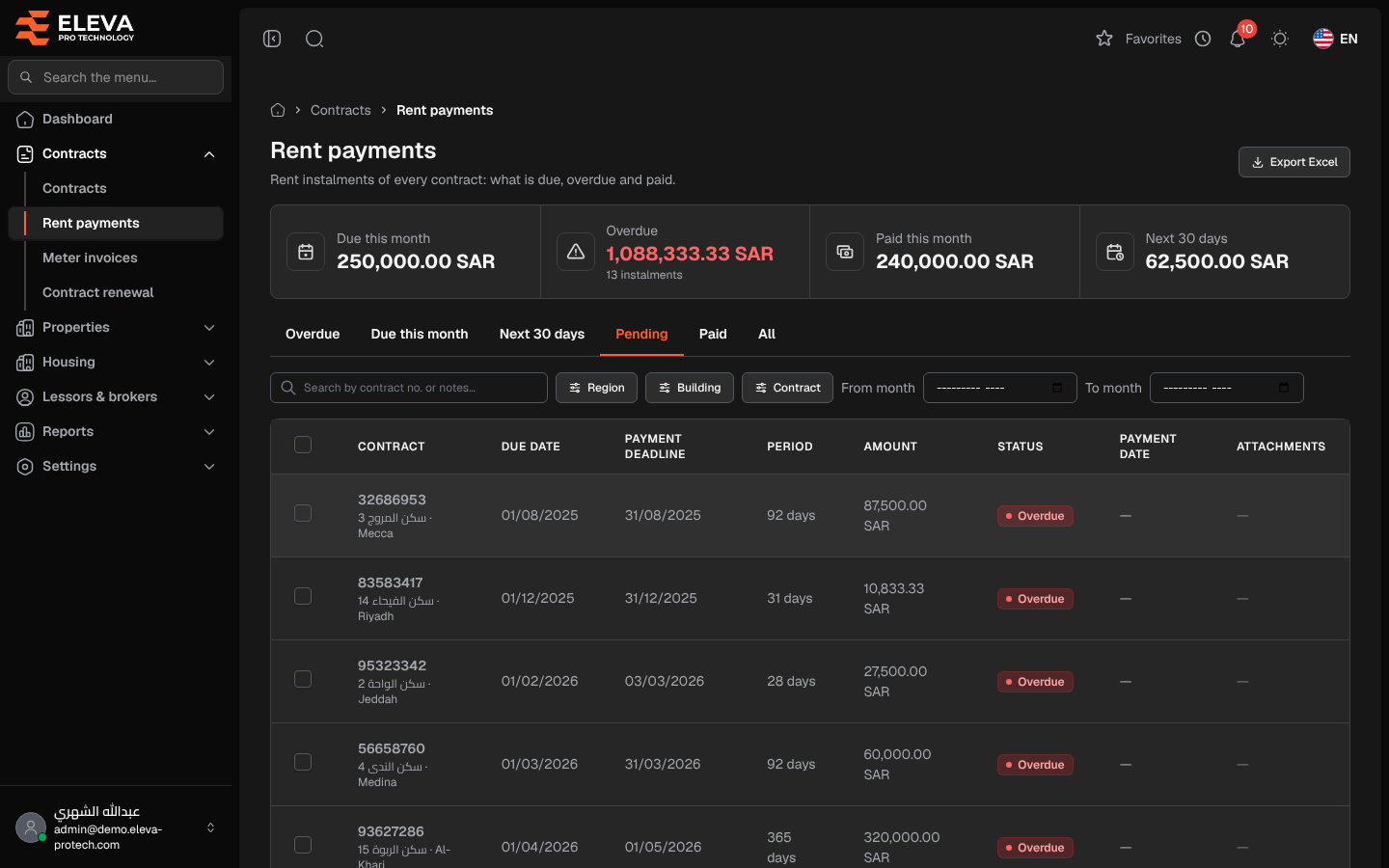
The Rent payments screen lists the rent instalments of every contract in one place: what is due, what is overdue and what has been paid. Use it to follow up on rent, to record payments for several contracts at once and to export the instalments.
From the side menu, open Contracts › Rent payments.
What’s on this screen
Section titled “What’s on this screen”- Tabs: Overdue, Due this month, Next 30 days, Pending, Paid and All. The list opens on Pending (unpaid instalments).
- Summary cards: Due this month, Overdue (amount and number of instalments), Paid this month and Next 30 days.
- Search by contract no. or notes…
- Filters: Region, Building, Contract, and From month / To month to limit the due dates to a period.
- Export Excel: downloads the list as shown.
Columns
Section titled “Columns”- A tick box, on unpaid instalments (for users who can record payments).
- Contract: the contract number, a link to the contract, with the building and city underneath.
- Due date
- Payment deadline: 30 days after the due date.
- Period: the number of days the instalment covers.
- Amount
- Status: Pending, Paid or Overdue (unpaid after its deadline).
- Payment date
- Attachments: the number of files attached.
Click a row to open the instalment. See Edit an instalment.
How to record several payments at once
Section titled “How to record several payments at once”- Tick the instalments that were paid. The bar above the list shows N selected; Clear selection removes the ticks.
- Click Mark as paid.
- Check the Payment date and confirm. See Mark instalments as paid.
Required permissions
Section titled “Required permissions”- Rent payments › View to open the screen.
- Rent payments › Edit to tick instalments, mark them as paid and edit them.
- Rent payments › Export for Export Excel.