

Rooms
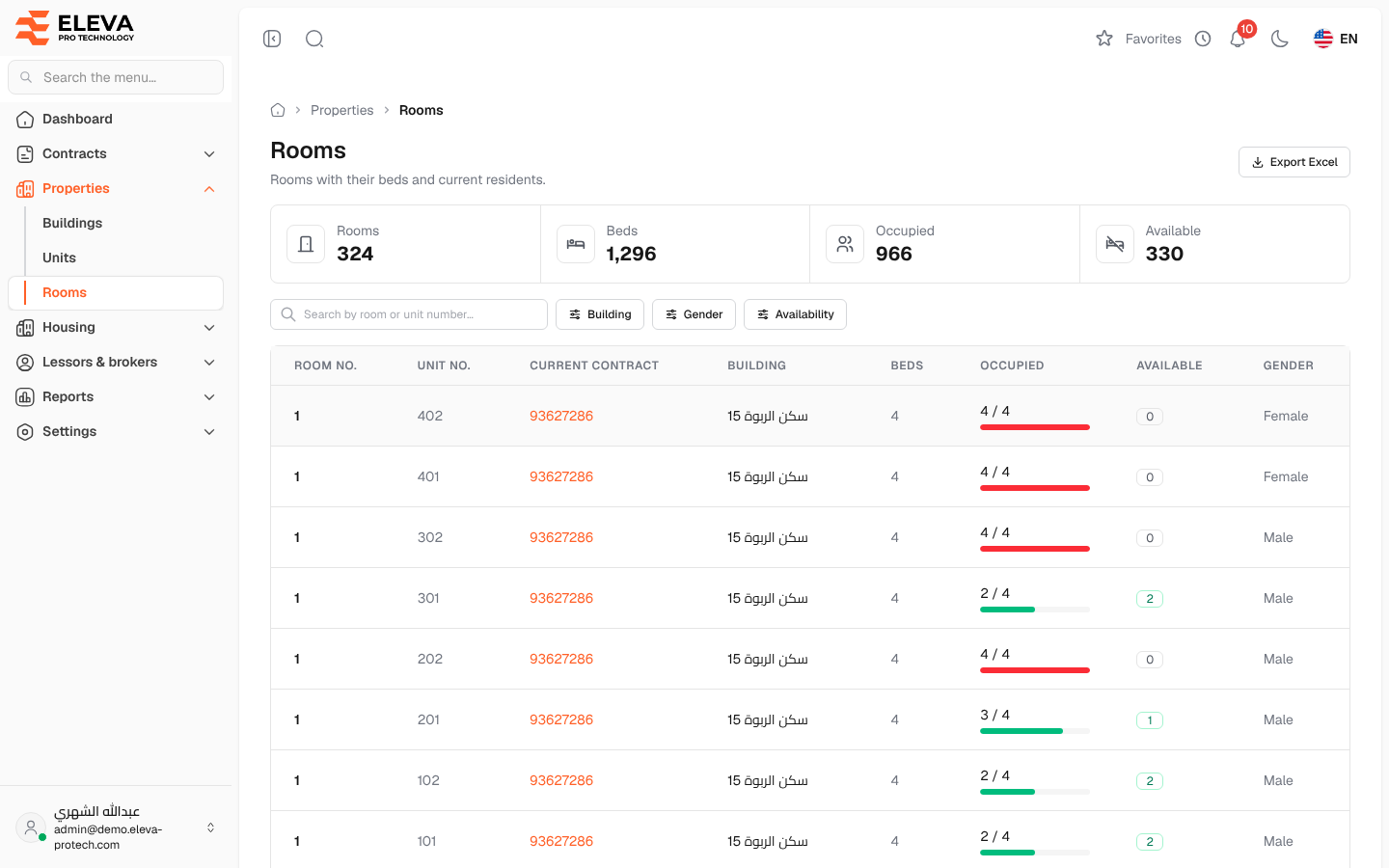
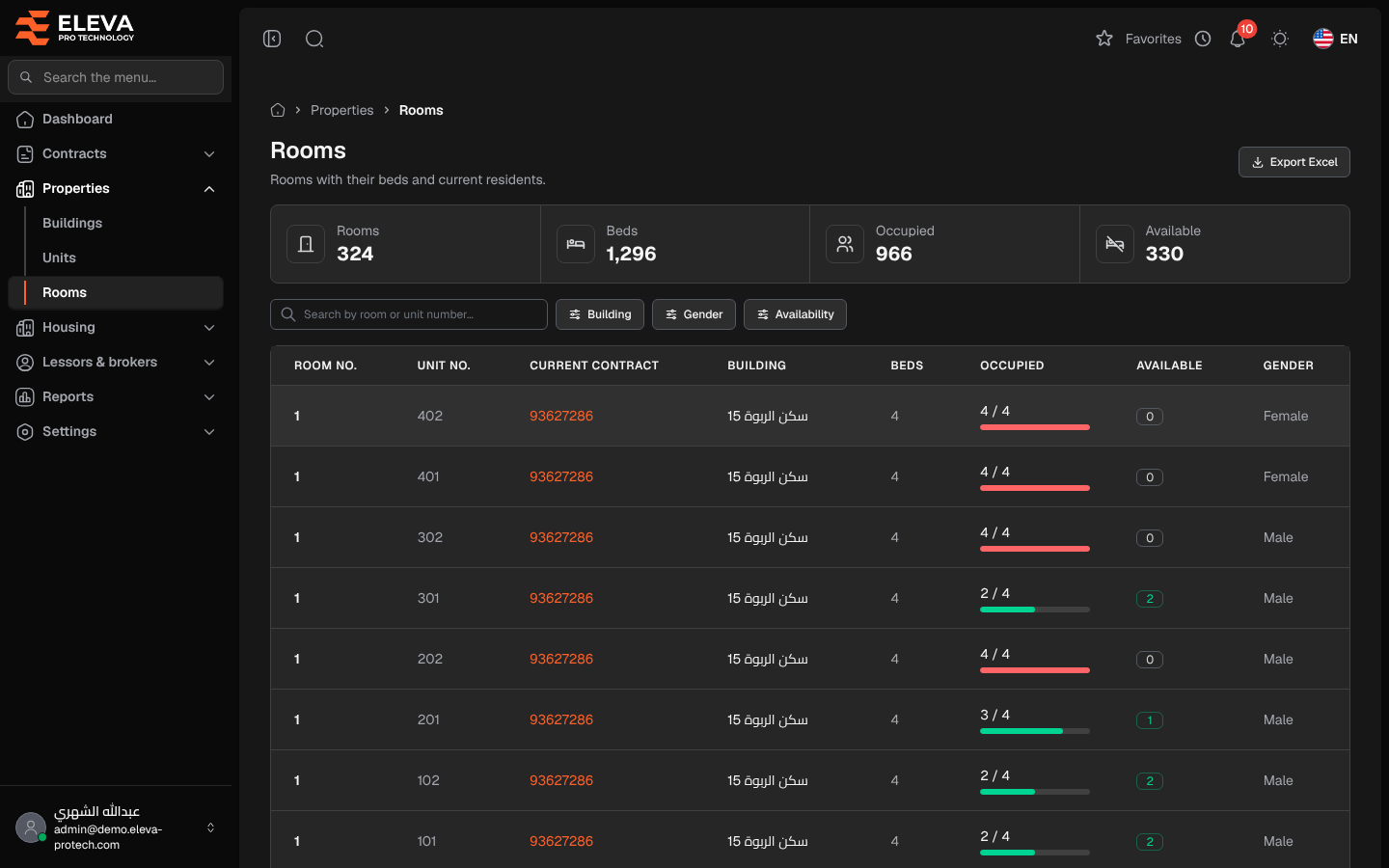
The Rooms screen lists the rooms of every building with their beds and how many are free. Use it to find a room with free beds, or to open a room and see who lives in it.
From the side menu, open Properties › Rooms.
What’s on this screen
Section titled “What’s on this screen”- Summary cards: Rooms, Beds, Occupied and Available.
- Search by room or unit number…
- Filters: Building, Gender and Availability: Has free beds, Full or Empty.
- Export Excel: downloads the list as shown.
Columns
Section titled “Columns”- Room no.
- Unit no.
- Current contract: the active contract that covers the room’s unit.
- Building
- Beds
- Occupied: occupied beds out of all beds.
- Available: free beds, highlighted in green when there are some.
- Gender: the residents the unit is for.
Click a row to open the room. See Room details.
How to find a free bed
Section titled “How to find a free bed”- Set Availability to Has free beds.
- Choose the Building and the Gender you need.
- Click a room to open it, then Assign residents to house someone there.
Required permissions
Section titled “Required permissions”- Buildings, units & rooms › View to open the screen.
- Buildings, units & rooms › Export for Export Excel.