

Housing analysis
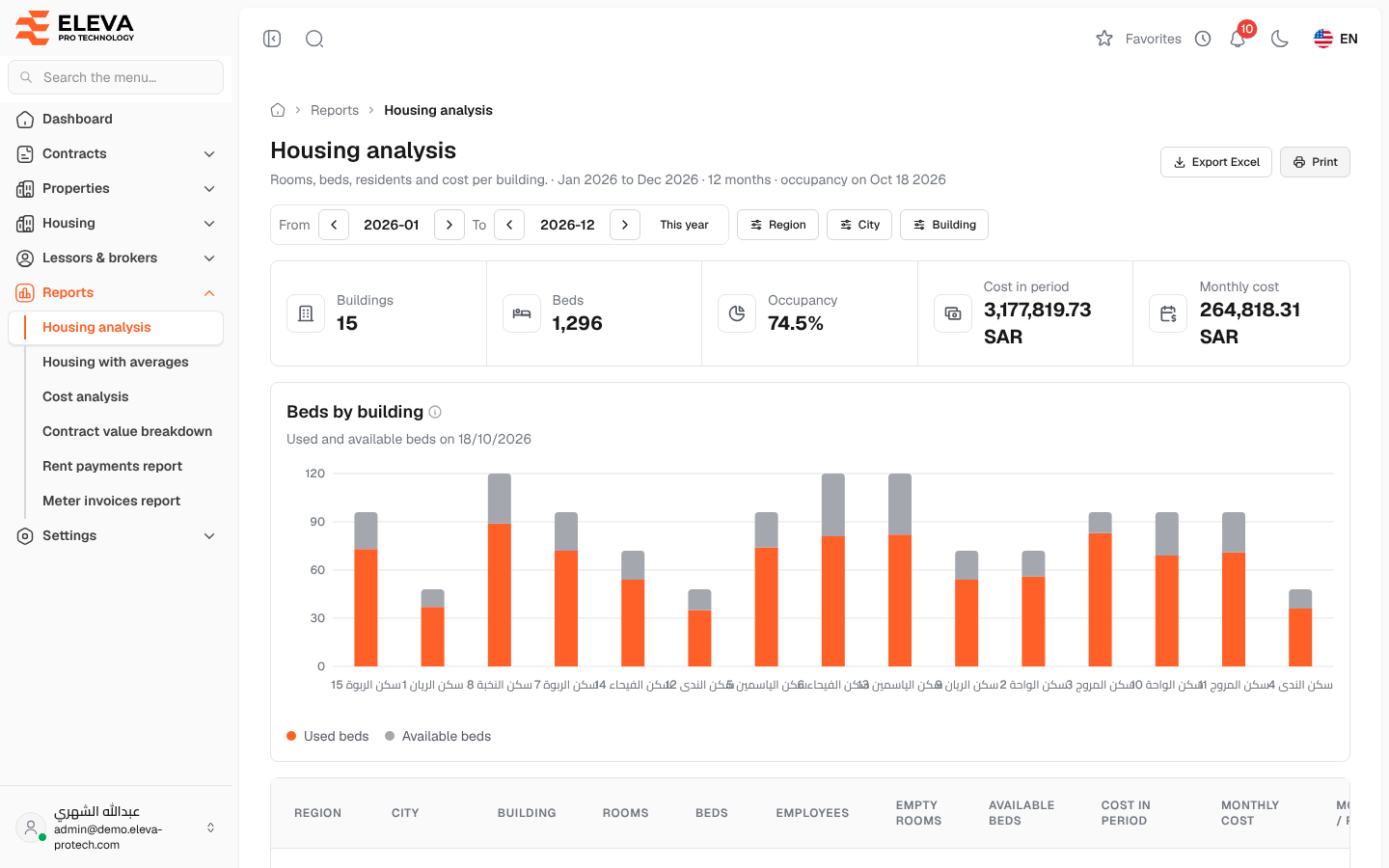
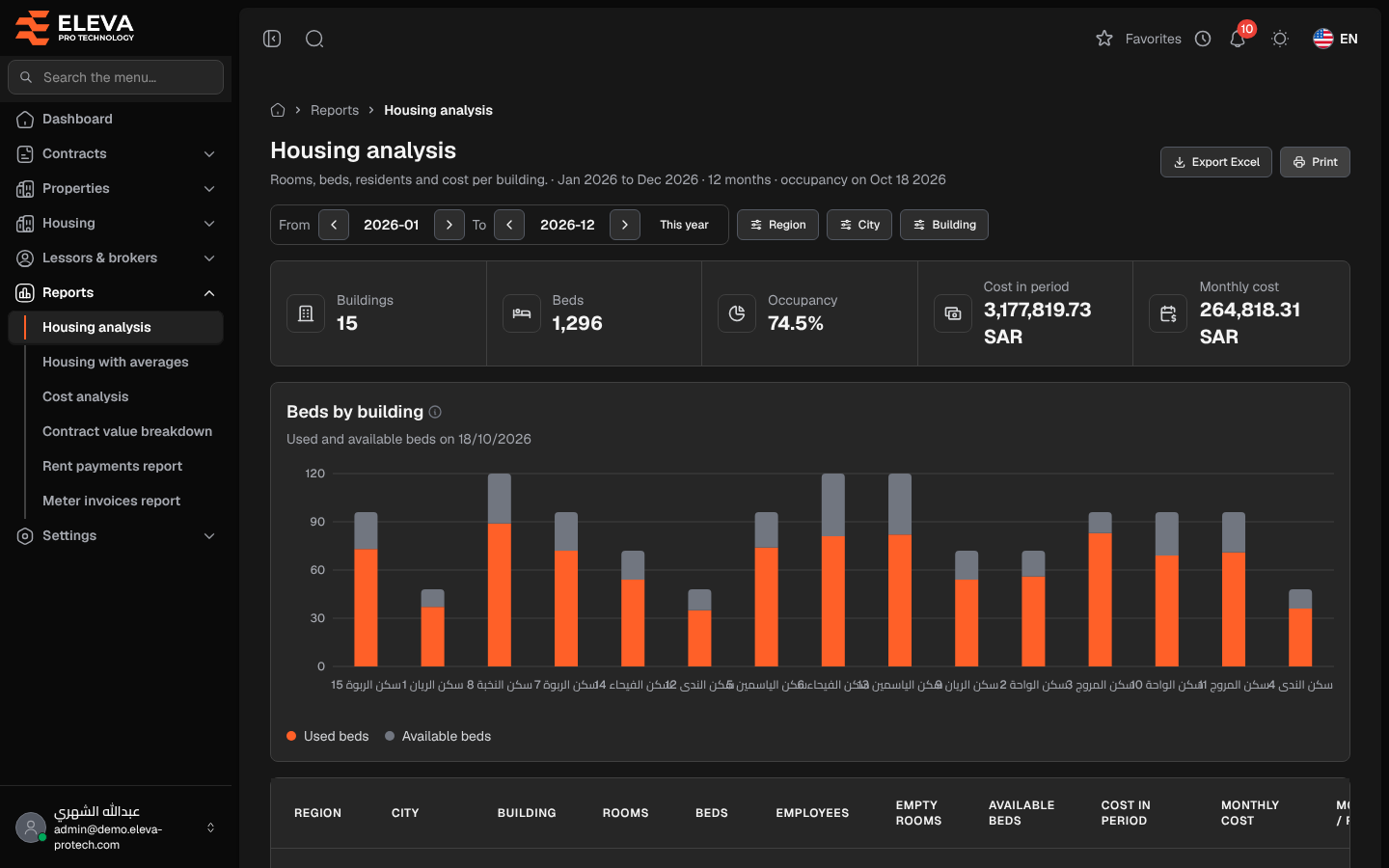
The Housing analysis report shows, for each building, its rooms and beds, how many employees live there (men and women), what is empty, and what the building costs over a period, in total and per room and bed. Use it to compare buildings and to see where beds are unused.
From the side menu, open Reports › Housing analysis.
Filters
Section titled “Filters”- From and To: the first and last month of the period. This year sets the current calendar year, which is also the default.
- Region, City and Building.
Under the title, the period is summed up, for example Jan 2026 to Dec 2026 · 12 months · occupancy on ….
What’s on this screen
Section titled “What’s on this screen”- Export Excel and Print.
- Summary cards: Buildings, Beds, Occupancy, Cost in period and Monthly cost.
- Beds by building: used and available beds of each building on the occupancy day.
- The table, with a Total row and an Average per building row.
Columns
Section titled “Columns”- Region, City and Building
- Rooms and Beds
- Employees: residents, with the number of men (M) and women (F) underneath.
- Empty rooms and Available beds
- Cost in period and Monthly cost
- Monthly / room, Monthly / bed and Monthly / used bed
How the figures are calculated
Section titled “How the figures are calculated”- Rooms, beds and residents are counted on the last day of the period, or today if the period has not ended yet.
- Cost is each contract’s value spread over its days: contract value × days of the contract inside the period ÷ contract days. A contract that covers only part of the period counts only for those days.
Point at the help icons next to the chart titles to see these rules on the screen.
Required permissions
Section titled “Required permissions”- Reports › View to open the report.
- Reports › Export for Export Excel.