

New contract: building
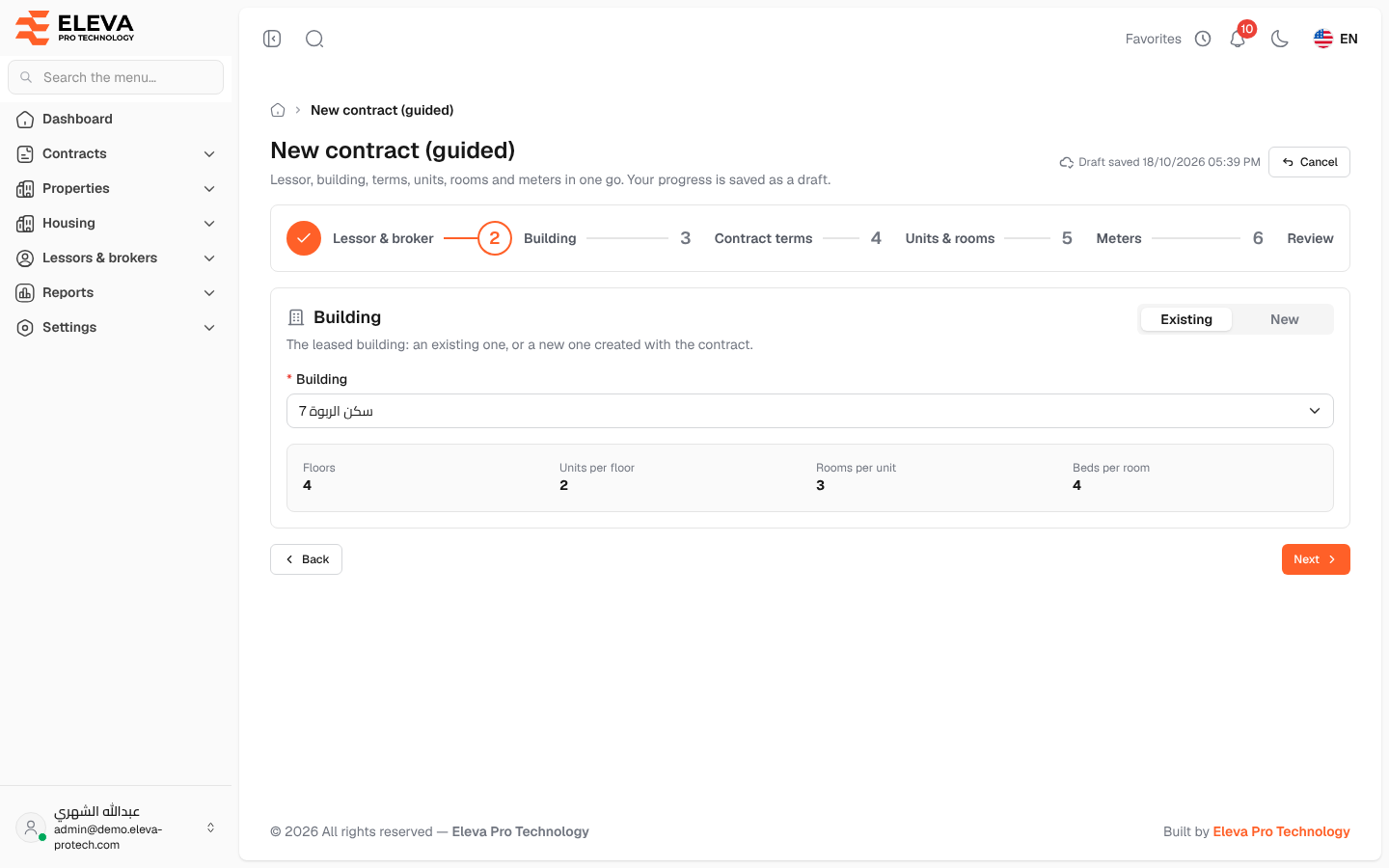
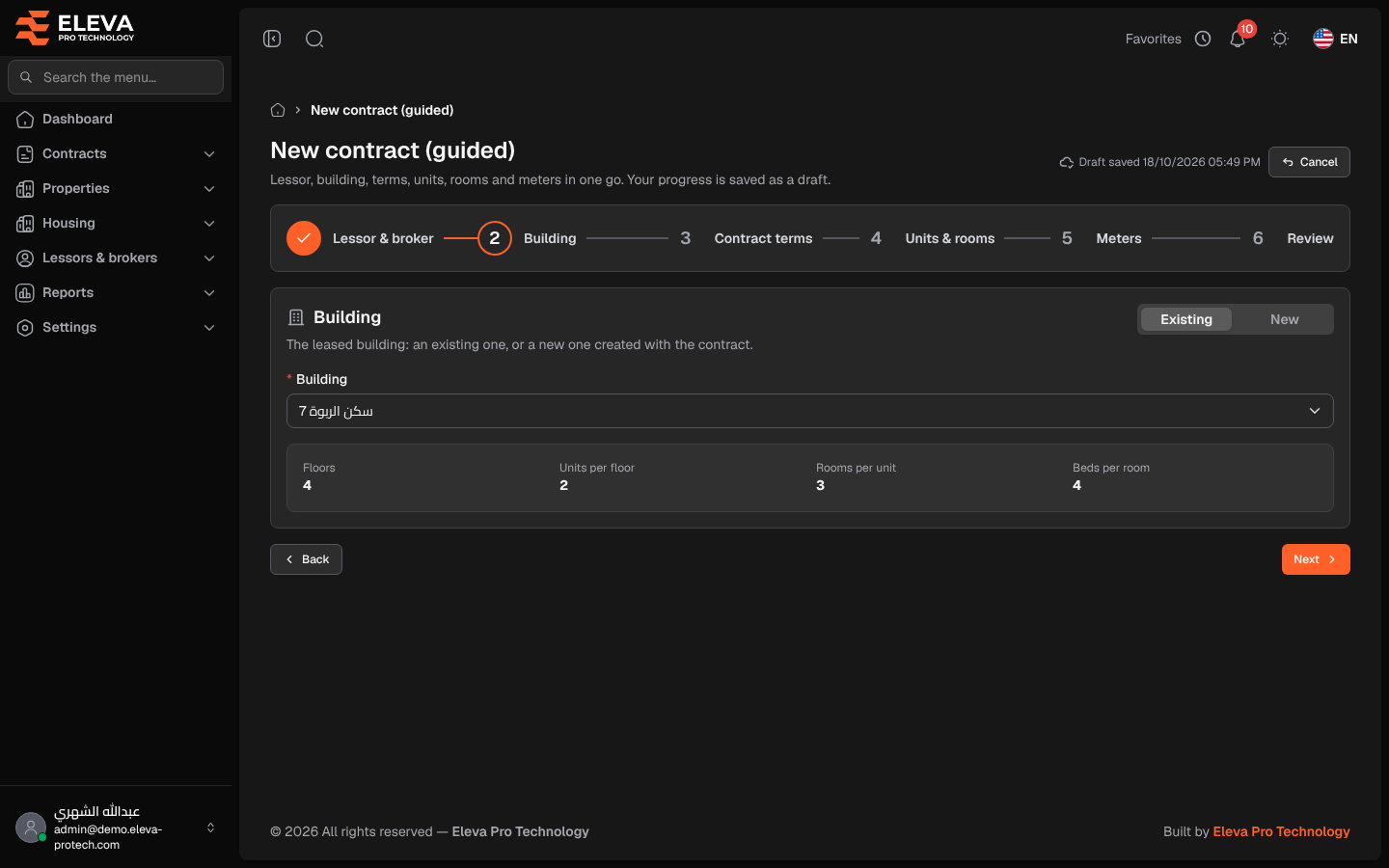
The second step of the wizard sets the leased building: a building already in the system, or a new one created together with the contract.
Fields
Section titled “Fields”Choose Existing or New.
Existing
- Building (required): type a few letters of the name to search. Once chosen, the building’s Floors, Units per floor, Rooms per unit and Beds per room are shown for checking.
New
- Name (required) and Address (required).
- Region and City (required): choosing a region narrows the list of cities. Users limited to some regions can only choose cities in those regions.
- Floors, Units per floor and Rooms per unit (required) and Beds per room: whole numbers from 1 to 1000. They describe the building and are offered as defaults when you generate units in the next steps.
- Default appliances per unit: click to show Window AC, Split AC, Freezer, Refrigerator, Washing machine, Stove and Gas cylinder. These counts are copied into every unit created by the wizard, and can be changed per unit later.
How to fill in this step
Section titled “How to fill in this step”- Choose Existing and pick the building, or choose New and type the building’s details.
- Click Next.
Required permission
Section titled “Required permission”Contracts › Add.