

Edit a role
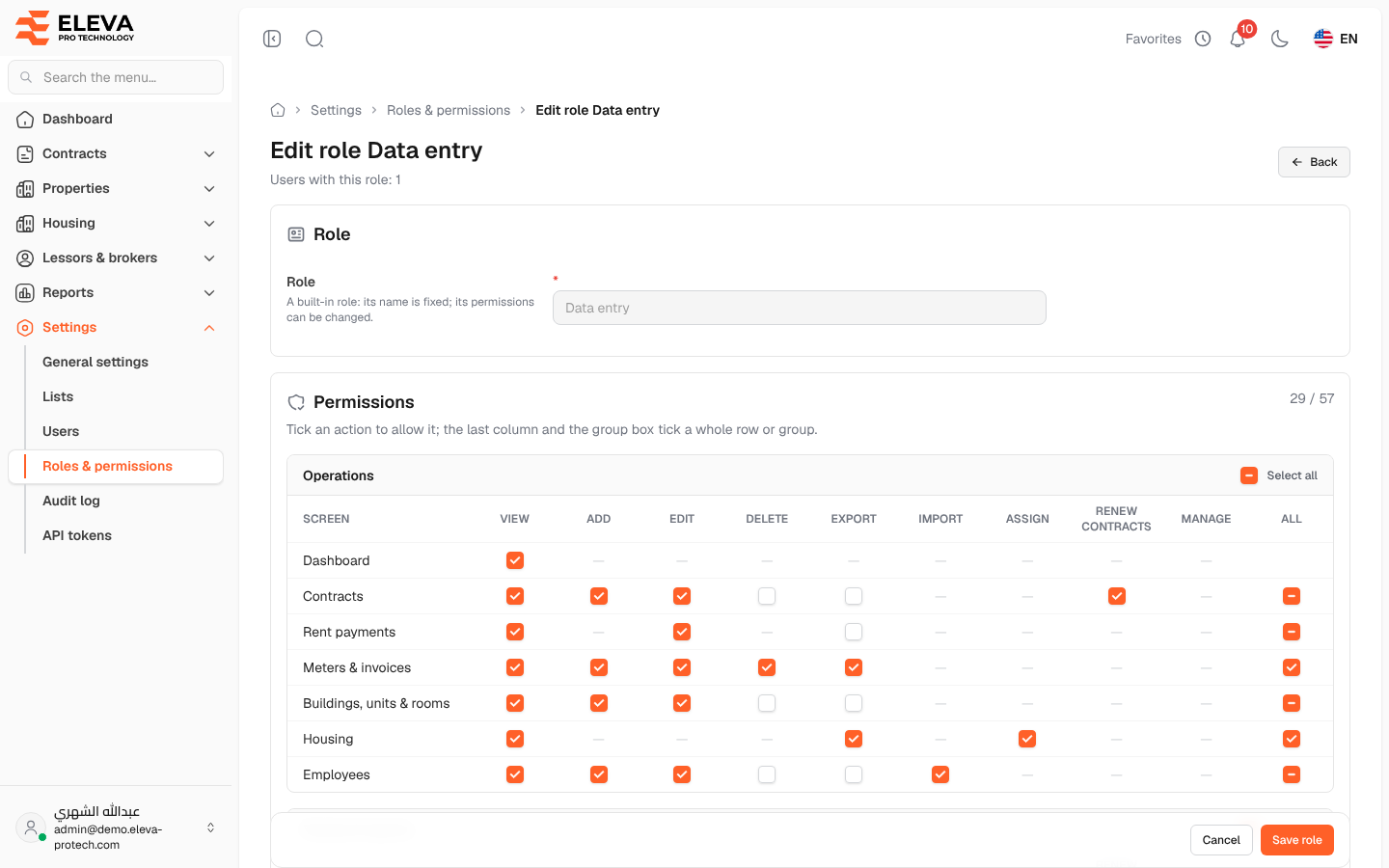
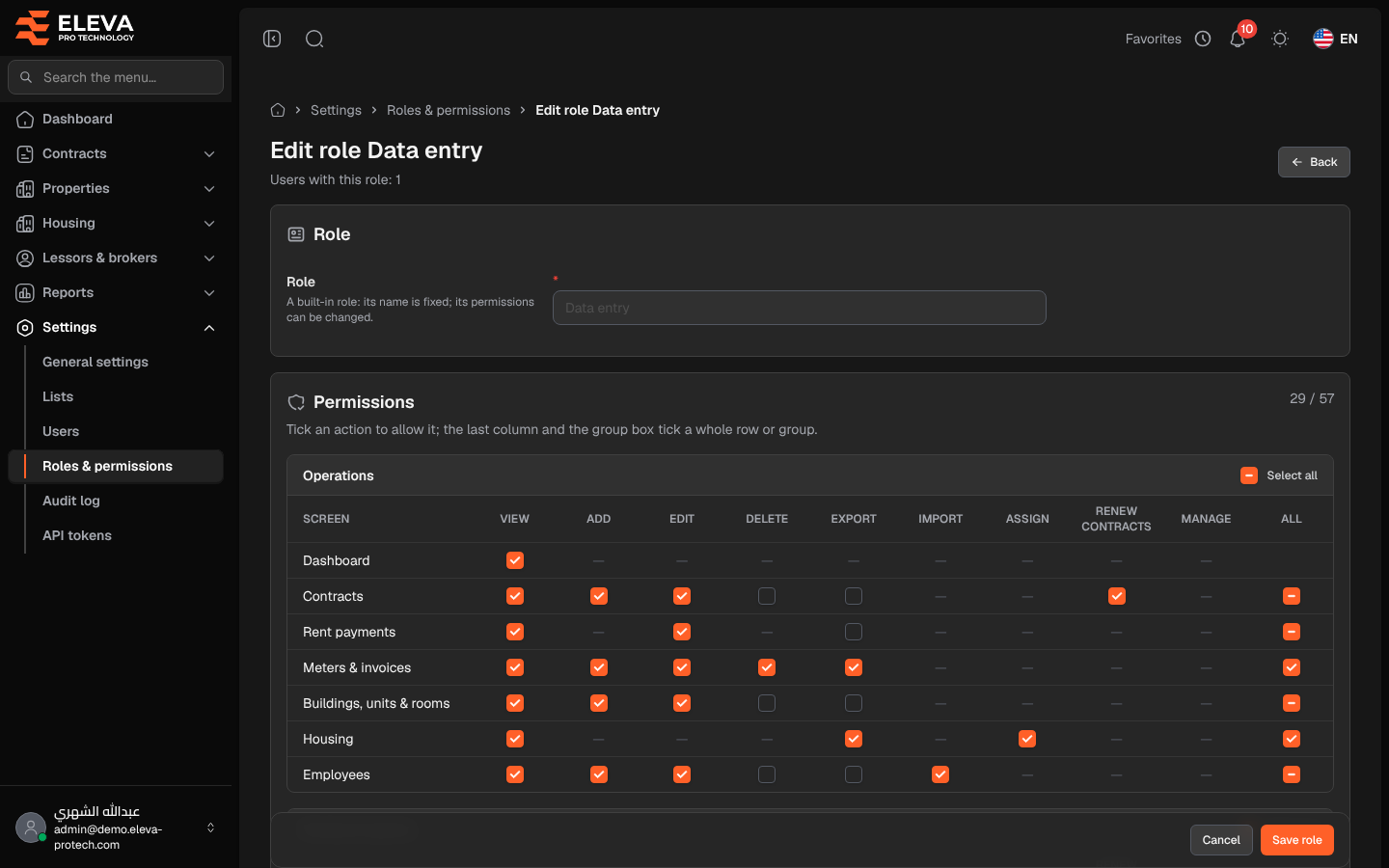
The role form sets the role’s name and its permissions. Permissions are shown as a table: one row for each screen, and a column for each action.
From the side menu, open Settings › Roles & permissions, then click a role. To create a role, click Add role; the form is the same.
What’s on this screen
Section titled “What’s on this screen”- The title, with Users with this role: N underneath (for an existing role).
- Role: the Role name, a short name such as accountant. A built-in role (Administrator, Data entry, Viewer) shows its name greyed out with A built-in role: its name is fixed; its permissions can be changed.
- Permissions: the permission table, with the number of permissions ticked out of all of them (for example 29 / 57).
- Back, Cancel and Save role.
The permission table
Section titled “The permission table”The screens are grouped into Operations (Dashboard, Contracts, Rent payments, Meters & invoices, Buildings, units & rooms, Housing, Employees), Parties & reports (Lessors, Brokers, Reports) and Administration (Lists, Users, Roles, General settings, Audit log, API tokens).
The actions are View, Add, Edit, Delete, Export, Import, Assign (house residents), Renew contracts (the Contract renewal screen) and Manage (API tokens). Each screen only has the actions that apply to it.
- Tick a box to allow that action on that screen.
- The All box at the end of a row ticks or clears the whole row.
- Select all at the top of a group ticks or clears the whole group.
How to edit a role
Section titled “How to edit a role”- Change the Role name if needed (not possible for a built-in role).
- Tick or clear the permissions.
- Click Save role.
Changes apply at once to every user who holds the role.
- The role name is required, unique and up to 60 characters.
- You can only give permissions you hold yourself (You cannot grant permissions you do not hold yourself.).
- You cannot change a role you hold yourself (You cannot change a role you hold yourself.).
- The super admin role cannot be changed.
Required permissions
Section titled “Required permissions”Roles › Edit to edit; Roles › Add to create a role.