

Units and rooms of a contract
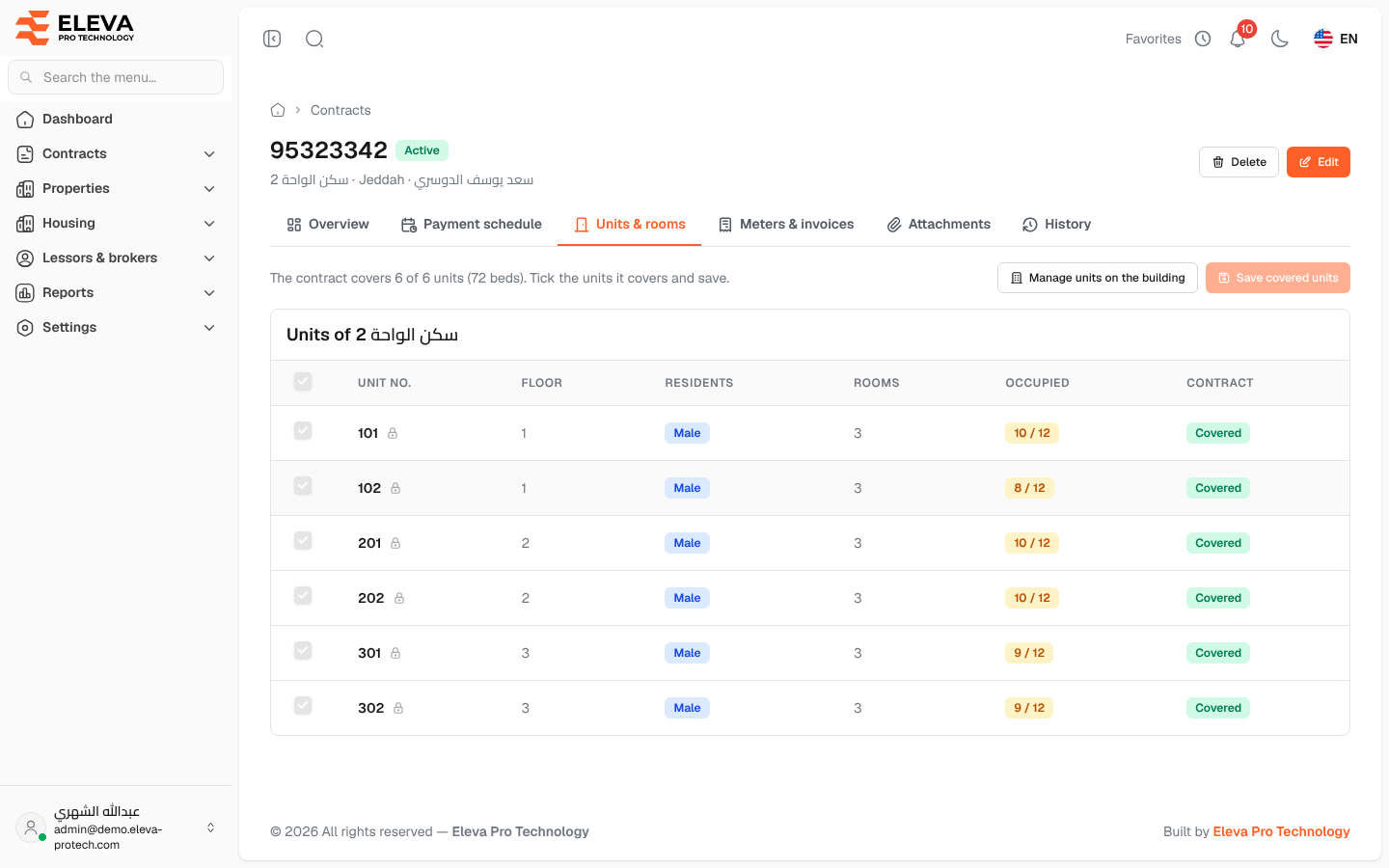
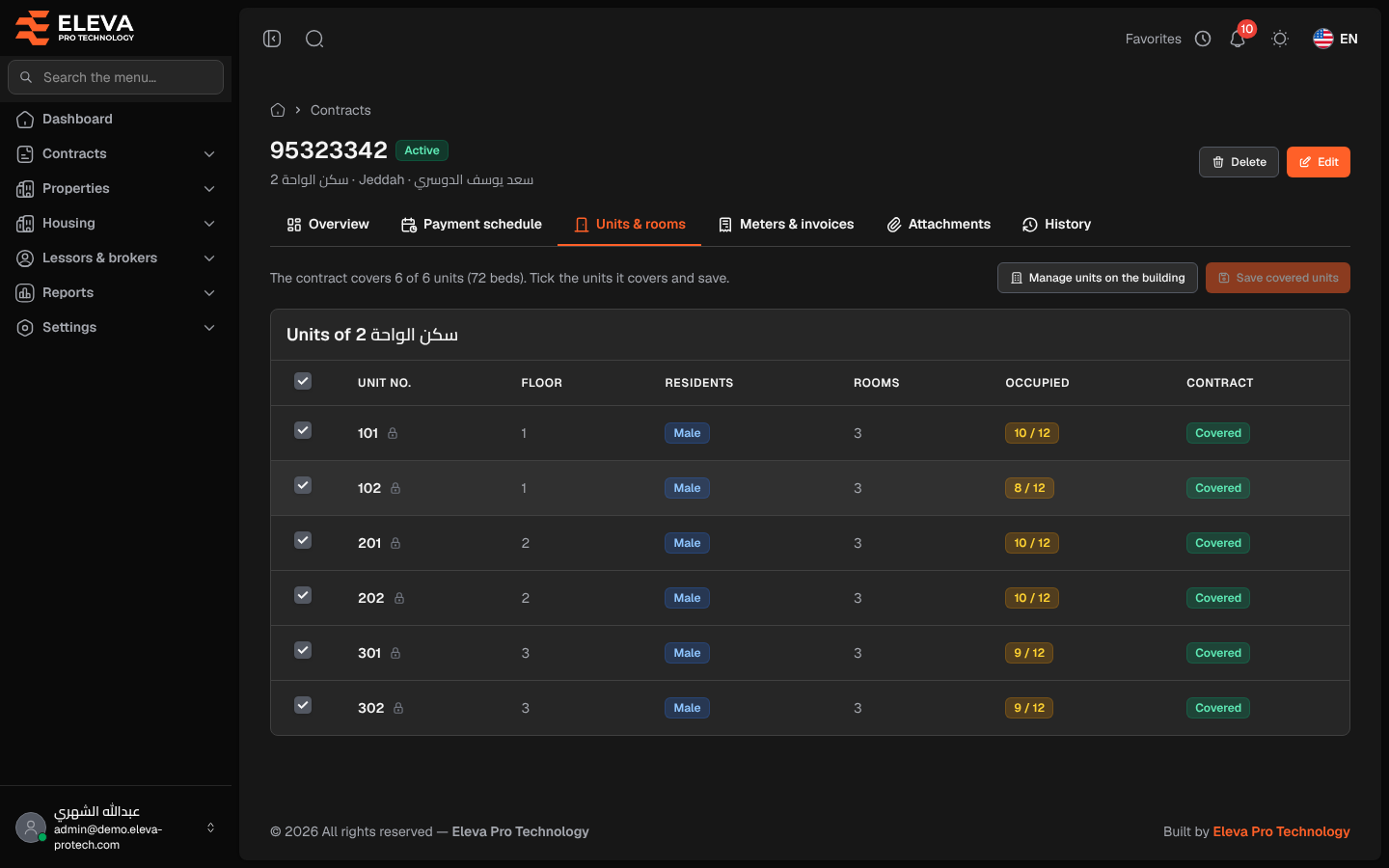
The Units & rooms tab shows the units of the contract’s building and which of them this contract covers. Units belong to the building and are added or changed on the building page; here you only choose which units the lease covers. Only units covered by an active contract can receive residents.
Open the contract and click the Units & rooms tab.
What’s on this screen
Section titled “What’s on this screen”- A line such as The contract covers 8 of 8 units (96 beds). Tick the units it covers and save.
- Manage units on the building: opens the building page, where units and rooms are added and edited.
- Save covered units: saves the ticks. It becomes available once you change something.
- The list Units of …, with a box in the heading to tick or clear all units.
Columns
Section titled “Columns”- A tick box.
- Unit no.: a lock icon means residents lived in the unit during this contract, so it stays covered.
- Floor
- Residents: Male or Female.
- Rooms
- Occupied: occupied beds out of all beds, green when empty, amber when partly occupied and red when full.
- Contract: Covered or Not covered, and Inactive for an inactive unit.
Units that are not covered are shown faded.
How to change the units a contract covers
Section titled “How to change the units a contract covers”- Tick the units the contract covers and clear the others.
- Click Save covered units. The message Saved: the contract covers N units. confirms it.
Required permissions
Section titled “Required permissions”- Contracts › View to see the tab.
- Contracts › Edit to change the covered units.
- Buildings, units & rooms › View for Manage units on the building.