

Stock counts
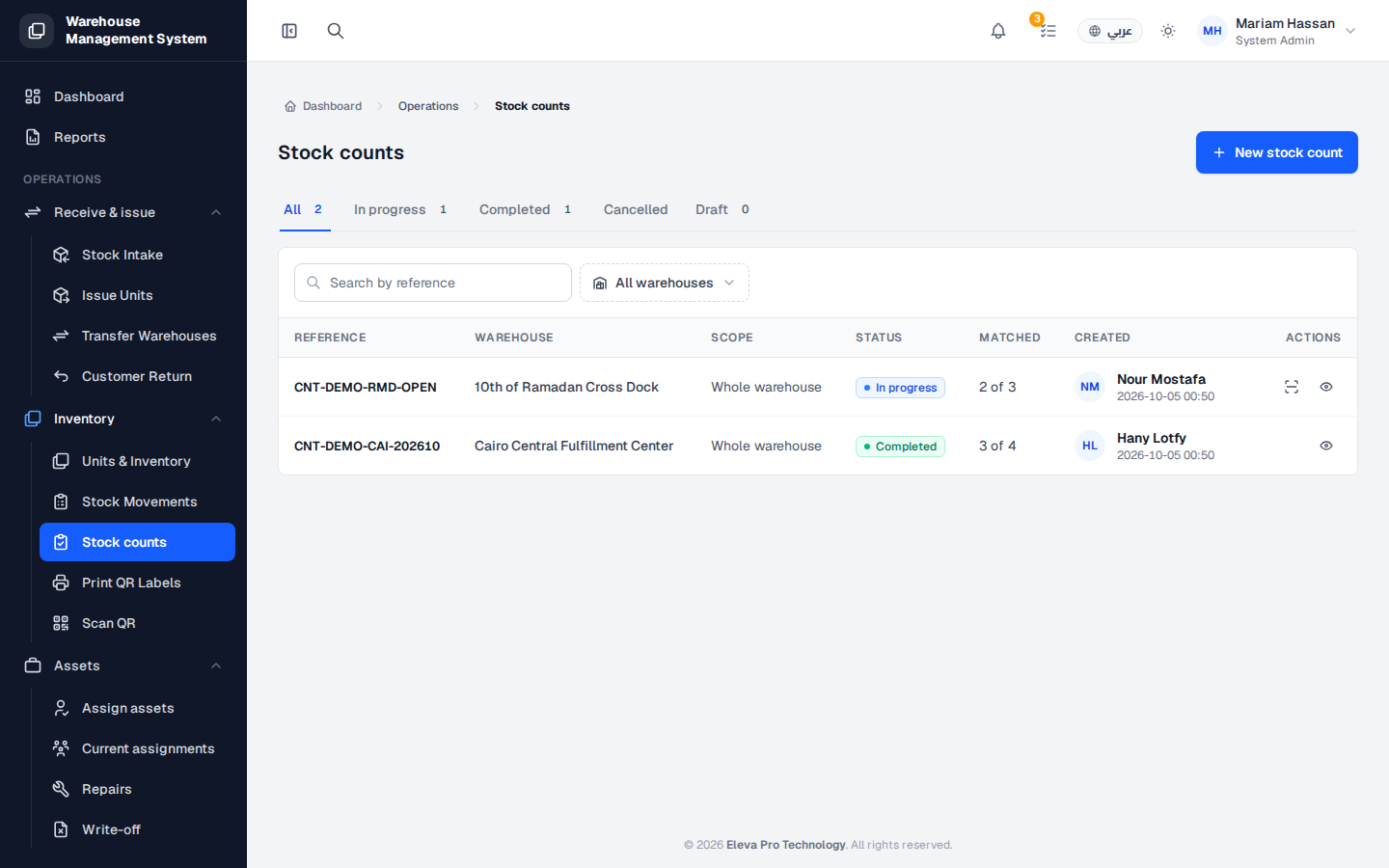
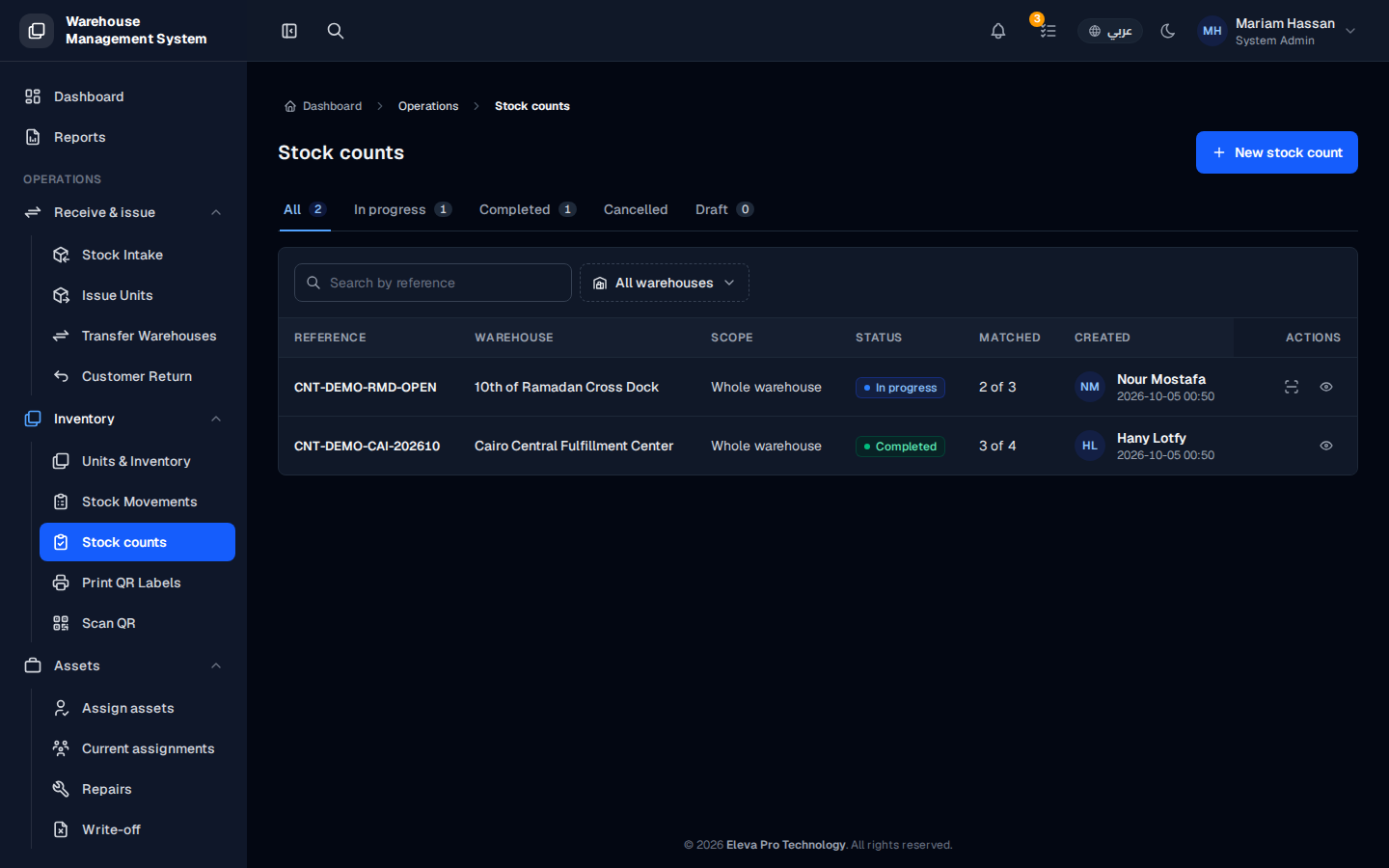
A stock count compares the units the system expects to find in a warehouse with what is physically there. Use it for periodic cycle counts, audits, or whenever you suspect the recorded stock no longer matches reality.
This screen lists every stock count so you can follow its progress and open its results.
What’s on this screen
Section titled “What’s on this screen”- Status tabs — All, In progress, Completed, Cancelled and Draft, each with the number of counts.
- Search by reference — find a count by its reference.
- All warehouses — show only the counts of one warehouse.
- Reference and Warehouse — the count’s identifier and the warehouse being counted.
- Scope — what is counted, for example Whole warehouse.
- Status — the current stage of the count.
- Matched — how many expected units have been found so far, for example “2 of 3”.
- Created — who created the count and when.
- Actions — open the counting screen (for counts in progress) or view the count’s details.
How to find a stock count
Section titled “How to find a stock count”- From the side menu, under Inventory, open Stock counts.
- Pick a status tab, or choose a warehouse from All warehouses.
- Type part of the reference in Search by reference.
- Click the view icon in Actions to open the count’s details and discrepancies.
How to start a new count
Section titled “How to start a new count”Click New stock count at the top of the page. See “New stock count”.