

Notifications center
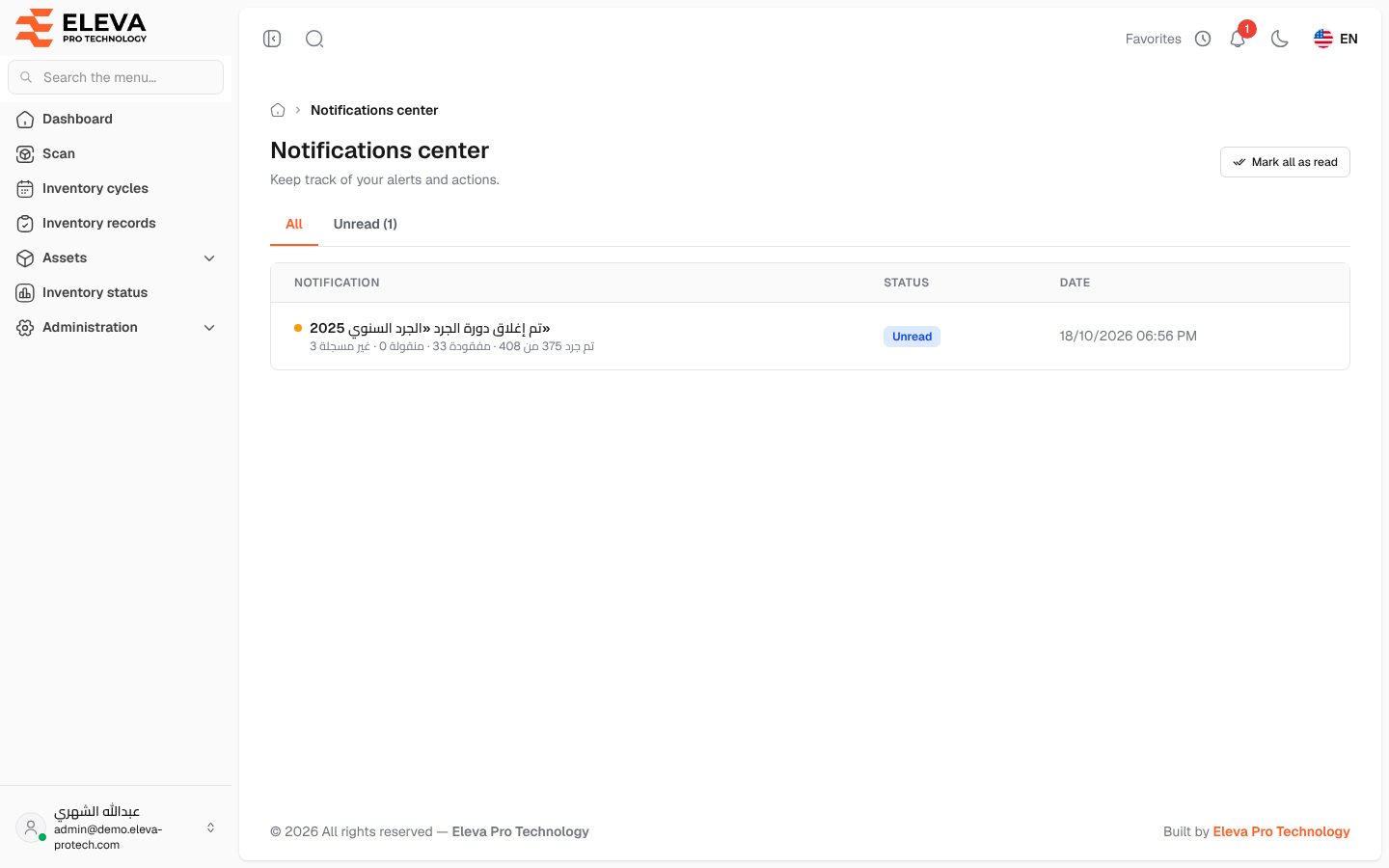
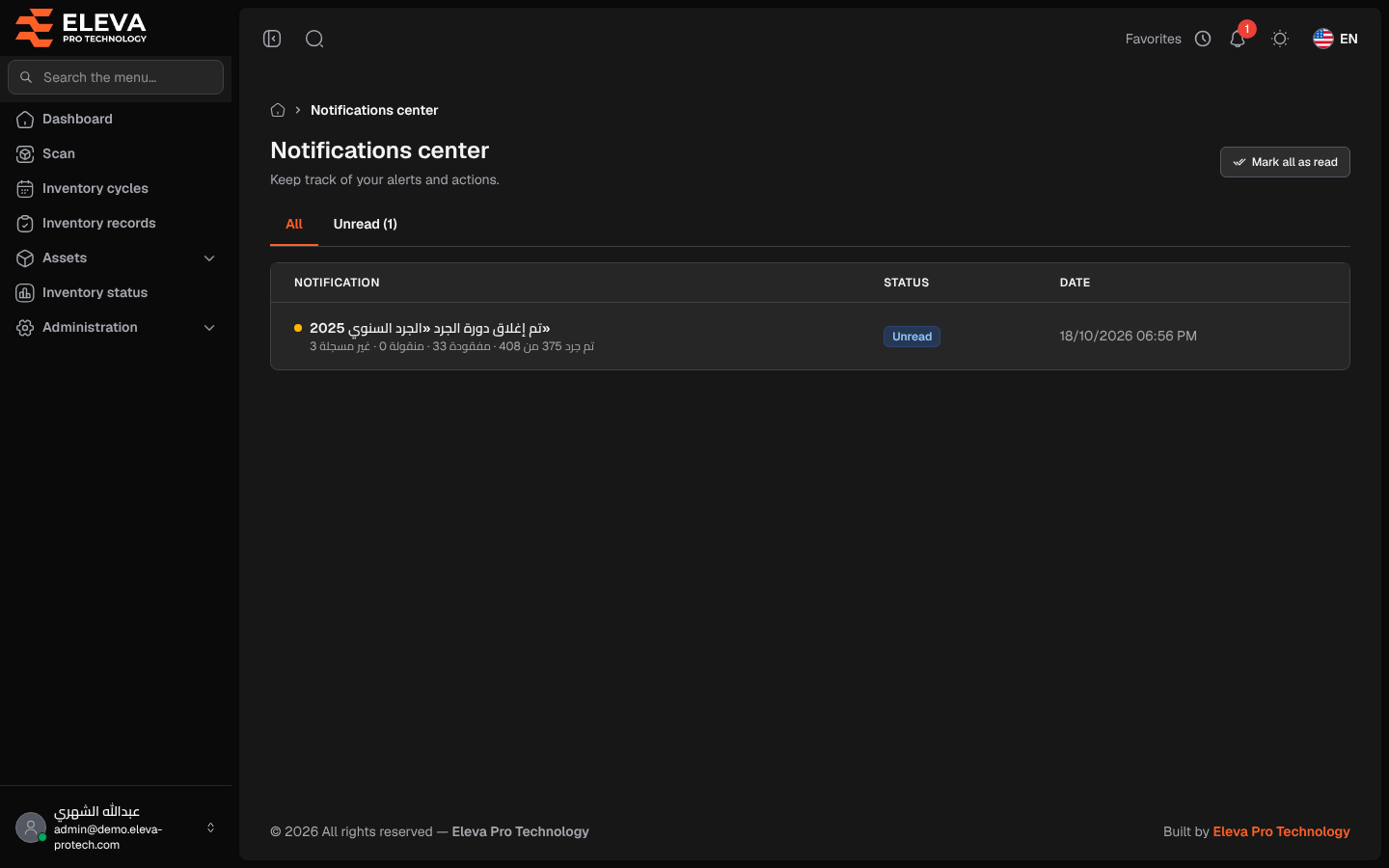
The notifications center lists every notification sent to you, newest first, so you can catch up on anything you missed. The system notifies you when:
- an asset is handed over to you (Asset in your custody: …), with its expected return date if one was set;
- an inventory cycle is closed (Inventory cycle “…” closed), with its summary: scanned, missing, moved and unregistered items. This reaches everyone who can view inventory cycles;
- a webhook was switched off after repeated failed deliveries (Webhook disabled). This reaches the users who manage integrations.
The last two are also sent by e-mail. To open the center, click the bell icon at the top of the screen, then View all notifications at the bottom of the list. The red badge on the bell shows how many notifications you have not read yet.
What’s on this screen
Section titled “What’s on this screen”- All and Unread: tabs that filter the list. The Unread tab shows the number of unread notifications.
- Mark all as read: marks every notification as read at once.
- The list, 20 notifications per page. Unread ones are marked with a coloured dot.
Columns
Section titled “Columns”- Notification: the title and a short description.
- Status: Unread or Read.
- Date: when the notification was sent.
When there is nothing to show, the page displays No notifications. (or No unread notifications. on the Unread tab).
How to open a notification
Section titled “How to open a notification”- Click the notification row.
- The notification is marked as read and the related screen opens, for example the discrepancy report of the closed cycle.
How to clear unread notifications
Section titled “How to clear unread notifications”- Click Mark all as read to mark every notification as read.
- From the bell itself, click a notification to open it, or Mark all as read at the top of the list.
Required permission
Section titled “Required permission”None: every user sees their own notifications.