

Close a cycle
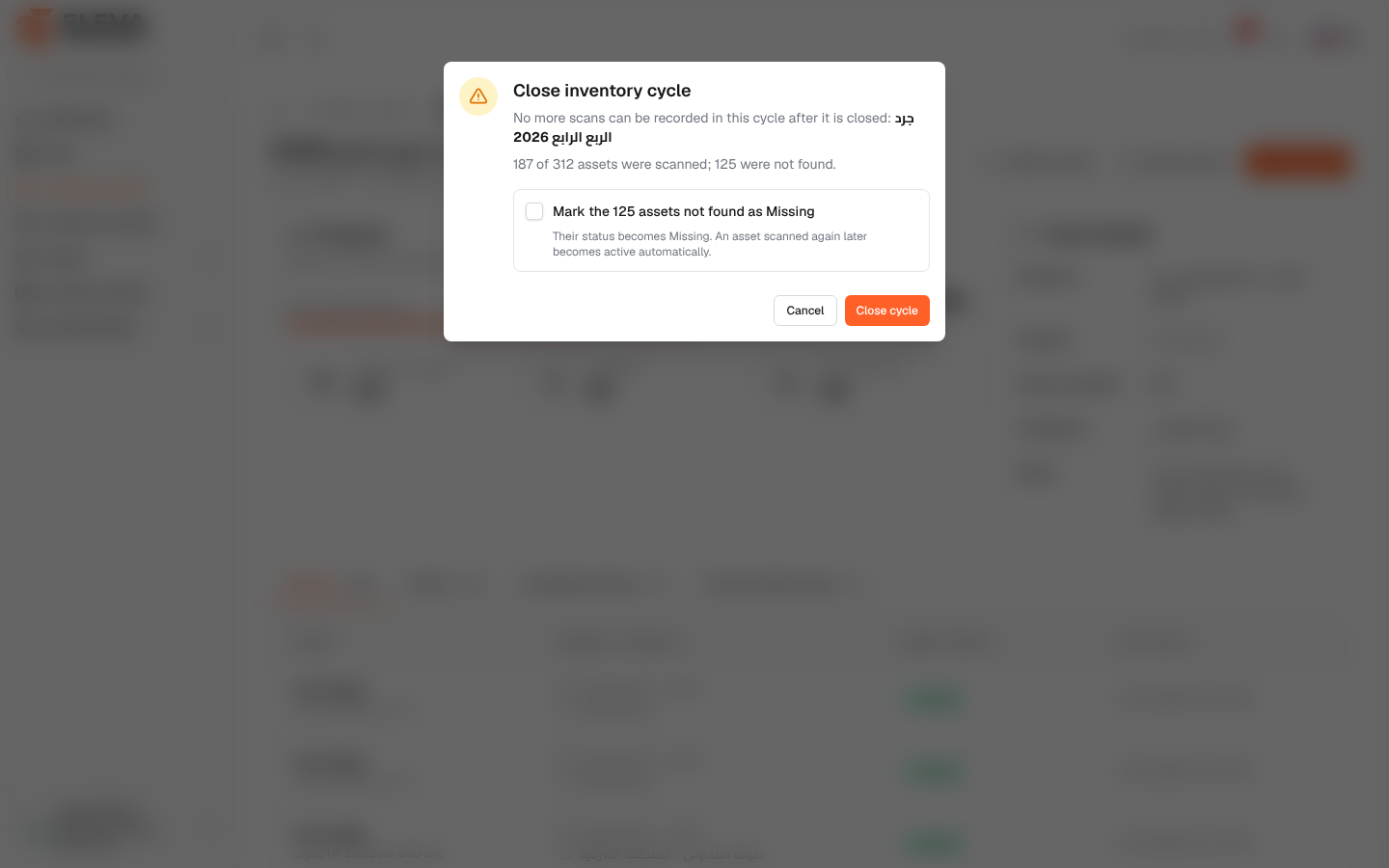
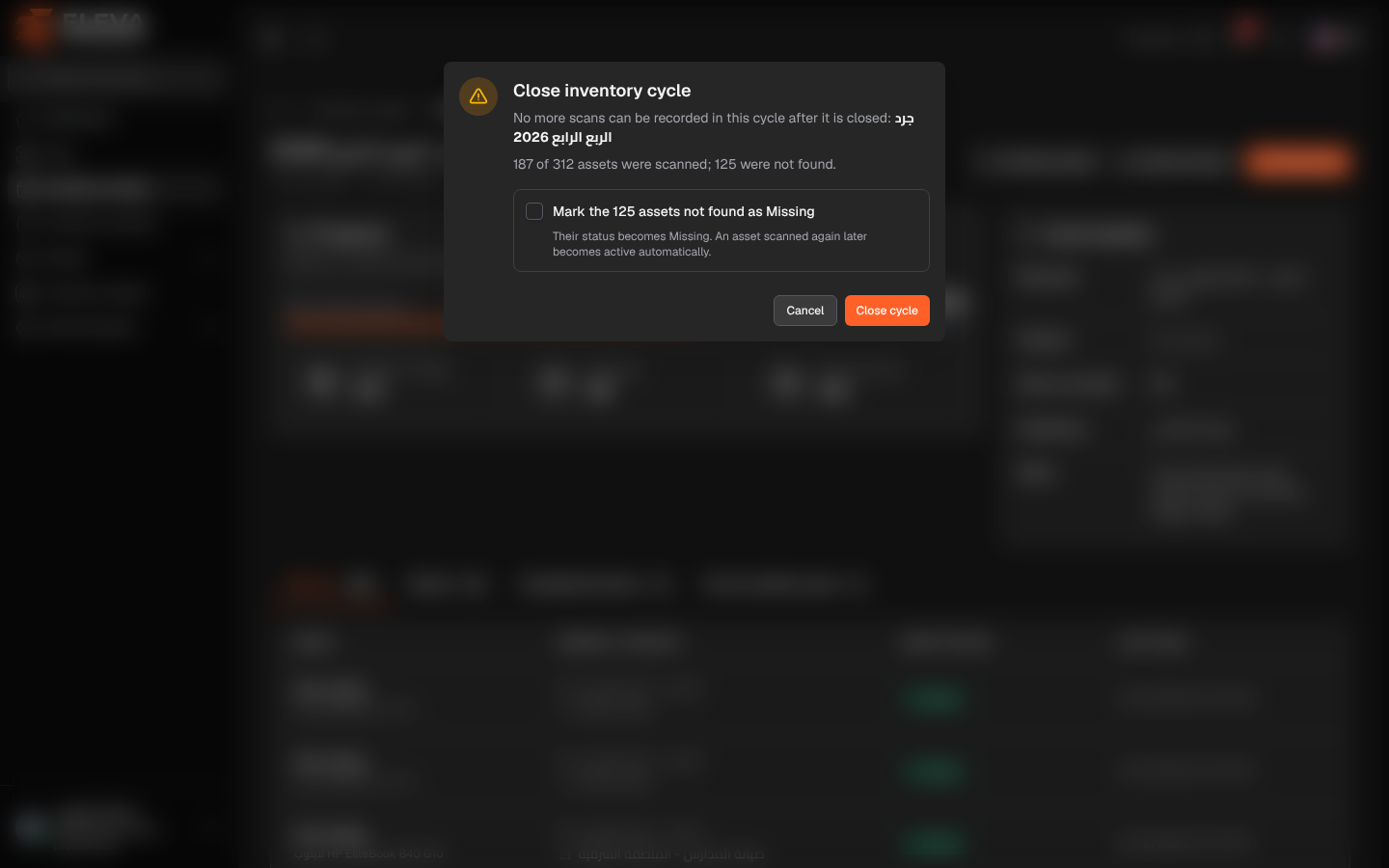
Closing a cycle ends the inventory campaign: no more scans can be recorded in it, its report is frozen as the final result, and everyone who follows the inventory cycles is told. You can also mark at once the assets that were not found as Missing.
From the side menu, open Inventory cycles, click the active cycle, then click Close cycle.
What’s in the window
Section titled “What’s in the window”- Close inventory cycle, with No more scans can be recorded in this cycle after it is closed: and the cycle’s name.
- A summary: … of … assets were scanned; … were not found.
- Mark the … assets not found as Missing: optional. Their status becomes Missing; an asset scanned again later becomes active automatically. The box is disabled when every asset was found.
How to close a cycle
Section titled “How to close a cycle”- Open the active cycle and review the Missing tab.
- Click Close cycle.
- Read the summary and, if you want, tick Mark the … assets not found as Missing.
- Click Close cycle, or Cancel.
- A message confirms the closing, for example Inventory cycle closed. 33 assets were marked as missing. The status becomes Closed, and Closed under Cycle details shows when and by whom.
What happens after closing
Section titled “What happens after closing”- The cycle disappears from the scan screen; scans already saved offline for it are rejected when they arrive.
- Every user who can view inventory cycles receives a notification Inventory cycle “…” closed with the summary, also by e-mail, with a link Open the discrepancy report.
- The closing is recorded in the Audit log as Inventory cycle closed.
- Assets marked as Missing stay in the asset list with that status, and appear under Missing on the Assets screen.
Required permission
Section titled “Required permission”Inventory cycles › Close.