

Trash and restore
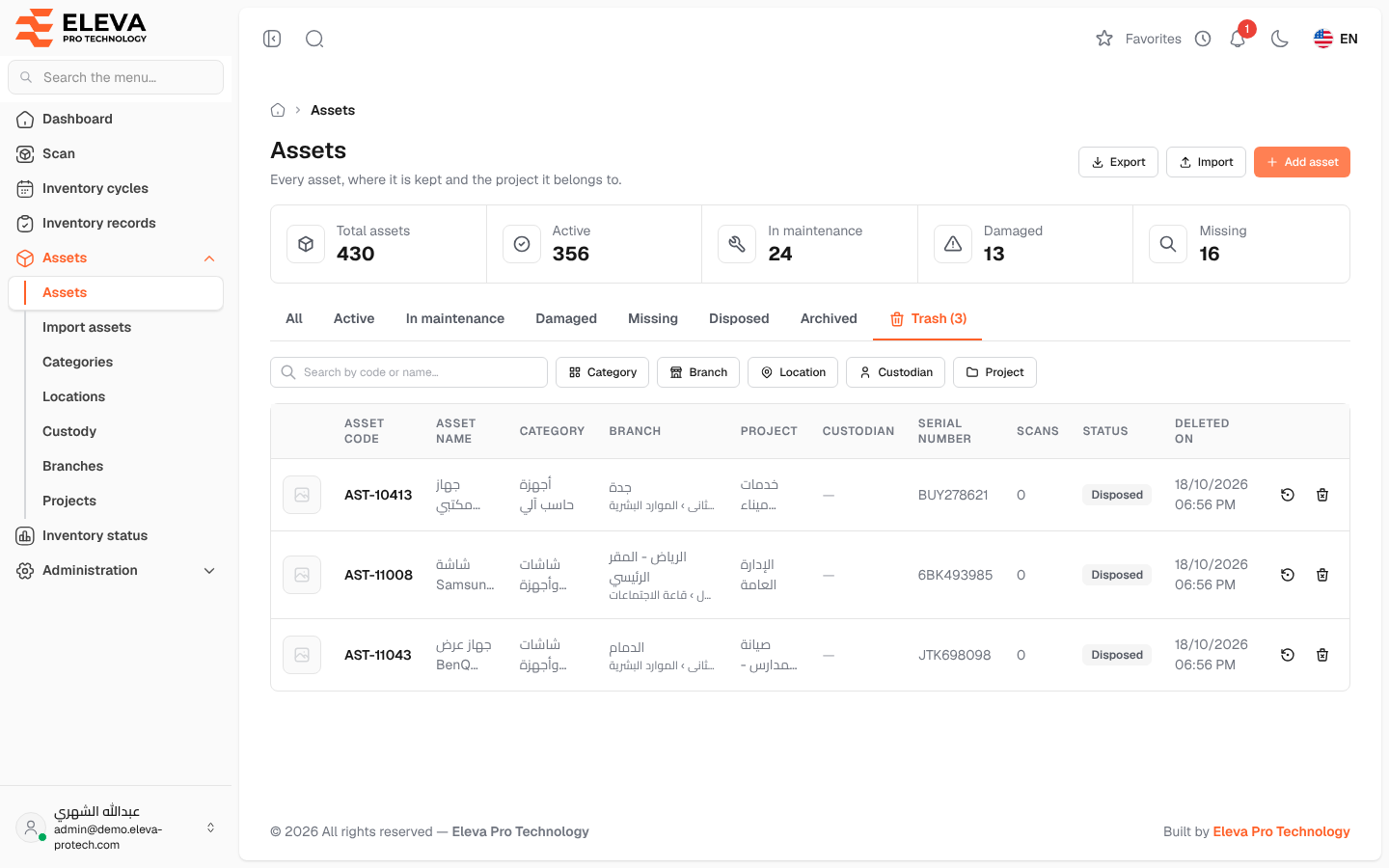
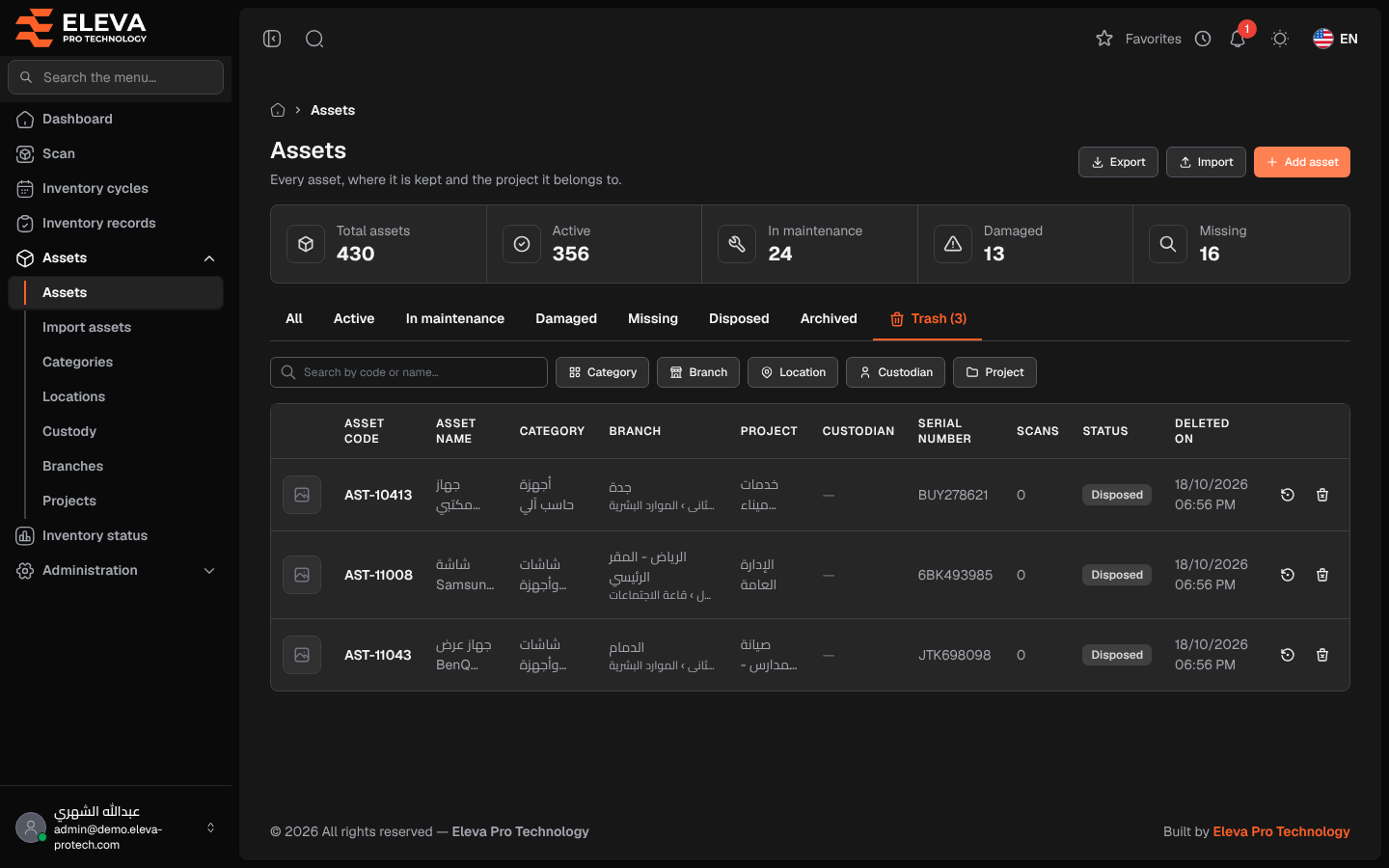
Deleting an asset moves it to the trash instead of erasing it, so a mistake can be undone and the inventory history is never lost. From the trash you can restore an asset or, if it was never scanned, delete it permanently. Branches, projects, categories and locations have the same trash.
From the side menu, open Assets › Assets and click the Trash tab. The tab shows how many assets are in the trash.
Columns
Section titled “Columns”The same columns as the asset list, with Deleted on (the date and time the asset was deleted) and two actions:
- Restore: puts the asset back in the list.
- Delete permanently: erases the asset for good.
When the trash is empty, the tab shows The trash is empty.
How to restore an asset
Section titled “How to restore an asset”- Open the Trash tab.
- Click the restore icon in the asset’s row.
- The message … was restored. appears and the asset is back in the list with its history.
How to delete an asset permanently
Section titled “How to delete an asset permanently”- Open the Trash tab.
- Click the permanent delete icon in the asset’s row.
- Confirm with Delete permanently (This can’t be undone.).
Required permission
Section titled “Required permission”Assets › Delete.