

Custom fields
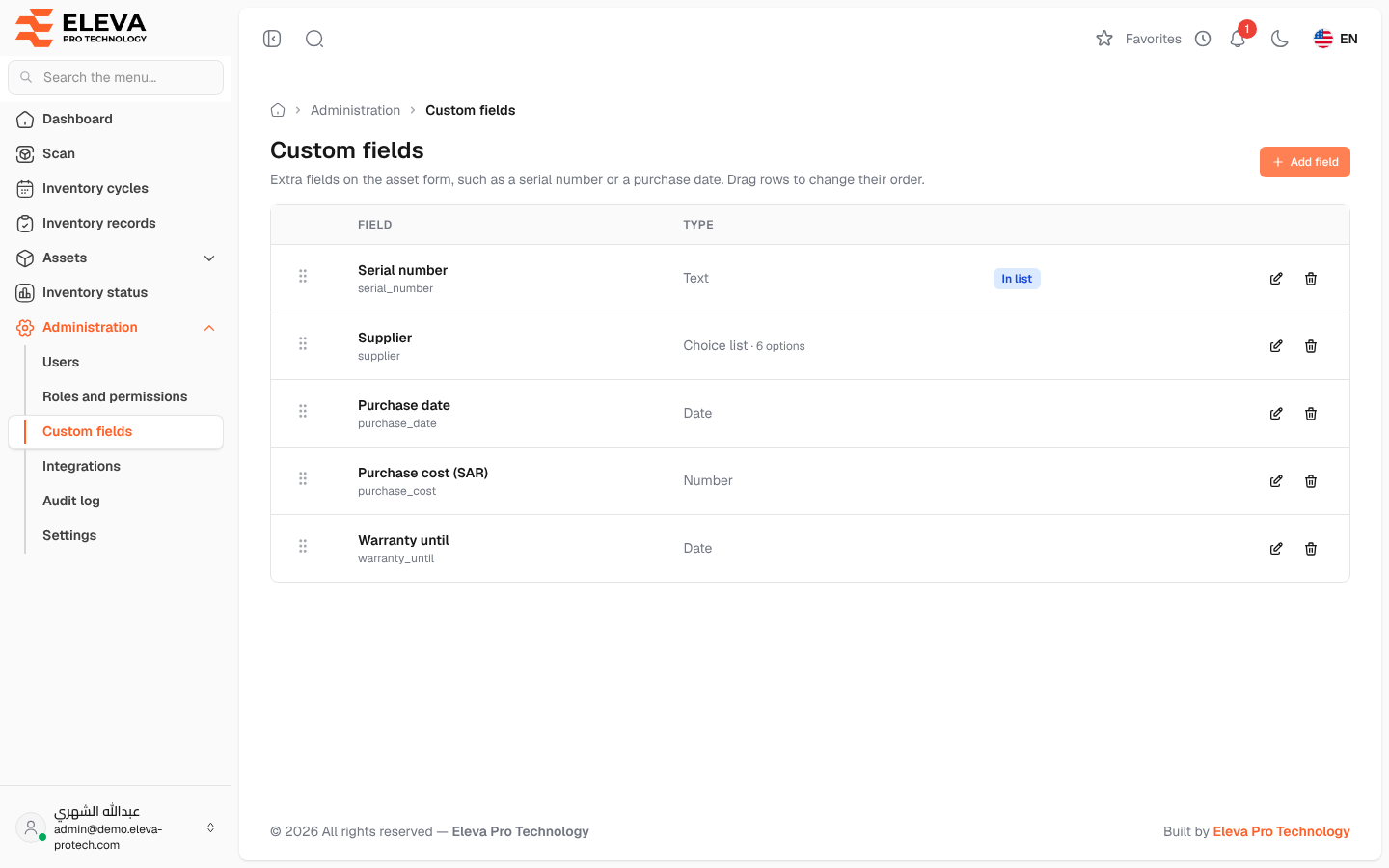
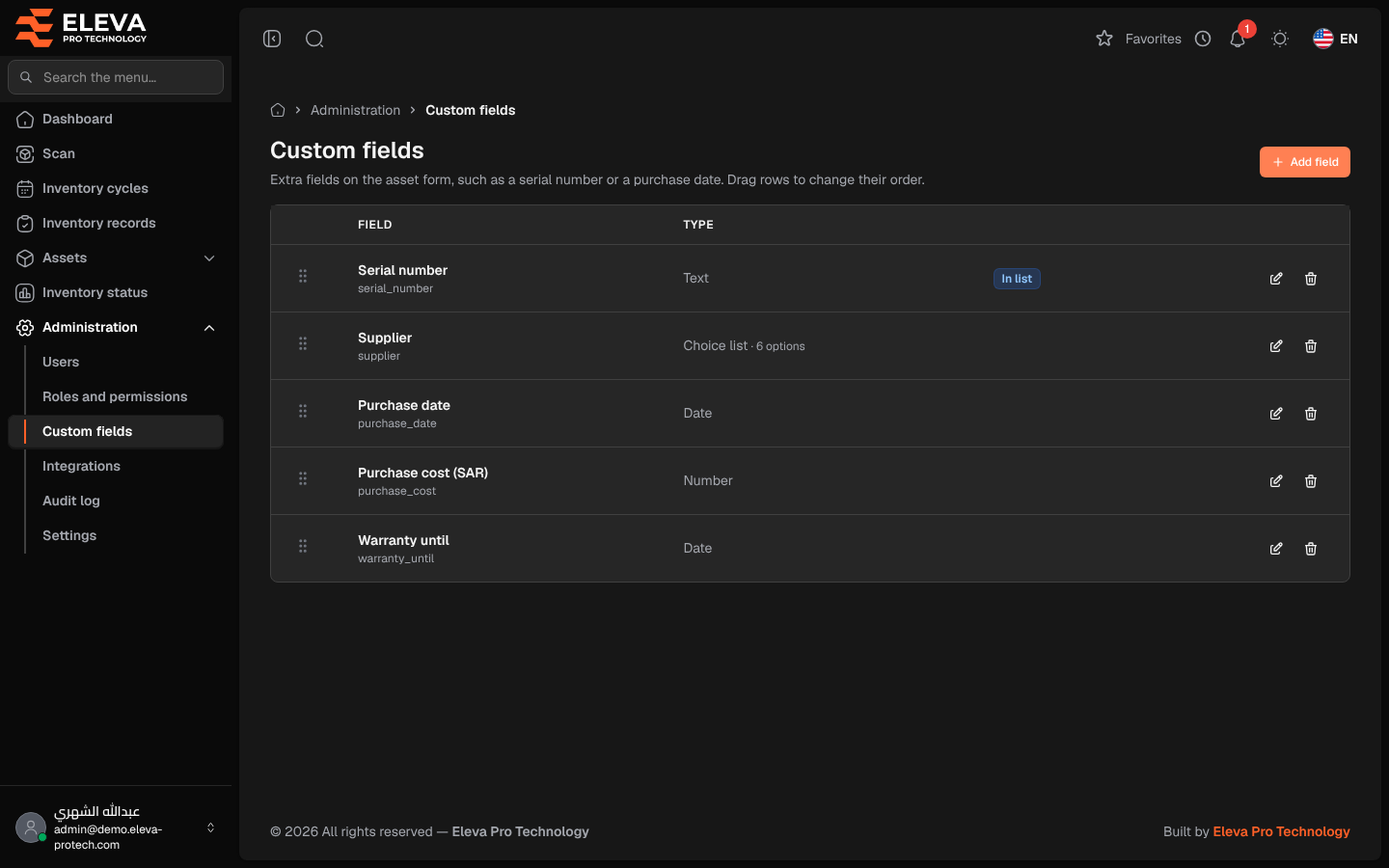
Custom fields add your own information to every asset, such as a serial number, a supplier, a purchase date or a warranty end date (Extra fields on the asset form, such as a serial number or a purchase date. Drag rows to change their order.). They appear in the More details section of the asset form, can be shown as columns in the asset list, and are included in the asset import and export.
From the side menu, open Administration › Custom fields.
What’s on this screen
Section titled “What’s on this screen”- Add field: opens the new field form (see Add or edit a custom field).
- The list of fields, in the order they appear on the asset form.
Columns
Section titled “Columns”- A drag handle to change the order.
- Field: the label in your language, with the key below it.
- Type: Text, Number, Date, Choice list (with its number of options) or Yes / No.
- Tags: Required when the field must be filled in, and In list when it shows as a column in the asset list.
- Actions: the pencil icon edits the field, the bin icon deletes it.
How to change the order of the fields
Section titled “How to change the order of the fields”Drag a row by its handle and drop it at its new place. The new order is saved at once and applies to the asset form and the asset list.
How to delete a field
Section titled “How to delete a field”- Click the bin icon in the field’s row.
- Read the Delete the field? window and confirm with Delete.
- The message The field was deleted. Its values stay stored on the assets, hidden. appears.
Required permission
Section titled “Required permission”Custom fields › Manage.