

Sign in
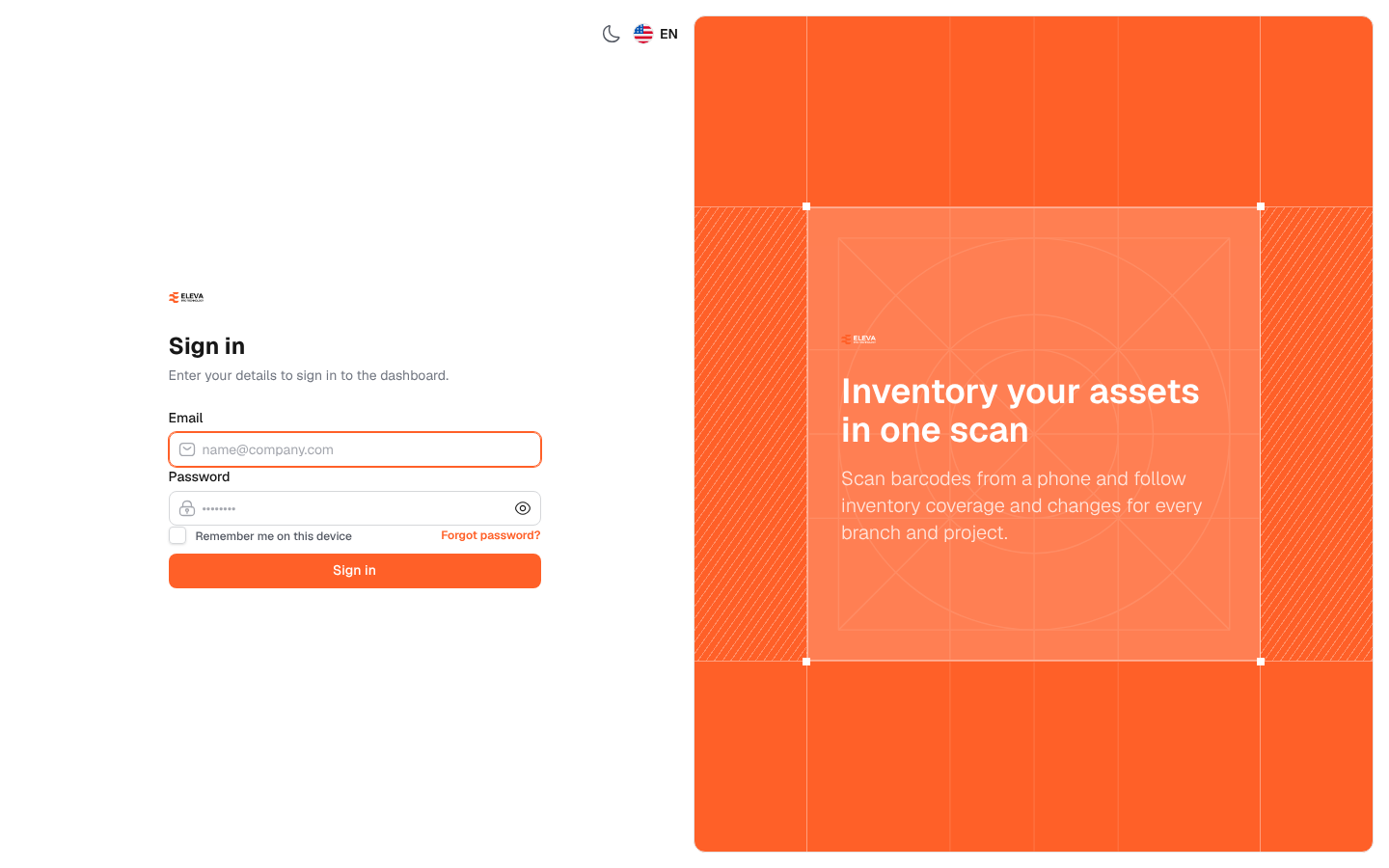
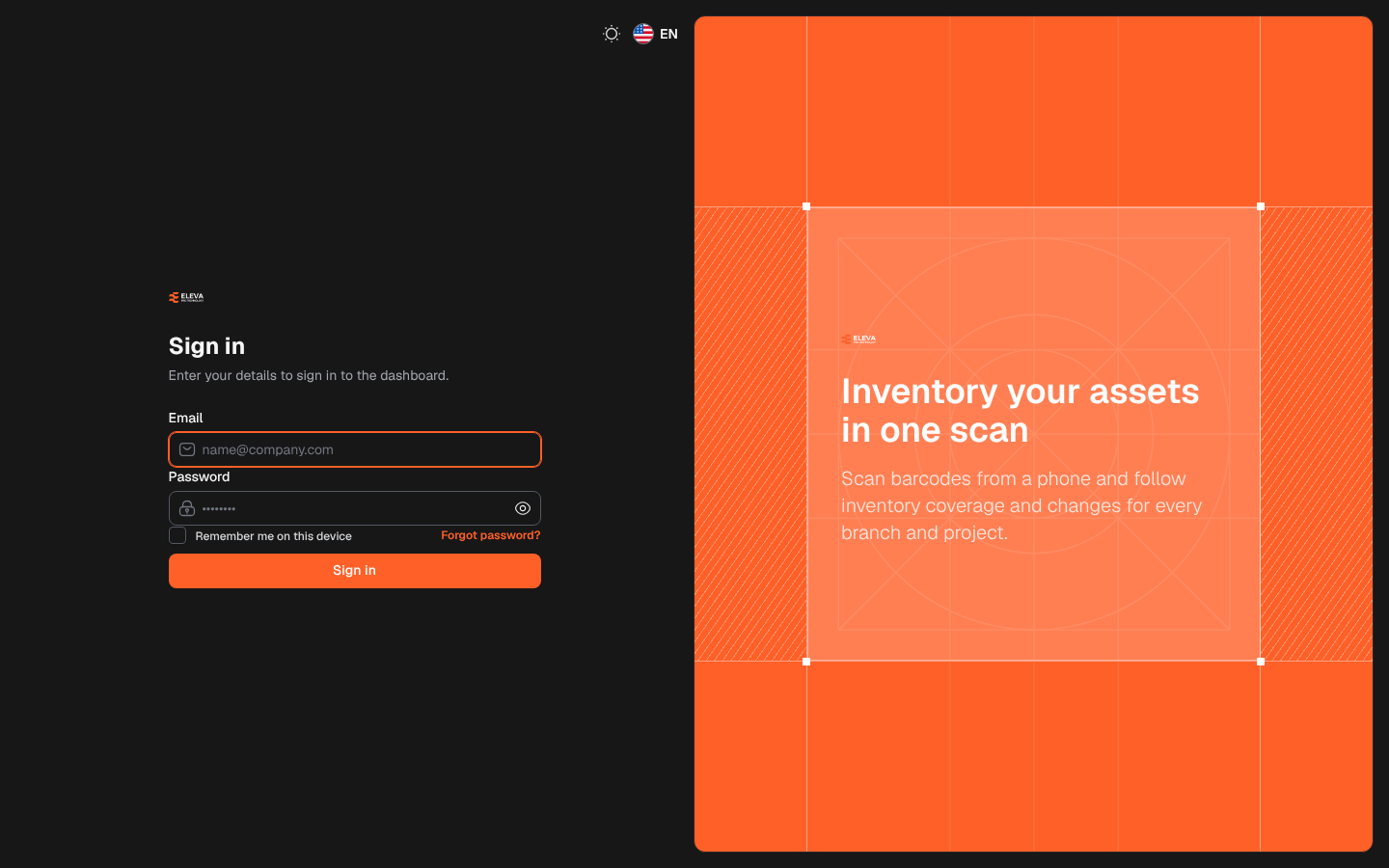
The sign-in page is where everyone starts: managers who follow the inventory and employees who scan assets in the field use the same page. Each person signs in with the e-mail of their account; the system then opens the first screen their role allows.
What’s on this screen
Section titled “What’s on this screen”- Email: the e-mail address of your account.
- Password: your password, with an eye icon to show or hide what you typed.
- Remember me on this device: keeps you signed in on this device.
- Forgot password?: opens the password reset page.
- Sign in: submits your details.
- At the top of the page: the moon icon switches between light and dark mode, and the language button switches between Arabic and English.
How to sign in
Section titled “How to sign in”- In Email, type the e-mail of your account.
- In Password, type your password.
- On a personal device, tick Remember me on this device.
- Click Sign in.
If two-factor authentication is on for your account, the system then asks for the code from your authenticator app (see Two-factor authentication). You then reach the Dashboard, or, if your role does not include it, the first screen you are allowed to open: Scan, Assets or Inventory status. A user with none of these opens My profile.
If sign-in fails
Section titled “If sign-in fails”- These credentials do not match our records.: the e-mail or the password is wrong. Check for extra spaces, the keyboard language and Caps Lock. The password field is cleared so you can type it again.
- Your account is deactivated. Contact your administrator.: an administrator has turned the account off in Users. The account’s records are kept; ask the administrator to activate it again.
- Too many login attempts. Please try again in … seconds.: after 5 failed attempts the sign-in is locked for a short while. Wait and try again.