

Appearance
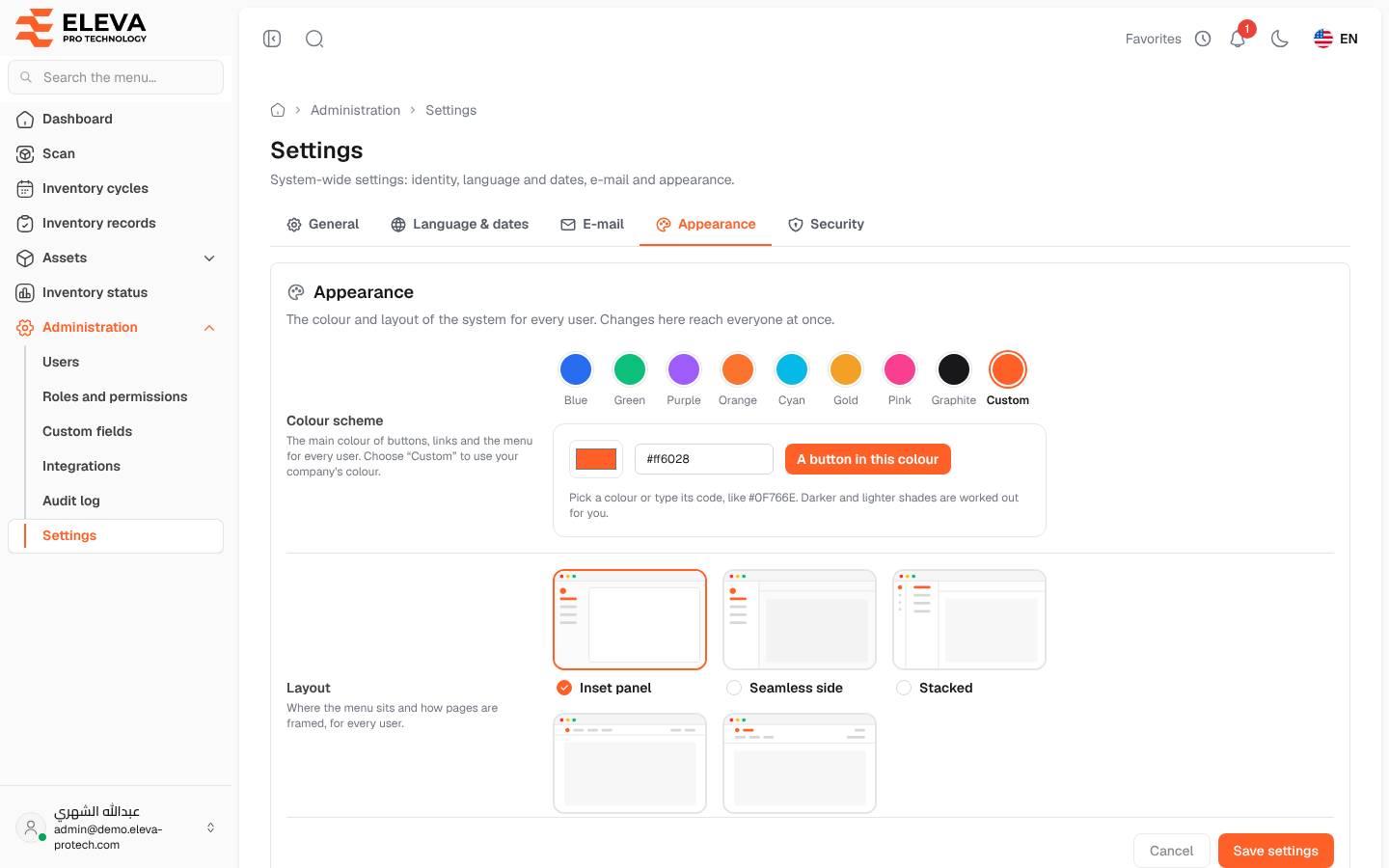
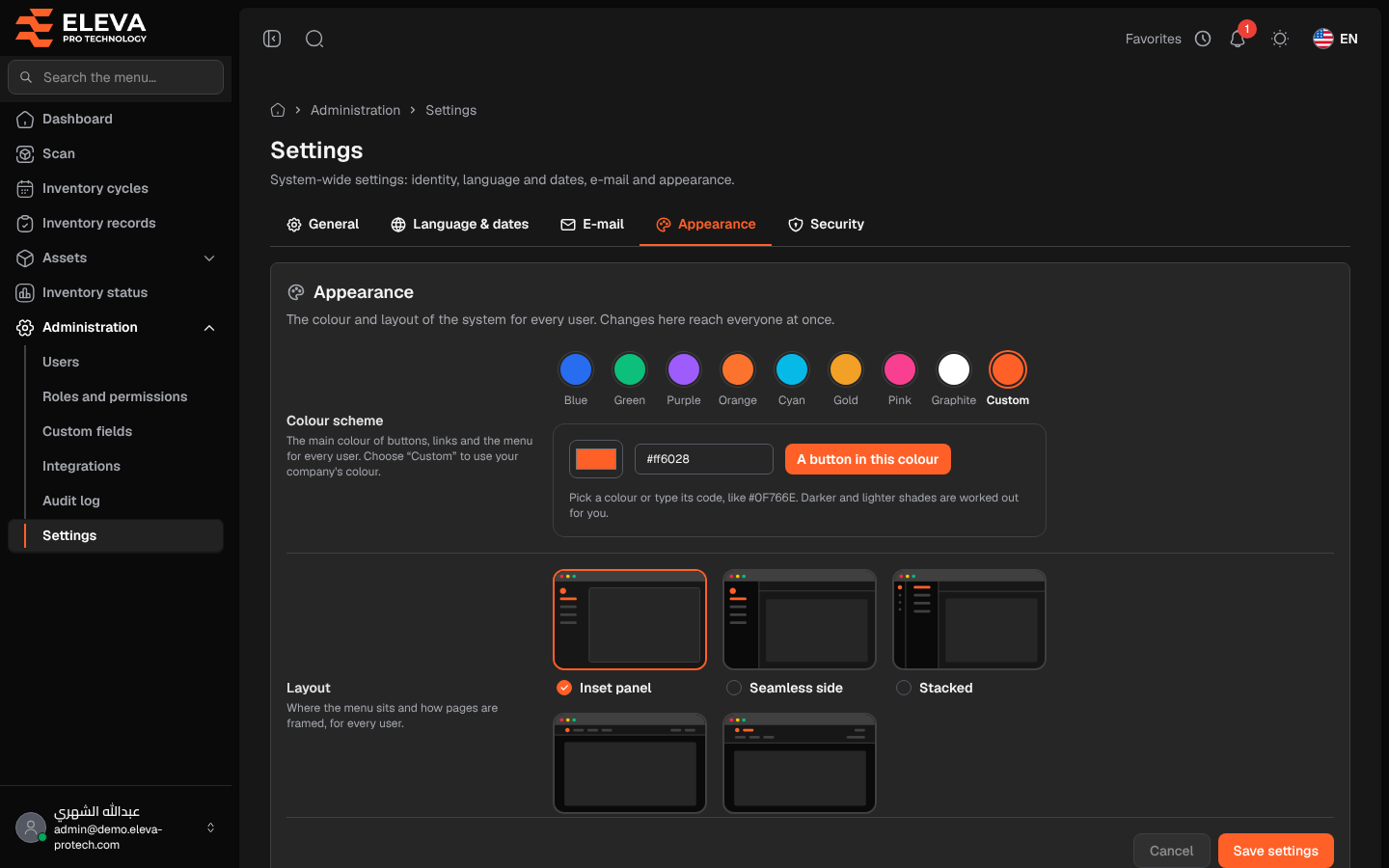
The Appearance tab sets the colour and the page layout of the system for every user (The colour and layout of the system for every user. Changes here reach everyone at once.), and the display mode everyone starts in.
From the side menu, open Administration › Settings, then click the Appearance tab.
Fields
Section titled “Fields”- Colour scheme (required): Blue, Green, Purple, Orange, Cyan, Gold, Pink, Graphite or Custom. The main colour of buttons, links and the menu for every user.
- With Custom: pick a colour or type its code, like #0F766E (Colour code). A sample shows A button in this colour; darker and lighter shades are worked out for you. If the colour is too light, a warning says This colour is light; white text on buttons will be hard to read. Choose a darker shade.
- Layout (required): Inset panel (side menu, pages in a framed panel), Seamless side (side menu joined to the pages), Stacked (group icons, their pages in a second panel), Top bar (logo, menu and actions in one top bar) or Two-row header (actions on top, the menu in a row below).
- Display mode (required): Light, Dark or System (follows the device). The mode everyone starts in; each user can switch light/dark with the header button.
How to apply your company’s colour
Section titled “How to apply your company’s colour”- Click Custom.
- Pick the colour, or type its code in the code field.
- Check the sample button and the contrast warning.
- Click Save settings. The new colour and layout reach every user at once.
Required permissions
Section titled “Required permissions”Settings › View to open; Settings › Edit to save.