

Two-factor authentication
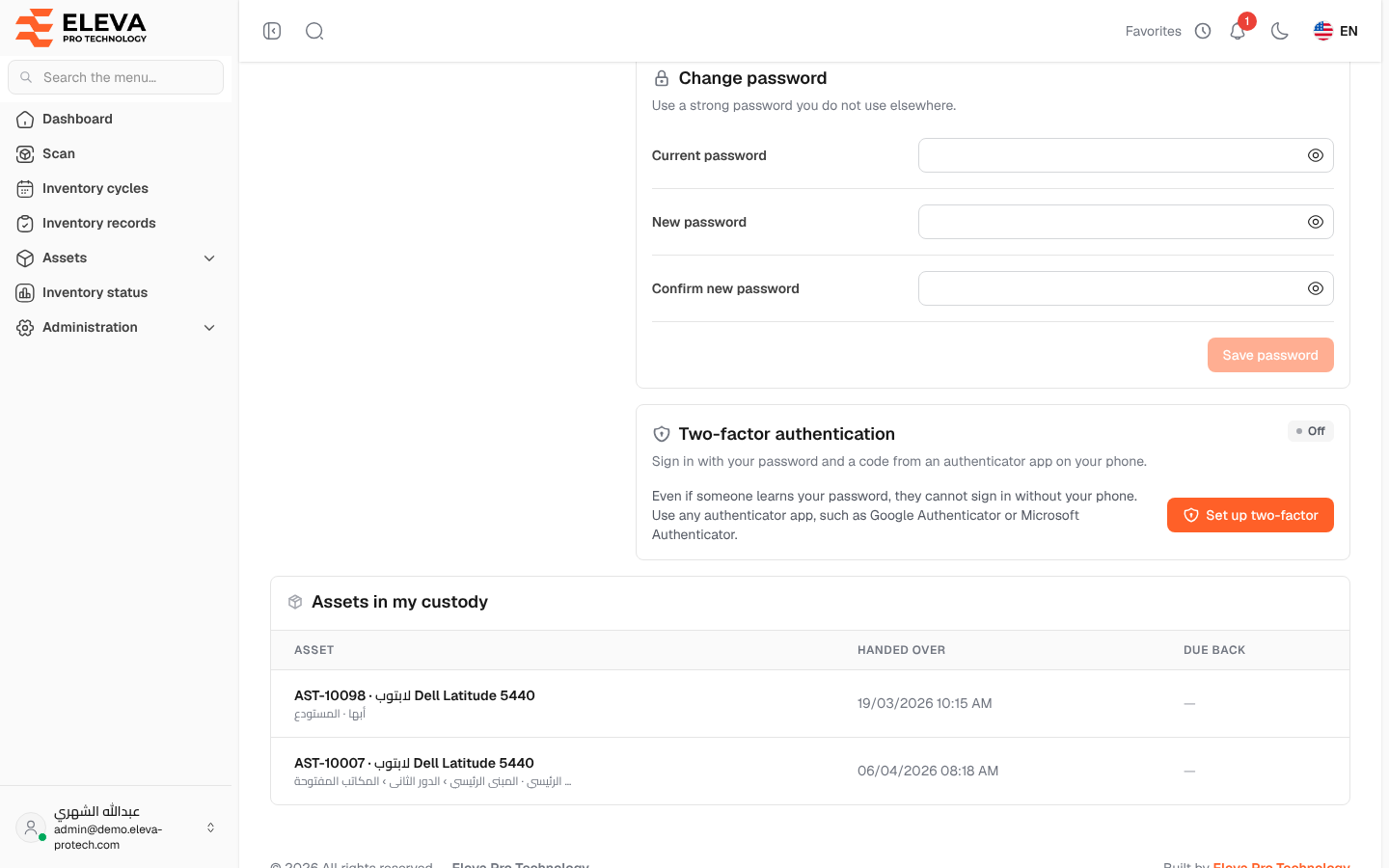
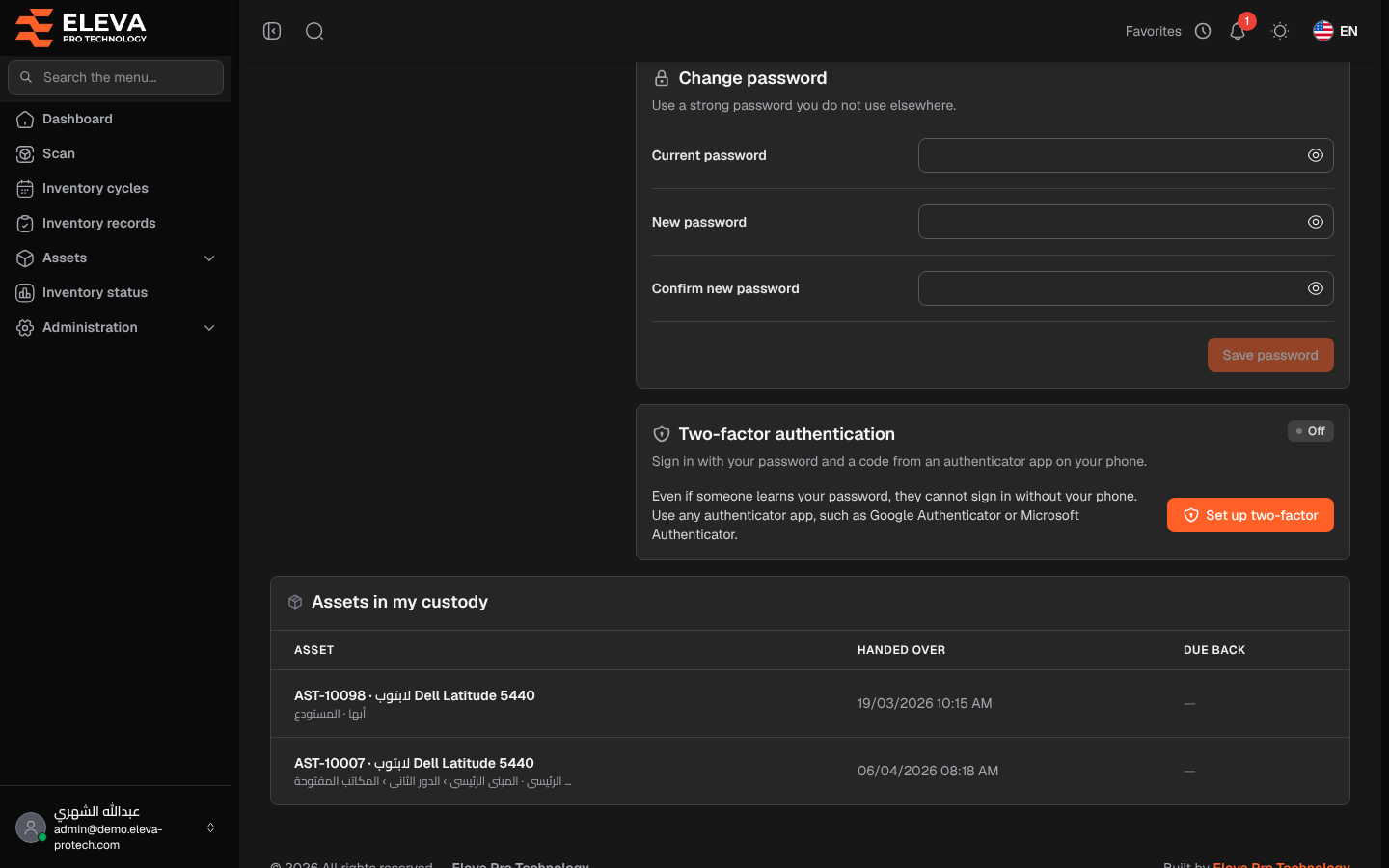
Two-factor authentication protects your account with a second step: after your password, the system asks for a 6-digit code from an authenticator app on your phone, such as Google Authenticator or Microsoft Authenticator. Even if someone learns your password, they cannot sign in without your phone.
You set it up yourself from My profile, in the Two-factor authentication section. To open your profile, click your name at the bottom of the side menu, then My profile.
What’s on this screen
Section titled “What’s on this screen”The section shows the current status: Off, Setting up or On.
- While it is off: a short explanation and Set up two-factor.
- While setting up: 1. Scan the QR code, Or enter the key (with a copy button), 2. Enter the code, then Cancel and Confirm and turn on.
- While it is on: On since, Recovery codes left, New recovery codes and Turn off.
How to turn on two-factor authentication
Section titled “How to turn on two-factor authentication”- In Two-factor authentication, click Set up two-factor.
- Open your authenticator app and add an account by scanning the QR code. If you cannot scan it, type the key shown under Or enter the key (time-based).
- In 2. Enter the code, type the 6-digit code the app shows, then click Confirm and turn on.
- The Recovery codes appear. Click Download or copy them, and keep them in a safe place. Each code signs you in once if you lose your phone, and they are shown only now.
How to sign in with two-factor authentication
Section titled “How to sign in with two-factor authentication”- Sign in with your e-mail and password as usual.
- The Two-factor authentication page asks for the Verification code. Type the 6-digit code from the app and click Verify and sign in.
- If you lost your phone, click Lost your phone? Use a recovery code, type one of your recovery codes in Recovery code, then click Verify and sign in. To go back to the app code, click Use a code from the app.
You have 5 minutes after the password step to enter the code; after that, the system asks you to sign in again (The sign-in took too long. Sign in again.).
Recovery codes and turning it off
Section titled “Recovery codes and turning it off”- New recovery codes: creates a new set after you confirm with your password. The old codes stop working.
- Turn off: turns two-factor authentication off after you confirm with your password. Your account is then protected by the password only.
Required permission
Section titled “Required permission”None: every user can manage their own two-factor authentication. Resetting it for another user needs Users › Edit.