

Assets
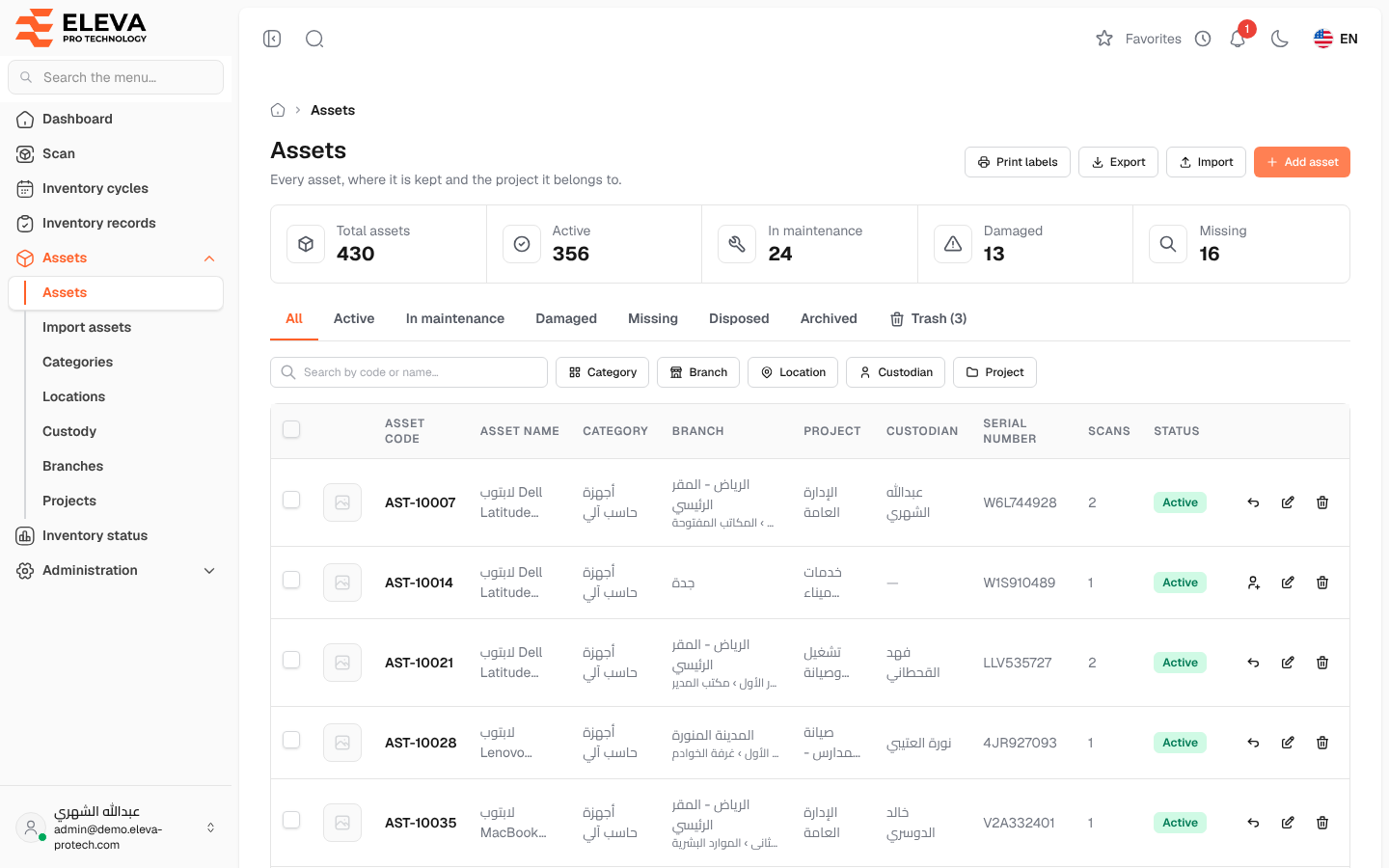
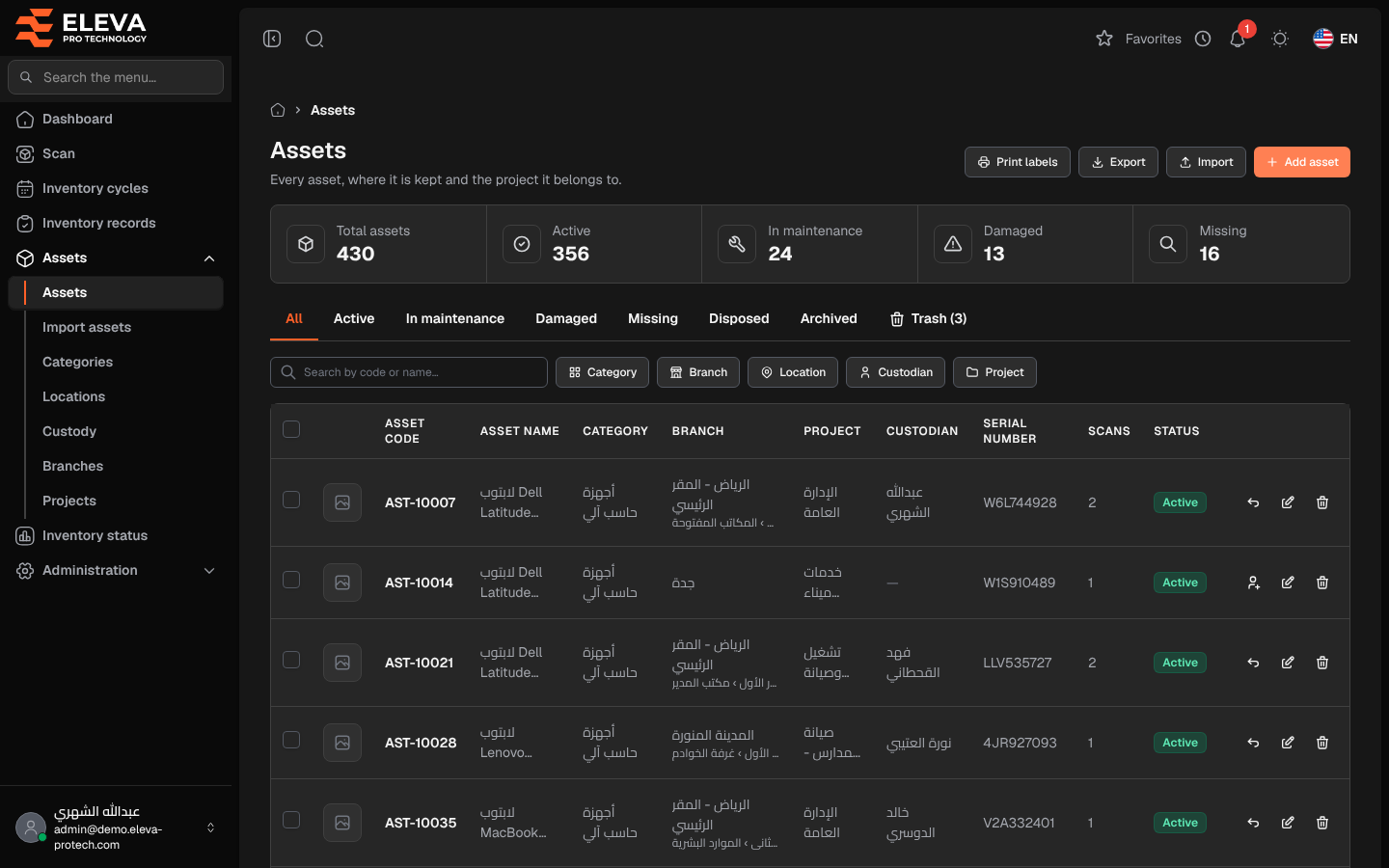
The Assets screen is the register of everything the organisation owns and inventories: each asset with its code, category, branch, location, project, custodian, status and number of inventory records. Use it to find an asset, add or edit one, hand it over to an employee, print labels, export the list or import a file.
From the side menu, open Assets › Assets.
What’s on this screen
Section titled “What’s on this screen”- Print labels: opens the label page for the assets of the list as filtered (see Print labels).
- Export: downloads an Excel file of the list as shown, with the same tab, filters and search.
- Import: opens Import assets.
- Add asset: opens the new asset form.
- Figures: Total assets, Active, In maintenance, Damaged and Missing.
- Tabs: All, Active, In maintenance, Damaged, Missing, Disposed, Archived, and Trash with the number of deleted assets.
- Search by code or name….
- Filters: Category, Branch, Location (the locations of the chosen branch), Custodian (the people holding assets) and Project.
Columns
Section titled “Columns”- A tick box to select assets for label printing, and the asset’s photo.
- Asset code and Asset name.
- Category.
- Branch, with the location inside the branch below it.
- Project.
- Custodian: who holds the asset, with Due back … when a return date was set.
- The custom fields chosen to show in the list, for example a serial number.
- Scans: how many times the asset was scanned.
- Status.
- Actions: Hand over or Return, Edit, and Delete.
Asset statuses
Section titled “Asset statuses”- Active: in use and expected in inventories.
- In maintenance and Damaged: still held, so still expected and scannable.
- Missing: not found in an inventory cycle. Scanning it again makes it Active.
- Disposed and Archived: no longer held. They cannot be scanned or handed over and are not expected in cycles.
How to find an asset
Section titled “How to find an asset”- Pick a tab, type a code or name in the search box, or choose filters.
- Click the row, or the pencil icon, to open the asset’s form.
The tab, search and filters are kept in the page address, so you can bookmark or share a filtered list.
How to delete an asset
Section titled “How to delete an asset”- Click the bin icon in the asset’s row.
- Confirm with Move to trash.
The message Asset moved to the trash. appears. The asset leaves the list but keeps its scan history, and can be restored from Trash (see Trash and restore).
Required permissions
Section titled “Required permissions”- Assets › View to open the screen.
- Assets › Add, Edit and Delete for Add asset, editing and deleting.
- Assets › Import, Export and Print for Import, Export and Print labels.
- Custody › Assign for Hand over and Return.