

Branches
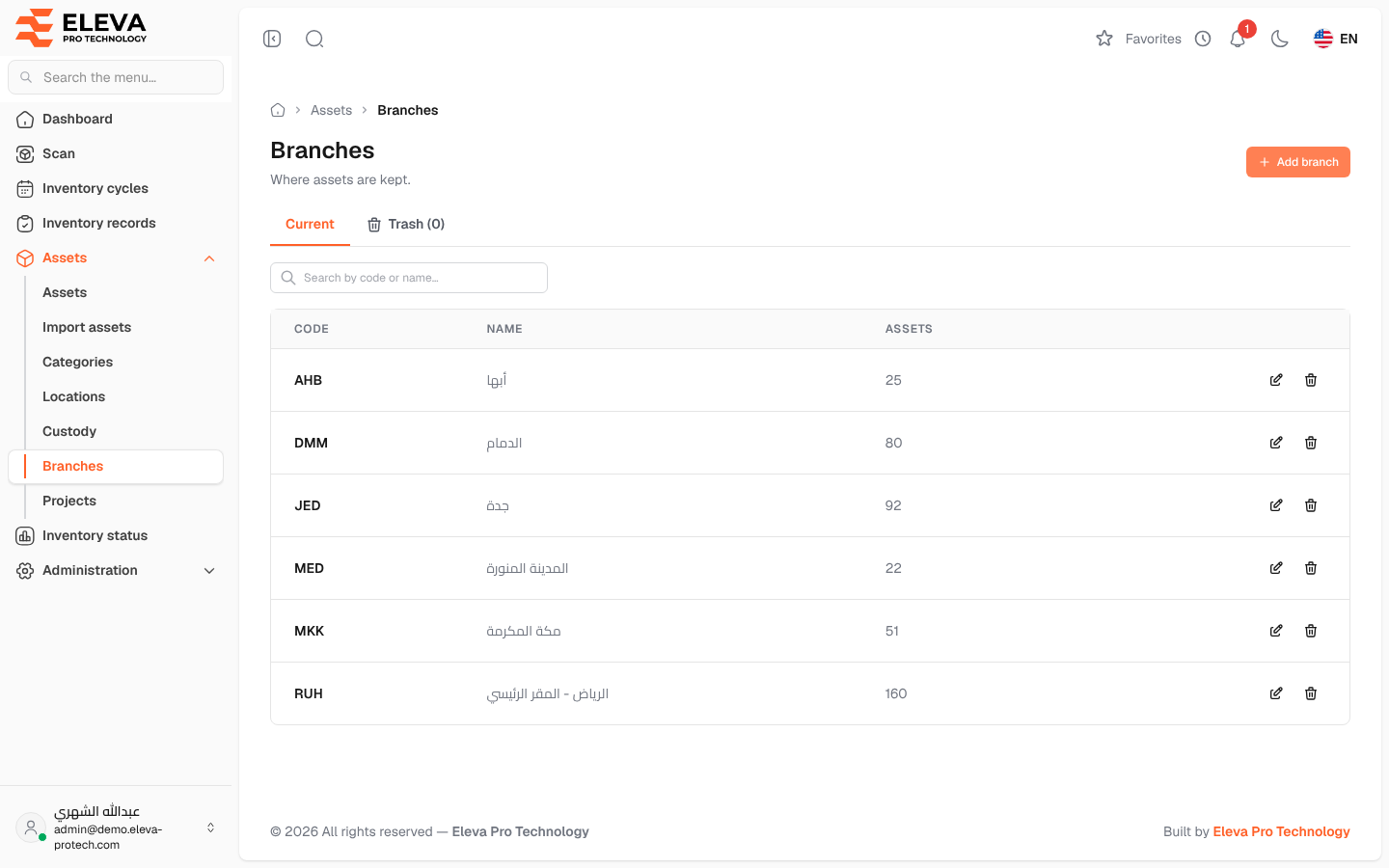
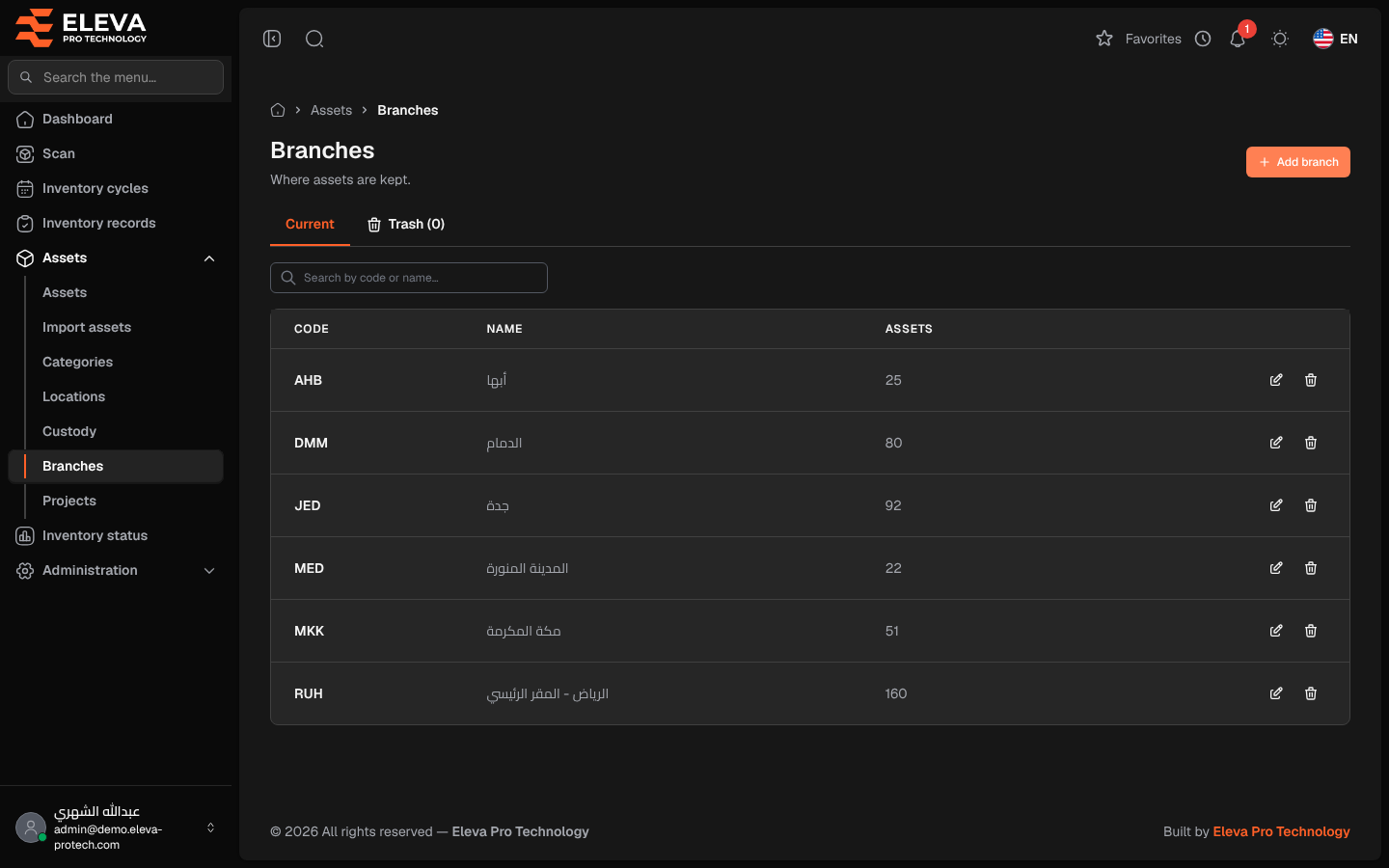
Branches are the places where assets are kept (Where assets are kept.): offices, sites, warehouses. Every asset can belong to a branch; inventory cycles are scoped by branch, scanners confirm the branch of each asset they scan, and the locations (buildings, floors, rooms) are defined inside each branch.
From the side menu, open Assets › Branches.
What’s on this screen
Section titled “What’s on this screen”- Add branch: opens the form for a new branch.
- Current and Trash: the branches in use, and those deleted, with their number.
- Search by code or name….
Columns
Section titled “Columns”- Code: the branch’s code.
- Name.
- Assets: how many assets belong to the branch.
- Actions: the pencil icon edits the branch, the bin icon moves it to the trash.
On the Trash tab, the list adds Deleted on, with Restore and Delete permanently.
Fields
Section titled “Fields”- Code (required): up to 50 characters, unique. Imports use it to match the branch (see Import assets). A code that belongs to a branch in the trash cannot be reused until that branch is restored or deleted permanently.
- Name (required): up to 255 characters.
How to add a branch
Section titled “How to add a branch”- Click Add branch.
- Fill in Code and Name.
- Click Save, or Cancel to close without saving.
- The message Branch created successfully. appears.
To edit a branch, click its row or its pencil icon, change the fields and click Save (Branch updated successfully.).
How to delete a branch
Section titled “How to delete a branch”- Click the bin icon in the branch’s row.
- The Move branch to the trash? window explains that its assets keep it and that you can restore it from the trash. Click Move to trash.
- The message Branch moved to the trash. appears.
To bring it back, open Trash and click Restore. To erase it, click Delete permanently and confirm.
Required permissions
Section titled “Required permissions”- Branches › View to open the screen.
- Branches › Add, Edit and Delete to add, edit, delete, restore and delete permanently.