

Scanning offline
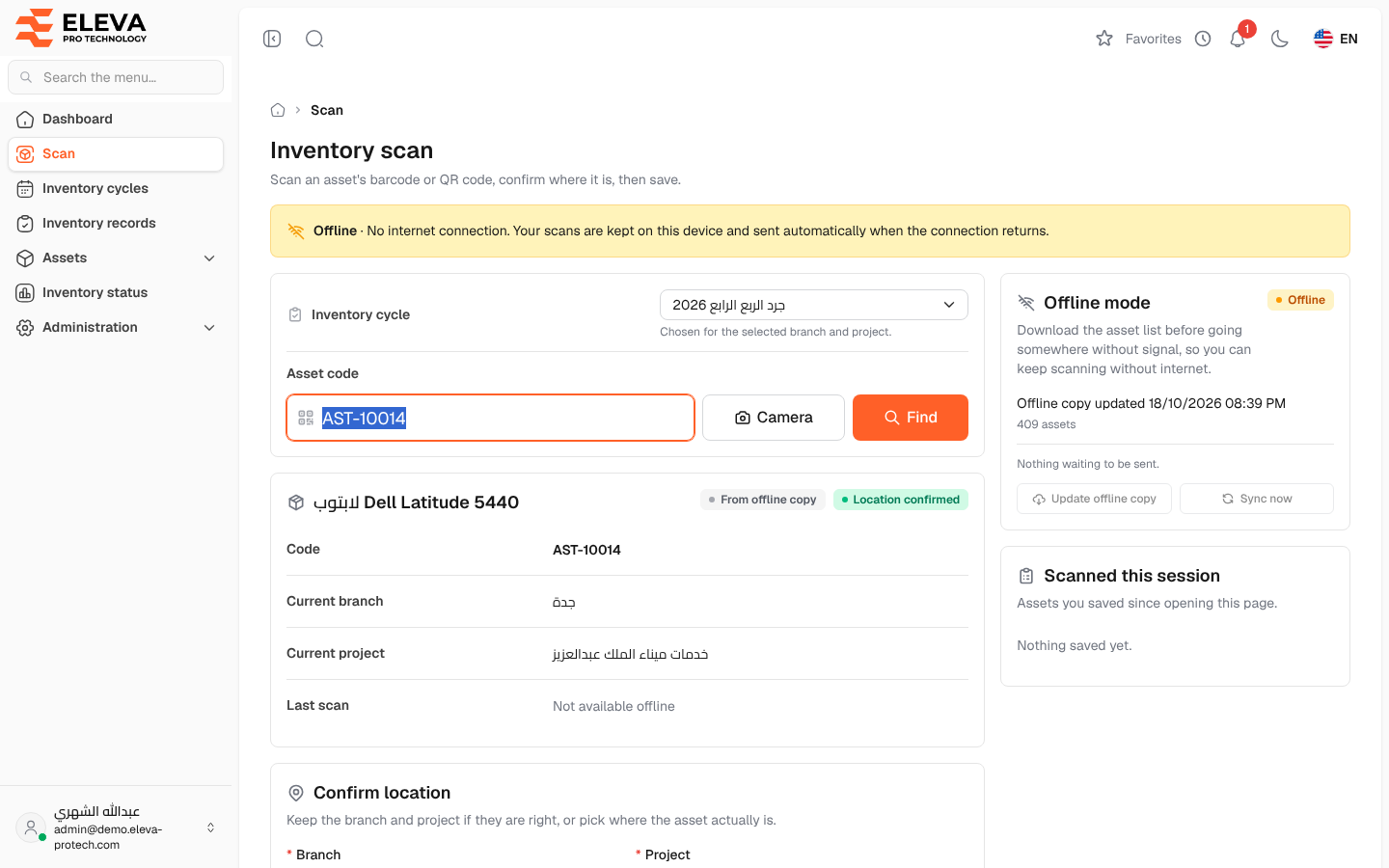
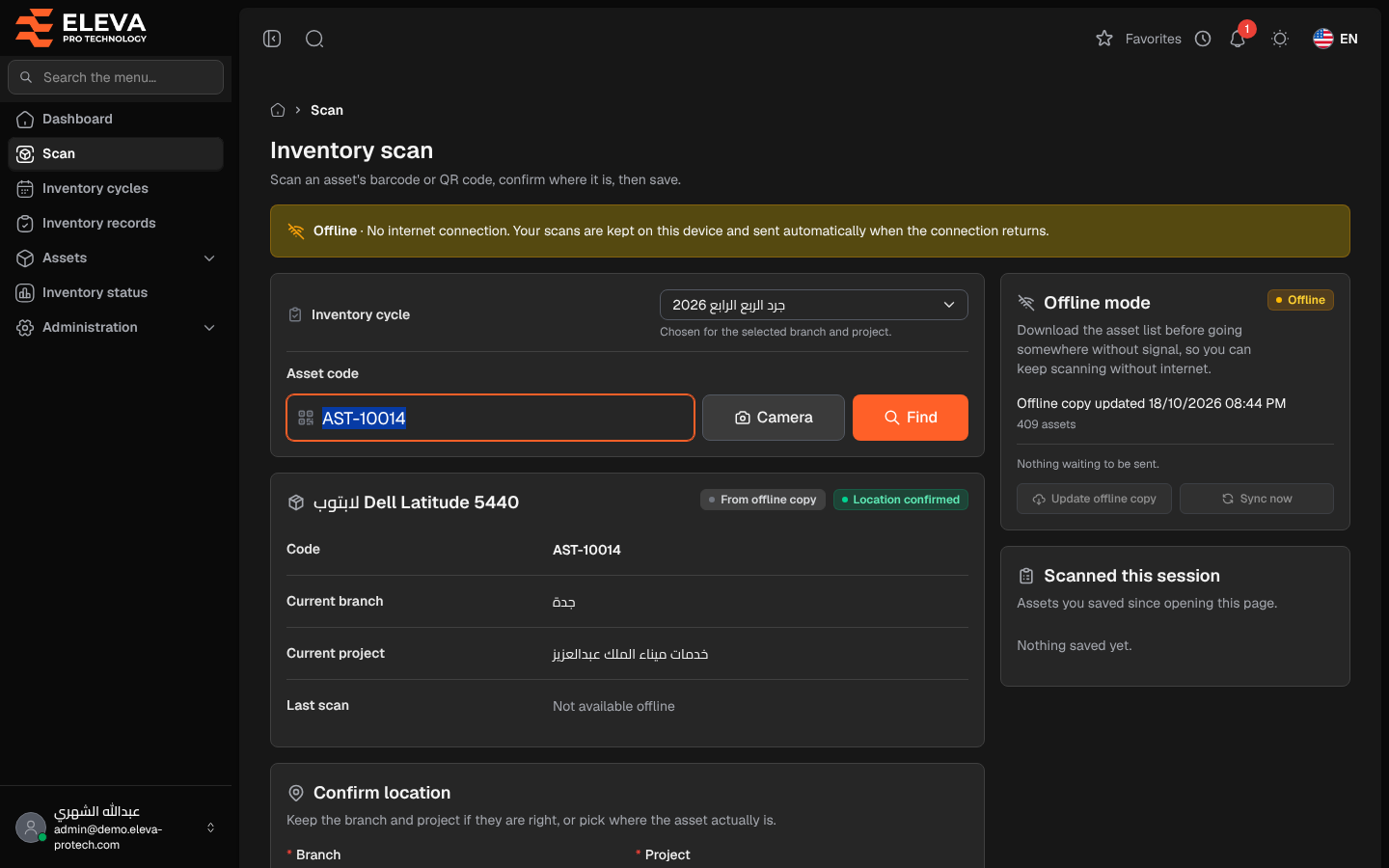
Warehouses, basements and remote sites often have no signal. The scan screen keeps working there: it keeps a copy of the assets, branches, projects, locations and active cycles on the device, saves your scans and reports on the device while there is no connection, and sends them by itself when the connection returns.
The Offline mode card on the Scan screen shows whether the device is Online or Offline, the state of the offline copy and the items waiting to be sent.
What’s on this screen
Section titled “What’s on this screen”- Offline copy updated … and the number of assets in the copy, or There is no offline copy on this device yet.
- The items waiting: … waiting to sync, … rejected, or Nothing waiting to be sent.
- Prepare for offline (Update offline copy once a copy exists): downloads the copy. Available only while online.
- Sync now: sends the waiting items at once. Available while online when items are waiting.
While offline, a banner at the top of the screen says Offline · No internet connection. Your scans are kept on this device and sent automatically when the connection returns. If the device has a connection but the server cannot be reached, the banner says so and the screen works from the copy in the same way.
How to prepare a device before going to a site without signal
Section titled “How to prepare a device before going to a site without signal”- While connected, open Scan.
- In Offline mode, click Prepare for offline. When it is done, the card shows the time of the copy and the number of assets.
- Keep the scan screen open, or add it to the home screen and open it from there.
The copy is refreshed by itself when it is older than 12 hours and the device is online. To refresh it before a trip, click Update offline copy.
How to scan offline
Section titled “How to scan offline”- Scan or type the code as usual. The asset is looked up in the copy and shows the tag From offline copy; its Last scan shows Not available offline.
- Confirm or change the branch, project and location, then click Save on device.
- The message Scan saved on this device. It will be sent when the connection returns. appears, and the item is listed in Scanned this session as Waiting to sync.
When a code is not in the copy, the screen shows This code is not in the offline copy; it may be a new or unregistered item. and offers Report as unregistered item; the report is also saved on the device. Without any copy, the screen shows No connection, and there is no offline copy on this device. Prepare for offline while you’re connected.
How the waiting items are sent
Section titled “How the waiting items are sent”The device sends them by itself when the page opens, when the connection returns, and every minute while items are waiting. You can also click Sync now.
- Each item is recorded at the time it was scanned on the device (up to 30 days back).
- A scan saved offline does not move the asset if a newer scan of it is already recorded; the newer scan knows better where the asset is.
- An item the system cannot accept stays on the device as Rejected, with the reason, for example This asset can no longer be scanned (it may have been disposed of, archived or deleted)., The selected inventory cycle is no longer active (it may have been closed). or The selected branch or project no longer exists. Click Remove from device to delete it from the device once you have noted it.
- If your session ended, the card shows Your session ended. Sign in again to send the … waiting item(s); they stay on this device until then. Click Sign in; the items are sent after you sign in.
Required permission
Section titled “Required permission”Inventory scanning › Scan.