

Webhooks
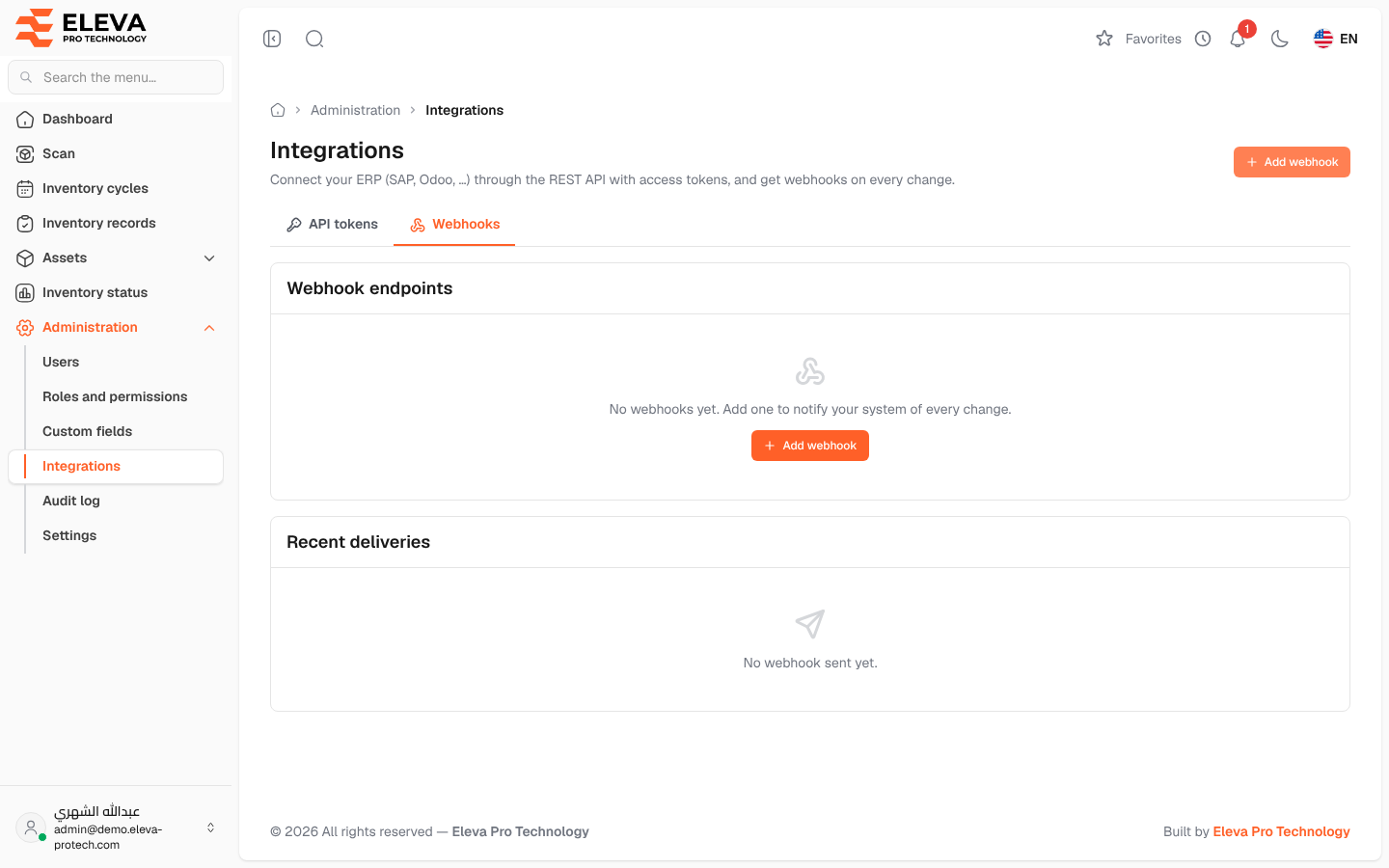
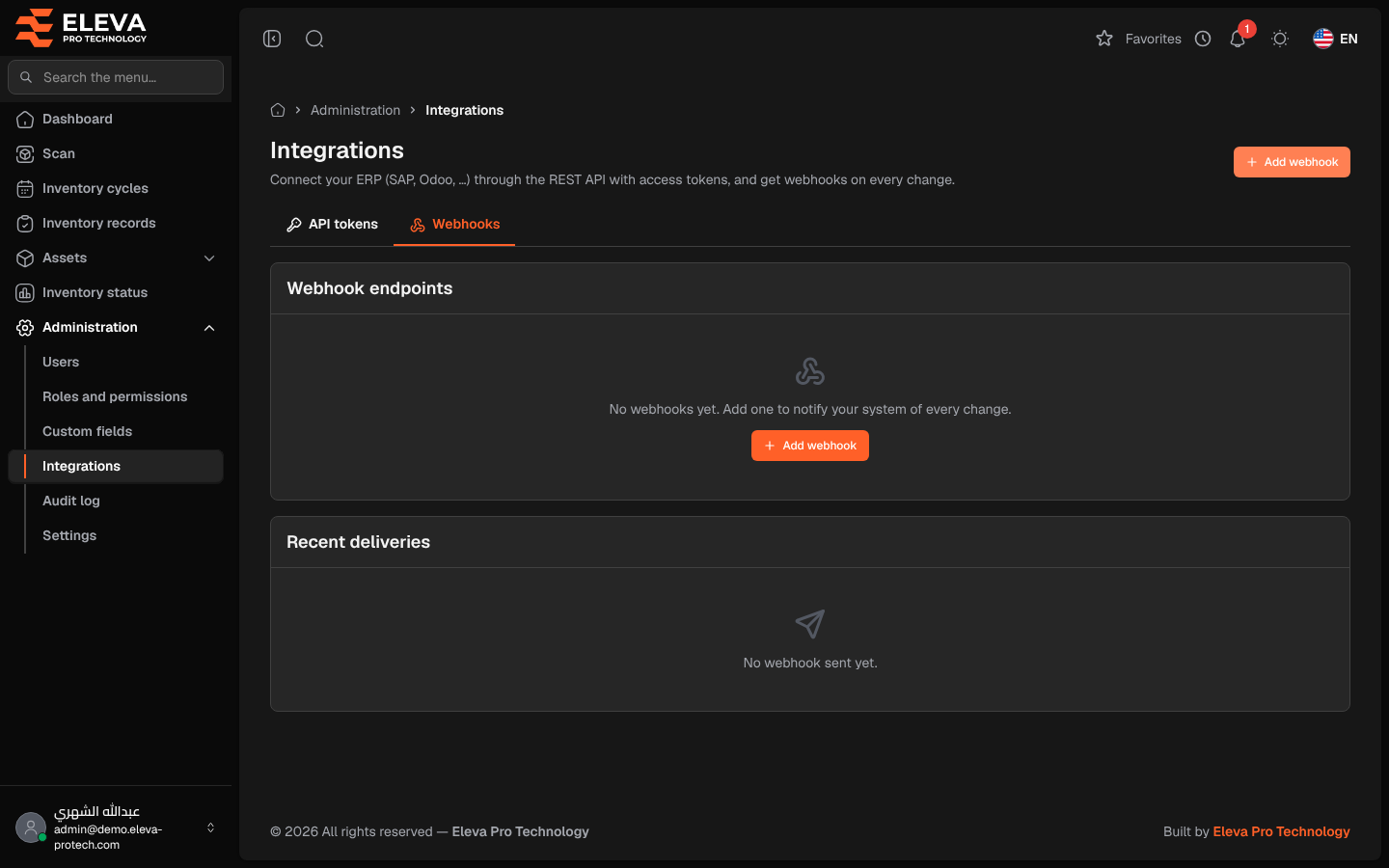
A webhook tells another system at once when something changes: the system sends a signed message to the address you give each time an asset is created, updated or deleted, an asset is scanned, a cycle is closed or an unregistered item is reported. The Webhooks tab lists the addresses and the recent deliveries.
From the side menu, open Administration › Integrations, then click the Webhooks tab.
What’s on this screen
Section titled “What’s on this screen”- Add webhook: opens the form for a new address (see Add a webhook).
- Webhook endpoints: the addresses.
- Recent deliveries: the latest messages sent, with a filter by address (All endpoints).
Columns of Webhook endpoints
Section titled “Columns of Webhook endpoints”- URL: the address, with its description below.
- Events: how many events it receives.
- Status: Active, Off, or Disabled after errors.
- Failures in a row.
- Actions: Send test event, Edit and Delete.
Click a row to see its details: Status, Events, Signing secret with Show signing secret, New signing secret and Send test event.
Columns of Recent deliveries
Section titled “Columns of Recent deliveries”- Event.
- Status: Pending (with Next try …), Delivered or Failed.
- Response: the code and the start of the answer of the other system.
- Attempts and Time.
- Redeliver: sends the message again.
How deliveries work
Section titled “How deliveries work”- A message that is not accepted is tried again after 1 minute, 5 minutes, 30 minutes, 2 hours and 6 hours.
- After 20 failures in a row, the address is disabled (Disabled after errors), and the users who manage integrations receive a notification and an e-mail. Fix the receiving system, then turn the address back on from Edit.
How to test an address
Section titled “How to test an address”- Click Send test event in the address’s row.
- The page shows The test event was delivered (…). or The test event was not delivered (…). Check the recent deliveries.
How to change the signing secret
Section titled “How to change the signing secret”- Click the address’s row, then New signing secret.
- Confirm in the Create a new signing secret window: The current secret stops working at once; update it in the receiving system.
- Copy the new secret and set it in the receiving system.
Required permission
Section titled “Required permission”Integrations › Manage.