

Add or edit a user
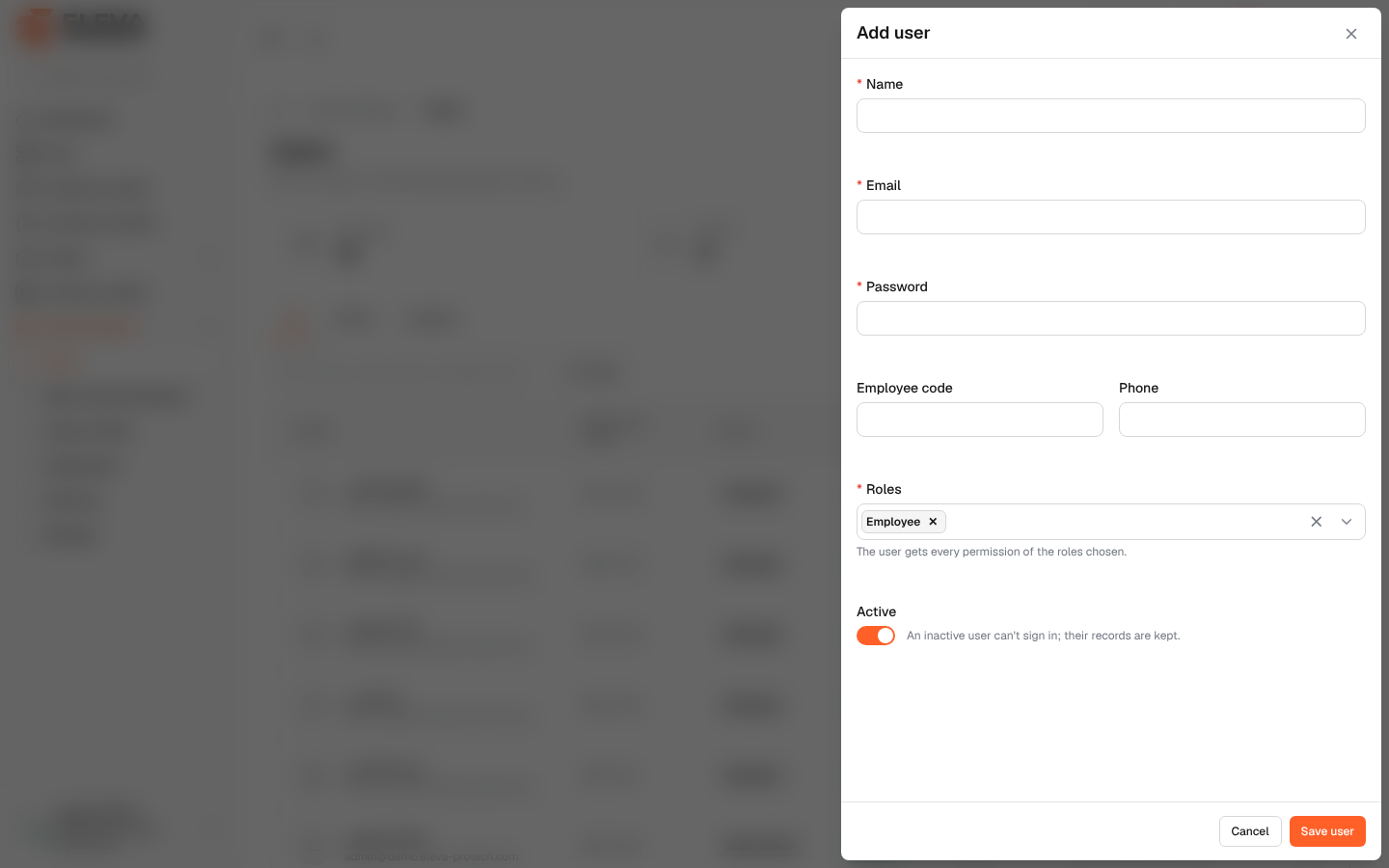
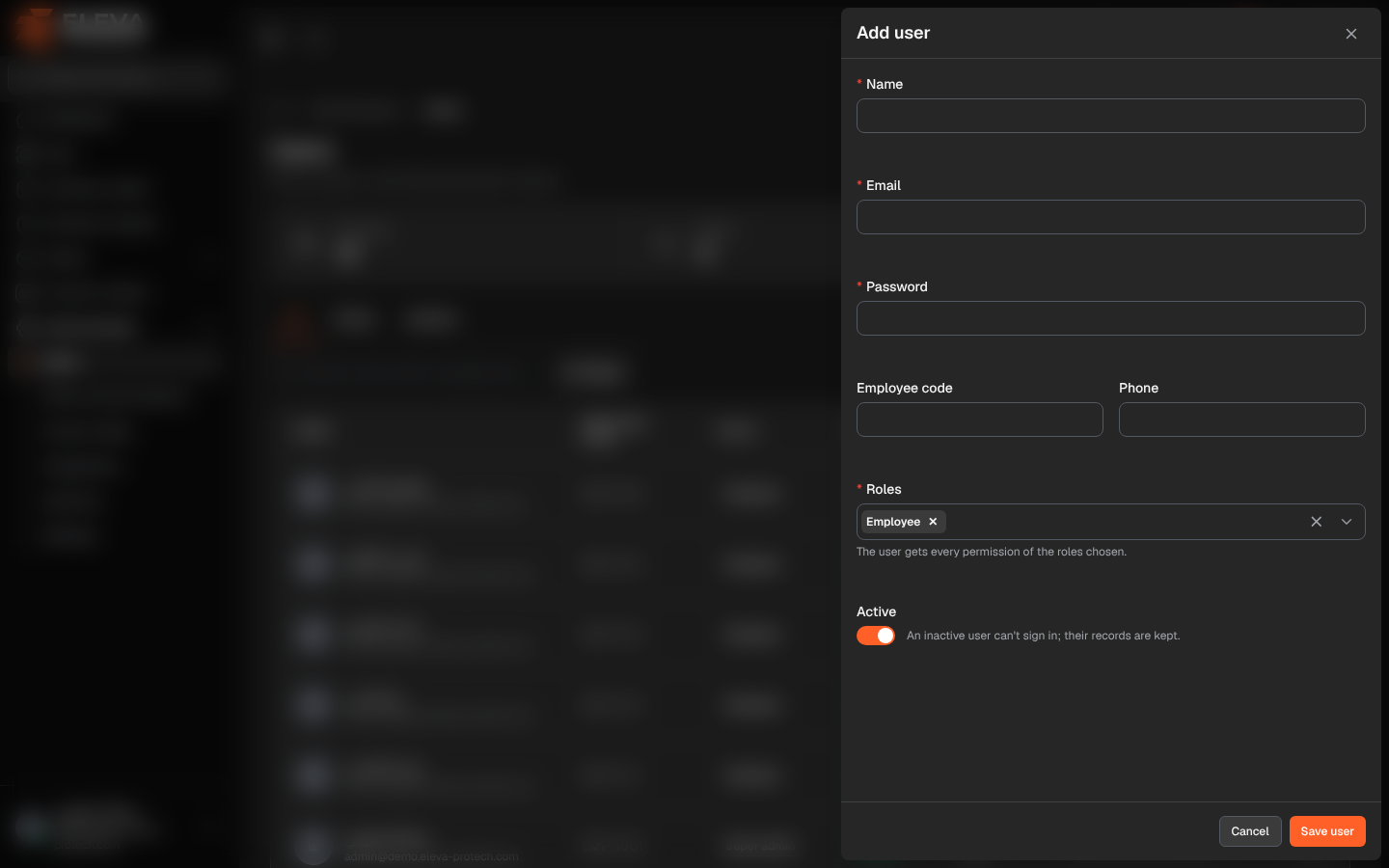
Add a user for each person who needs to sign in: managers who follow the inventory, staff who manage assets, and field employees who scan. What each person can do depends on the roles you give them.
From the side menu, open Administration › Users and click Add user. To edit a user, click their row or pencil icon.
Fields
Section titled “Fields”- Name (required): up to 255 characters.
- Email (required): the address the user signs in with. It must be unique.
- Password (required for a new user): at least 10 characters with upper-case and lower-case letters and numbers; passwords known from public data leaks are refused. When editing, Leave empty to keep the current password.
- Employee code: optional, up to 50 characters, unique. It is shown next to the user’s name in scans and custody.
- Phone: optional, up to 20 characters.
- Roles (required): one or more roles (The user gets every permission of the roles chosen.). A new user starts with Employee.
- Active: on by default (An inactive user can’t sign in; their records are kept.).
How to add a user
Section titled “How to add a user”- Click Add user.
- Fill in the name, e-mail and password, and the employee code and phone if useful.
- Choose the roles, for example Employee for a field scanner or Manager for an inventory manager.
- Click Save user, or Cancel.
- The message User created successfully. appears.
Give the user their e-mail and password. They can change the password from My profile.
- You can only give roles whose permissions you hold yourself; only a super admin can give the Super admin role.
- You cannot deactivate your own account, and at least one active super admin must remain (At least one active super admin must remain.).
Required permission
Section titled “Required permission”Users › Add to add; Users › Edit to edit.