

Change history
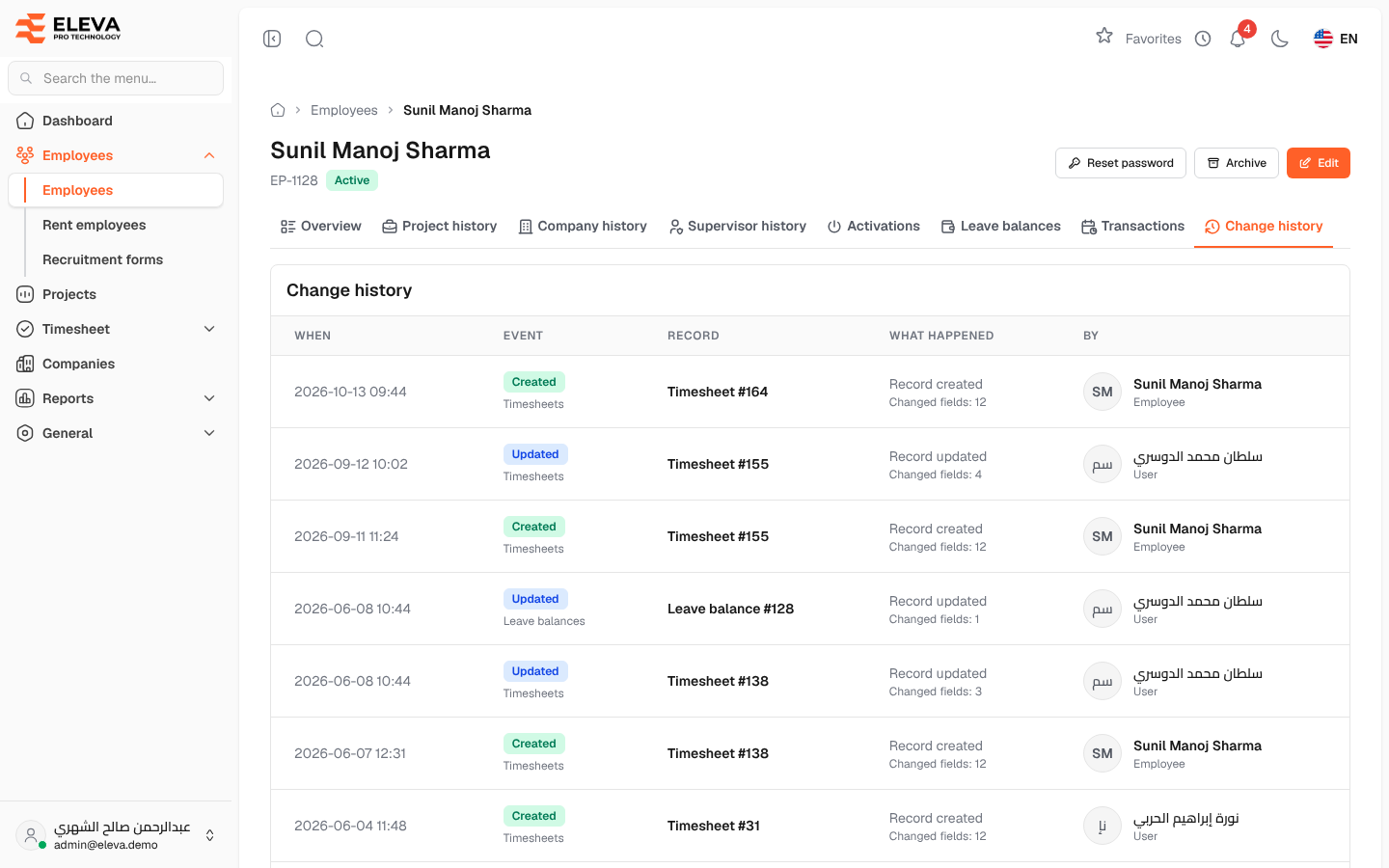
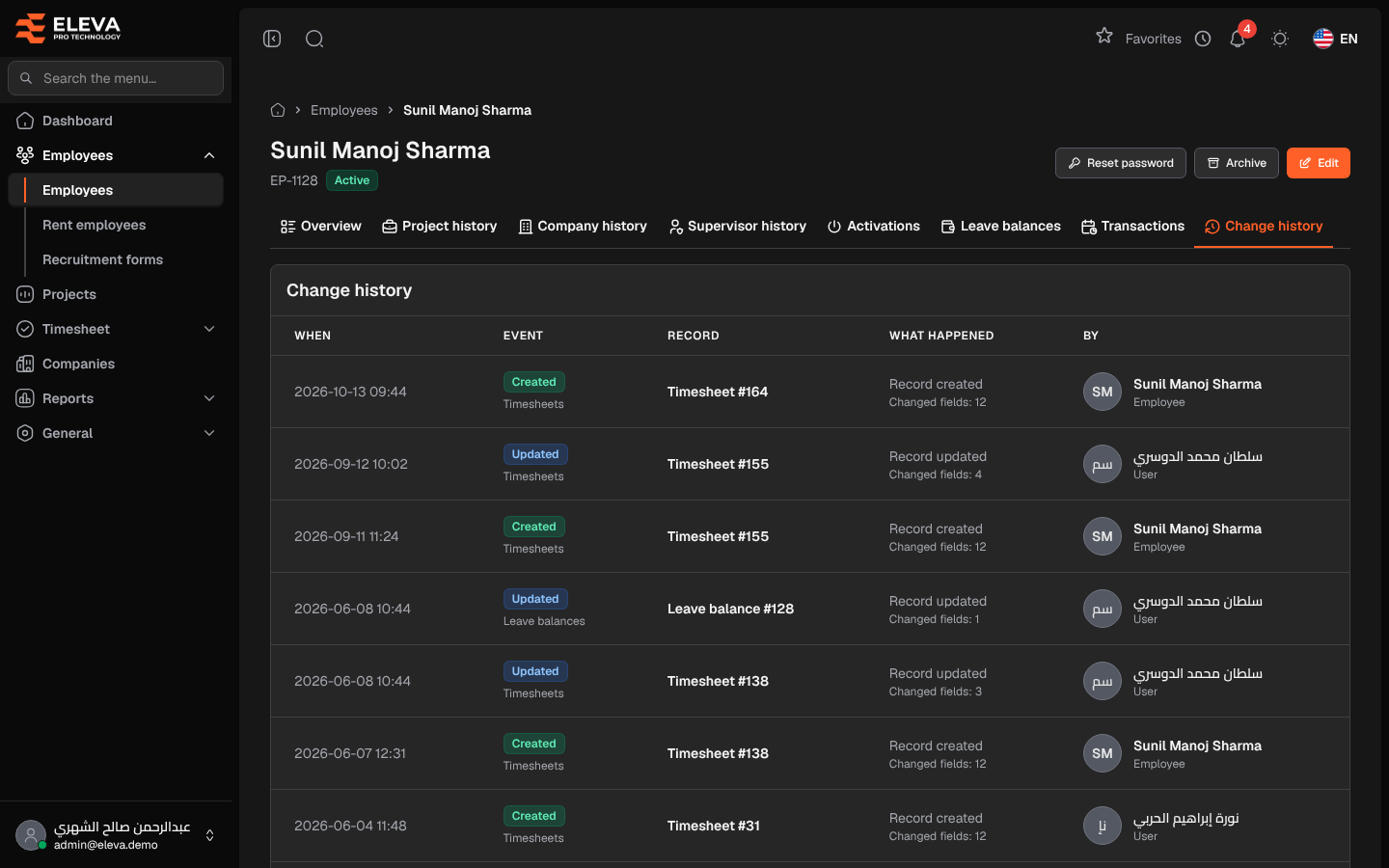
The Change history tab of an employee’s record shows who changed what on this employee and when, newest first. Besides changes to the employee’s own record, it includes changes to their transactions, one-time jobs and leave balances. Use it to answer questions such as “who moved this employee to another project?” or “when was this leave changed?”.
From the side menu, open Employees › Employees, click the employee, then the Change history tab. The tab is available for employees of the company itself.
Columns
Section titled “Columns”- When: the date and time of the change.
- Event: what kind of change it was, for example a record created, updated or deleted.
- Record: the record that changed: the employee, or one of their transactions, one-time jobs or leave balances.
- What happened: a short description, with Changed fields: … showing how many fields changed.
- By: the user or employee who made the change, or System for changes the system made by itself.
When there is nothing to show, the tab displays No activity matches these filters.
How to see the details of a change
Section titled “How to see the details of a change”- Click a row.
- A panel opens with the Event, the Area, the Record and who made the change (By).
- Under Changes, each changed Field is listed with its value Before and After.
Changes made together, for example by one file import, share the same Batch identifier, so you can tell which changes came from the same action.
Required permission
Section titled “Required permission”Employees › View.