

Invite a candidate
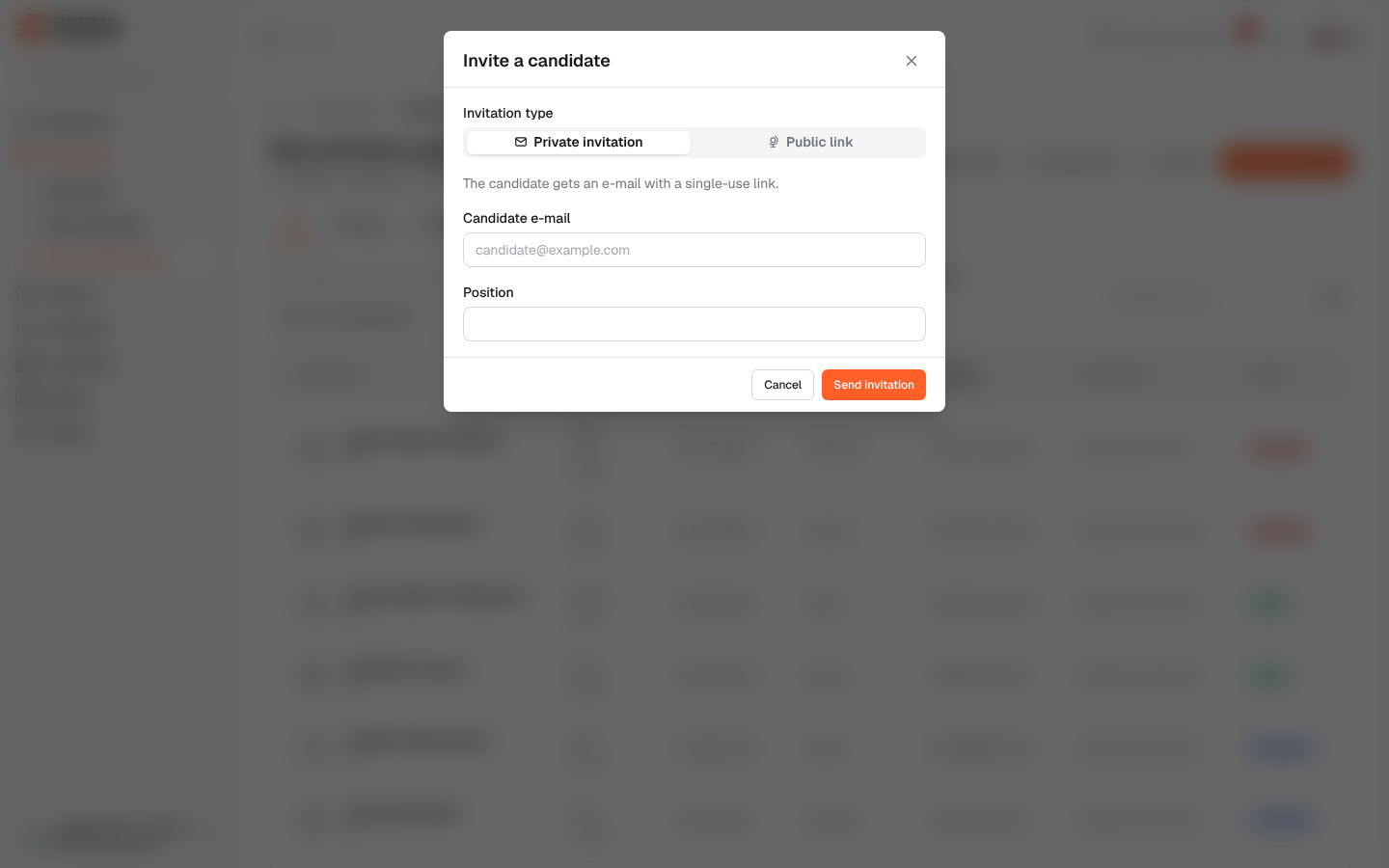
Candidates can only apply through an invitation link. Use this window to e-mail a personal invitation to one candidate, or to create a public link you can share with many candidates, for example in a job advert.
From the side menu, open Employees › Recruitment forms, then click Invite candidate. The same button is also on the Public links screen.
Fields
Section titled “Fields”- Invitation type:
- Private invitation — the candidate gets an e-mail with a single-use link.
- Public link — a link any candidate can use until it is revoked or expires.
- Candidate e-mail — the address the invitation is sent to (private invitation only, required).
- Position — the job the candidate applies for. It is required for a private invitation and locked on the candidate’s form.
- Position (optional) — for a public link. It is shown to the candidate on the form, who can change it.
How to send a private invitation
Section titled “How to send a private invitation”- Click Invite candidate.
- Keep Private invitation selected.
- Enter the Candidate e-mail and the Position.
- Click Send invitation.
A message confirms the address the invitation was sent to. The candidate must apply with this same e-mail address, and the link stops working after one application.
How to create a public link
Section titled “How to create a public link”- Click Invite candidate and choose Public link.
- Optionally enter a Position.
- Click Create link.
- In the Public link created window, click Copy link, Open link, or Copy HTML code to get a ready “Apply now” link for a web page.
Required permission
Section titled “Required permission”Recruitment forms › Invite.