

Projects report
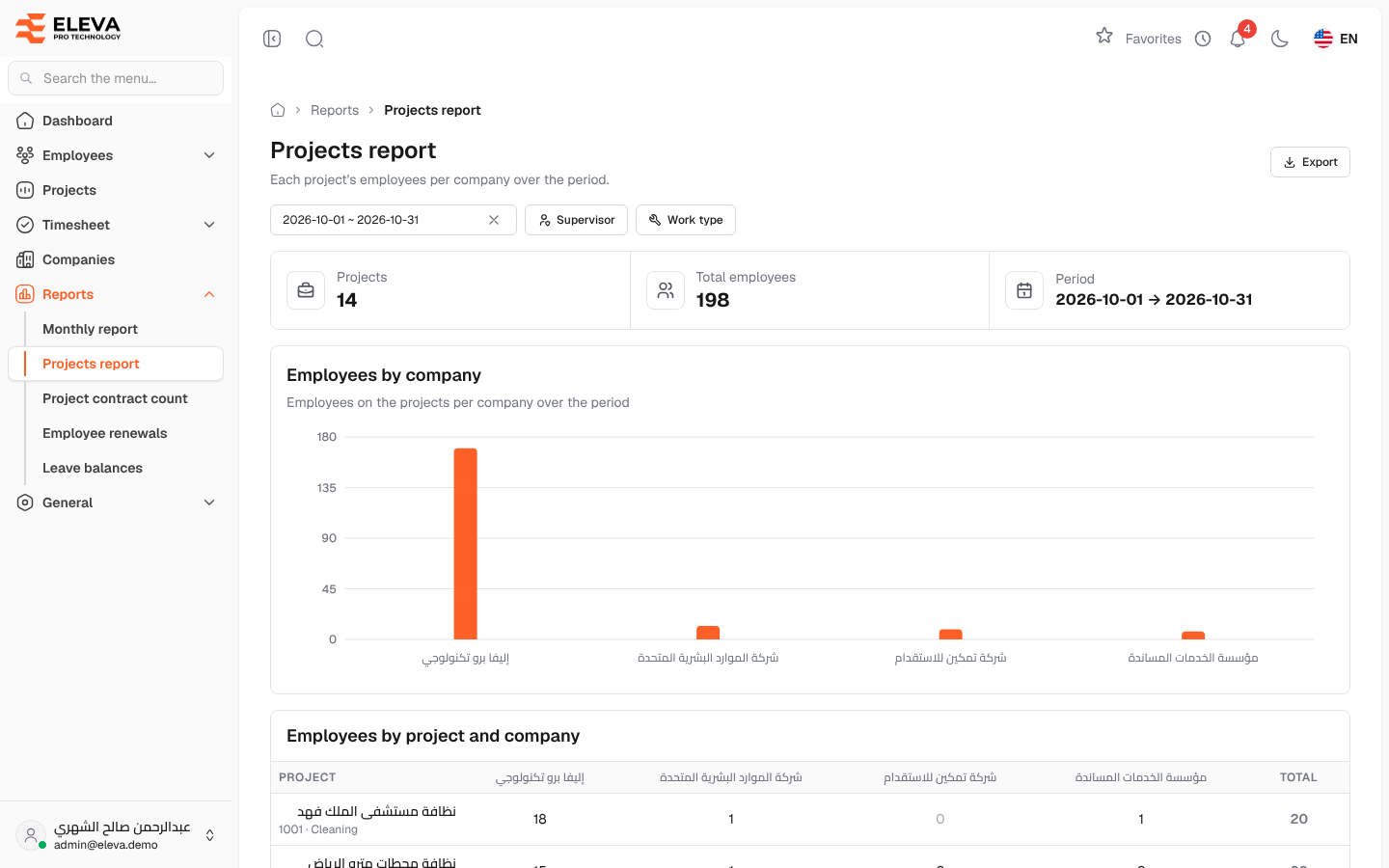
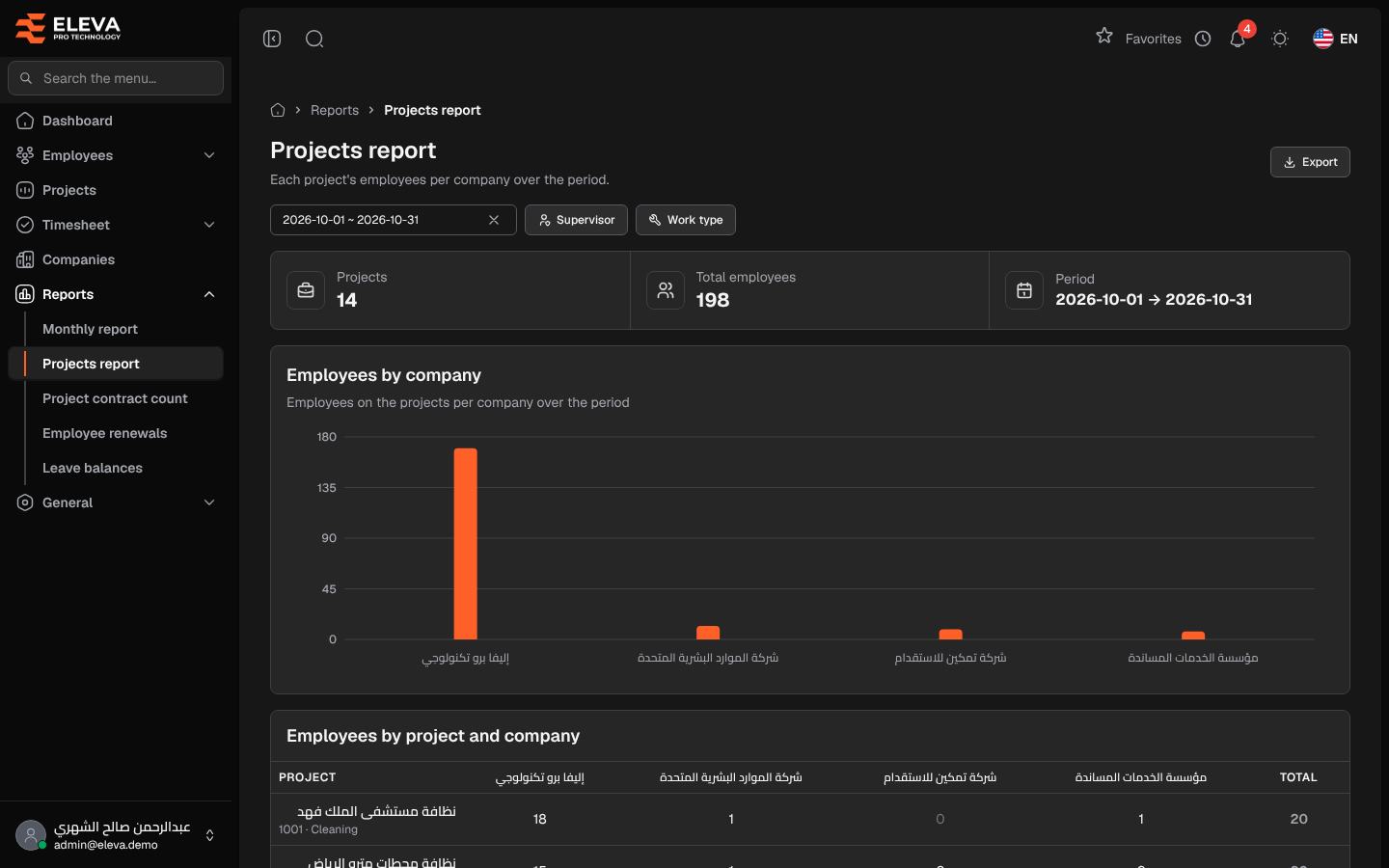
The Projects report counts each project’s employees per company over a date range: one column for each company and a total per project and per company. Use it to see how the workforce on each project is split between your own company and the rent companies.
From the side menu, open Reports › Projects report.
Filters
Section titled “Filters”- Date range — the period to count. The current month is used by default.
- Supervisor — the projects of one supervisor. Shown to administrators and finance users only.
- Work type — Cleaning, Maintenance or Other, taken from the first digit of the project code.
Summary cards
Section titled “Summary cards”- Projects — the number of projects listed.
- Total employees — employees counted on all the projects.
- Period — the dates the report covers.
Employees by company shows the total employees per company over the period. It appears when more than one company has employees.
Columns
Section titled “Columns”The Employees by project and company table has:
- Project — the project name, with its code and work type. This column stays visible while you scroll sideways.
- One column per company — the project’s employees with that company. Employees without a company are counted under Unassigned, which only appears when needed.
- Total — the project’s employees across all companies.
A Total row at the bottom adds up each company and the grand total.
How to run and export
Section titled “How to run and export”- From the side menu, open Reports › Projects report.
- Choose the Date range and, if needed, a Supervisor or Work type.
- Click Export to download the same figures as an Excel file.
Required permissions
Section titled “Required permissions”- Reports — View to open the report, Export to download it.
A supervisor sees only the projects they supervise.