

Transaction details
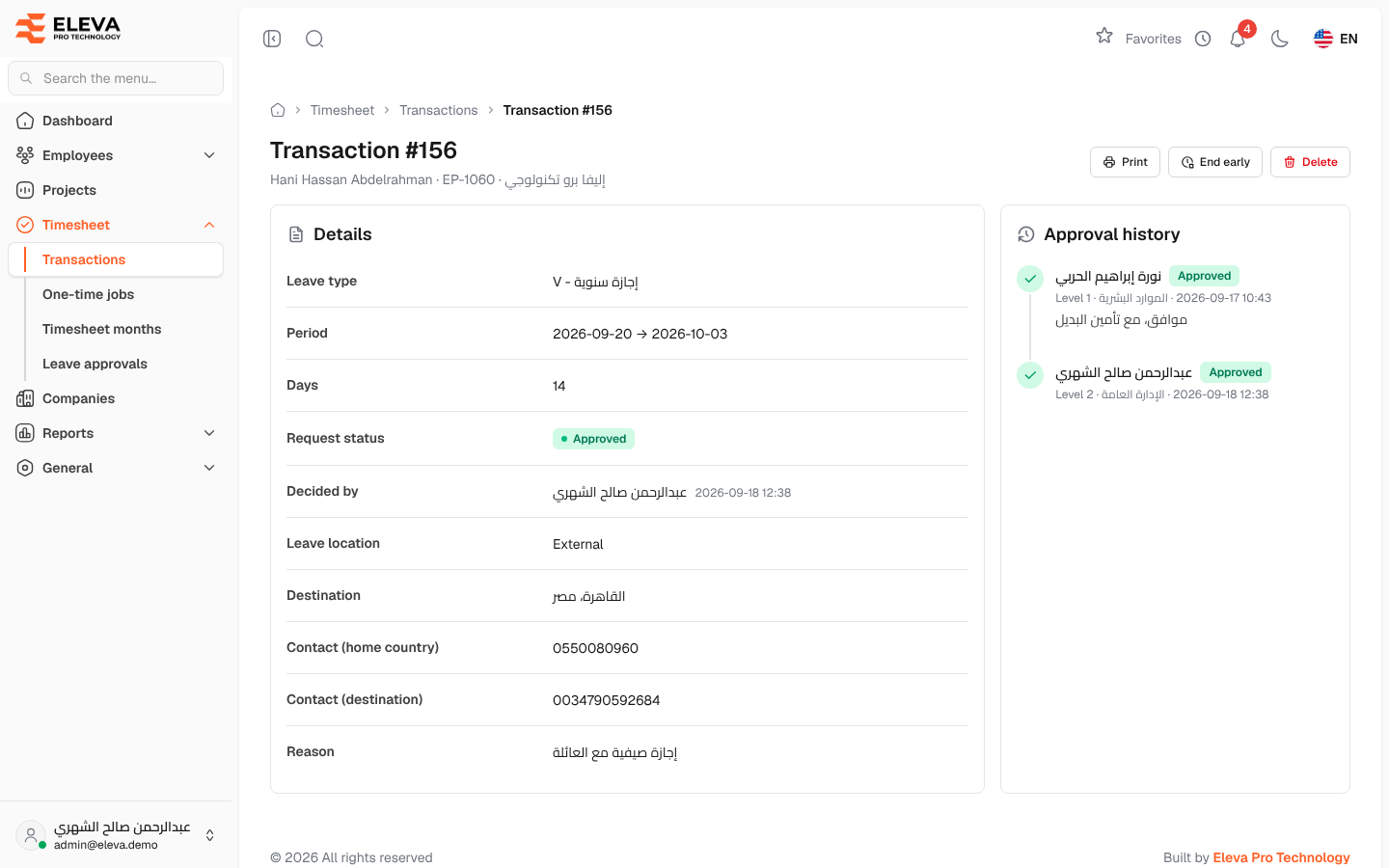
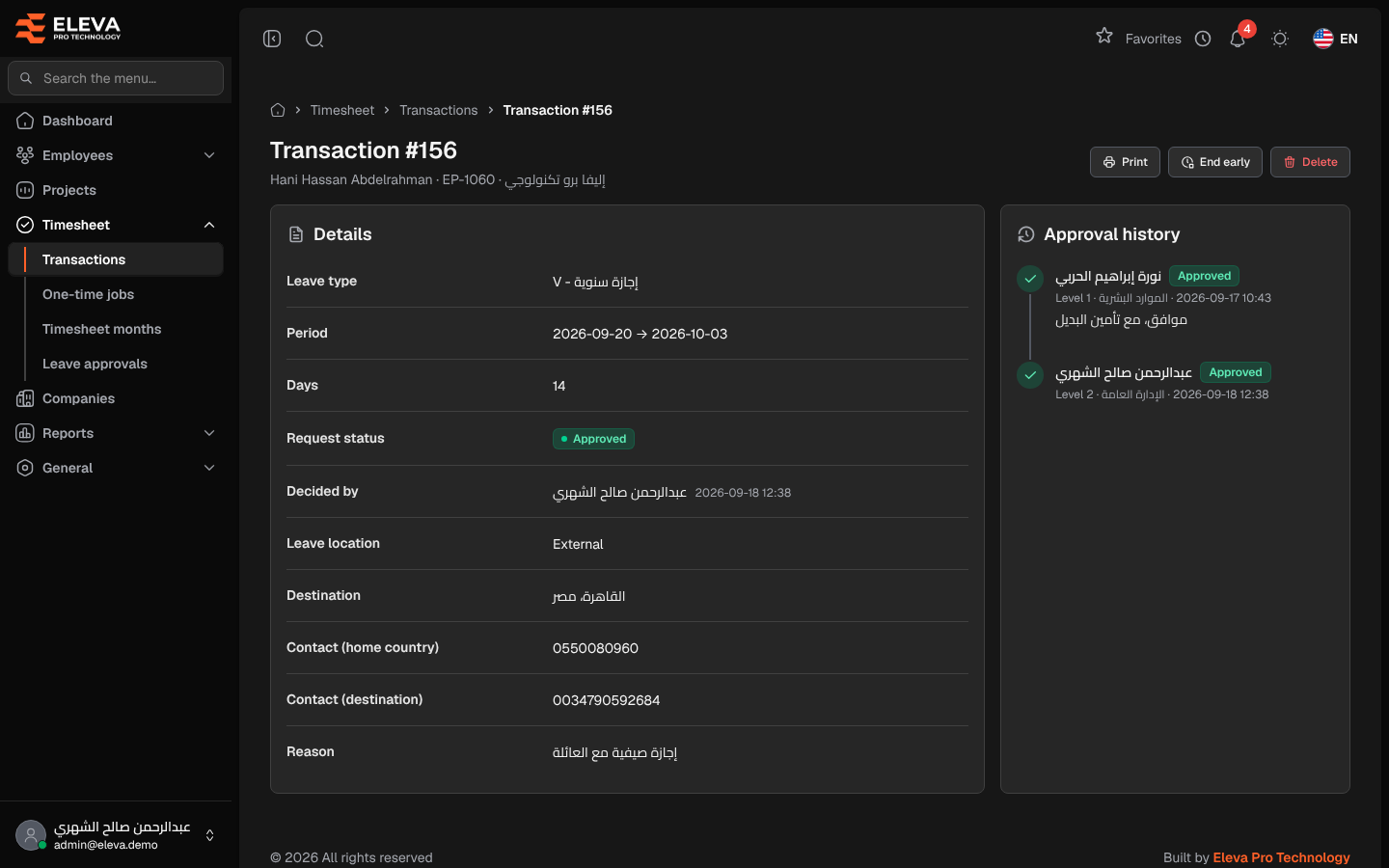
The transaction page shows everything about one transaction: the employee, the type and period, and, for a leave request sent from the employee portal, its status, the leave details the employee entered and every approval decision. Use it to check a request before or after approval, print it, or correct it.
From the side menu, open Timesheet › Transactions, then click a row.
What’s on this screen
Section titled “What’s on this screen”- Header — Transaction # with its number, and the employee’s name, code and company.
- Buttons — Print, End early, Delete and Edit. Each one appears only when the action is allowed for this transaction.
- A warning when the transaction is in a locked month: it cannot be changed or deleted.
Details
Section titled “Details”- Leave type — the type code and description.
- Period — start and end dates.
- Days — the number of days. For an approved leave request this is the number of days deducted from the balance.
- Request status — Pending, Approved or Rejected (leave requests only).
- Decided by — who took the final decision, with the date and time.
- Leave location — Internal or External. For external leave, also Destination, Contact (home country) and Contact (destination).
- Reason (for a leave request) or Notes (for an entered transaction).
- Approver notes — notes left by the approver, if any.
Approval history
Section titled “Approval history”For a leave request, the Approval history panel lists each decision, oldest first: the approver’s name, Approved or Rejected, the level (for example Level 1 and its name), the date and time, and any notes. Before any decision it shows No decision yet.
How to end a leave early
Section titled “How to end a leave early”- On an approved leave request, click End early.
- Choose the Last day of leave. It must be on or after the start date and before the current end date.
- Click End leave. A message shows how many days the leave now counts, and the remaining days go back to the employee’s balance.
How to print
Section titled “How to print”Click Print to open a printable copy of the transaction in a new tab.
Required permissions
Section titled “Required permissions”- Transactions — View to open the page, Print to print, Edit to edit or end early, Delete to delete.
- Supervisors see only their own employees’ transactions and cannot end a leave early or delete a leave request.