

Branding
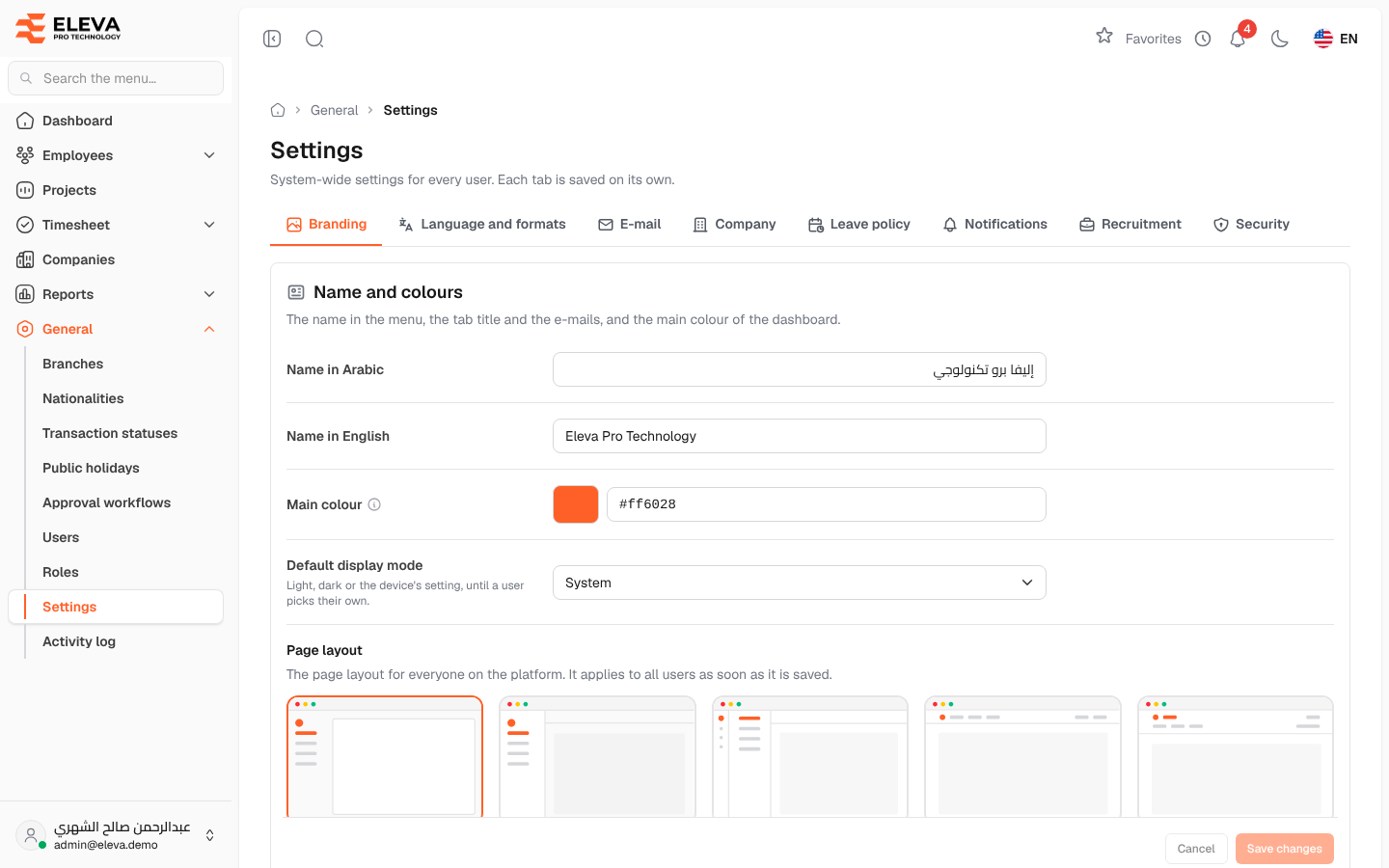
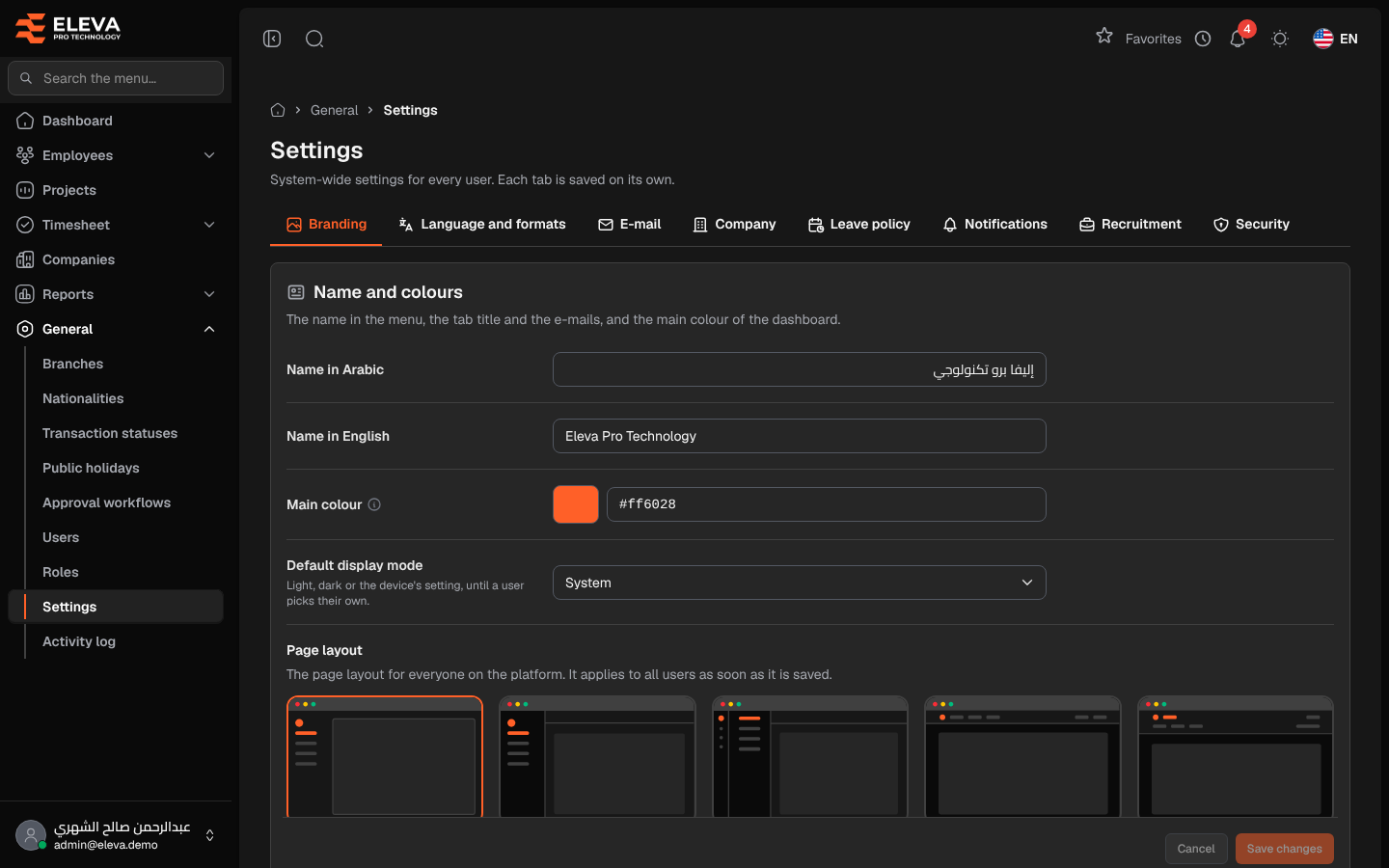
The Branding tab sets how the system looks for everyone: its name, main colour, default display mode, page layout, logos and the images printed on documents.
From the side menu, open General › Settings; Branding is the first tab. Each tab of the settings screen is saved on its own.
Name and colours
Section titled “Name and colours”- Name in Arabic / Name in English — the name shown in the menu, the browser tab title and the e-mails. When empty, the default name shown under the field is used.
- Main colour — the colour of buttons, links and the selected menu item.
- Default display mode — Light, Dark or System (follows the device), used until a user picks their own mode.
- Page layout — one of five layouts: Inset panel, Seamless side, Stacked, Top bar and Two-row header. It applies to all users as soon as it is saved.
Logos and print images
Section titled “Logos and print images”- Logo (light mode) — shown on light backgrounds, such as the menu and the sign-in page.
- Logo (dark mode) — shown on dark backgrounds.
- Browser tab icon — a small square image (ICO or PNG).
- Print header / Print footer — the top and bottom of printed leave requests, reports and other pages.
Each image accepts PNG, JPG, WEBP or ICO files up to 2 MB.
How to change the name, colour or layout
Section titled “How to change the name, colour or layout”- Change the fields in Name and colours.
- Click Save changes. To discard your edits, click Cancel.
How to change an image
Section titled “How to change an image”- Click Upload next to the image and choose a file. It is saved at once and the preview updates.
- To go back to the original image, click Restore original and confirm. The uploaded file is deleted.
Required permission
Section titled “Required permission”Settings › Manage, on an Admin account. Other account types cannot open the settings.