

Add transaction
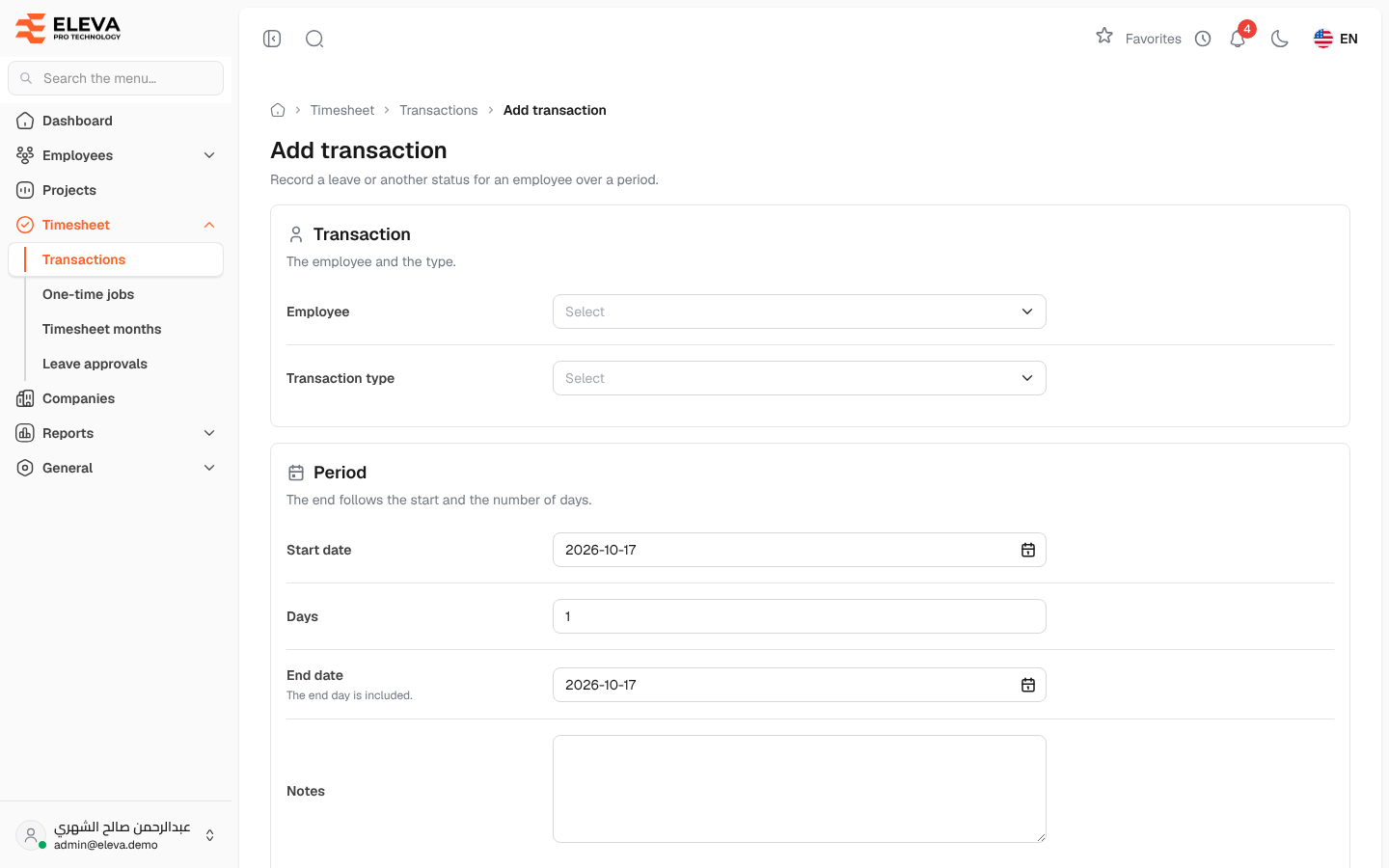
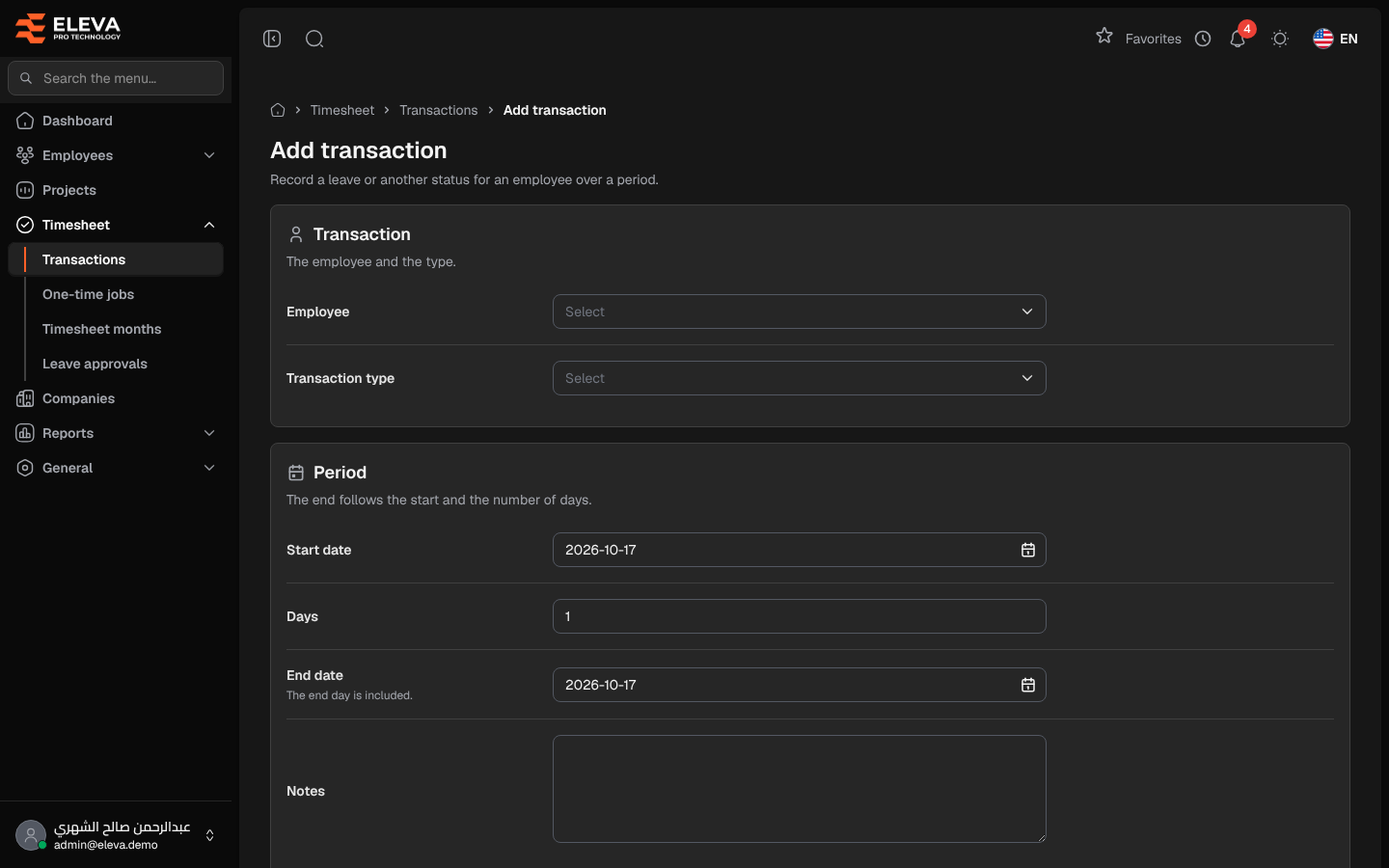
Add a transaction to record a leave or another status for an employee over a period, for example when HR enters a sick leave or an absence directly instead of waiting for a request from the employee portal. The transaction appears in the employee’s timesheet for the days it covers.
How to add a transaction
Section titled “How to add a transaction”- From the side menu, open Timesheet › Transactions.
- Click Add transaction.
- Fill in the fields described below.
- Click Save transaction, or Cancel to go back without saving.
- After saving you return to the transactions list, where the new transaction shows Entered as its request status.
Fields
Section titled “Fields”Transaction
- Employee (required) — the employee. Only active employees are listed, each with their code and current project.
- Transaction type (required) — the leave or status type, shown as its code and description.
Period
- Start date (required) — the first day. Today by default.
- Days — the number of days. Typing a number moves the end date to match.
- End date (required) — the last day, which is included in the period. It cannot be before the start date. Changing the start date keeps the same number of days and moves the end date with it.
- Notes — optional details, up to 255 characters.
How to edit a transaction
Section titled “How to edit a transaction”- Open the transaction from the list and click Edit, or click the pencil icon in the list.
- Change the employee, the type, the period or the notes.
- Click Save changes.
Leave requests sent by employees from the portal cannot be edited here.
Required permissions
Section titled “Required permissions”- Transactions — Create to add a transaction, Edit to change one.
- A supervisor can only choose their own employees.