

Hiring decision
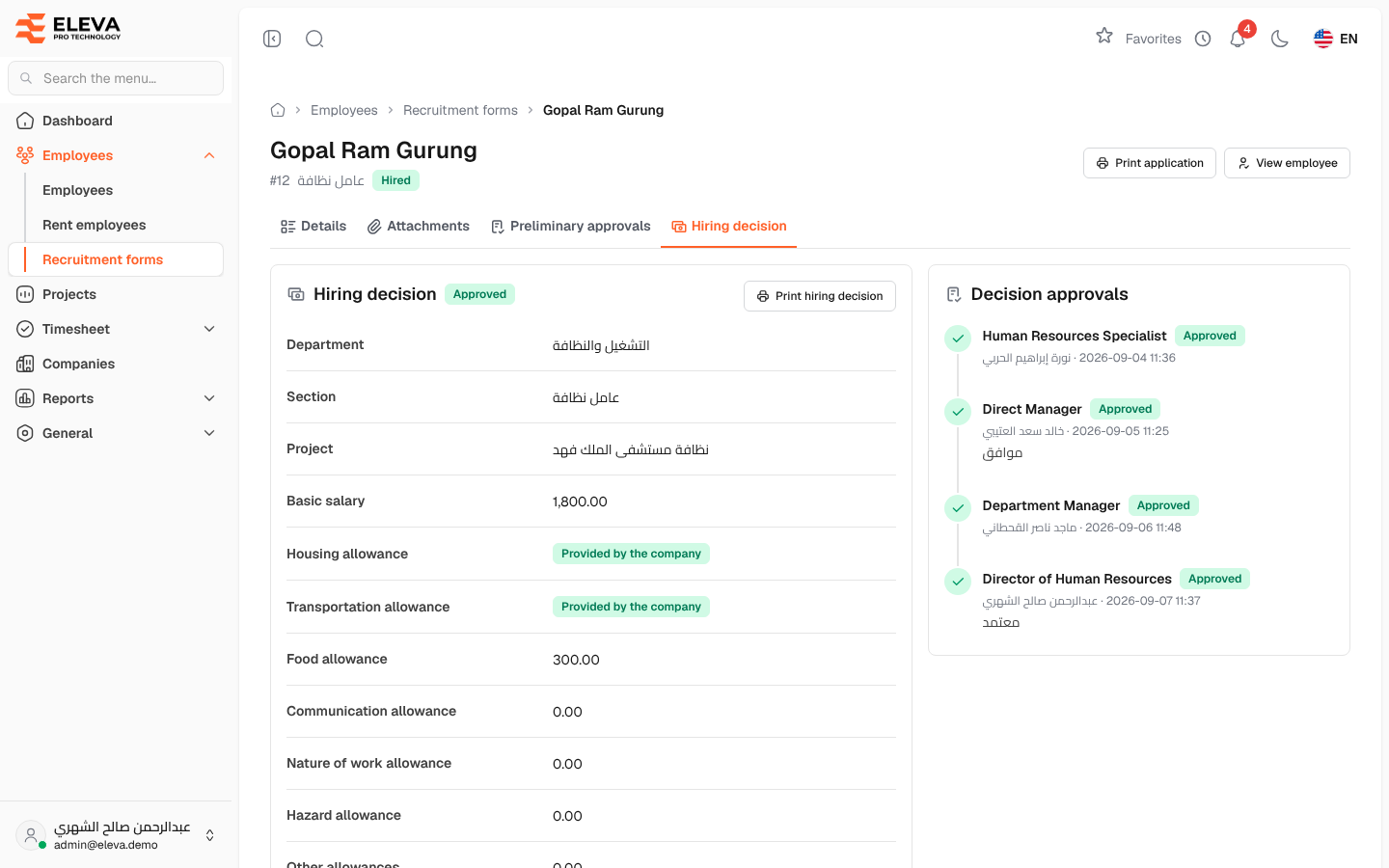
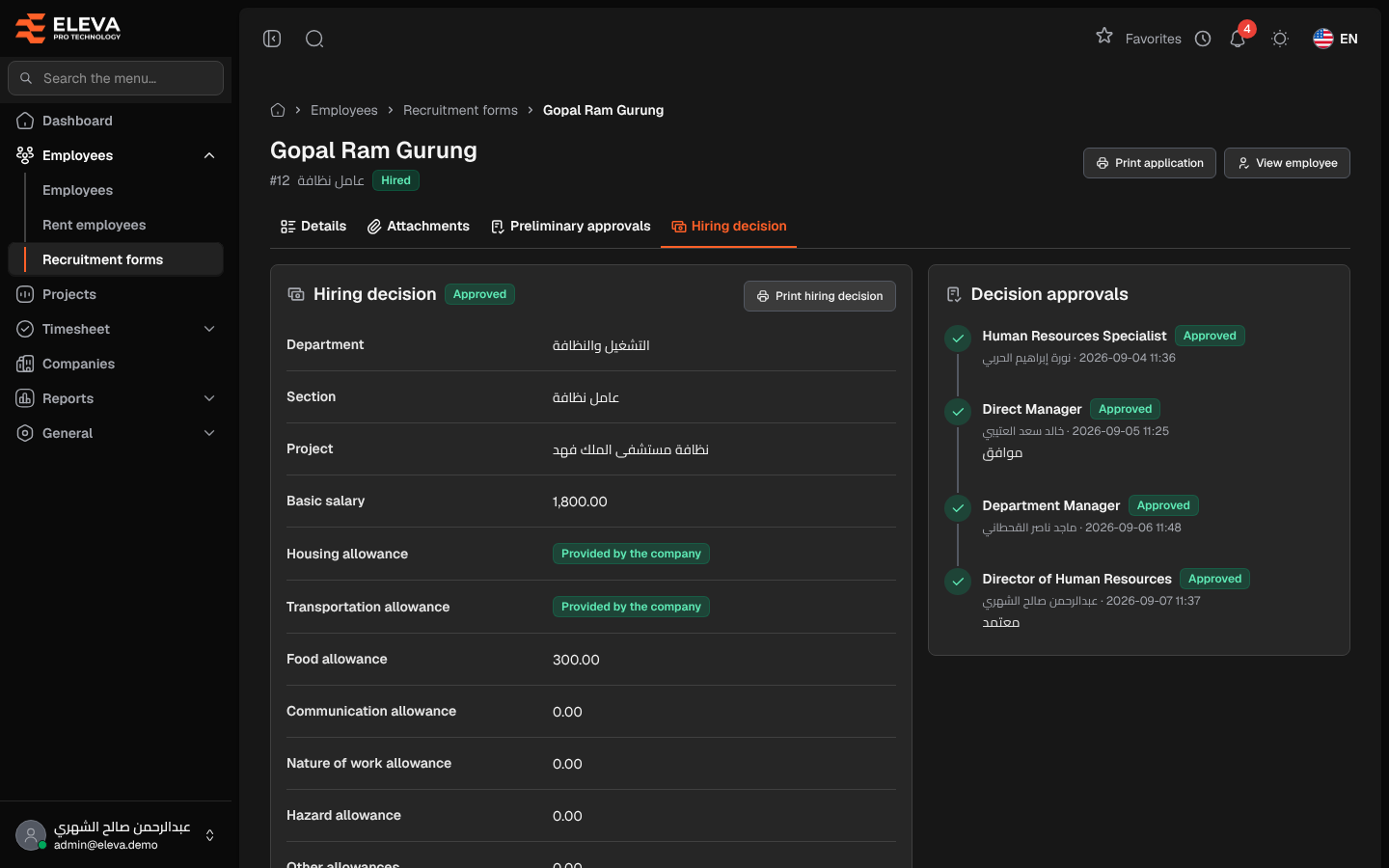
After the preliminary approvals are completed, Human Resources records the hiring decision: where the candidate will work, the salary and allowances, and the start date. The decision then goes through its own approval stages. Once it is approved, the candidate can be converted to an employee.
From the side menu, open Employees › Recruitment forms, open an application with the status Reviewed or Hired, and click the Hiring decision tab.
What’s on this screen
Section titled “What’s on this screen”- Hiring decision — the decision’s status (Awaiting approval, Approved or Rejected), the placement, each salary component, the Total salary and the Start date. An allowance the company provides shows Provided by the company.
- Decision approvals — the approval stages with each approver’s decision, date and notes, and Approve / Reject for the current approver.
- Print hiring decision — available once the decision is approved.
- Edit decision — available until an approver has decided.
Fields
Section titled “Fields”- Placement — Department, Section and Project (optional).
- Salary and allowances — Basic salary, Housing allowance, Transportation allowance, Food allowance, Communication allowance, Nature of work allowance, Hazard allowance and Other allowances (all required; enter 0 when none).
- Housing provided by the company / Transportation provided by the company — sets that allowance to 0.
- Start date (required).
- Approvers — four default stages: Human Resources Specialist, Direct Manager, Department Manager and Director of Human Resources.
How to create a hiring decision
Section titled “How to create a hiring decision”- Click Create hiring decision.
- Fill in the placement, the salary components and the Start date. The Total salary is calculated as you type.
- Choose an approver for each stage.
- Click Save and send for approval. The first approver is notified.
- Choose a different approver for each stage; you cannot choose yourself, and supervisors cannot be approvers.
- The first and last stages belong to Human Resources and need a Human Resources or administrator account.
- Approvers decide in order. The last approval approves the decision and Human Resources is notified.
- Rejecting at any stage rejects both the hiring decision and the application.
- Saving an edited decision starts its approvals again from the first stage.
Required permission
Section titled “Required permission”Creating or editing the decision needs Recruitment forms › Create. Deciding a stage needs Recruitment forms › Approve, and printing needs Recruitment forms › Print.