

Company history
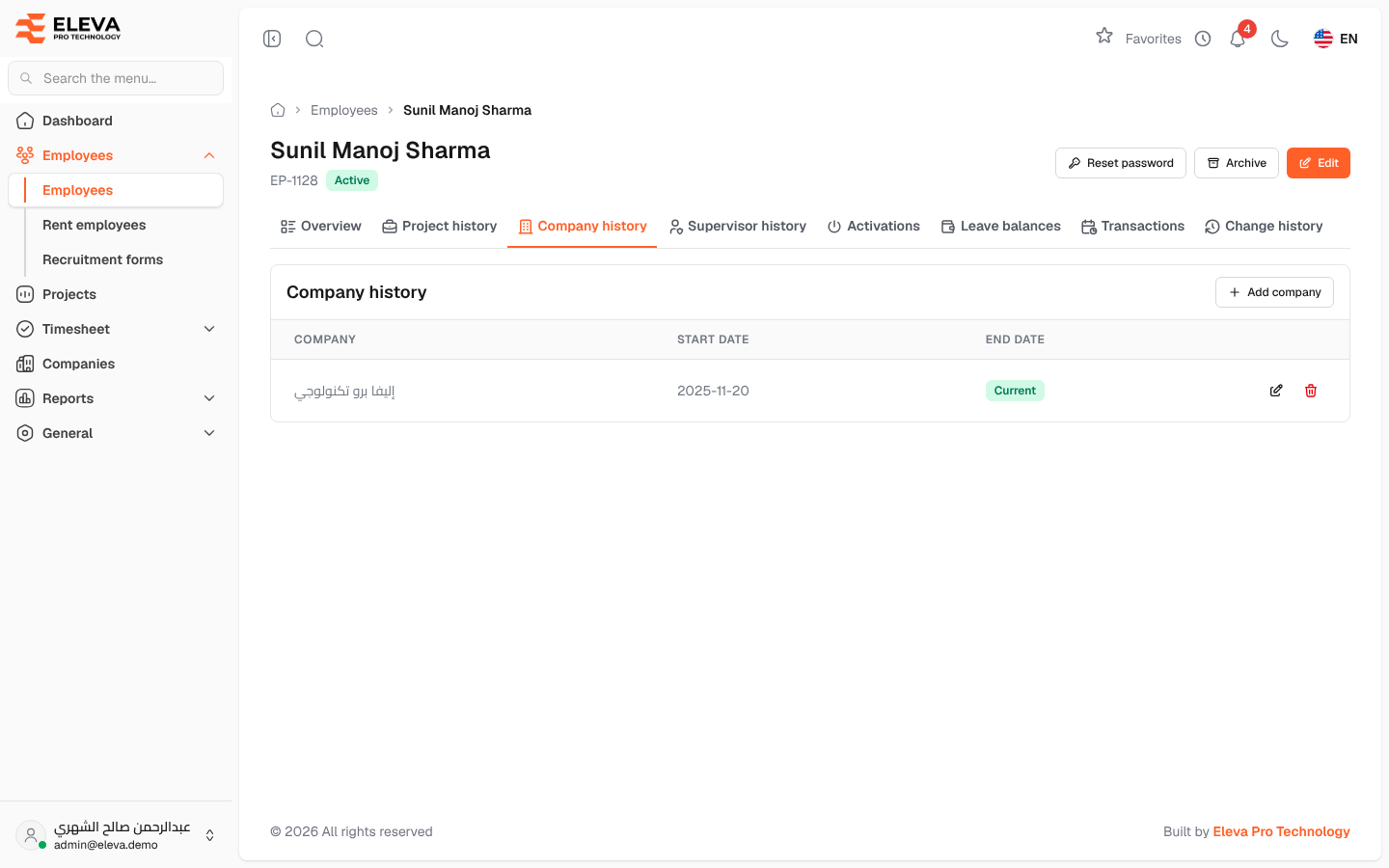
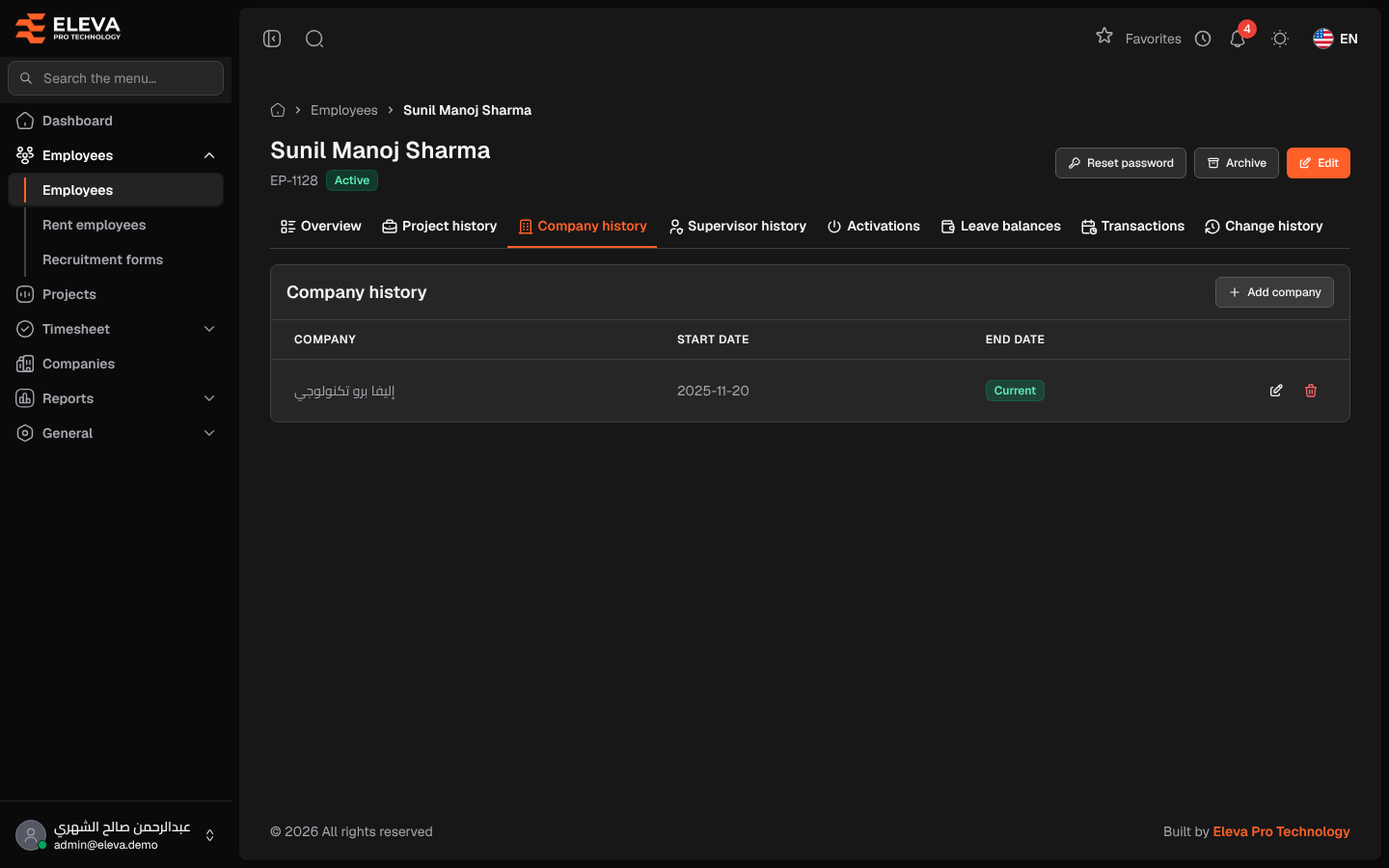
The Company history tab of an employee’s record lists the companies the employee has belonged to and when: the company itself, or a rental company. The row without an end date is the current company. Billing uses this history to know which company an employee belonged to on each date.
From the side menu, open Employees › Employees, click the employee, then the Company history tab.
Columns
Section titled “Columns”- Company
- Start date
- End date: the date the employee left that company, or Current when the row is still open.
- Actions: Edit and Delete.
The table shows 10 rows per page.
How to add a company
Section titled “How to add a company”- Click Add company.
- Choose the Company.
- Enter the Start date (today by default) and, if needed, the End date (optional).
- Click Add row.
A row without an end date becomes the employee’s current company.
How to correct or delete a row
Section titled “How to correct or delete a row”- Click Edit in the row. You can change the Company, the Start date and the End date (optional). Click Save row.
- To remove a row, click Delete and confirm with Delete.
The end date cannot be before the start date. After a change, the employee’s current company is updated to match the open row.
Required permissions
Section titled “Required permissions”- Employee Companies › View to see the tab.
- Employee Companies › Create, Edit and Delete to add, edit or delete a row.