

Employee overview
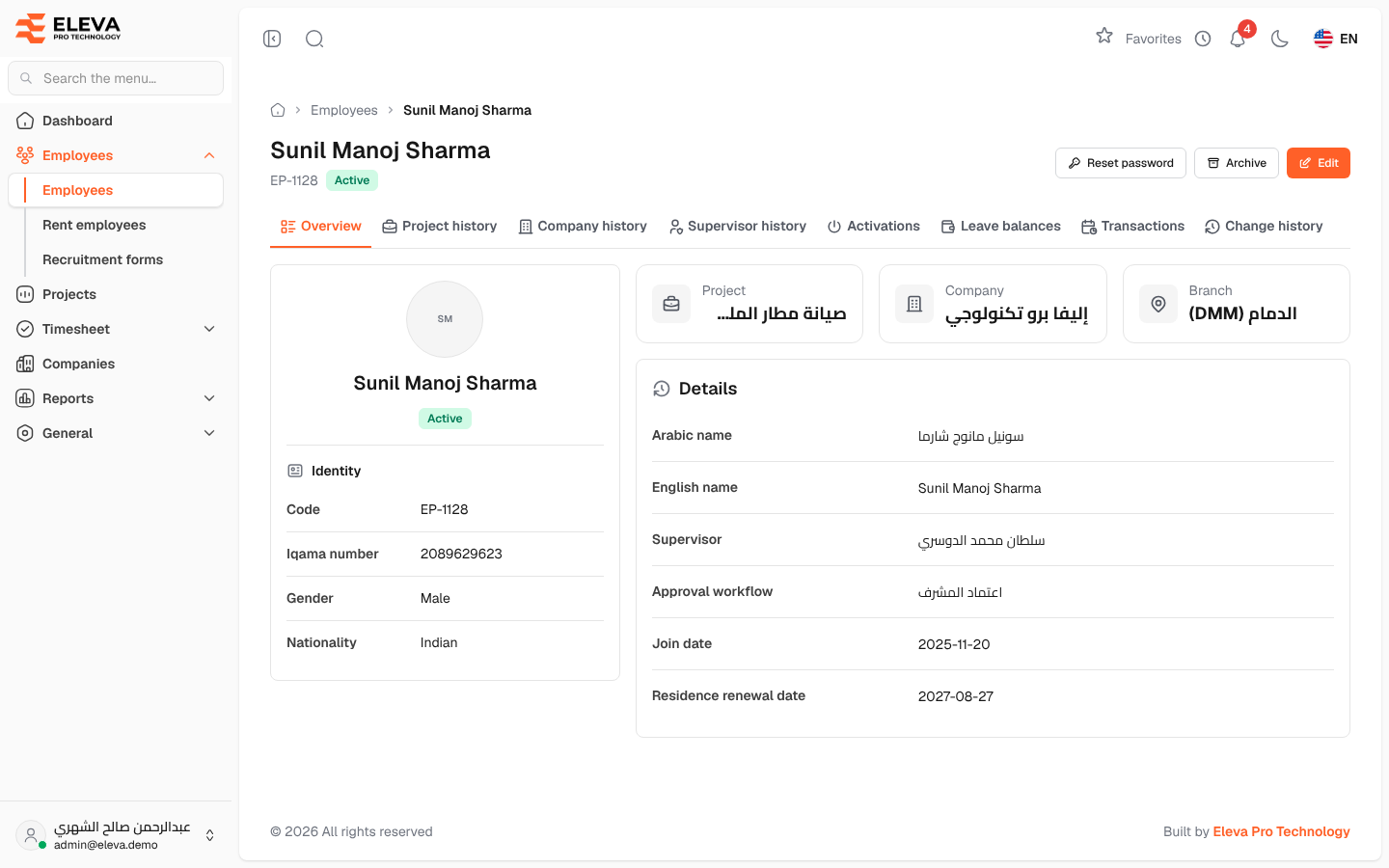
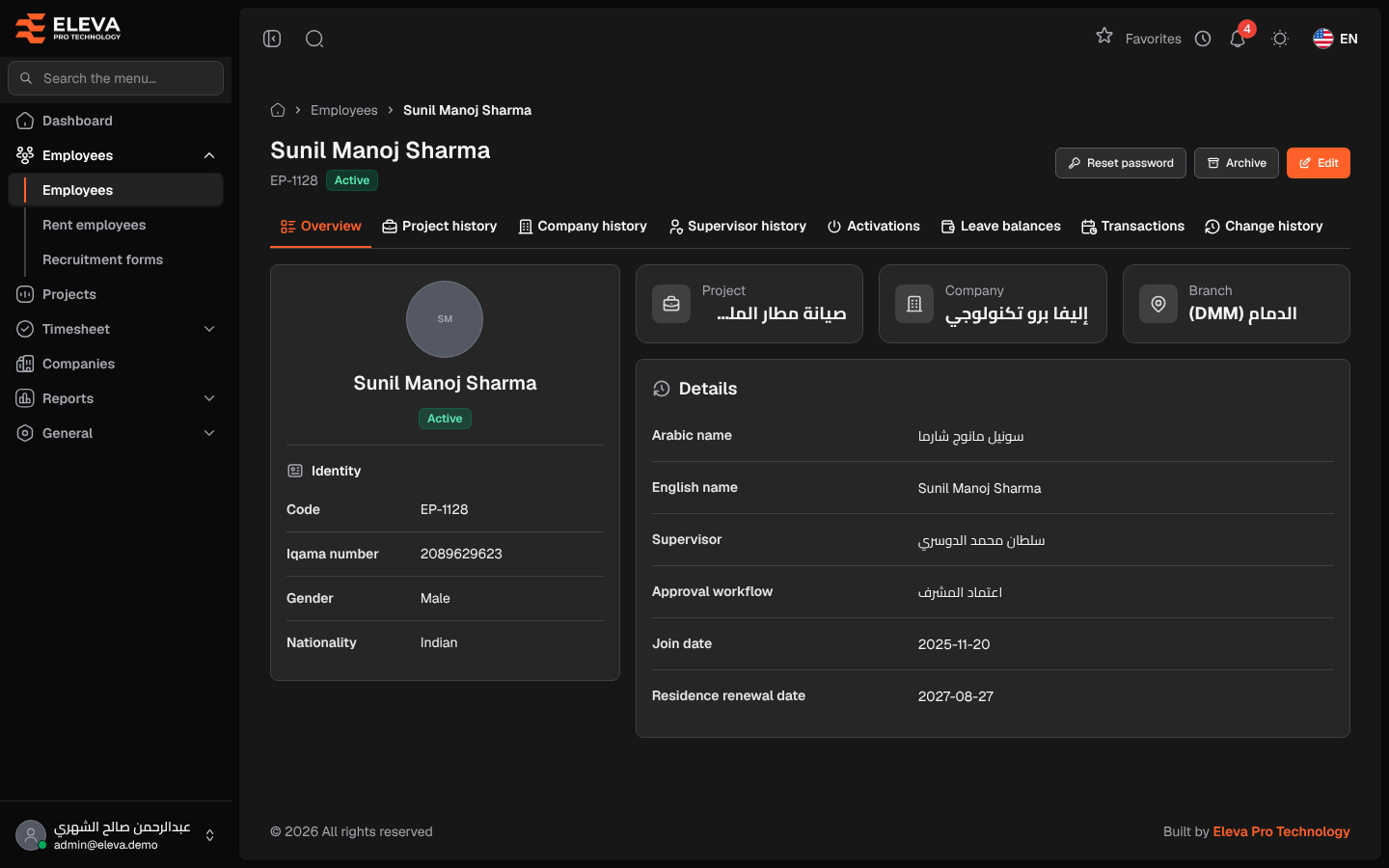
The employee record brings together everything about one employee: their details on the Overview tab, and their history on the other tabs. Open it when you need to check an employee’s data, reset their portal password, edit or archive them.
From the side menu, open Employees › Employees and click the employee in the list.
What’s on this screen
Section titled “What’s on this screen”At the top: the employee’s name, code and status, and the buttons available to you:
- Recruitment application: opens the application the employee was hired from (administrators and HR only, when there is one).
- Reset password: creates a temporary password for the employee portal (administrators only).
- Archive and Edit.
The tabs: Overview, Project history, Company history, Supervisor history, Activations, Leave balances, Transactions and Change history. You only see the tabs your role allows.
The Overview tab shows:
- A card with the employee’s initials, name, Active or Inactive, and Manager if they are a manager.
- Identity: Code, Iqama number, Gender and Nationality.
- Tiles for the current Project, Company and Branch.
- Details: Arabic name, English name, Supervisor, Approval workflow, Join date, Residence renewal date and, when set, Price per head.
How to reset an employee’s portal password
Section titled “How to reset an employee’s portal password”- Click Reset password, then confirm with Reset password.
- The Temporary password window shows the new password. Click Copy password, or select it and copy it.
- Give the password to the employee, then click Close.
How to archive an employee
Section titled “How to archive an employee”- Click Archive and confirm with Archive.
- The employees list opens. The employee’s history is kept.
An employee with transactions or reports cannot be archived; the system shows a message instead.
Required permissions
Section titled “Required permissions”- Employees › View to open the record.
- Employees › Edit and Delete for Edit and Archive.
- Reset password needs Employees › Edit and the administrator role.