

Timesheet months
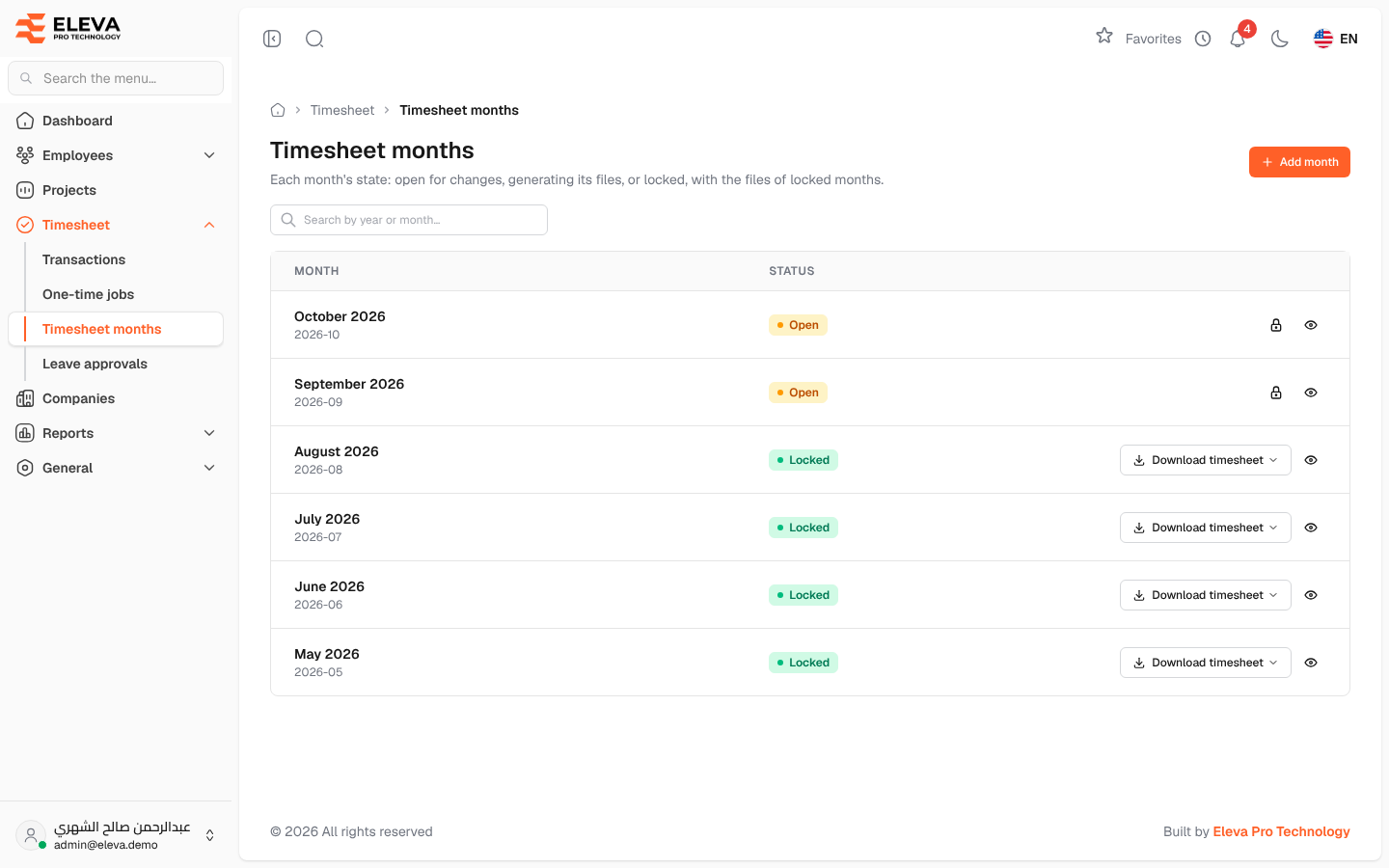
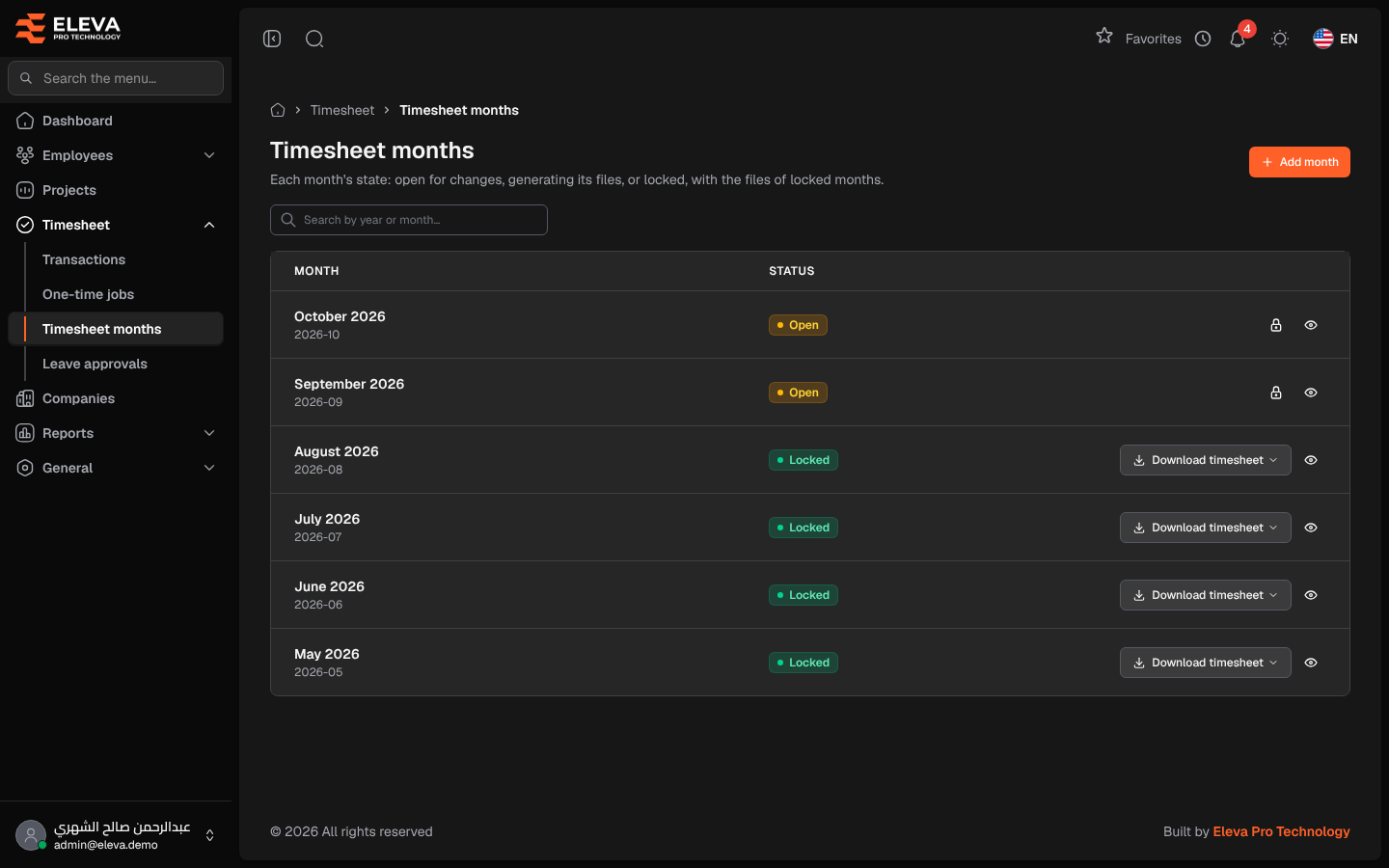
The Timesheet months screen lists the payroll months and the state of each one. A month is Open while transactions and one-time jobs can still be changed. When it is locked (usually by finance), the system builds the month’s timesheet files and the month becomes Locked, after which nothing in it can change. The files of locked months are downloaded from here.
From the side menu, open Timesheet › Timesheet months.
What’s on this screen
Section titled “What’s on this screen”- Add month — adds a new month.
- Search by year or month… — finds a month.
- The months table, newest first.
Columns
Section titled “Columns”- Month — the month name, with its year and number underneath (for example 2026-10).
- Status:
- Open — the month accepts changes.
- Generating files — the month is being locked. It is read-only, and the list refreshes on its own until the files are ready.
- Locked — the month is locked and read-only.
- Actions — Download timesheet (locked months), Lock month (open months) and Open timesheet.
How to add a month
Section titled “How to add a month”- Click Add month.
- Choose the Month and enter the Year (2020 or later). The current month and year are filled in.
- Click Add month. The month is added open for changes. Each month can exist only once per year.
How to lock a month
Section titled “How to lock a month”- Click the lock icon on an open month.
- Read the warning in the Lock month window and click Lock month.
- The status changes to Generating files. When the files are ready the month becomes Locked.
How to download the files
Section titled “How to download the files”On a locked month, click Download timesheet. If the month has files per company, choose All companies or one company’s timesheet. A supervisor gets a file with their own employees only.
Required permissions
Section titled “Required permissions”- Timesheet months — View to open the screen, Create to add months, Download to download files.
- Timesheet months — Lock to lock a month.