

Add project
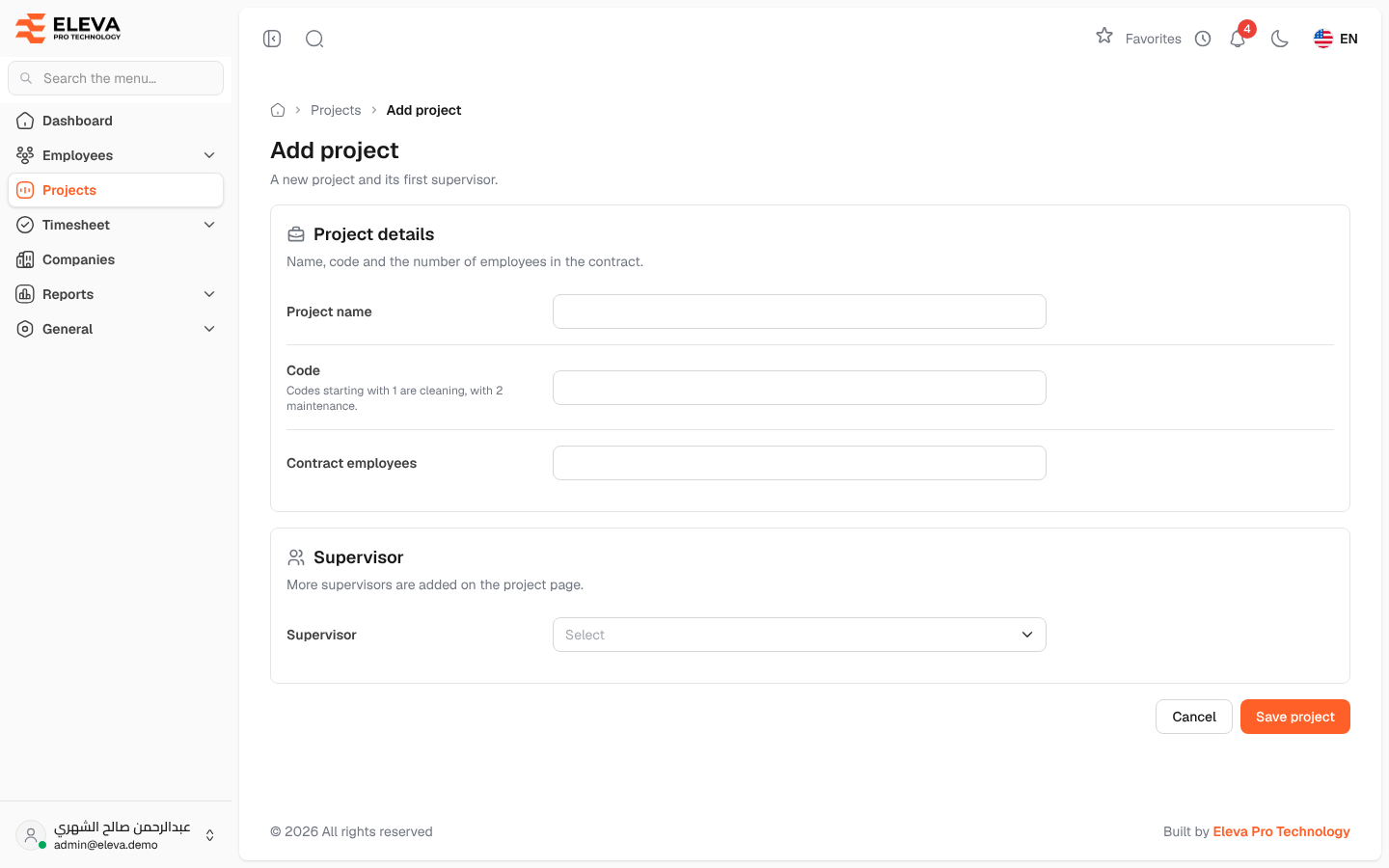
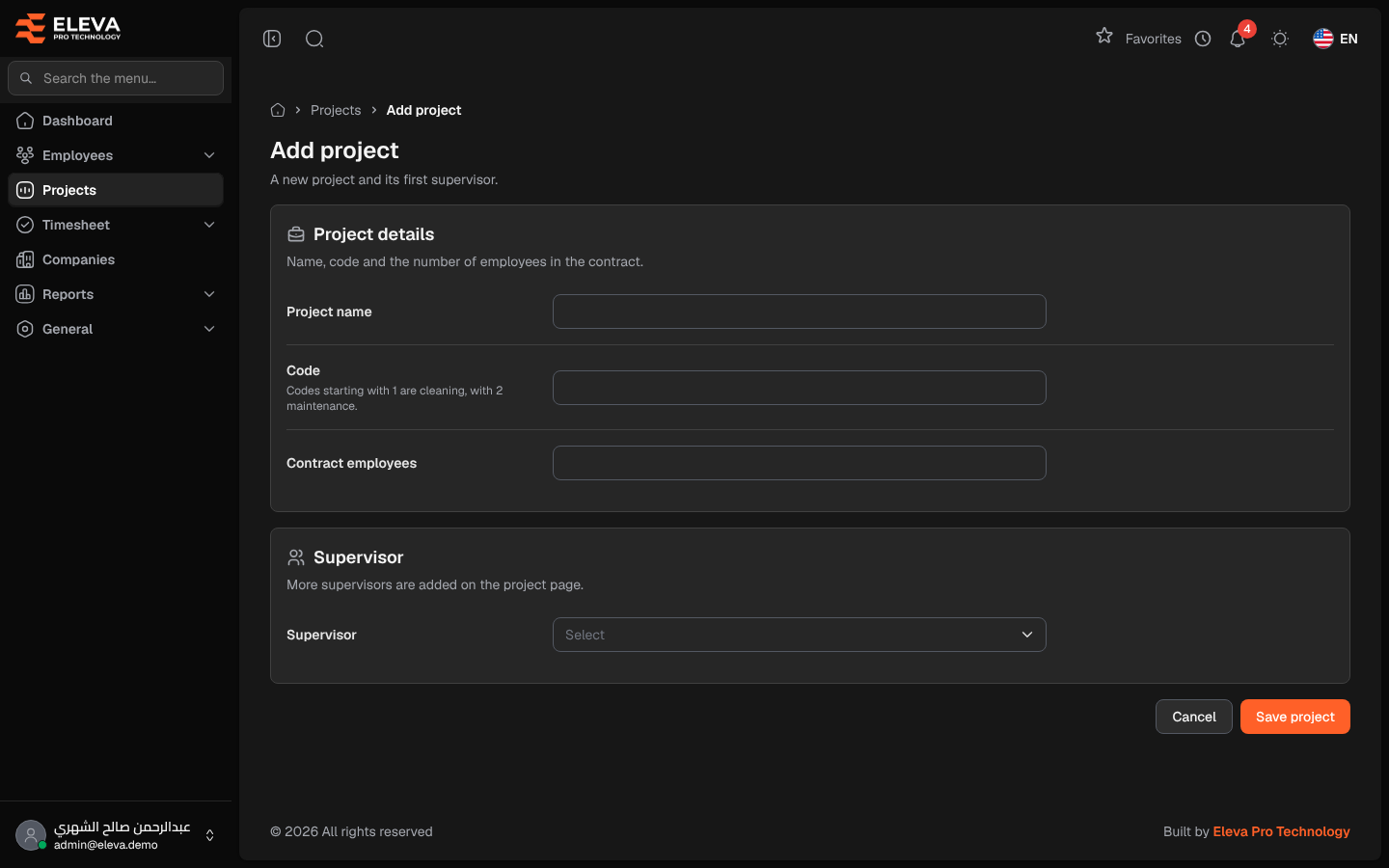
Add a project when a new contract starts and employees need to be assigned to it. The project’s contract count is what the projects list and reports compare the actual number of employees against, and the first supervisor you choose is linked to the project straight away.
How to add a project
Section titled “How to add a project”- From the side menu, open Projects.
- Click Add project.
- Fill in the fields described below.
- Click Save project, or Cancel to go back without saving.
- After saving you return to the projects list. Open the project to add employees and more supervisors.
Fields
Section titled “Fields”Project details
- Project name (required) — a clear name for the project.
- Code (required) — a unique project code. The first digit sets the work type: codes starting with 1 are cleaning, with 2 maintenance, anything else is other. The work type appears under the field as you type. A code already used by a deleted project cannot be reused.
- Contract employees (required) — the number of employees agreed in the contract; a whole number of 0 or more.
Supervisor
- Supervisor (required) — the project’s first supervisor. Only active users with the supervisor role are listed. More supervisors are added on the project page.
How to edit a project
Section titled “How to edit a project”- In the projects list, click the pencil icon, or open the project and click Edit project.
- Change the Project name, Code or Contract employees. The supervisor is not on this form; manage supervisors from the project’s Supervisors tab.
- Click Save changes.
Required permissions
Section titled “Required permissions”- Projects — Create to add a project.
- Projects — Edit to change one. A supervisor can only edit projects they supervise.