

Monthly reports
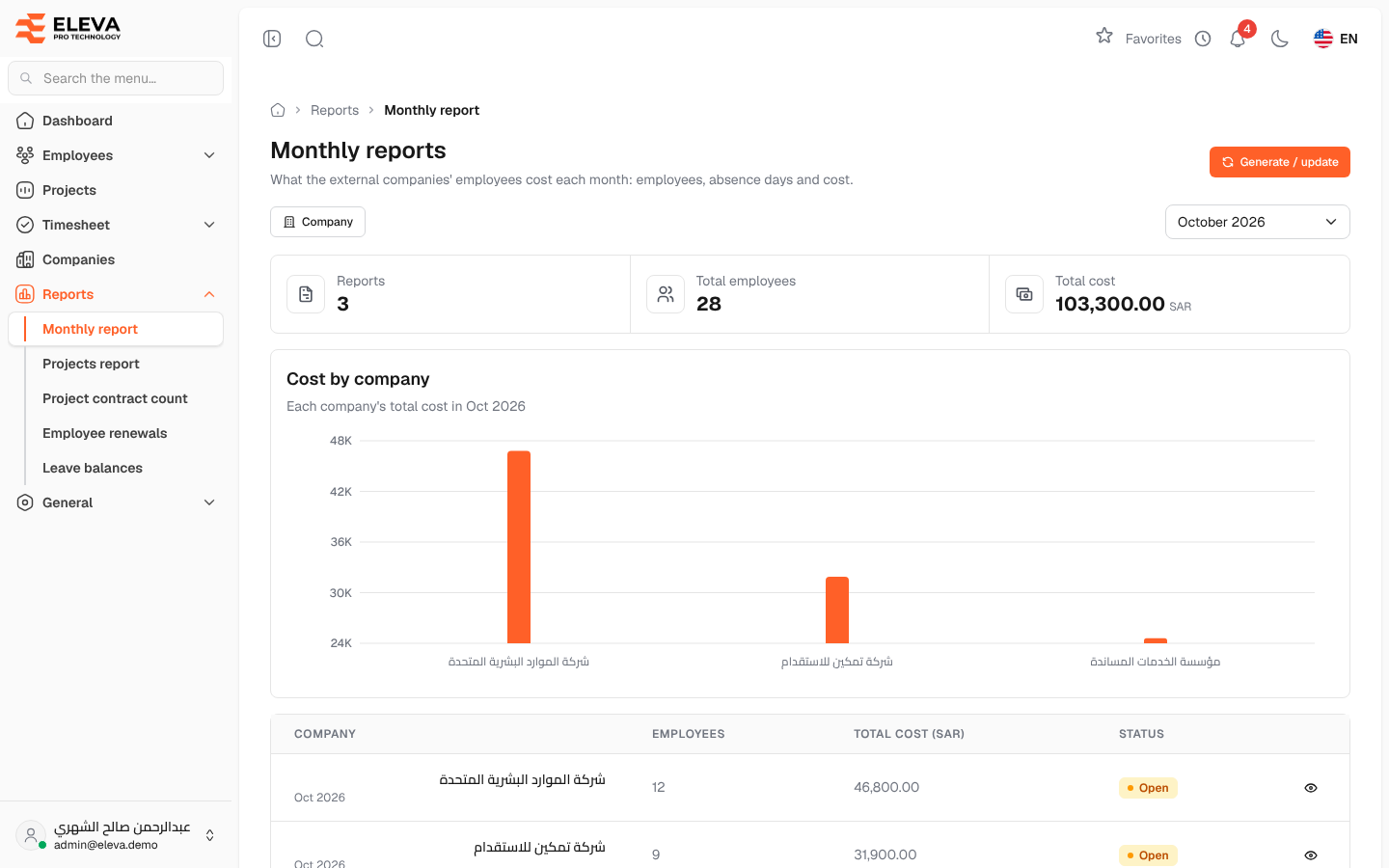
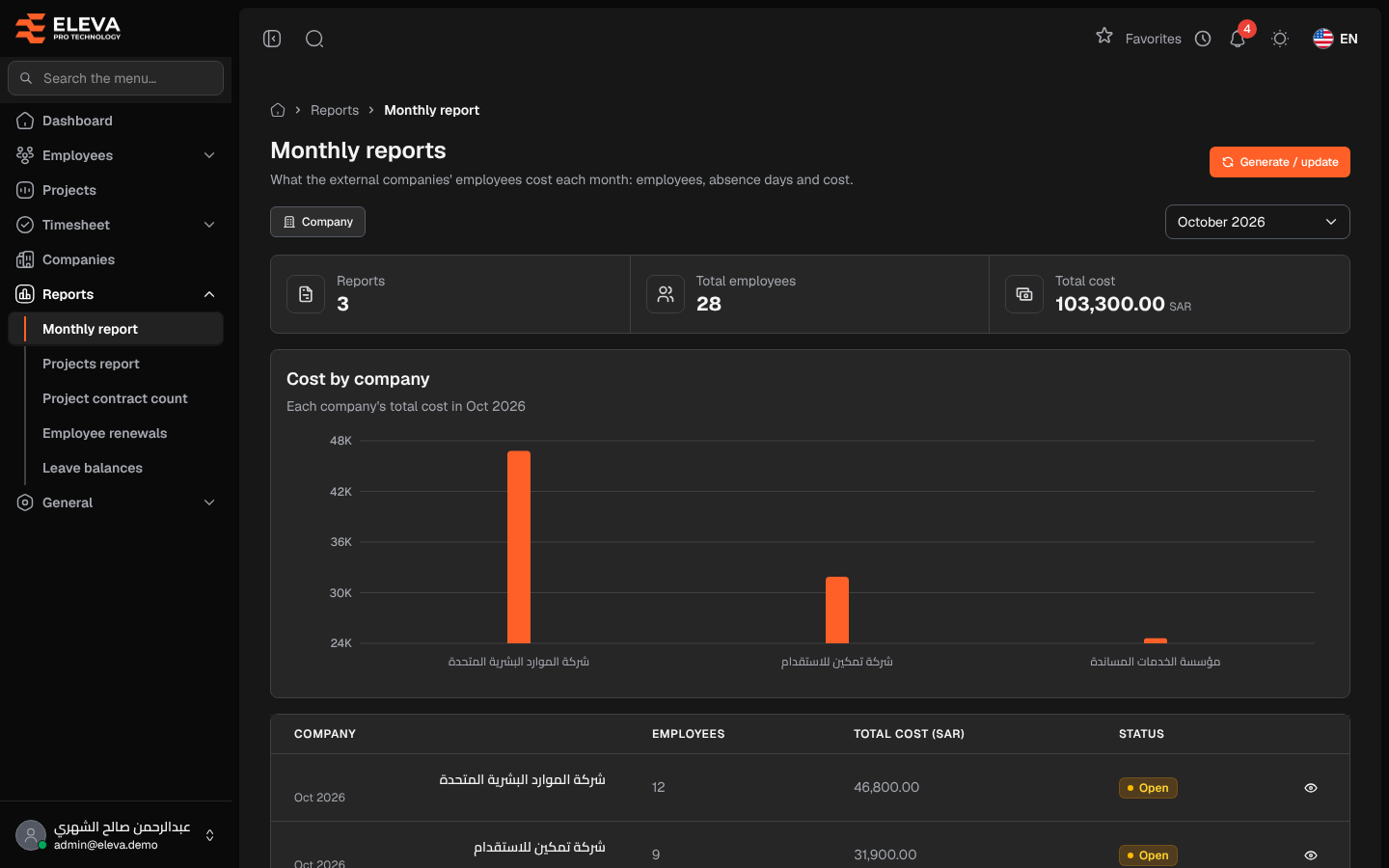
The Monthly reports screen shows what the employees of each external company cost in a month. There is one report per external company and month, with the number of employees and the total cost after absences. Use it to prepare and check the monthly billing of rent companies.
From the side menu, open Reports › Monthly report.
What’s on this screen
Section titled “What’s on this screen”- Generate / update — computes the current month’s reports again.
- Company filter and the month selector (the current month by default).
- Summary cards — Reports, Total employees and Total cost for the selected month.
- Cost by company chart — each company’s total cost, shown when the month has more than one report.
- The reports table, with a Total row when there is more than one report.
Columns
Section titled “Columns”- Company — the external company, with the month underneath.
- Employees — employees billed in the report.
- Total cost (SAR) — the company’s total cost for the month.
- Status — Open while the report can still be recalculated, Locked when it is final.
- Eye icon — View report.
How to generate or update the reports
Section titled “How to generate or update the reports”- Click Generate / update.
- Read the Generate or update the monthly reports window, which names the month that will be computed, and confirm with Generate / update.
- Wait for the success message. This can take a while.
If last month’s report is still open, it is updated first and locked once its timesheet month is locked. If no reports exist yet for the month, the table offers the same button.
Required permissions
Section titled “Required permissions”- Monthly report — View to open the screen, Create to generate or update.
- Supervisors see the list without the company-wide totals (no summary cards, chart, employee or cost columns). Opening a report shows only their own employees’ lines.